
Reports
Every PDF report and spreadsheet Gun Diary makes, in one list: what each one holds, which are free, and how to pick the firearm, dates and what to include.
Reports gathers every report Gun Diary makes in one list. Tap a report, pick the firearm, the dates and what to include, and make it as a PDF to print or send, or as a spreadsheet (CSV) to open in Numbers, Excel or Google Sheets. Spreadsheets are free (except the collection report); PDFs are part of Gun Diary Pro, except the lost or stolen report, which is free for everyone.
Steps
-
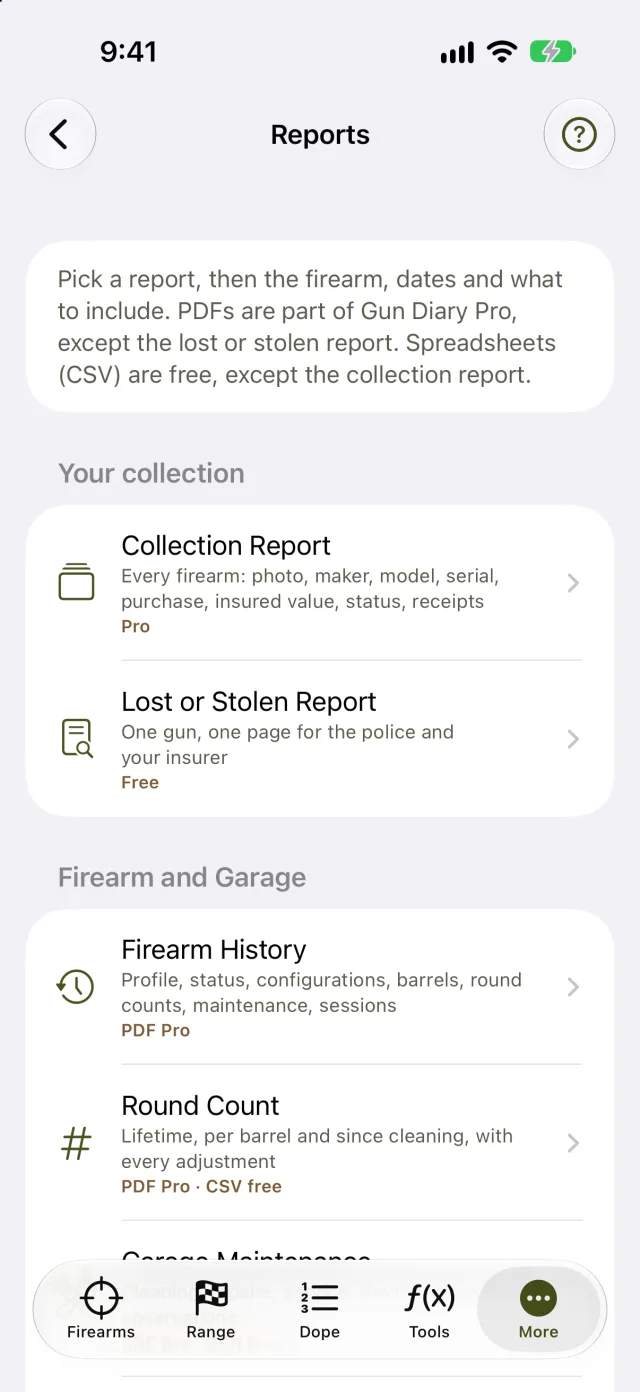
Tap the More tab, then Reports (under “Ammunition and records”).
-
Tap the report you want. Each row shows its name, what it holds, and a badge: Free, Pro, PDF Pro or PDF Pro · CSV free.
-
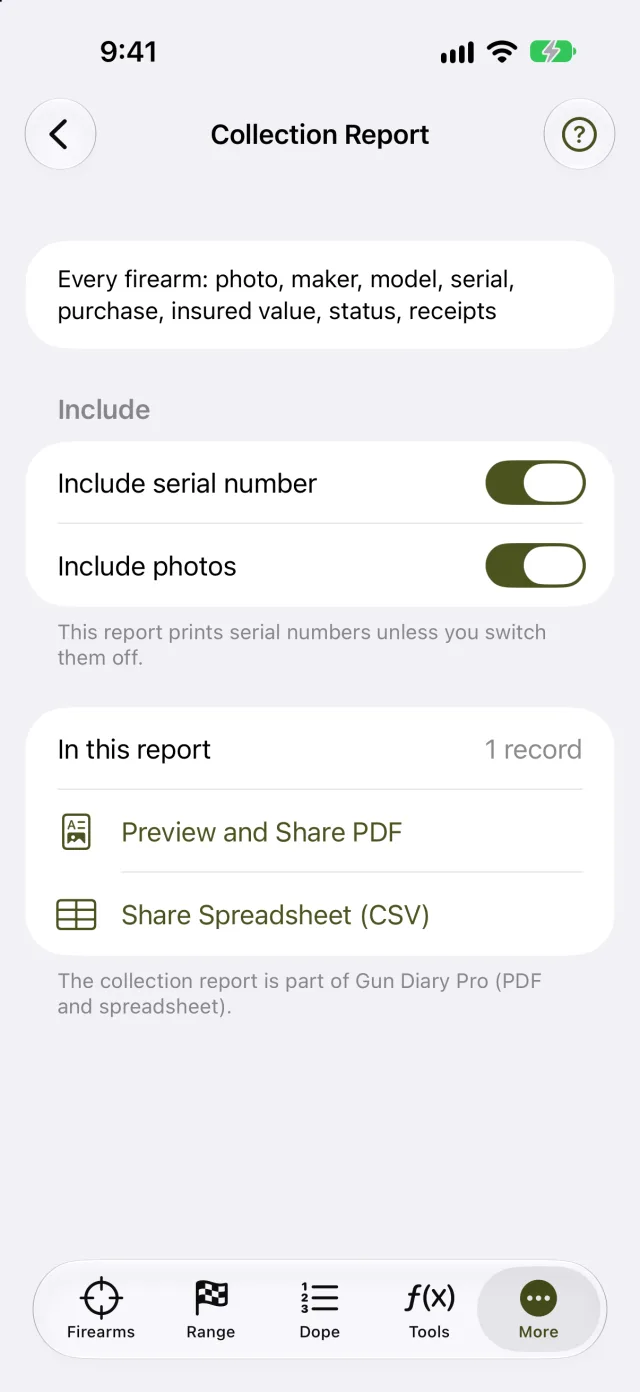
The report’s options screen opens. Set what it shows:
- Firearm: the firearm it covers. Some reports also offer All firearms.
- Dates (most reports): switch on From and To and pick the days, or tap This Year. Leave both off for every date.
- Include: Include serial number (on for the collection report, off for the others; the lost or stolen report has no switch because it always prints the serial), and for the collection report Include photos.
- For the dope table report: the Dope table to print and two switches (see Dope table report).
-
Check In this report: it counts the records the report will hold, or says Nothing yet.
- Tap Preview and Share PDF for a PDF, or Share Spreadsheet (CSV) for a spreadsheet. The PDF opens in a preview; the spreadsheet opens the share sheet. See Save and share PDF reports.
Reports for one firearm. On a firearm’s dashboard, in the Reports card, tap All Reports for This Firearm. The same list opens, titled with the firearm’s name (for example “Reports: Mountain Rifle”), and every report starts on that firearm. This list leaves out the collection report and the Your data rows, and shows Lost or Stolen Report under This firearm.
Why it’s useful
Your diary lives on your iPhone, but records are often needed somewhere else: on paper at a gunsmith’s counter, in an email to your insurer, in a police report, in a binder of match results, or in a spreadsheet where you want to ask your own questions. Reports turn what you recorded into a clean, dated document that names the firearm it covers, so it still makes sense years later or to someone who has never seen the app.
Who uses it, and how:
- Collectors and anyone insuring their guns print the Collection Report: every firearm with maker, model, serial, purchase and insured value, in one list for the insurer’s file.
- Anyone whose gun goes missing makes the free Lost or Stolen Report: one page with the serial number, description, photo and report numbers, ready for the police.
- New gun owners and anyone selling or handing down a gun print the Firearm History: its setups, barrels, round counts, maintenance and sessions.
- Owners who track wear use Round Count and Garage Maintenance before a barrel change or a visit to the gunsmith.
- Long-range shooters print the Dope Table with its proof and conditions, and the Zero History for each rifle.
- Hunters keep a Hunt Log per season; shotgunners compare chokes with the Pattern Report; competitors track scores and hit factors with Competition and Drills.
- Spreadsheet users take the CSV of any report, or everything at once with Export all your data.
What’s on the Reports screen
The footer under Shooting says “Session reports are on each session”: open a session and use its menu for Session Report PDF. See A session.
Reports that come and go. The Dope and the field rows follow your choices in Personalize your diary: if you hide dope, hunting, patterns or competition, the Dope Table, Hunt Log, Pattern Report or Competition and Drills row is hidden too (Zero History always shows). Your records and their spreadsheets in Export All Data are untouched.
On every report’s options screen
Other places that make the same reports (the Garage, Zero History, Hunt Log and Patterns links and the dope table’s Report Options open the same options screen; the buttons marked “straight away” make the report at once):
- The Garage, Garage reports: Maintenance Report (PDF or CSV), Round Count Report (PDF or CSV), Safety Observations Report (PDF or CSV). See The Garage.
- A dope table: Dope Table PDF and Dope Table Spreadsheet (CSV) (straight away, for that table), and Report Options. See Dope table.
- The document button at the top right of Zero History (Zero History Report), the Hunt Log (Hunt Log Report) and Patterns (Pattern Report).
- A firearm’s dashboard: Firearm History PDF in its menu and in its Reports card (straight away, all dates, no serial number), and Lost or Stolen Report (free) in the Reports card. The Garage’s Maintenance PDF at the top right also makes its PDF straight away.
Every PDF is US Letter size (8.5 x 11 in), opens in a preview first, starts with the report’s title, the firearm it covers (or “All firearms”) and when it was prepared, and has a footer on every page: “Gun Diary”, the report’s name, the firearm, and the page number. Reports about the Example Rifle say “EXAMPLE: made-up records to show how Gun Diary works.” under the title (the dope table report says “EXAMPLE, NOT REAL DOPE”; the collection report marks it “(Example)”).
Example
You’re taking your Mountain Rifle (6.5 Creedmoor) to a gunsmith for a new barrel and want to bring its records.
- More > Reports > Garage Maintenance. Firearm: F002 Mountain Rifle. You tap This Year; the footer reads “Jan 1, 2026 to Nov 26, 2026”. In this report: 4 records.
- Include serial number stays off: the gunsmith doesn’t need it on paper.
- Preview and Share PDF. The preview, titled “Garage maintenance – Mountain Rifle”, lists M003 “Cleaning” on Sep 2, 2026 at 1,412 rounds, M004 “Professional service: trigger set to 2.5 lb” on Oct 1, 2026 at 1,455 rounds, and two more entries.
- Share > Mail, and you send it to the shop.
- Back on Reports you open Round Count for the same rifle and tap Share Spreadsheet (CSV) to keep the numbers in a spreadsheet: free, even without Pro.
Tips
- Make a Collection Report once a year and keep it with your insurance papers. Keep a backup too.
- Fill in the firearm first. Reports print what you recorded. A serial number, a photo and the purchase details make the collection and lost or stolen reports useful on the day you need them.
- Use the CSV for numbers, the PDF for people. A spreadsheet is better for charts; a PDF is better for a gunsmith, a buyer or a binder.
- Leave the serial off what you share. Serial numbers print by default only on the two reports that need them.
- Read the preview before sending. Reports can hold your notes.
What it affects
Nothing in your diary. Making a report reads your records and builds a new file each time; it doesn’t change, lock or mark anything, and the options you pick aren’t saved (each report starts fresh). PDFs and spreadsheets aren’t kept in the app: save the ones you want (see Save and share PDF reports).
If something goes wrong
- “PDF reports are part of Gun Diary Pro”. That’s the Pro screen. Every PDF on this list is Pro except the lost or stolen report; the spreadsheets (except the collection report) and Export All Data stay free. See Compare Free and Pro.
- “Pick a firearm for this report” (or “Pick a dope table for this report”). Tapping a share button with nothing picked shows what’s missing at the top. Pick it there. With no firearms at all: “Add a firearm first: reports cover what you recorded”.
- The footer says “Add a firearm first: reports cover what you recorded.” Every firearm is deleted or none was added. Add one, or restore it from Recently Deleted.
- In this report says Nothing yet. Nothing matches the firearm and dates. Turn off From and To, or pick another firearm. The PDF still opens and says so (for example “No maintenance in this range.”).
- A report I want isn’t in the list. Dope Table, Hunt Log, Pattern Report and Competition and Drills hide when dope, hunting, patterns or competition is hidden in Personalize your diary. Zero History always shows.
- The serial number didn’t print. On every report except the collection and lost or stolen reports, switch Include serial number on, and pick one firearm (not All firearms). The serial comes from the firearm’s details; see Edit a firearm.
Related
- Next: Save and share PDF reports: preview, print, save to Files or send any PDF.
- Each report: Collection report, Lost or stolen report, Firearm history report, Round count report, Maintenance report, Safety observations report, Dope table report, Zero history report, Hunt log report, Pattern report, Competition and drills report.
- Export all your data: everything, free, as spreadsheets and photos.
- Learning path: Keeping your collection’s records.
- Words used here: Pro, CSV, serial number.
Still stuck? In the app, open More > Help > Contact Support, or More > Settings > Support, which also has Send Error Log (the error log helps us find the problem), or email contact@setriksoftware.com. You can also browse the Help Center or the messages the app can show.