
Dope table report
Print or export a dope table with its proven come-ups, clicks, proof and conditions, its wind and lead holds, and if you choose the in-between (est.) rows and the earlier values each distance once had.
The Dope Table report prints one dope table in full: every proven come-up with its clicks, the group or session that proved it, when, and in what conditions; the table’s wind and lead holds; and, if you choose, the in-between rows (marked est.) and the earlier values each distance had before you re-proved it. It’s the full record behind your dope card. The PDF is part of Gun Diary Pro; the spreadsheet is free.
Steps
- Tap More > Reports > Dope Table (under Dope and the field). Or, on a dope table, tap Report Options.
-
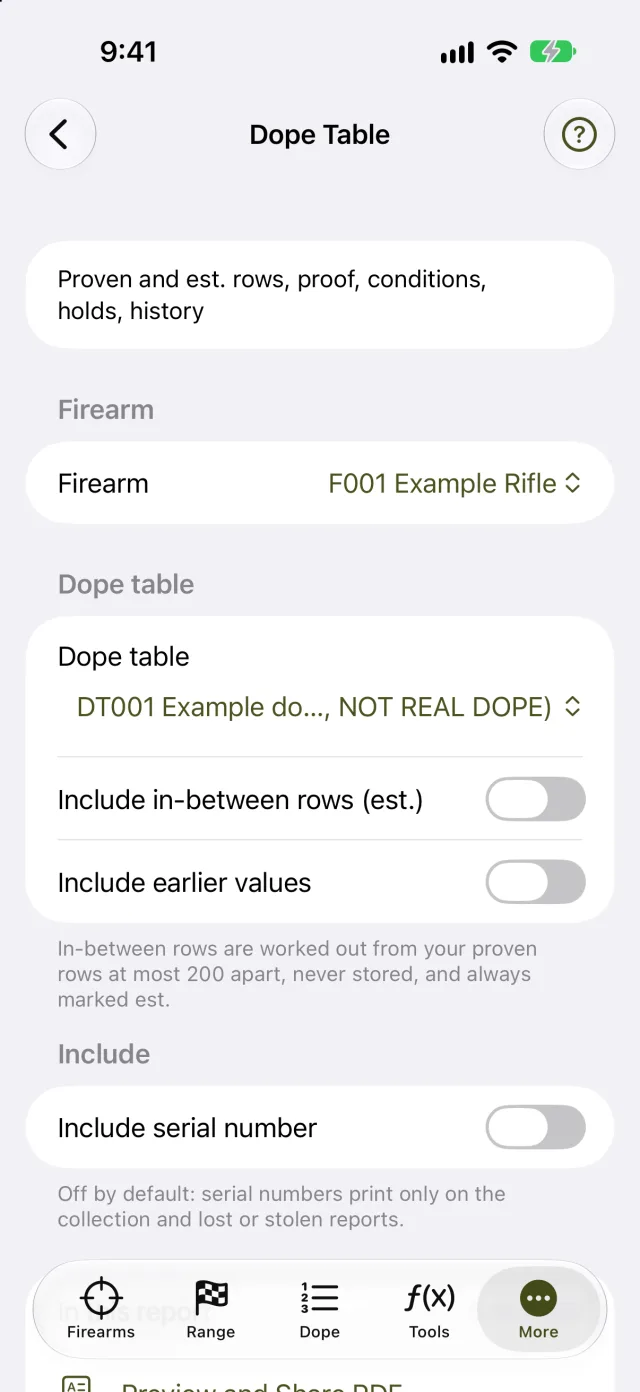
Pick the firearm next to Firearm, then the table next to Dope table. From Reports, the firearm’s first table that isn’t archived is picked for you; from Report Options, the table you came from is picked.
-
Switch on Include in-between rows (est.) to add the rows worked out between your proven ones.
- Switch on Include earlier values to add each distance’s replaced come-ups.
- Switch Include serial number on only if needed.
- Tap Preview and Share PDF or Share Spreadsheet (CSV).
Quicker: on a dope table, Dope Table PDF and Dope Table Spreadsheet (CSV) make that table’s report at once, with the in-between rows only if the table screen is showing them.
Why it’s useful
A dope card is small by design: distances and come-ups. The table behind it holds the evidence: which group proved each row, on what date, at what temperature and altitude, and what it used to be. Printing it gives you a data book page you can carry, file or share.
Who uses it, and how:
- Long-range and PRS shooters keep the full table in the data book, with proof and conditions, next to the dope card.
- Hunters carry the table for an elk or sheep rifle and check it was proven at similar altitude and temperature.
- Shooters re-proving after a change (new lot, new barrel) print earlier values to see how much each distance moved.
- Shooting partners and instructors compare tables on paper.
- Spreadsheet users chart come-up against distance from the CSV.
What’s on the Dope Table screen
There are no dates: a dope table is printed as it stands today.
What the PDF prints
- Title “Dope table DT003:” and the table’s name, the firearm, when it was prepared.
- For the Example Rifle‘s table, a large red “EXAMPLE, NOT REAL DOPE”.
- For a table proven with a setup the firearm no longer has, a warning beginning “Earlier setup:” with the reasons. See Earlier setup.
- The table’s details: Firearm, Ammunition, Lot, Setup (configuration and optic), Zero, Units, Clicks.
- Come-ups: Distance, Come-up, Clicks, Wind note, Confirmed, Proof (group and session codes, “From a group” or “Typed”), Conditions (temperature, pressure, altitude). In-between rows print in grey with “est.” and “Between proven rows”. With no rows: “No proven rows yet.”
- Wind and lead holds: each hold, “Proven” or “Entered”, and its date.
- Earlier values (when switched on): Distance, Come-up, Confirmed, Replaced, Proof.
- The table’s notes, then “Confirmed by the shooter; not a ballistic prediction.” and, when est. rows are in it, “Est. = estimated, not proven. Confirm at the range.”
File: “Dope table – DT003 – Mountain Rifle.pdf”.
What the spreadsheet holds (one row per come-up, earlier value or hold): Table code, Table, Firearm code, Firearm, Ammunition, Lot, Setup (“Current setup” or “Earlier setup”), Row (“Proven”, “Est. (between proven rows)”, “Earlier value”, “Wind hold” or “Lead hold“), Distance, Distance unit, Come-up or hold, Angle unit, Wind note or hold, Confirmed, Replaced, Proof, Conditions, Notes, Row ID.
Example
You want your Mountain Rifle’s 6.5 Creedmoor table in your data book.
- On table DT003 “Mountain Rifle · 140 gr”, tap Report Options.
- Check Dope table says DT003. Switch on Include earlier values.
- Preview and Share PDF. Come-ups shows 300 yd 1.6 mil (16 clicks at 0.1 mil), proof “G041, S018”, confirmed Sep 14, 2026, “61°F, 29.9 inHg, 4,500 ft”; 400 yd 2.7 mil (27 clicks); 500 yd 3.9 mil (39 clicks).
- Earlier values shows 500 yd 4.1 mil, confirmed Jun 2, 2026, replaced Sep 14, 2026 after the new lot.
- Share > Print, and it goes in the binder next to the dope card.
Tips
- Print est. rows only if you’ll mark them. They’re worked out, not proven; the report greys them and labels them est.
- Check the “Earlier setup” warning. If it shows, re-prove the table before trusting it. See Earlier setup.
- Use Report Options from the table itself: it opens on that table, so there’s nothing to pick.
- Make the card too. The report is the record; the dope card is what you shoot with.
What it affects
Nothing. The report reads the table and builds a new file; in-between rows are worked out for the report and never stored.
If something goes wrong
- The Pro screen opens. The PDF is Pro; the spreadsheet is free.
- “Pick a dope table for this report”. The firearm has dope tables but none is picked. Pick one under Dope table.
- “Pick a firearm with a dope table”. The firearm you picked has no dope table yet (its row is highlighted). Pick another firearm, or make a table first. See New dope table.
- The wrong table is picked. From Reports (or after you change the firearm) the options start on the firearm’s first table that isn’t archived. Pick yours next to Dope table, or open Report Options from the table itself.
- “No proven rows yet.” The table has no proven rows. See Add a dope row.
- No est. rows appear with the switch on. In-between rows are only worked out between proven rows at most 200 apart.
- The Dope Table row isn’t in Reports. Dope is hidden in Personalize your diary.
Related
- Next: Dope table: the screen this report prints.
- What confirmed dope is, In-between rows, Earlier setup, Proven holds.
- Make a dope card, Print a dope card at the right size.
- Learning path: Building your dope card.
- Words used here: dope, come-up, hold, click value, zero.
Gun Diary keeps records you enter and does arithmetic on them. It never predicts a trajectory; confirm every hold by shooting it at the range, and always know your target and what is beyond it.
Still stuck? In the app, open More > Help > Contact Support, or More > Settings > Support, which also has Send Error Log (the error log helps us find the problem), or email contact@setriksoftware.com. You can also browse the Help Center or the messages the app can show.