
Firearms and statusGun Diary Pro
Import a gun list
Bring a whole collection in from a spreadsheet (CSV): get the template, match your columns, check every row in the preview, fix problem rows, skip or keep possible duplicates, import, and remove an import that went wrong.
If your collection already lives in a spreadsheet, or in another app that can export one, you don’t need to type each gun again. Save the list as a CSV file, choose it in Gun Diary, check that each column went to the right field, look over every row, and import. Each row becomes a firearm with its details and an Original configuration. Anything that can’t be read is shown before a single gun is added, and a whole import can be removed later if something went wrong.
Choosing a file, matching the columns, the preview and the template are free, so you can see your file works before you buy. The Import button itself is part of Gun Diary Pro (the free diary holds one firearm).
Words used here
- CSV file: a plain spreadsheet file, one row per line, with the cells separated by commas. Numbers, Excel and Google Sheets can all save one (“Export To” > CSV, “Save As” > CSV, or “Download” > CSV). See CSV.
- Column: one kind of information in your file, like “Serial” or “Caliber“. The first row of the file holds the column names.
- Row: one gun. Row numbers in Gun Diary count the way a spreadsheet does: the column names are row 1, so your first gun is row 2.
- Matching: telling Gun Diary which of your columns holds which field.
Before you start
- The list must be a CSV file (or a tab-separated text file) in the Files app on this iPhone or iPad: in iCloud Drive or On My iPhone. A file on a computer can be AirDropped or saved to iCloud Drive first.
- The first row must be column names, and there must be at least one row of guns under it.
- Every gun needs a name, a maker or a model (with no name, the name is made from the maker and model).
- Make a backup first if your diary already holds records you care about. See Back up and restore.
Steps
Get the template (optional)
-
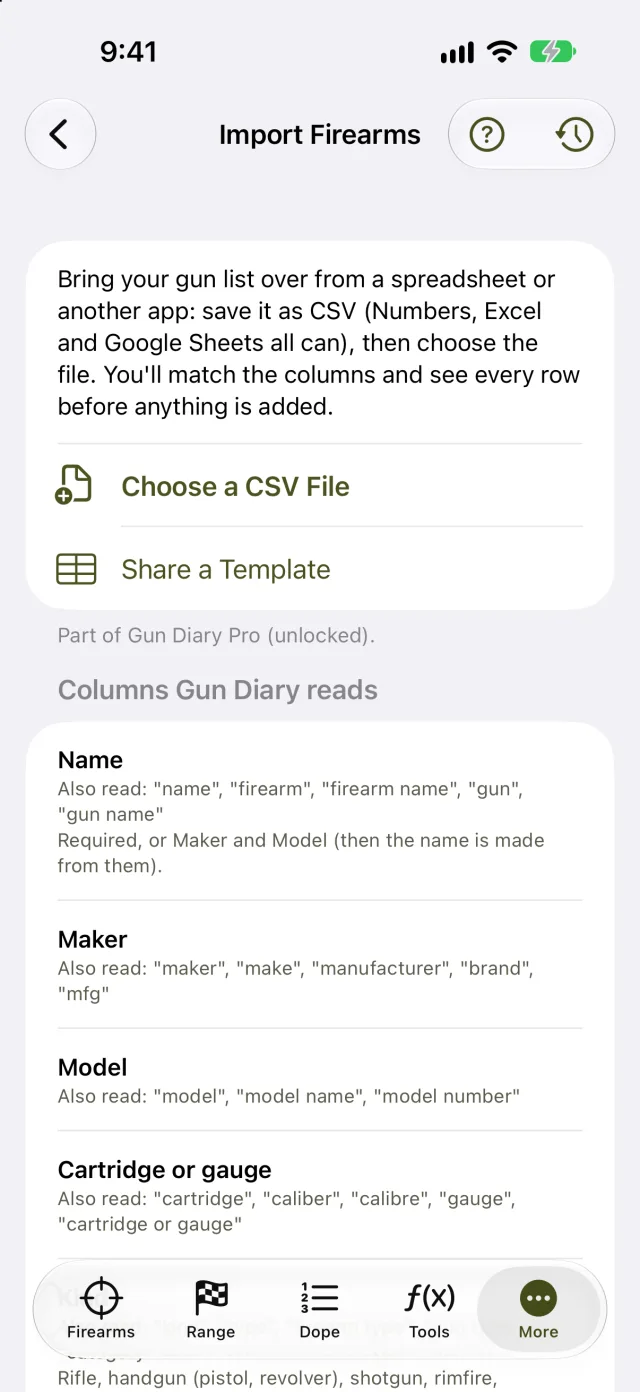
Tap the More tab, then Import Firearms (under Your data). It’s also in More > Reports > Import Firearms.
-
Tap Share a Template. The share sheet opens with a file named
Gun Diary gun list template.csv: every column Gun Diary reads, with one example row. - Choose Save to Files (or AirDrop it to your computer, or Mail it to yourself), open it in Numbers, Excel or Google Sheets, replace the example row with your guns, and save it again as CSV.
Choose your file
- On Import Firearms, tap Choose a CSV File.
- The file picker opens. Find your file (in Recents, or Browse > iCloud Drive or On My iPhone) and tap it.
- Gun Diary reads it and shows the File name, how many Rows of guns it found, and Choose a Different File if you picked the wrong one.
Match the columns
-
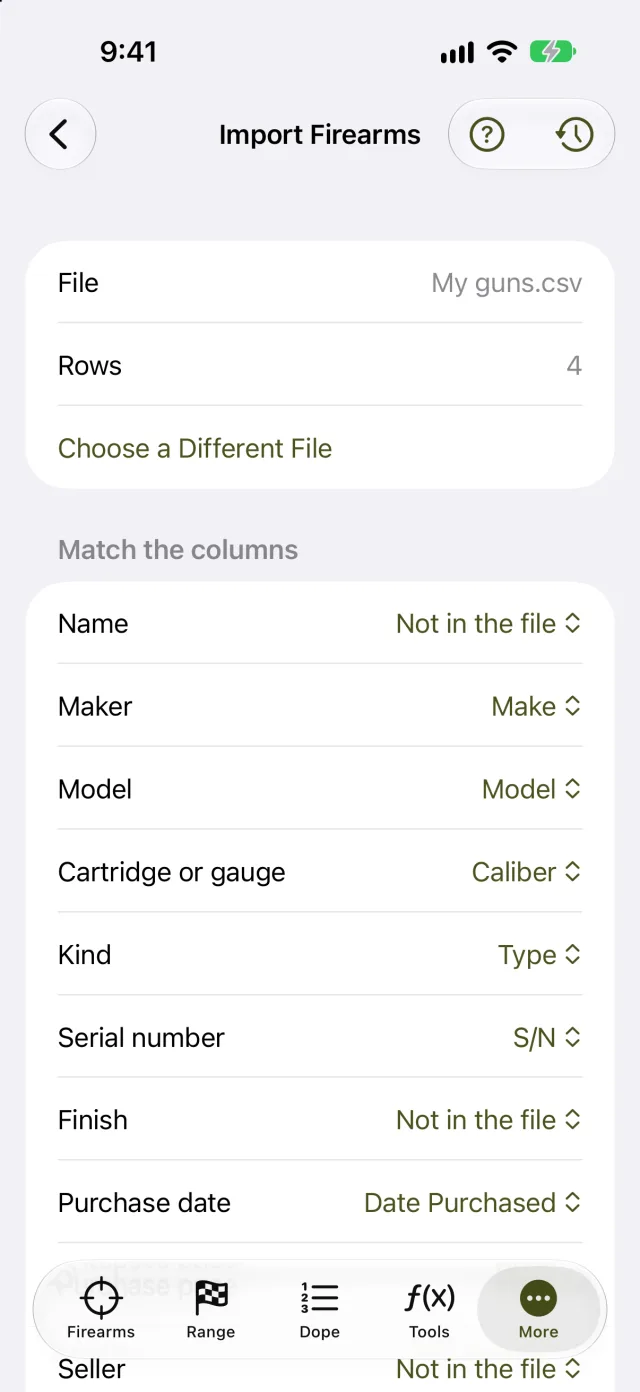
Under Match the columns, each Gun Diary field shows the column it was matched to, from your file’s first row. A field with no column shows Not in the file.
-
Tap a field to change its column, or pick Not in the file to leave it out. Each change updates the preview at once.
- If your columns have no names in the first row, they’re listed as “Column 1”, “Column 2″…
Check before importing
-
Scroll to Check before importing. It counts what will happen:
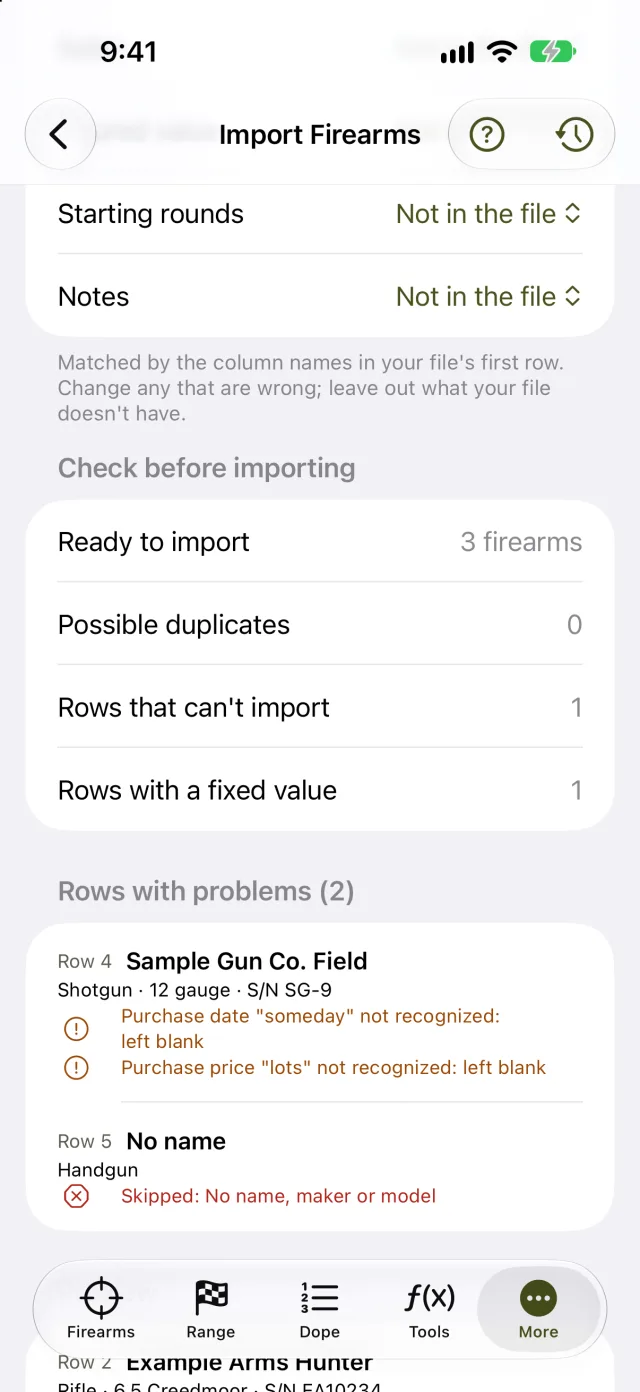
– Ready to import: guns that will be added. – Possible duplicates: rows that look like a gun already in your diary, or like an earlier row in the file. – Rows that can’t import: rows with no name, maker or model. – Rows with a fixed value: rows that will import, but with a value left blank or shortened. 2. Under Rows with problems, read each problem row: its row number, the name, kind, cartridge and serial number, and what’s wrong (the messages are listed under “Problem messages” below).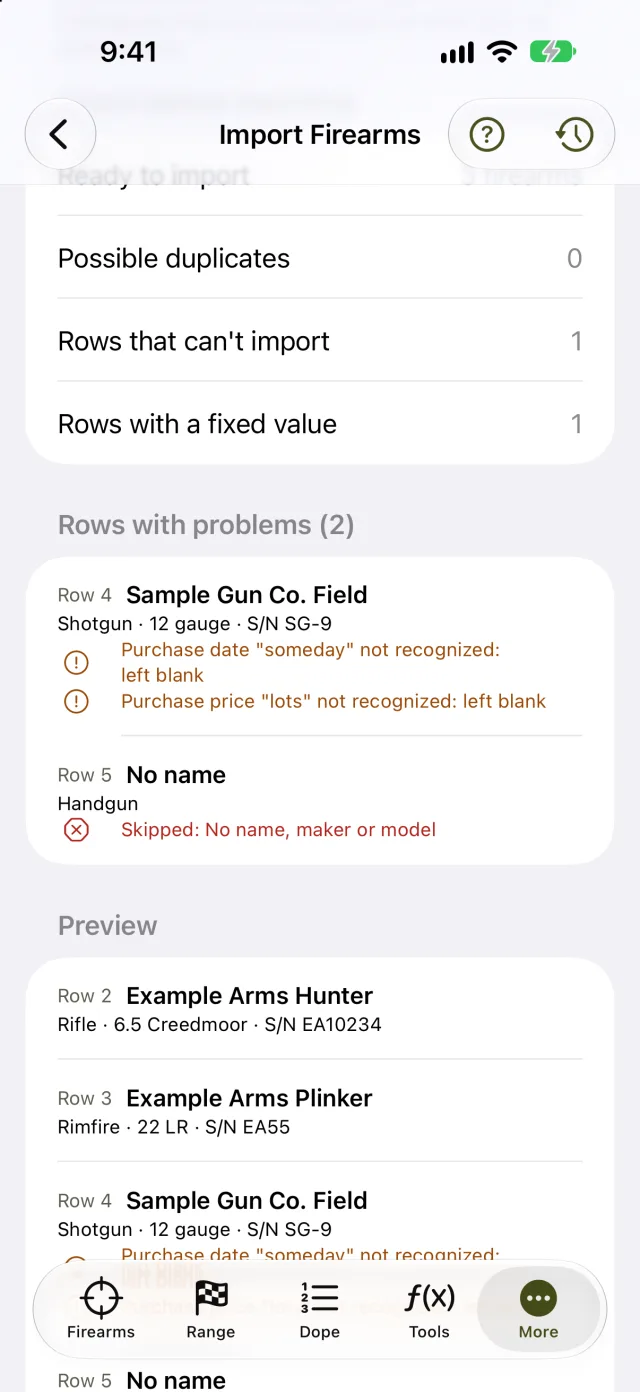
-
Under Preview, every row is shown the way it will be imported, 50 at a time. Use Previous and Next to page through a long list.
- To fix a problem row, change your spreadsheet, save it as CSV again and tap Choose a Different File. Or import now and fix the few guns afterwards with Edit Firearm.
Possible duplicates
- A row that matches a gun you already have (same serial number, or same name, maker and model) or an earlier row in the same file reads, for example, “Looks like F002 Mountain Rifle: skipped” or “Looks like row 3: skipped”.
- These rows are skipped unless you turn on Import possible duplicates anyway (under Check before importing; it appears only when there are possible duplicates). Turn it on only if they really are different guns, like two identical shotguns with no serial numbers typed.
Import
- Tap the import button at the bottom. It names the count, like Import 3 Firearms. When no row is ready it reads Import Firearms, and tapping it says why under the button and under Ready to import, which is outlined (for example, turn on Import possible duplicates anyway).
- Without Pro, the Pro screen opens: “Importing a gun list is part of Gun Diary Pro (your free diary holds one firearm)”. After buying, come back and tap it again; your file and matching are still there.
-
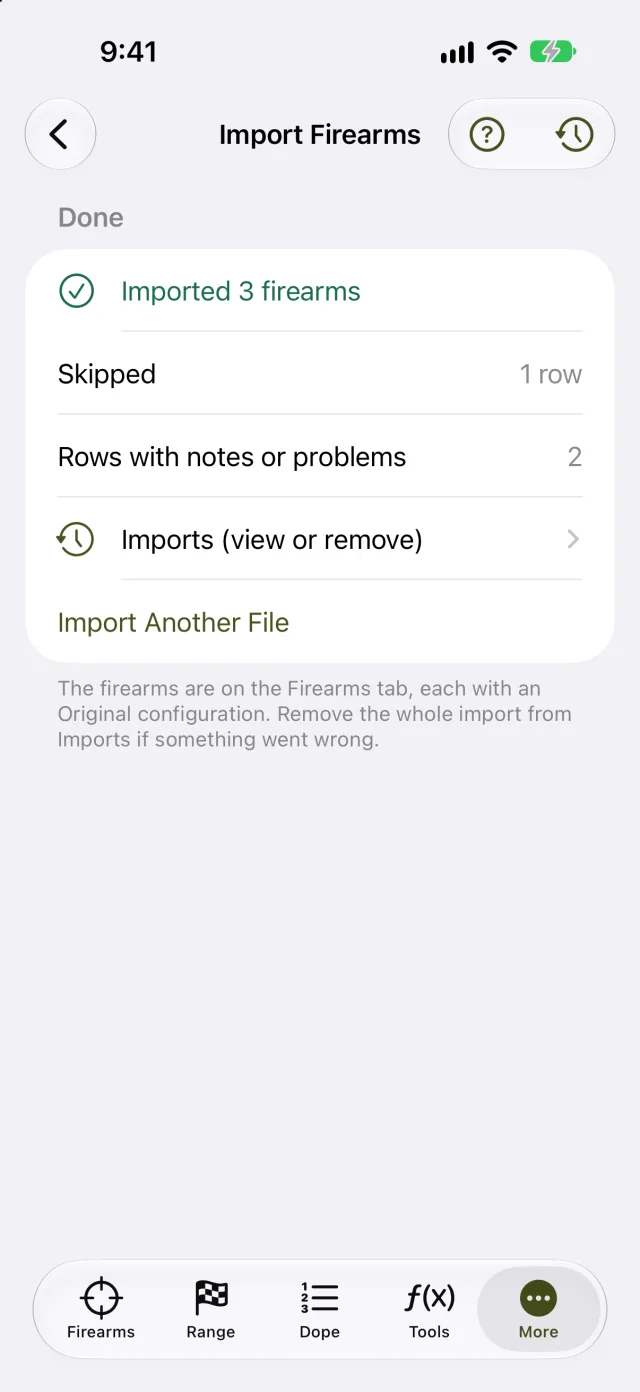
When it’s done, the Done section shows Imported with the count, Skipped rows, and Rows with notes or problems.
-
Tap Import Another File for the next list, or go to the Firearms tab to see the new guns.
See or remove an import
- On Import Firearms, tap the clock button at the top right (Imports), or Imports (view or remove) after an import.
-
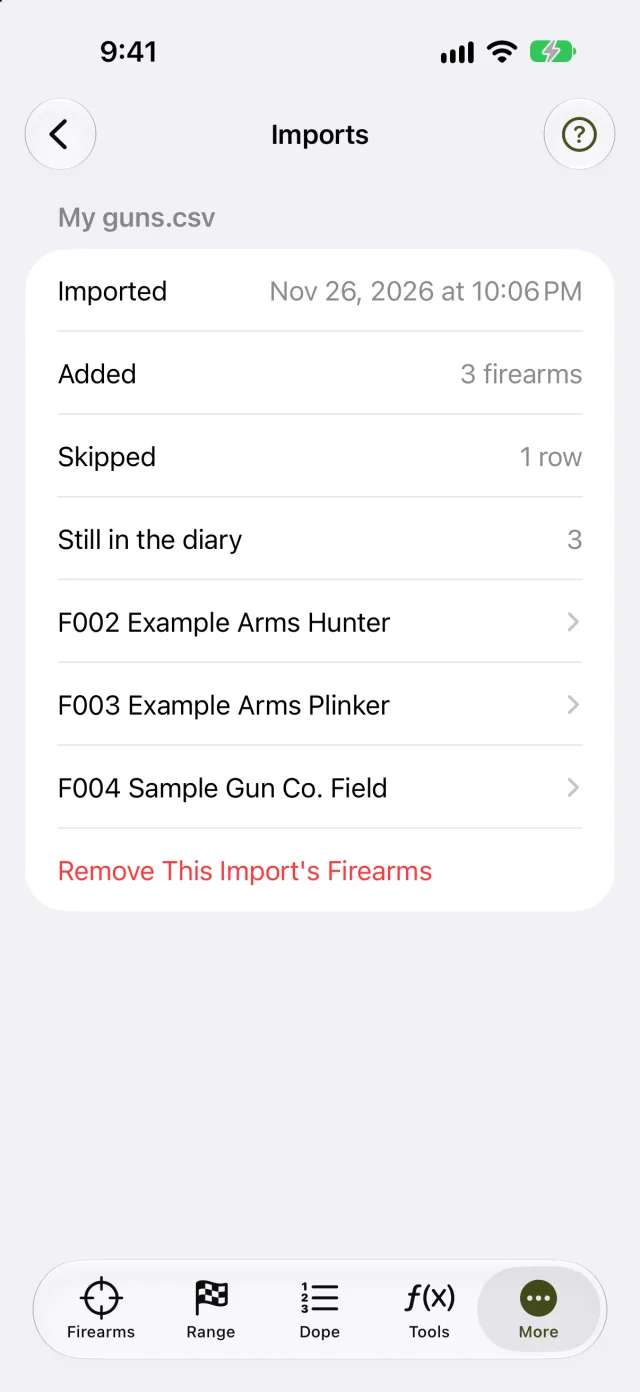
Each import is listed under its file name with when it was Imported, how many firearms were Added, how many rows were Skipped, and how many are Still in the diary, followed by those firearms (tap one to open it).
-
To undo an import, tap Remove This Import’s Firearms. The first step, Remove the firearms this import added?, says how many firearms and everything recorded on them go to Recently Deleted for 30 days. Tap Continue.
-
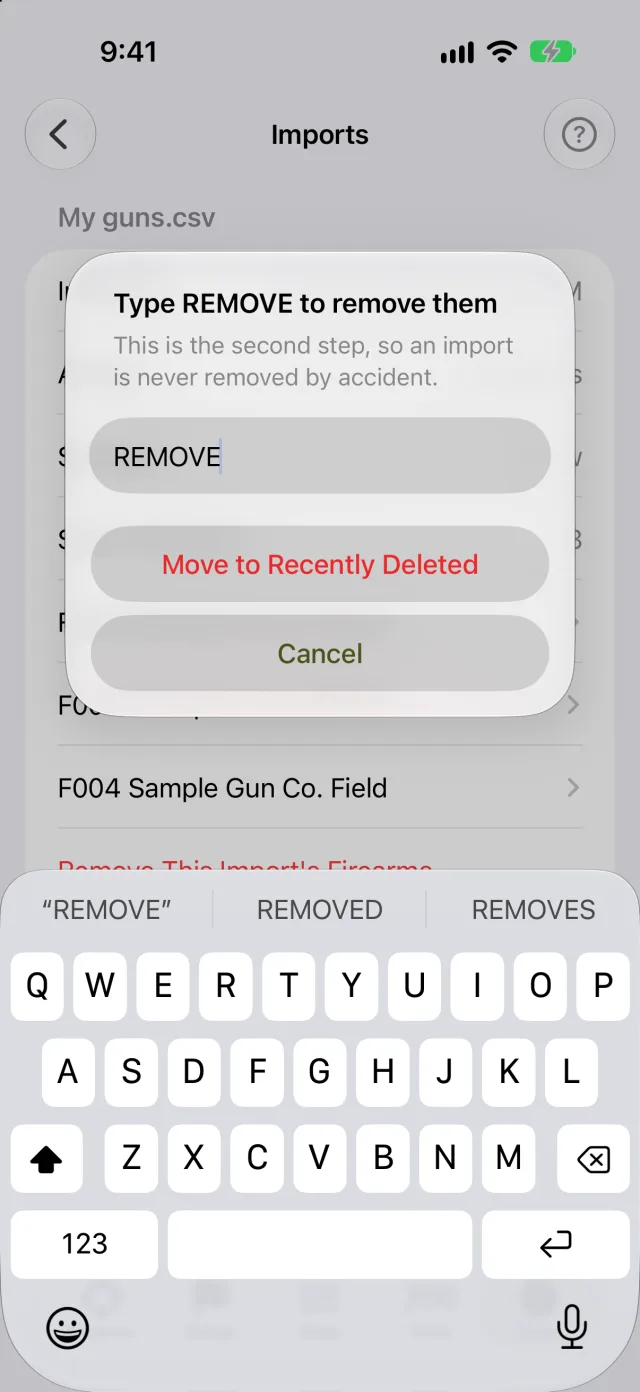
The second step says Type REMOVE to remove them. Type REMOVE and tap Move to Recently Deleted. A message confirms how many firearms moved.
How to check it worked
- The result: the Done section’s Imported count matches Ready to import from the preview.
- The Firearms tab: the new guns are there as cards, each with its own code (F002, F003…), kind and cartridge.
- Open one: the dashboard shows the maker and model; ••• > Edit Firearm shows the serial number, finish, purchase date and price, seller, insured value, rounds already fired and notes from your file.
- The Garage: Specs and Equipment shows an Original configuration, dated the purchase date when your file had one.
- The Imports screen: the import is listed with the same counts.
Why it’s useful
Typing thirty guns by hand, serial numbers and all, is an afternoon and a chance for a typo in the one number that matters most. A collector switching from a spreadsheet or another app should be able to bring the whole list across and check it, not retype it.
Who uses it, and how:
- Collectors bring the whole collection over with serial numbers, purchase details and insured values, ready for the collection report the insurer asks for.
- People switching from another gun app export their list as CSV and import it here; the column names are matched for them.
- Families putting an inherited collection on record type the list once in a spreadsheet, together, then import it.
- Clubs, ranges and instructors with loaner guns keep their rental guns’ list in one place.
- Hunters and shooters with a handful of guns use the template to get them all in at once, then add photos one by one.
- Anyone nervous about a big change: the preview shows every row before anything is added, and Remove takes the whole import back out.
What each option means
The columns Gun Diary reads
Column names are matched without regard to capitals, spaces or punctuation (“Serial #”, “serial no” and “SerialNumber” all match). Gun Diary first looks for the exact field name, then for the other names below; each column is used for one field only. The screen shows the first five other names under Columns Gun Diary reads; this is the full list.
Columns Gun Diary doesn’t read (photos, barrel length, scope, location…) are ignored. Add those afterwards in the app.
The template
Share a Template makes Gun Diary gun list template.csv with the thirteen column names above, in that order (Name, Maker, Model, Cartridge or gauge, Kind, Serial number, Finish, Purchase date, Purchase price, Seller, Insured value, Starting rounds, Notes), and one example row:
Name,Maker,Model,Cartridge or gauge,Kind,Serial number,Finish,Purchase date,Purchase price,Seller,Insured value,Starting rounds,Notes Deer Rifle,Example Arms,Model 70,.308 Win,Rifle,EX123456,"Blued, walnut stock",2019-10-04,$849.99,Local Gun Shop,"1,200",350,Grandfather's rifle
Delete the example row before importing, or it becomes a gun called “Deer Rifle”.
How the file is read
- Separators: commas, semicolons or tabs; Gun Diary uses whichever the first row has most of. Cells in quotes may hold commas, quotes (doubled) and line breaks.
- Text: UTF-8 (what Numbers, Excel and Google Sheets save) or older Windows and Latin text.
- Blank rows are skipped and don’t count. Spaces around a cell are trimmed.
Dates
Most formats are read: 2019-10-04, 10/4/2019 (month first), 10/4/19, 10/04/2019, 4.10.2019 (day first, with dots), 2019/10/04, Oct 4, 2019, Oct 4 2019, October 4, 2019, 4 Oct 2019, 4 October 2019, Oct 2019 and October 2019 (the 1st of the month), 2019-10, 10/2019, a date with a time, or just the year: 2019 is read as July 1, 2019. Years must be between 1800 and 2200. A date that can’t be read is left blank with a warning.
Money
Dollar, euro and pound signs, “USD”, spaces and thousands commas are removed: $1,249.99, 1249, USD 800 and €800 all work. A number written with a comma after the dot (1.249,99, European style) isn’t guessed: it’s left blank with a warning, so a wrong value never lands in your insurance records. Amounts are saved in your phone’s currency.
How Kind is read
The words are looked for anywhere in the cell: “rimfire”, “.22 LR” or “22LR” make Rimfire; “muzzle”, “black powder”, “flintlock” or “inline” make Muzzleloader; “shotgun” makes Shotgun; “pistol”, “revolver” or “handgun” make Handgun; “rifle”, “carbine” or “AR-15” make Rifle; “other” makes Other. So “Bolt rifle” is a Rifle and “Rimfire rifle” is Rimfire.
With no Kind column, or an empty cell, a gun whose cartridge mentions “gauge” is a Shotgun and everything else a Rifle. A Kind that isn’t recognized is set the same way, with a warning.
Problem messages
Rows that can’t import (skipped):
- Skipped: No name, maker or model — the row has nothing to name the gun by.
Possible duplicates (skipped unless Import possible duplicates anyway is on):
- Looks like F002 Mountain Rifle: skipped — same serial number, or same name, maker and model, as a gun in your diary (the Example Rifle is never matched).
- Looks like row 3: skipped — the same as an earlier row in this file.
Rows with a fixed value (they still import):
- Kind “Bolt action” not recognized: set to Rifle (or Shotgun)
- Purchase date “someday” not recognized: left blank
- Purchase price “lots” not recognized: left blank
- Insured value “ask” not recognized: left blank
- Starting rounds “about 500” isn’t a whole number: left blank
- Name cut to 60 characters (also Maker, Model, Finish, Seller; Cartridge cut to 40 characters, Serial number cut to 40 characters, Notes cut to 4000 characters)
On the Import Firearms screen
What each imported gun gets
A firearm with its code, name, maker, model, cartridge or gauge, kind, serial number, finish, purchase date, purchase price, seller, insured value, starting rounds and notes, plus an Original configuration in the Garage dated its purchase date (or today, when there’s none). No photo, equipment, barrels or sessions: add those in the app.
Example
Your spreadsheet “My guns.csv” has these columns and rows:
Make,Model,S/N,Caliber,Type,Date Purchased,Price Example Arms,Hunter,EA10234,6.5 Creedmoor,Bolt rifle,10/4/2019,"$1,249.99" Example Arms,Plinker,EA55,22 LR,Rimfire rifle,2018,250 Sample Gun Co.,Field,SG-9,12 gauge,Shotgun,someday,lots ,,,,Pistol,,
- More > Import Firearms > Choose a CSV File > “My guns.csv”. Rows: 4.
- Match the columns matched Maker to Make, Model to Model, Serial number to S/N, Cartridge or gauge to Caliber, Kind to Type, Purchase date to Date Purchased and Purchase price to Price. Name is Not in the file: the names are made from the maker and model.
- Check before importing: Ready to import 3 firearms, Possible duplicates 0, Rows that can’t import 1, Rows with a fixed value 1.
- Rows with problems lists row 4 (“Sample Gun Co. Field”, Shotgun · 12 gauge · S/N SG-9) with “Purchase date “someday” not recognized: left blank” and “Purchase price “lots” not recognized: left blank”, and row 5 (no name, Handgun) “Skipped: No name, maker or model”.
- Tap Import 3 Firearms. Imported 3 firearms, Skipped 1 row, Rows with notes or problems 2.
On the Firearms tab: “Example Arms Hunter” (Rifle, bought October 4, 2019 for $1,249.99), “Example Arms Plinker” (Rimfire, bought July 1, 2018 for $250) and “Sample Gun Co. Field” (Shotgun, no date or price). Rename them with Edit Firearm if you like.
A month later you import the same file again by mistake: rows 2 to 4 now read “Looks like F002 Example Arms Hunter: skipped” and so on, and tapping Import Firearms says “Every row is a possible duplicate or has a problem: turn on Import possible duplicates anyway, or fix the file”. Nothing is doubled.
Tips
- Start with the template, or rename your columns to the field names; then everything matches by itself.
- Check the serial numbers in the preview. They’re the one thing an insurer and the police need exactly right.
- Write dates as 2019-10-04. It can’t be read two ways.
4/10/2019is read as April 10 (month first). - Try it before you buy. Choose your file and look at the preview on the free version; only the import needs Pro.
- Import in one go. Each import is listed separately on Imports, so one file per import makes removing one easy.
- Add photos afterwards. Open each gun and Edit Firearm > Add Photo.
What it affects
- The Firearms tab: one card per imported gun, with new codes.
- The Garage: each gun gets an Original configuration dated its purchase date. Records you add later fall into it.
- Round counters: Starting rounds becomes the gun’s Rounds already fired. See Round counts.
- Reports: serial numbers, purchase details and insured values appear on the collection report (Pro) and lost or stolen reports.
- Recently Deleted: removing an import moves its firearms (and everything recorded on them since) there for 30 days.
- Sync, backups and exports: imported guns sync like any other, and are in backups and Export All Data.
If something goes wrong
- “Can’t Read the File”: “That file couldn’t be opened.” The file is in a place the app can’t read, or still downloading from iCloud. Open it once in the Files app, or save a copy to On My iPhone, and choose it again.
- “That file isn’t text. Save the spreadsheet as CSV and try again.” You chose a Numbers or Excel file (.numbers, .xlsx). Export it as CSV first.
- “The file needs a first row of column names and at least one row of firearms.” The file is empty, has only one row, or has no column names. Add a first row of names.
- “No Name, Maker or Model column was found by its name. Match the columns by hand below.” Your columns have other names. Tap Name (or Maker and Model) under Match the columns and pick the right column.
- Every row is “Skipped: No name, maker or model”. The name column isn’t matched. Match Name, or Maker and Model.
- Everything is in one column. The file uses an unusual separator. Save it again as “CSV (comma separated)”.
- Rows read “Looks like …: skipped” but they’re different guns. Turn on Import possible duplicates anyway. Two guns with the same name, maker and model and no serial number look the same; adding serial numbers in the file avoids this.
- The button opened the Pro screen. Importing is part of Pro. See Free and Pro.
- The dates came out a month and day apart. Dates with slashes are read month first. Change the file to 2019-10-04 style and import again (remove the first import).
- I imported the wrong file. Imports > Remove This Import’s Firearms > Continue > type REMOVE > Move to Recently Deleted. If the word isn’t REMOVE, nothing is removed and the box opens again saying “That didn’t match”: type REMOVE.
- A removed gun is needed after all. More > Recently Deleted, swipe right on it and tap Restore within 30 days.
Related
- Add a firearm (one at a time) and Edit a firearm.
- Collection report: the whole collection on paper for your insurer.
- Export all your data and Work with your exported spreadsheets: getting the list back out.
- Recently Deleted, Free and Pro.
- Learning path: Keeping your collection’s records.
- Words used here: CSV, serial number, configuration, Pro.
Guides on this topic
Still stuck? In the app, open More > Help > Contact Support, or More > Settings > Support, which also has Send Error Log (the error log helps us find the problem), or email contact@setriksoftware.com. You can also browse the Help Center or the messages the app can show.