
Export all your data
Make one free ZIP file with every record as a spreadsheet, every photo at full size, your attached documents and a full backup, and save it to Files, iCloud Drive or a computer.
Export All Data puts everything you’ve recorded into one ZIP file: a spreadsheet (CSV) for each kind of record, every photo at full size, the documents you attached, and a full backup. It’s free, always, on every plan: your records are yours. This guide walks through making the export, where it goes and what’s inside.
What’s in the export
The ZIP is named like Gun Diary export 2026-11-26.zip (today’s date). Inside is one folder with the same name, holding:
| Item | What it is |
|---|---|
| Spreadsheets | 44 CSV files, one per kind of record: Firearms.csv, Groups.csv, Sessions.csv, Dope rows.csv and so on. Every column is explained in Work with your exported spreadsheets |
| Photos | Every photo at full size, named by its ID (like 6F1C2A0E-....jpg). Photos.csv says which record each one belongs to |
| Documents | Every file in your Reference Library (receipts, manuals, warranties attached to firearms, ammunition, maintenance entries or safety observations), named by its code, like DOC-002.pdf. Only there when you have documents |
Gun Diary backup 2026-11-26 1405.zip |
A full backup of the same records, photos and documents, ready to restore in the app. See Back up and restore |
READ ME.txt |
A short guide to the files, and a link to this help center |
Left out: records in Recently Deleted, and saved locations set to Keep out of exports and reports (with their photos). The backup inside the export leaves them out too; a backup made with Make a Backup keeps those locations.
Private details inside: Firearm details.csv holds serial numbers, purchase prices, sellers, insured values and police report numbers. Keep the export somewhere safe, and think before emailing it.
Words used here
- ZIP: one file that holds a folder of files. The Files app, a Mac and Windows all open it with a tap or a double-click.
- CSV: a plain-text spreadsheet. Every spreadsheet app opens it. See CSV.
- Share sheet: the iPhone’s panel of choices (Save to Files, Mail, AirDrop) that slides up to send a file. See share sheet.
Before you start
- Free space on your iPhone: the export is built on the phone first, so it needs room for about three copies of your photos (the photos, the backup’s copy and the ZIP). The app checks before it starts and stops with a message if there isn’t enough.
- Somewhere to keep it: iCloud Drive or On My iPhone in the Files app, or a computer (AirDrop to a Mac).
Steps
-
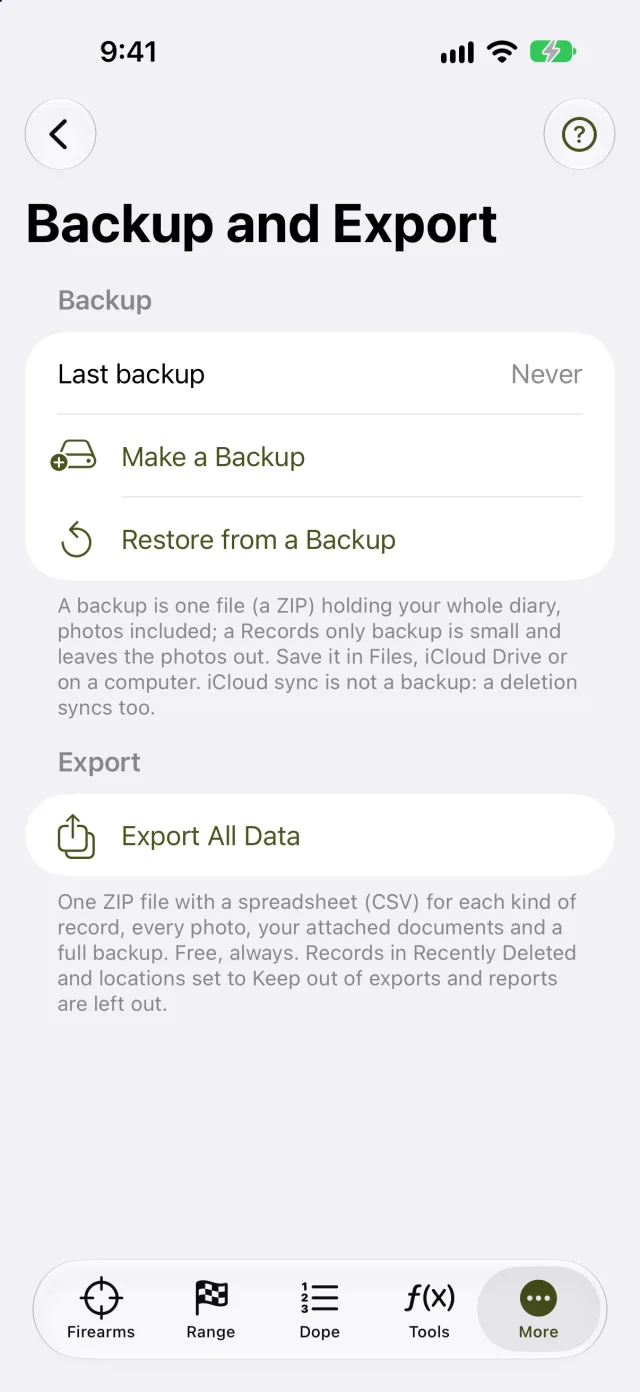
Tap the More tab, then Backup and Export (under Your data). (Or More > Reports > Export All Data.)
-
Under Export, tap Export All Data. “Working…” shows while the export is built: a few seconds, or a minute or more for thousands of photos. Keep the app open.
-
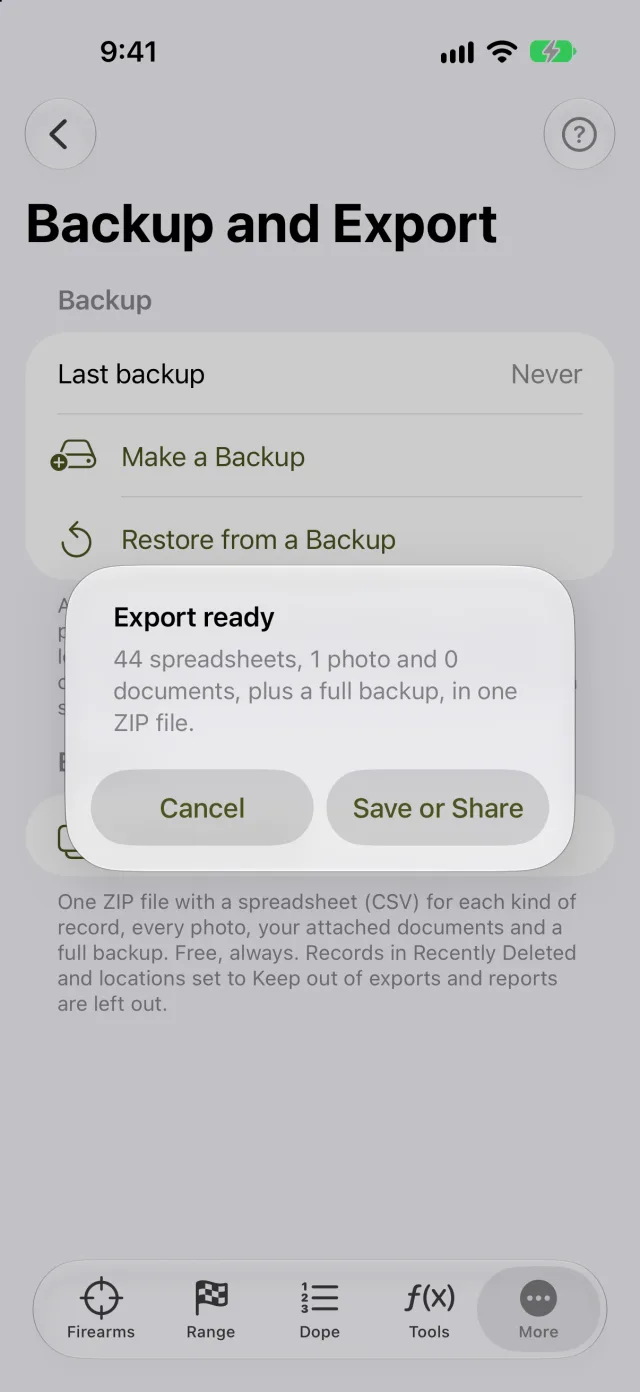
A message titled Export ready says what’s in it, like “44 spreadsheets, 312 photos and 3 documents, plus a full backup, in one ZIP file.” Tap Save or Share. (Cancel throws this export away; nothing is saved.)
-
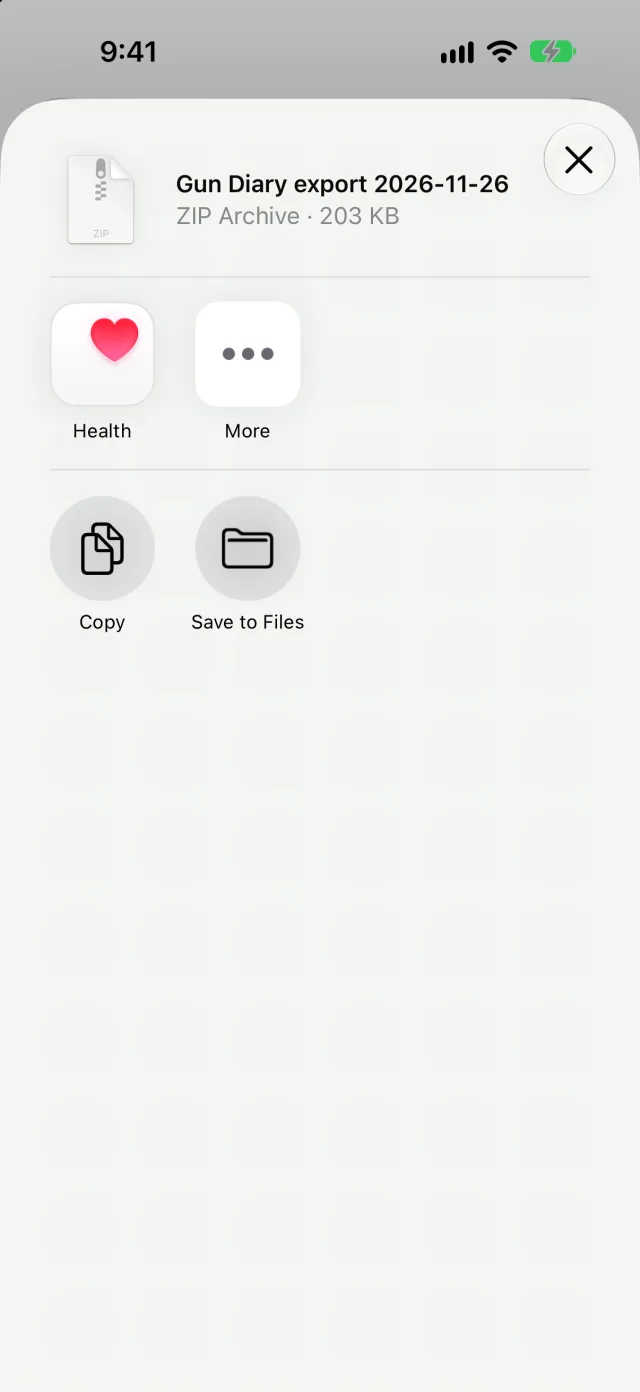
The share sheet opens with the ZIP. Choose Save to Files, then iCloud Drive or On My iPhone, pick a folder and tap Save. Or choose AirDrop to send it to your Mac.
-
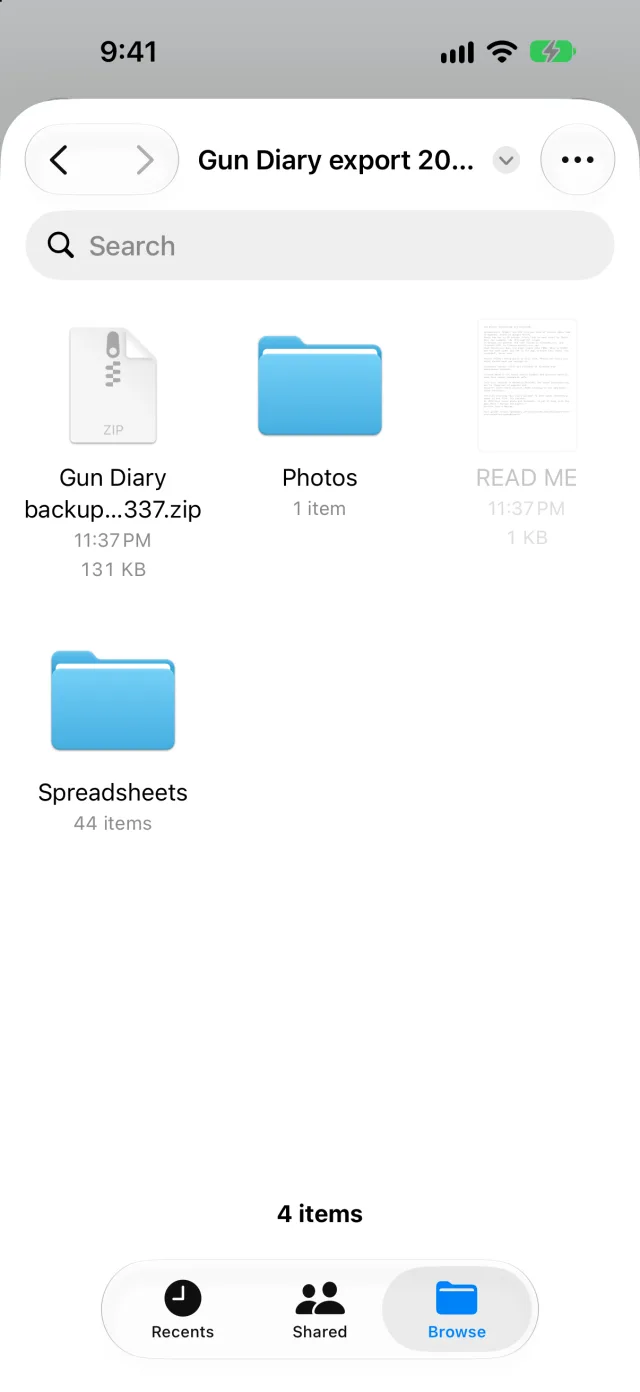
To open it: in the Files app, tap the ZIP once. A folder with the same name appears next to it. Open it to see Spreadsheets, Photos, a Documents folder (only when you’ve attached documents), the backup and READ ME.txt. On a Mac, double-click the ZIP; on Windows, right-click it > Extract All.
-
Open a spreadsheet: see Work with your exported spreadsheets.
How to check it worked
- The Files app shows
Gun Diary exportwith today’s date in the folder you chose. - Unzipped, the Spreadsheets folder holds 44 files, and Firearms.csv lists your firearms with the codes you see in the app (F001, F002…).
- The Photos folder holds as many photos as the Export ready message said.
- The backup file inside is named
Gun Diary backupwith the date and time, and ends in .zip.
Why it’s useful
An app shouldn’t be the only place your records live. Export All Data gives you every value you entered, in files any computer can open, without paying and without asking anyone.
Who uses it, and how:
- Spreadsheet users chart group sizes, velocities, round counts or harvests in Numbers, Excel or Google Sheets.
- Collectors and anyone with insurance keep a full copy of serial numbers, purchase details and receipts off the phone.
- Careful record keepers make a yearly archive: spreadsheets and photos that will open in twenty years.
- Hunters and competitors keep their season’s raw data.
- Anyone changing phones or apps has every record, photo and document in standard files.
- Helping someone else: send a gunsmith or a shooting partner one spreadsheet from the export.
What each option means
Export or backup? A backup is the file you restore from. The export is for reading and using your data outside the app, and it happens to include a backup too. If you only want to keep your diary safe, Make a Backup is quicker and smaller.
Example
At the end of the year you want an archive of 2026 on your Mac.
- More > Backup and Export > Export All Data. “Working…” for about twenty seconds.
- Export ready: “44 spreadsheets, 312 photos and 3 documents, plus a full backup, in one ZIP file.” Save or Share.
- AirDrop > your Mac.
Gun Diary export 2026-12-31.ziplands in Downloads. - You double-click it, move the folder to “Gun records/2026”, and open Groups.csv in Numbers.
Tips
- Export once a year (or before trading in a phone) and keep it on a computer or in iCloud Drive.
- Delete what you meant to delete first, and restore anything in Recently Deleted you want included: Recently Deleted isn’t exported.
- Big diaries make big files. Photos are full size. Use Files or AirDrop, not email.
- Keep it private. The spreadsheets include serial numbers and purchase details.
- Want just one report as a spreadsheet? Each report on Reports has Share Spreadsheet (CSV).
What it affects
Nothing in your diary. Export All Data reads your records and writes new files; it doesn’t change, lock or delete anything, and it doesn’t change Last backup (only Make a Backup does). The temporary files the app builds are removed when it’s done or if it fails; the ZIP stays only where you saved it.
If something goes wrong
- “The export couldn’t be made: There isn’t enough free space on this device: the export needs about … and … is free. Free up space, then try again. Nothing was written.” The phone doesn’t have room for the export. Free space in the Settings app > General > iPhone Storage (or delete large videos), then try again.
- “The export couldn’t be made” with another reason. Try again; if it keeps happening, restart the app and send the error log from Contact support and the error log.
- “Working…” for a long time. Thousands of photos take a while. Keep the app open and the phone awake.
- I tapped Cancel by mistake. Tap Export All Data again.
- A record is missing from the spreadsheets. It’s in Recently Deleted (restore it and export again), or it’s a saved location set to Keep out of exports and reports.
- The Files app shows a ZIP but no folder. Tap the ZIP once to unzip it.
- I picked the export ZIP in Restore from a Backup and got an error. The export isn’t the backup itself. Unzip it and pick the
Gun Diary backupfile inside. See Back up and restore.
Related
- Next: Work with your exported spreadsheets: every file and column.
- Back up and restore: the file you restore from.
- Reports: one report at a time, as a PDF or spreadsheet.
- Recently Deleted, Saved locations.
- Learning path: Keeping your records safe.
- Words used here: CSV, share sheet, backup, ID, code.
Guides on this topic
- Shooting Log Book Excel Files: Your Range Records in a Spreadsheet
- How to Make a Gun Inventory Sheet for Insurance
Still stuck? In the app, open More > Help > Contact Support, or More > Settings > Support, which also has Send Error Log (the error log helps us find the problem), or email contact@setriksoftware.com. You can also browse the Help Center or the messages the app can show.