
Firearm documents
Keep a firearm's paperwork with it: attach receipts, owner's manuals, warranties, insurance papers, appraisals and scanned notes as PDF, image or text files, open them any time, and find them again in the Reference Library.
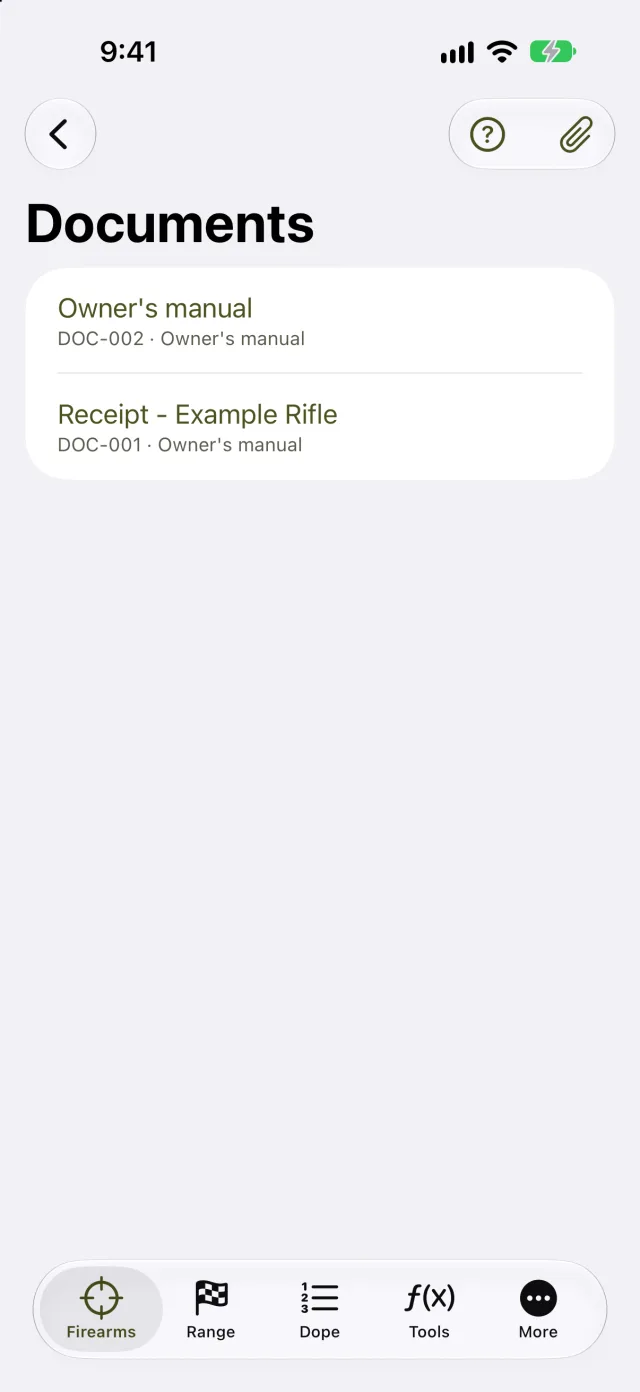
Documents keeps a firearm’s paperwork with the gun: the receipt or bill of sale, the owner’s manual, a warranty card, an insurance schedule or appraisal, a police report, a scanned note. Attach a PDF, image or text file from the Files app, open it any time on the phone, and it’s in your backups. Each document lives once in your Reference Library and is linked to this gun, so the same file can be linked to other records too.
Steps
Attach a file
- Open the firearm, then tap Documents on its dashboard (or The Garage > Documents).
- Tap Attach File (the paper clip at the top right).
-
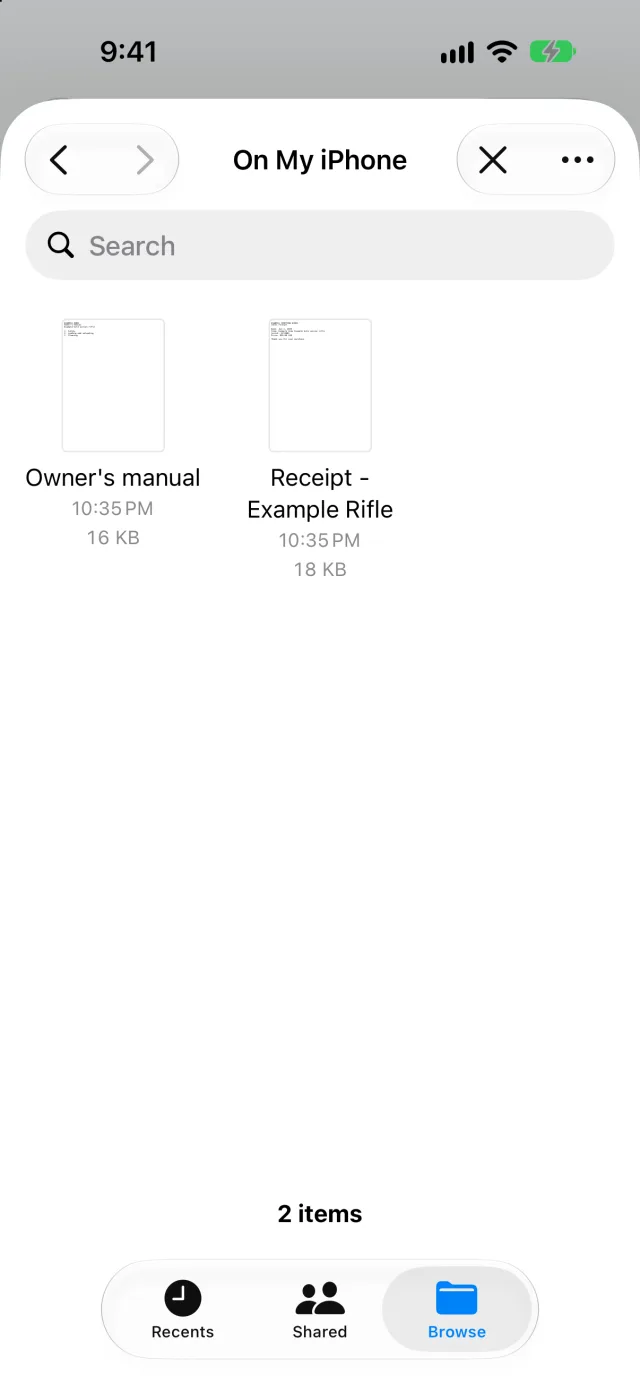
The file picker opens. Find the file (in Recents, or Browse > iCloud Drive or On My iPhone) and tap it. PDF, image and text files can be picked.
-
It’s added at once, named after the file, with a code (DOC-001…) and the category Other. Set the right category (receipt, manual, warranty…) in the Reference Library.
- To rename it or change its category (to Receipt, Warranty, Insurance or Police report, for example), open it in More > Reference Library. See Reference Library.
Tip for paper: scan it first with the Files app or Notes (“Scan Documents”), save it as a PDF, then attach it.
Open a file
- Tap the document in the list. It opens in a preview, where you can read, zoom and share it.
- Tap Done to come back.
Delete a file
- Swipe left on the document and tap Delete.
- Tap Move to Recently Deleted. It’s removed from every record it’s linked to. You can restore it from More > Recently Deleted for 30 days.
Why it’s useful
The paperwork that matters most is needed rarely and urgently: the receipt when a gun is stolen, the serial-number page of the manual when filling in a form, the warranty when something breaks, the appraisal when the insurer asks. Kept with the gun’s record, it’s in one place, on the phone you have with you, and in every backup.
Who uses it, and how:
- Collectors keep receipts, appraisals and provenance letters with each gun; the collection report lists the gun’s details for the insurer.
- Anyone whose gun is lost or stolen has the receipt and photos ready; the lost or stolen report lists the documents on file.
- New gun owners keep the owner’s manual on the phone for cleaning and disassembly.
- Hunters keep the manual and the scope’s warranty card for the trip.
- Competitors and builders keep gunsmith invoices and parts receipts.
- Families keep the papers that came with an inherited gun.
What’s on the Documents screen
Files attached elsewhere show here too. A file attached to one of this gun’s maintenance entries or safety observations is linked to the gun as well, so it’s listed here (it starts as Other too).
Categories (changed in the Reference Library): Owner’s manual, Manufacturer publication, Receipt, Warranty, Insurance, Police report, Notes, Scorecard, Other.
Example
You bought the Mountain Rifle in May 2023 and have the dealer’s receipt as a PDF in iCloud Drive.
- Mountain Rifle > Documents > Attach File > iCloud Drive > “Mountain Rifle receipt.pdf”.
- It appears as “Mountain Rifle receipt”, “DOC-002 · Other”.
- More > Reference Library, open DOC-002, change Category to Receipt, tap Done.
- Back in Documents it reads “DOC-002 · Receipt”. The dashboard’s Documents row says “1 document”, and the lost or stolen report lists “DOC-002 Mountain Rifle receipt” under the documents on file.
Tips
- Name the file well before attaching it. The title comes from the file name (“Mountain Rifle receipt.pdf” becomes “Mountain Rifle receipt”).
- Photograph receipts the day you buy. Thermal paper fades.
- One manual for several guns? Attach it once, then link it to the other guns in the Reference Library instead of attaching copies.
- Keep the originals too. A backup copy of the papers elsewhere doesn’t hurt.
What it affects
- The dashboard: the Documents row counts this gun’s files.
- The Reference Library: every document is there, with its links. See Reference Library.
- Reports: the lost or stolen report lists documents on file by code and title.
- Search: documents are found by title and notes. See Search.
- Backups and Export All Data: documents are included (not those in Recently Deleted).
- Sync: with iCloud on, documents sync to your other devices.
If something goes wrong
- I can’t pick my file. Only PDF, image and text files can be attached. Save a Word or Pages file as PDF first.
- Nothing happened after picking the file. The file may still be downloading from iCloud. Open it once in the Files app, then attach it again.
- I can’t rename the document here. Rename and recategorize it in More > Reference Library. If the Reference Library isn’t in the More tab, turn it on in Personalize your diary.
- The document disappeared from another record too. Deleting removes it everywhere it’s linked. Restore it from More > Recently Deleted within 30 days.
Related
- Reference Library, The Garage, Lost or stolen report, Collection report, Maintenance log.
- Learning path: Keeping your collection’s records. See also Keeping your records safe.
- Words used here: Reference Library, document.
Guides on this topic
- How to Make a Gun Inventory Sheet for Insurance
- Gun Collection Insurance: Is Your Collection Covered, and What Records Prove It?
Still stuck? In the app, open More > Help > Contact Support, or More > Settings > Support, which also has Send Error Log (the error log helps us find the problem), or email contact@setriksoftware.com. You can also browse the Help Center or the messages the app can show.