
The Garage
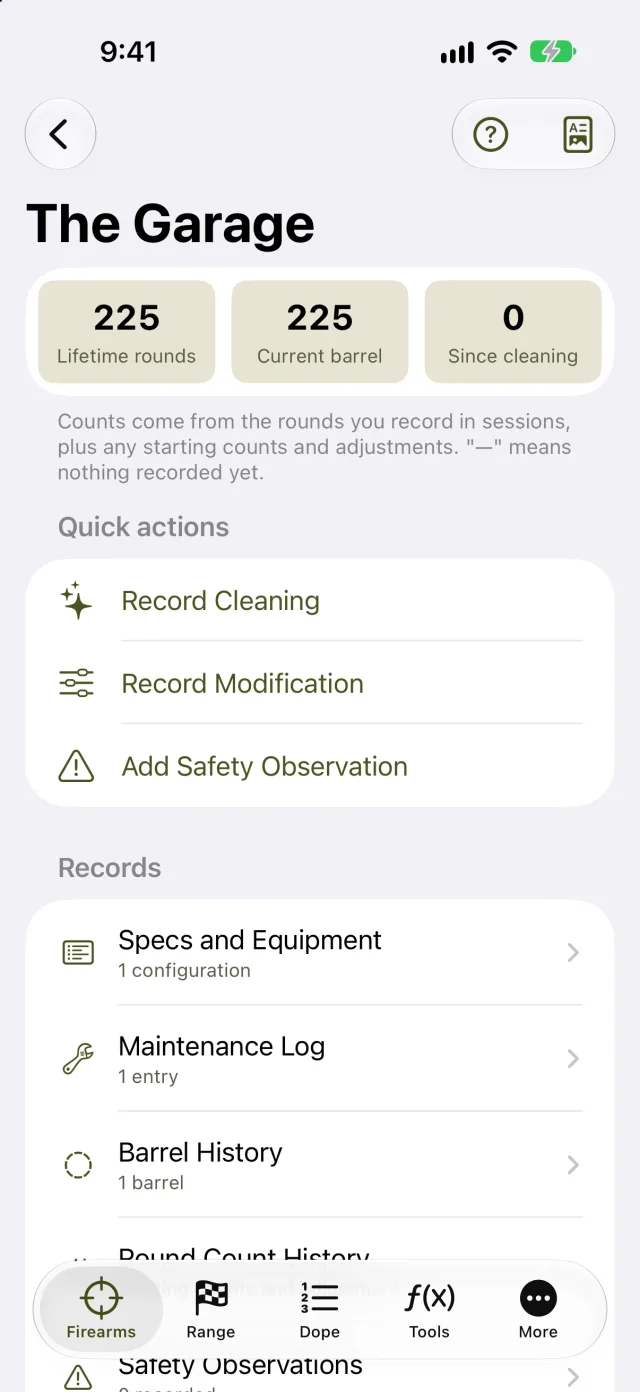
A firearm's workshop record in one place: its round counters, quick buttons for a cleaning, a modification or a safety observation, and its specs and equipment, maintenance log, barrels, round count history, safety observations, documents and Garage reports.
The Garage is where a firearm’s hardware history lives: how many rounds it has fired, what’s mounted on it and since when, every cleaning and repair, its barrels, anything unusual that happened, and its paperwork. Open it from the firearm’s dashboard. The three counters at the top answer the questions you ask most: how many rounds in its life, on this barrel, and since the last cleaning.
Steps
- Open the firearm from the Firearms tab and tap The Garage on its dashboard. The row there shows the lifetime count and rounds since cleaning.
- Read the three counters: Lifetime rounds, Current barrel and Since cleaning. “—” means nothing recorded yet.
- Under Quick actions, tap:
- Record Cleaning to log a cleaning (it resets Since cleaning). See Maintenance log.
- Record Modification to log a change to the gun, and if you like start a new dated configuration. See Record an equipment change.
- Add Safety Observation to log a malfunction or anything unexpected. See Safety observations.
-
Under Records, tap a row to open that part:
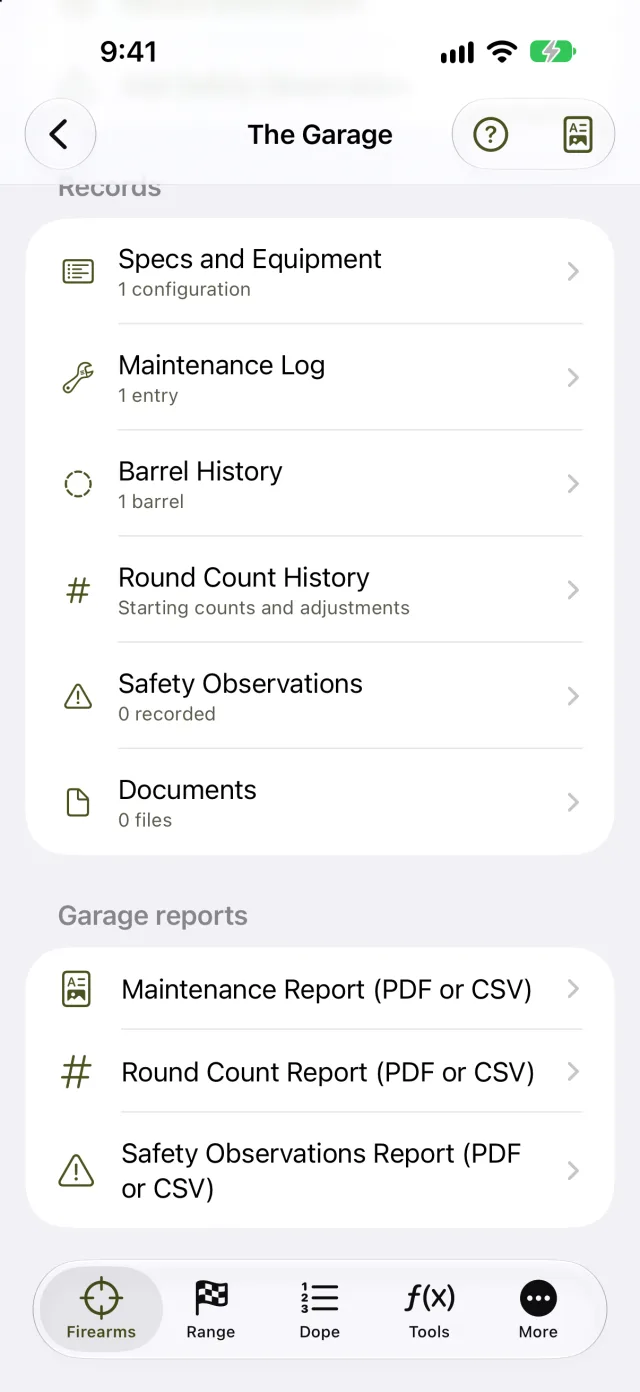
– Specs and Equipment (how many configurations): the scope, mount, trigger and everything else, dated. See Specs, equipment and configurations. – Maintenance Log (how many entries). See Maintenance log. – Barrel History (how many barrels). See Barrel history. – Round Count History (“Starting counts and adjustments“). See Round counts. – Safety Observations (how many recorded). See Safety observations. – Documents (how many files). See Firearm documents. 5. Under Garage reports, tap Maintenance Report (PDF or CSV), Round Count Report (PDF or CSV) or Safety Observations Report (PDF or CSV) to make a report for this firearm. The CSV is free; the PDF is Pro. 6. The document icon at the top right (a page with lines, Maintenance PDF) makes the Maintenance PDF straight away (Pro).
Why it’s useful
Guns wear, get worked on and get changed. Knowing what was done, when and at what round count is how you keep a gun running, spot a pattern (it started failing to feed after the new magazine), sell it with a documented history, or settle a warranty claim. Keeping it next to the shooting records means a change in how the gun shot sits right beside the work done to it.
Who uses it, and how:
- New gun owners record their first cleaning and see Since cleaning count up from there; the counters show the gun is being looked after.
- Precision and long-range shooters track the round count on the barrel (throats wear out) and keep each scope’s settings with the setup it was used in.
- Competitors watch Current barrel across a season and record every part they replace before a match.
- Hunters log the pre-season cleaning and any scope change, so they know to re-check the zero.
- Handgun and carry owners keep a cleaning and parts record, and log any malfunction as a safety observation.
- Collectors keep receipts, manuals and appraisals in Documents and a maintenance history for resale or insurance.
Gun Diary records what you did and what you saw. It doesn’t tell you when to clean, which parts to replace or whether a gun is safe; follow the maker’s manual and a qualified gunsmith.
What’s on the Garage screen
The footer under the counters says: “Counts come from the rounds you record in sessions, plus any starting counts and adjustments. “—” means nothing recorded yet.”
Example
The Example Rifle‘s Garage after you install the app: Lifetime rounds 225, Current barrel 225, Since cleaning 0. Specs and Equipment: 1 configuration. Maintenance Log: 1 entry (the cleaning after its range session, which is why Since cleaning is 0). Barrel History: 1 barrel. Safety Observations: 0 recorded.
For your own Mountain Rifle with 600 rounds before the diary: after a 60-round session the counters read 660, 660 and 60. Tap Record Cleaning that evening and Save: 660, 660, 0.
Tips
- Record rounds in sessions. The counters come from sessions; groups never add rounds by themselves, so nothing is counted twice. See Round counts.
- Clean, then record it the same day, with the right time: a cleaning resets Since cleaning only for rounds fired after it.
- Changed the scope? Use a new configuration, not an edit, so old groups and dope keep the setup they were shot with. See Record an equipment change.
- Snap the receipt when you buy a part and attach it in Documents or on the maintenance entry.
What it affects
The Garage screen itself only shows and opens records. What you record from it changes:
- Counters on the dashboard, the firearm’s card and the round count report.
- Configurations that groups, sessions and dope tables are tied to; a changed optic, mount or barrel can mark a dope table “earlier setup“. See Dope tables.
- Reports: the Garage reports, the firearm history PDF (Pro) and Export All Data.
- Shooting Diary timeline: maintenance entries show by date next to sessions.
If something goes wrong
- A counter shows “—”. Nothing is recorded for it yet: no sessions with rounds, no starting count, no adjustments. Add Rounds already fired with Edit Firearm or log a session.
- Since cleaning didn’t go to 0 after a cleaning. The cleaning is dated before the session. See Maintenance log.
- Current barrel is lower than lifetime. A barrel is recorded with an install date after some sessions; rounds before it count to lifetime only. See Barrel history.
- The Pro screen opened. The Maintenance PDF and the PDF versions of the Garage reports are part of Pro; their CSV versions are free.
Related
- Specs, equipment and configurations, Record an equipment change, Optic settings, Barrel history, Maintenance log, Round counts, Safety observations, Firearm documents.
- Reports: Maintenance report, Round count report, Safety observations report.
- Learning path: New gun owner. See also Keeping your collection’s records.
- Words used here: round count, configuration, maintenance entry, safety observation.
Still stuck? In the app, open More > Help > Contact Support, or More > Settings > Support, which also has Send Error Log (the error log helps us find the problem), or email contact@setriksoftware.com. You can also browse the Help Center or the messages the app can show.