
Safety observations report
Print or export your safety observations (malfunctions, damage and ammunition problems) with their status and the lot, session or group they're linked to, for one firearm or all of them.
The Safety Observations report lists the safety observations you’ve recorded (malfunctions, damage and ammunition problems) with their follow-up status and the ammunition lot, session or group each one is linked to. Make it for one firearm or for all of them. It’s a historical log, not a safety check or diagnosis. The PDF is part of Gun Diary Pro; the spreadsheet is free.
Steps
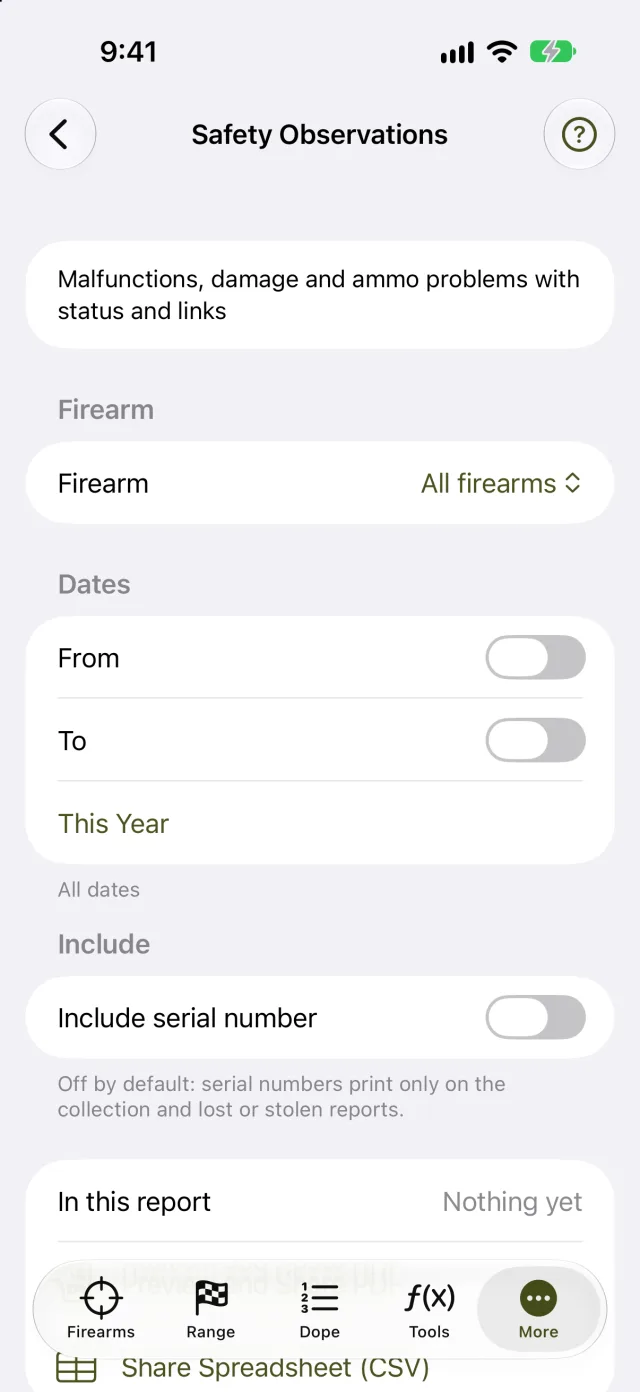
- Tap More > Reports > Safety Observations. (Or in The Garage, Safety Observations Report (PDF or CSV).)
- Next to Firearm, pick one firearm or All firearms.
- Under Dates, limit the dates if you want.
- Switch Include serial number on only if needed (it prints only when one firearm is picked).
-
Tap Preview and Share PDF or Share Spreadsheet (CSV).
Why it’s useful
When something goes wrong at the range, the details fade fast: which box of ammo, which session, what happened. A dated log of each observation, linked to the lot and group, lets you see patterns and talk to the right people with facts in hand.
Who uses it, and how:
- Talking to a gunsmith or the maker about a recurring malfunction: every occurrence, with dates and links.
- Ammunition problems: see whether trouble follows one lot across firearms (pick All firearms), and give the lot number to the manufacturer.
- New gun owners keep track of break-in issues and whether they cleared up.
- Clubs and instructors review open items before the next outing.
- Anyone keeping records shows that each issue was followed up and resolved.
What’s on the Safety Observations screen
What the PDF prints
- Title, the firearm (or “All firearms”), when it was prepared and the date range.
- A table, newest first: Code, Date, Firearm, Observation (summary and notes), Linked (like “lot 24A117, S014, G052”), Status (Open, Awaiting review, Resolved). With none: “No observations in this range.”
- A closing line: “A historical log, not a safety check or diagnosis.”
File: “Safety observations – Mountain Rifle.pdf” or “Safety observations – All firearms.pdf”.
What the spreadsheet holds (one row per observation): Firearm code, Firearm, Code, Date, Observation, Notes, Status, Ammunition, Lot, Session, Group, Observation ID.
Example
Two of your rifles had light primer strikes with the same box of ammunition.
- More > Reports > Safety Observations, Firearm: All firearms, This Year.
- Preview and Share PDF. Two rows: OBS-003 (Mountain Rifle, Sep 14, 2026, “Light primer strike”, Linked “lot 24A117, S018”) and OBS-004 (Ranch Rifle, Sep 21, 2026, “Light primer strike”, “lot 24A117, S019”), both Open.
- The same lot shows up on both rifles. You email the PDF to the ammunition maker with the lot number.
Tips
- Link each observation to the lot and session when you record it; that’s what makes the Linked column useful. See Safety observations.
- Update the status to Awaiting review or Resolved as you follow up.
- Use All firearms to see whether a problem follows the ammunition rather than the gun.
What it affects
Nothing. The report reads observations and builds a new file. It doesn’t judge whether anything is safe; it lists what you recorded.
If something goes wrong
- The Pro screen opens. The PDF is Pro; the spreadsheet is free.
- “No observations in this range.” Turn the dates off, or pick All firearms.
- An observation without a firearm is missing. It only appears with All firearms.
- The serial didn’t print. Pick one firearm (not All firearms) and switch Include serial number on.
Related
- Next: Safety observations: record and follow up an observation.
- Lots: the lot numbers in the Linked column.
- Maintenance report, The Garage, Reports.
- Words used here: safety observation, lot.
Still stuck? In the app, open More > Help > Contact Support, or More > Settings > Support, which also has Send Error Log (the error log helps us find the problem), or email contact@setriksoftware.com. You can also browse the Help Center or the messages the app can show.