
A session
Everything recorded on one trip in one place: each firearm's rounds, ammunition and groups, target photos, zero checks, hunt shots, harvests, patterns, drill runs, place, weather and notes.
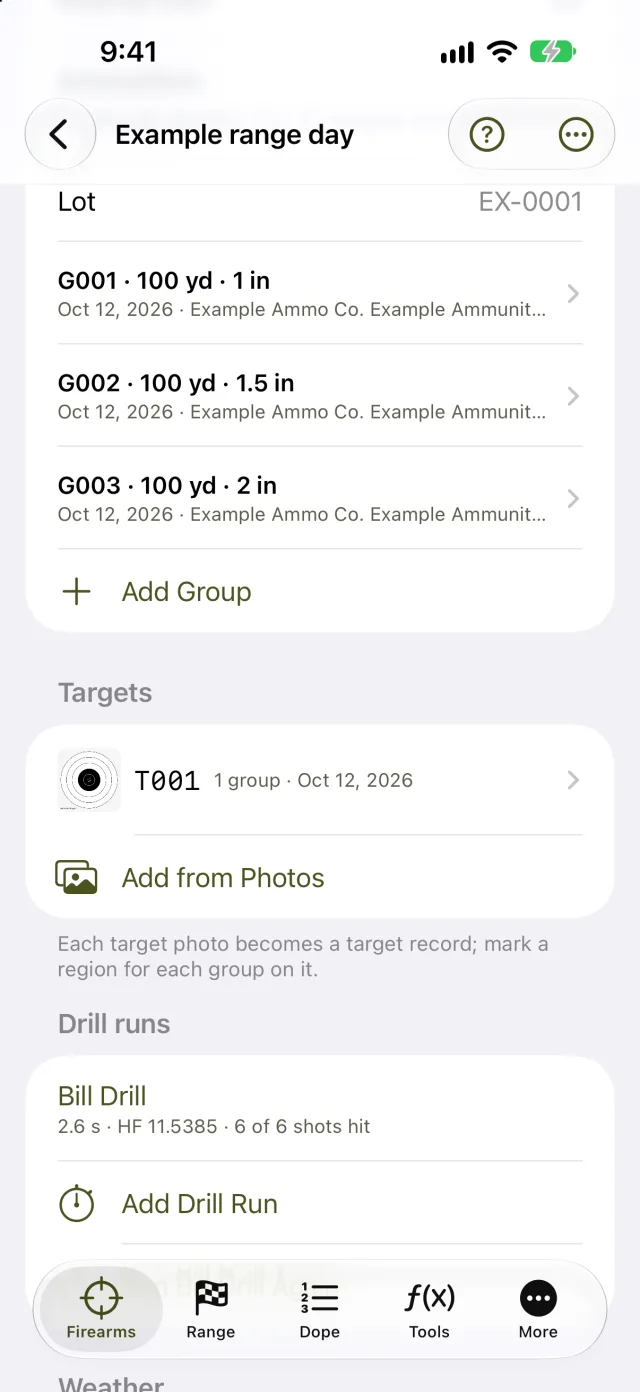
The session screen is the whole record of one trip. It starts with the activity, date and total rounds, then gives each firearm its own section with its rounds, ammunition and groups. Below come the target photos and anything else the day produced: zero checks, hunt shots and harvests, shotgun patterns and drill runs. Place, weather, photos and notes finish it off.
Steps
-
Open a session: tap it on the Range tab, in a firearm’s Shooting Diary, in Search, or from a group or zero record.
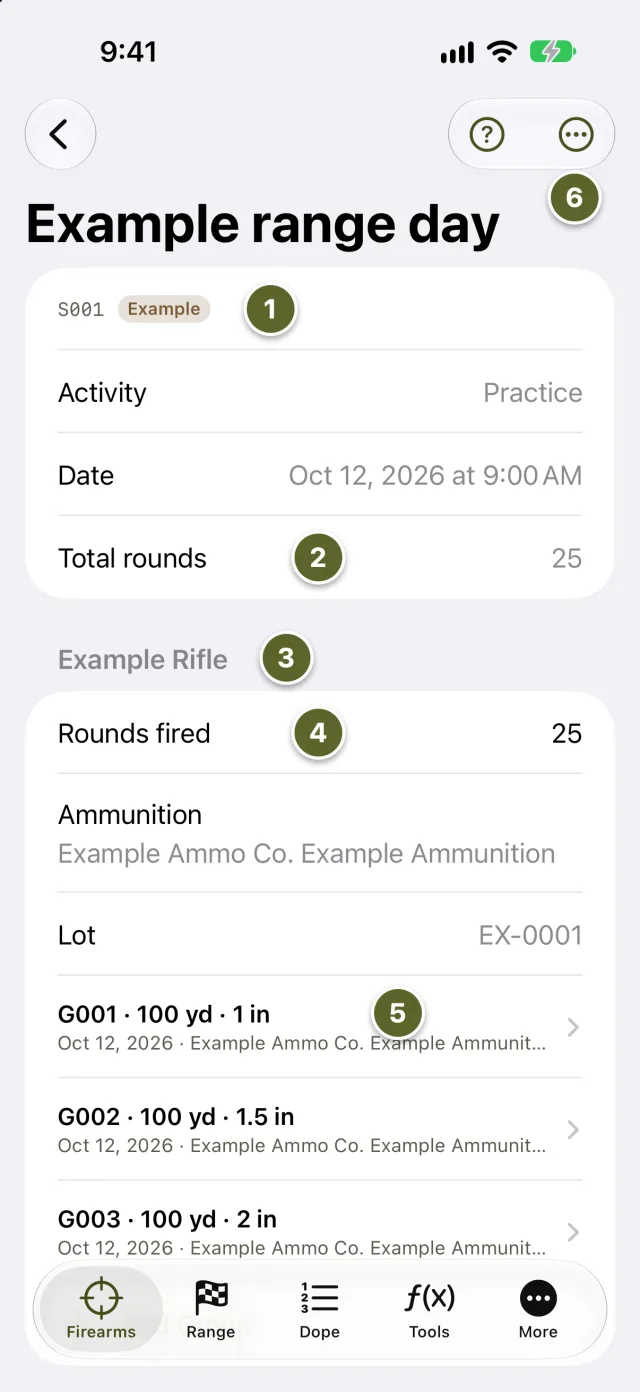
Numbers on the picture: 1 the session code and badges, 2 Total rounds, 3 the firearm’s section, 4 Rounds fired, 5 a group row, 6 ••• (actions).
-
To correct a firearm’s rounds, tap its Rounds fired number and type the new total. It saves as you type.
- To add a group for a firearm, tap Add Group at the end of its section. The group form opens with the session’s date and that firearm’s ammunition and lot. See Record a group.
-
To add target photos, scroll to Targets and tap Add from Photos or Take Photo. Each photo becomes a target record; open it to mark a region for each group. See A target and its groups.
-
Use the extra sections the activity offers (each has its own add button):
- Zero Checks > Add Zero Check (Zero check and Sight-in sessions). See Zero Check.
- Hunt shots > Add Hunt Shot, and Harvest > Add Harvest (Hunting). See Hunt log.
- Patterns > Add Pattern (Patterning). See Pattern a shotgun.
- Drill runs > Add Drill Run (Competition and Practice). See Competition results and drill runs.
- Tap ••• at the top for the actions:
- Edit Session: the full form. See Log a session.
- Session Report PDF: a printable report of the session (Pro).
- Change History: every edit to this session. See Change history and locking.
- Archive / Unarchive: hides it from the main lists, or brings it back.
- Delete Session: moves it to Recently Deleted.
Why it’s useful
A trip is more than its best group. You want to see, in one screen, that the rifle fired 30 rounds of lot 2251, that the second group was the one with the called flyer, that it was 38 °F with a 10 mph wind, and which target photo goes with which group. The session screen holds all of that together and lets you fill in what you skipped at the bench.
It serves everyone a little differently. A hunter’s session shows the zero check from the morning, the shots taken and the harvest, all linked. A competitor’s shows the score, placement and each drill run with its times. A shotgunner’s shows the pattern records for each choke. Someone testing factory ammunition sees each firearm’s groups listed under it, ready to compare. A new shooter just sees rounds fired and a few photos, which is plenty. Sections that don’t apply stay out of the way.
What’s on the session screen
Example
After a Range Mode morning with the Mountain Rifle, you open the session at home.
- The firearm section shows Rounds fired 25 and three groups: G031 (draft, no size), G032 1.1 in, G033 0.9 in.
- You tap G031, measure the size from its photo, and save it. See Measure a group from a photo.
- Under Targets, T014 to T016 are there; you open T014 and mark G031’s region.
- Notes read “9:12 AM G032: Called flyer”. Good to know when you compare the groups.
- ••• > Session Report PDF gives a one-file record to keep with your load notes (Pro).
Tips
- Shot more than one ammunition in a firearm? The firearm’s Ammunition row is only the default for new groups. Open each group and set its own Ammunition and Lot; Ammo comparison goes by the group’s.
- Fix rounds right on this screen. No need to open Edit Session just to change a number.
- Add targets here, not under Photos. Targets makes target records you can link to groups; the form’s Photos are general pictures.
- Archive instead of delete when a session is old but its groups still matter.
- A session from Zero Check or Quick Hunt Log is a normal session; you can add groups and photos to it too.
What it affects
- Rounds fired changes the firearm’s round counters at once. See Round counts.
- Add Group creates a draft group in this session until you save it.
- Archive hides the session from the Range tab and the Shooting Diary (until you show archived sessions); its groups stay in Group History.
- Delete Session moves the session to Recently Deleted; its rounds come off the round counters; its groups stay in Group History. Restoring it within 30 days puts everything back. See Recently deleted.
If something goes wrong
- “Delete this session?” asks before deleting. The message says: “Its rounds come off the round counters. Its … groups stay in Group History. You can restore it for 30 days.” Tap Move to Recently Deleted to go ahead.
- Session Report PDF shows a Gun Diary Pro screen. PDF reports are Pro (except the lost or stolen report). The CSV from Reports is free.
- No Add Group button for a firearm. The firearm must be turned on in the session. ••• > Edit Session, turn it on under Firearms and rounds.
- Add Hunt Shot, Add Harvest or Add Pattern asks “Which Firearm?”. The session has no firearm yet. Pick one and it joins the session (with one firearm in the diary, it’s added for you). With no firearm at all, the tap says “Add a firearm first (Firearms tab)”.
- No Hunt shots, Patterns or Drill runs section. The activity decides which sections appear, and the feature must be on in Personalize your diary. Change the activity in Edit Session.
- The session still says Draft. A Range Mode session finishes with End Session; any other with Save or Done on its form. See End a session.
Related
- Log a session, Record a group, A target and its groups, Session weather.
- Zero Check, Hunt log, Pattern a shotgun, Competition results and drill runs.
- Change history and locking, Recently deleted, Reports.
- Words used here: session, group, target, lot, flyer.
Still stuck? In the app, open More > Help > Contact Support, or More > Settings > Support, which also has Send Error Log (the error log helps us find the problem), or email contact@setriksoftware.com. You can also browse the Help Center or the messages the app can show.