
Shooting and range sessionsGun Diary Pro
End a session
Finish a Range Mode session: see what you recorded and what's still missing, then end it with two deliberate taps.
When you’re packing up, End Session in Range Mode shows a short summary of the session and a list of what’s still blank, so you can fix anything quick before leaving and know what to finish at home. Ending takes two taps on purpose, so a bump of the phone never ends a session.
Steps
-
In Range Mode, tap End Session (“Shows what’s missing first”).
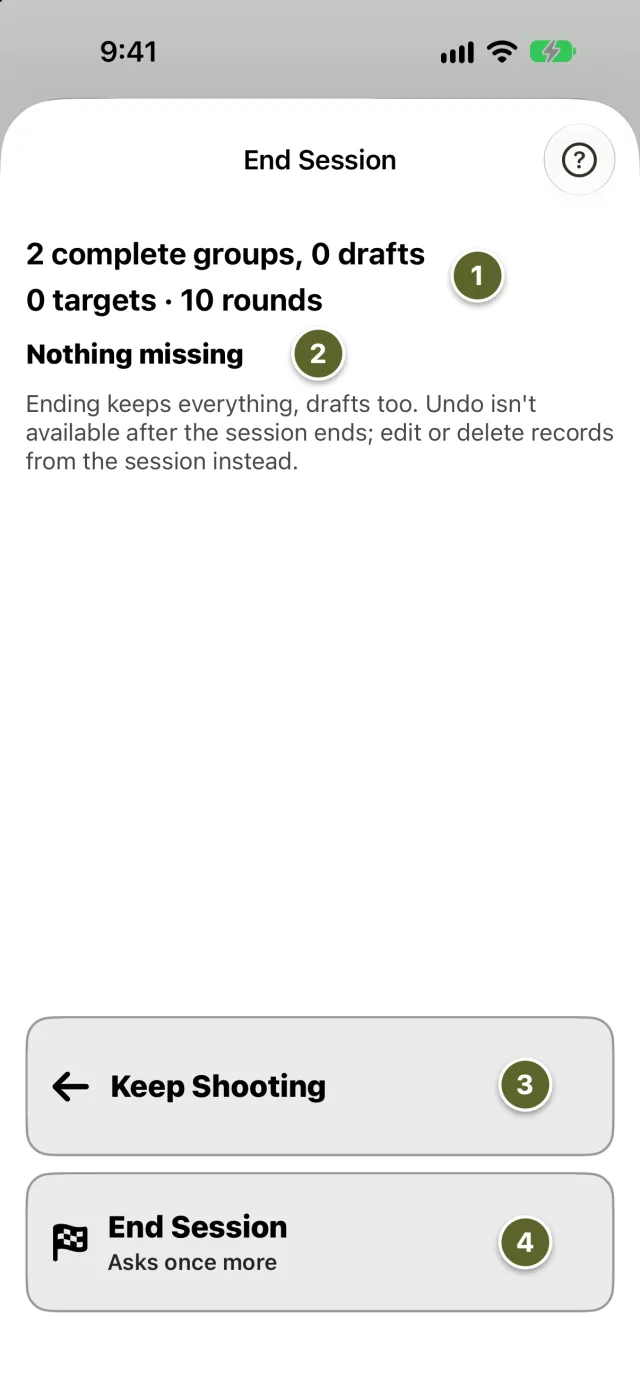
Numbers on the picture: 1 the counts, 2 “Still to fill in at home” and the list, 3 Keep Shooting, 4 End Session.
-
Read the summary: complete groups and drafts, targets, and rounds.
- Read the list under “Still to fill in at home” (or “Nothing missing”). Want to fix something now? Tap Keep Shooting to go back to Range Mode.
-
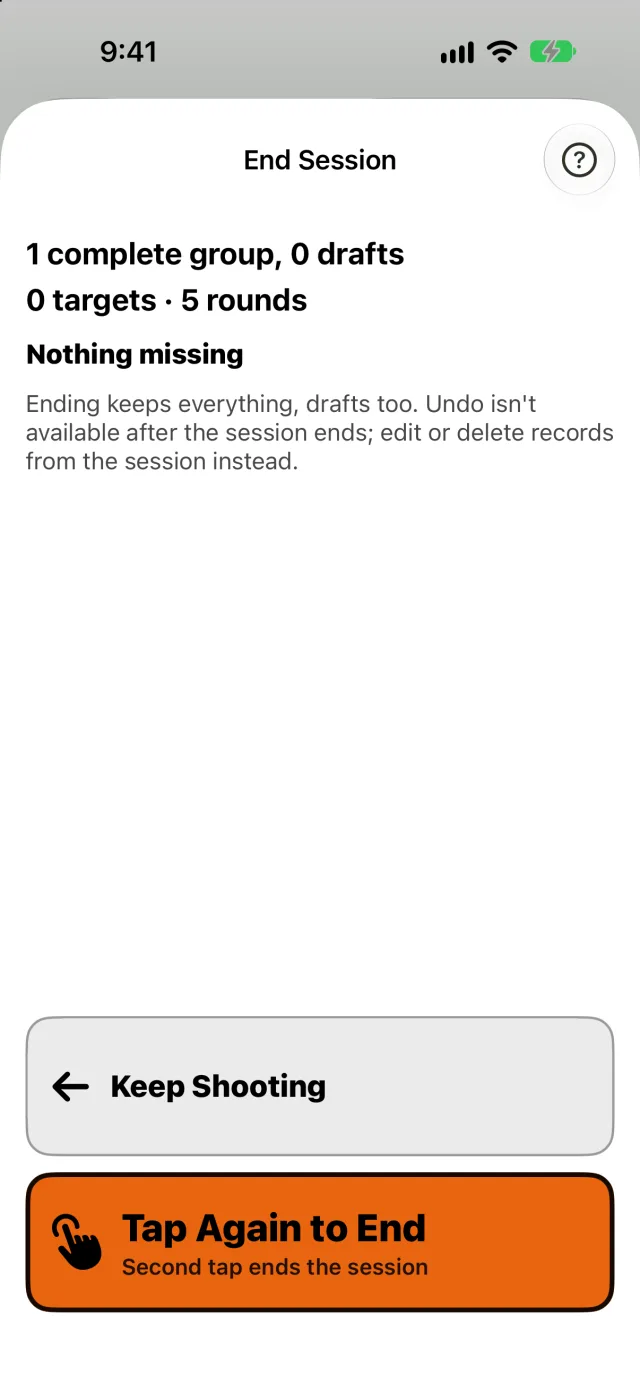
To end, tap End Session. The button turns orange and reads Tap Again to End (“Second tap ends the session”).
-
Tap Tap Again to End. Range Mode closes, and the session moves from Unfinished sessions into the range diary on the Range tab.
Why it’s useful
A range day ends in a hurry: cold hands, a closing range, a rifle to case. The summary is a last look before you leave, while you can still count the rounds you fired or remember which target was which. Anything else simply waits for you at home; ending never throws away a draft.
It helps every kind of shooter. Someone testing ammunition sees that two groups have no size yet and knows to measure them from the photos tonight. A hunter after a quick zero check sees “Nothing missing” and is done. A competitor sees that a target isn’t linked to a group yet. A new shooter learns which details make a complete record. And because ending needs a second, deliberate tap, nobody ends a session by accident with a gloved hand.
What’s on the End Session screen
The note at the bottom says: “Ending keeps everything, drafts too. Undo isn’t available after the session ends; edit or delete records from the session instead.”
Example
After a Mountain Rifle sight-in:
- End Session shows “2 complete groups, 1 draft”, “1 target · 12 rounds”.
- “Still to fill in at home”: “Group G033 has no group size.”
- You’ll measure it from the photo tonight, so you tap End Session, then Tap Again to End.
- At home you open the session, tap G033, and use Measure a group from a photo.
Tips
- Fix rounds before you leave. If you shot sighters or plinked without logging them, Keep Shooting > Rounds first; you won’t remember the count tomorrow.
- Target not linked? Add a group right after capturing its target, or link it at home from the target screen.
- Not done for the day? Use Close in Range Mode instead of ending. The session waits under Unfinished sessions.
- Sessions made with Log a Session don’t use this screen: they’re finished by Save (or Done on Edit Session).
What it affects
- The session is no longer a draft: it leaves Unfinished sessions and Drafts and joins the range diary and each firearm’s Shooting Diary.
- Its end time is recorded.
- Range Mode’s Undo list for this session is cleared.
- Draft groups stay drafts until you add their size.
- Round counters don’t change here; they were updated as you went.
If something goes wrong
- I ended too soon. Nothing is lost. Open the session from the Range tab and add groups, targets or rounds there. (It won’t go back into Range Mode.)
- “… has no rounds fired recorded.” but I added groups. Groups only add rounds when they have Shots. Use Rounds in Range Mode, or type Rounds fired on the session screen.
- “No firearm is in this session.” Tap Keep Shooting, then the Firearm chip, or end it and delete the empty session from its screen.
- The second tap didn’t end it. Tap Tap Again to End while it’s orange.
Related
- Range Mode, A session, Drafts, Round counts, Measure a group from a photo.
- Words used here: session, draft, target.
Still stuck? In the app, open More > Help > Contact Support, or More > Settings > Support, which also has Send Error Log (the error log helps us find the problem), or email contact@setriksoftware.com. You can also browse the Help Center or the messages the app can show.