
Shooting and range sessionsGun Diary Pro
Range Mode
A full-screen page of big, high-contrast buttons for the bench, made for one hand, gloves and bright sun: add groups, capture targets, log chronograph strings, notes, rounds and zero checks, undo anything, and finish the details at home.
Range Mode is a session built for the shooting bench. Every action is a big button in the bottom half of the screen, where your thumb already is; the type is large and bold, black on white so it reads in bright sun; and nothing needs two hands, a swipe or a long press. Record what happened in a few taps between strings, and fill in the rest at home. It’s part of Gun Diary Pro.
Steps
-
On the Range tab, tap Start Range Session. Range Mode opens full screen on a new session (activity Practice, dated now).
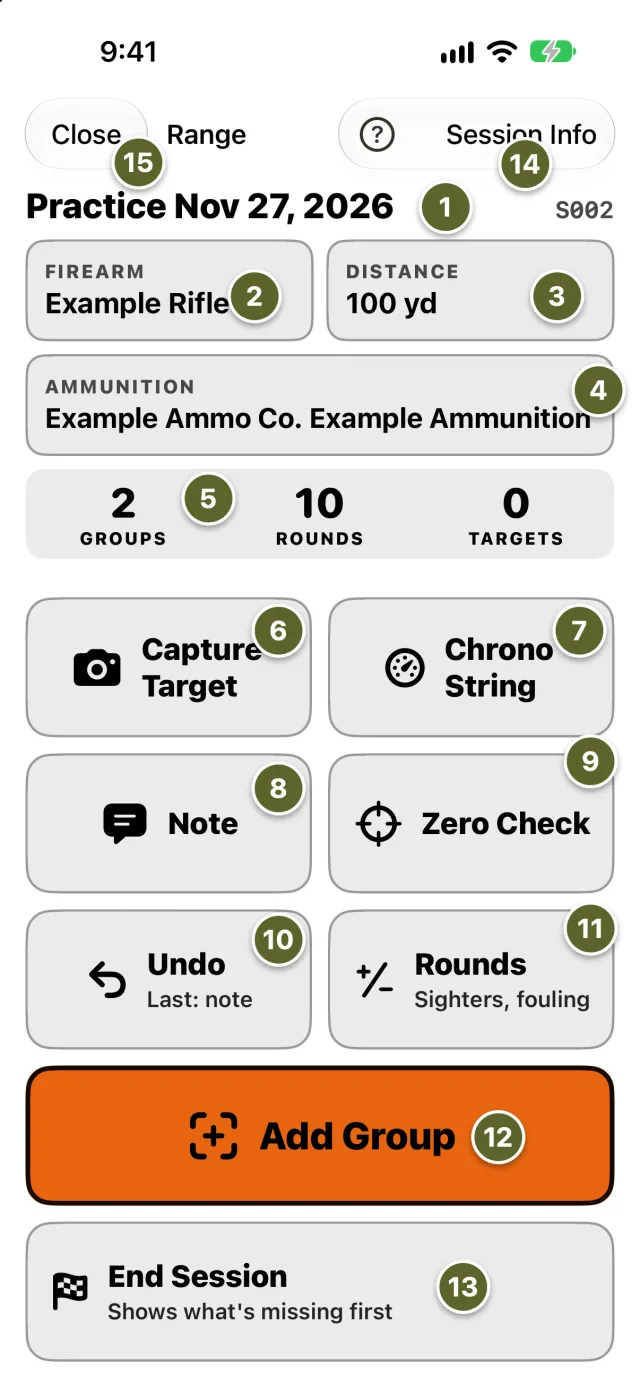
Numbers on the picture: 1 the session name and code, 2 Firearm, 3 Distance, 4 Ammunition, 5 the counts (Groups, Rounds, Targets), 6 Capture Target, 7 Chrono String, 8 Note, 9 Zero Check, 10 Undo, 11 Rounds, 12 Add Group, 13 End Session, 14 Session Info, 15 Close.
-
Check the three chips at the top and tap any to change it:
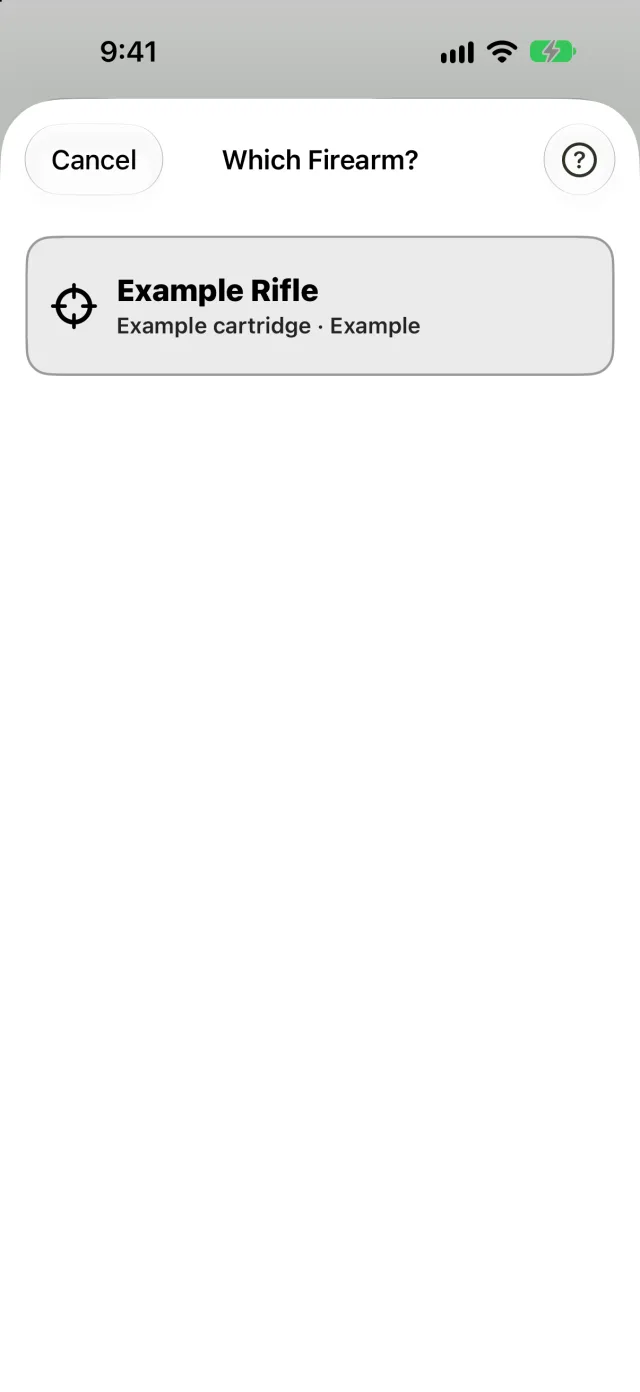
- Firearm: tap it and pick from the big Which Firearm? list. The firearm joins the session. If you only have one firearm, it’s already chosen.
- Distance: type the distance on the big pad, pick yd or m, tap Save.
- Ammunition: pick from this firearm’s favorites and recently used ammunition, Other Ammunition… (the full library) or No Ammunition; then the lot (or No lot).
-
Shoot, then use the buttons:
- Add Group (the orange button): type the group size on the big pad and tap Save Group. See Range Mode: add a group.
- Capture Target: the camera opens; take a photo of the paper target. The line under the card says “Saved target T014: write T014 on the paper”. Write that number on the target.
- Chrono String: type each velocity from your chronograph. See Range Mode: chrono string.
- Note: one tap on a quick note like “Called flyer“, or dictate your own. See Range Mode: notes.
- Zero Check: the Zero Check screen for this firearm. See Zero Check.
- Rounds: shots that aren’t in a group (sighters, fouling shots, plinking). Type the number and tap Save.
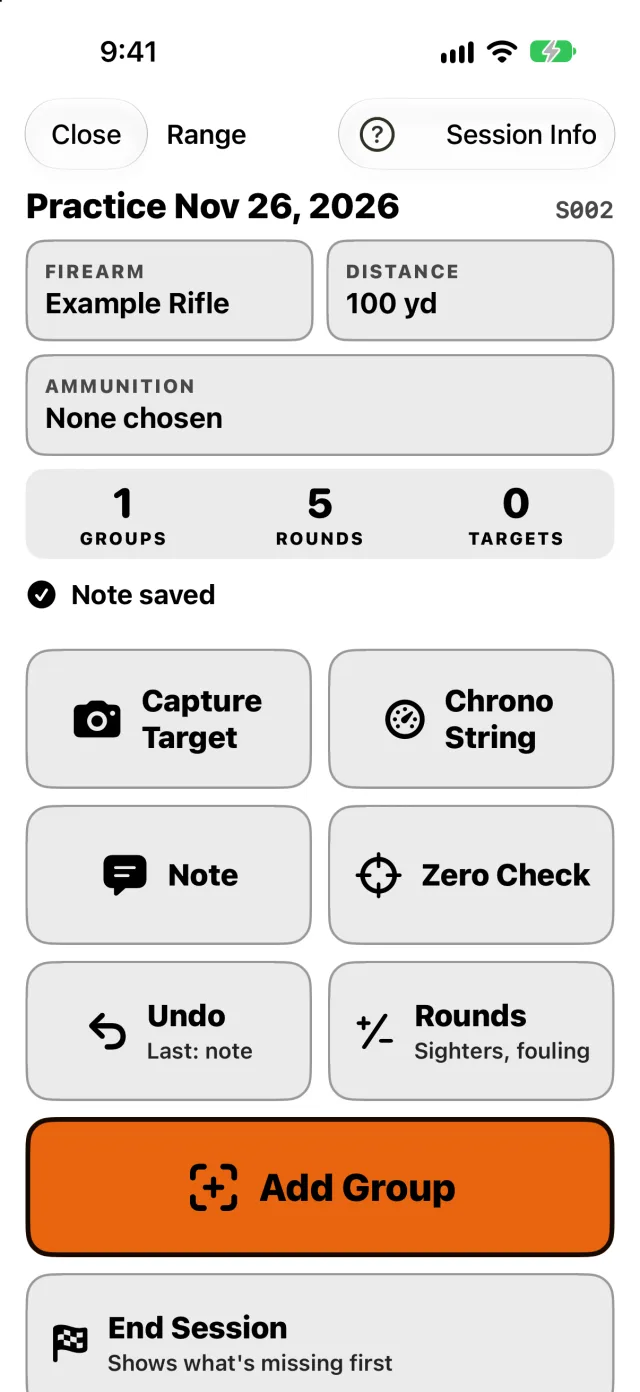
- Made a mistake? Tap Undo. It takes back the last thing you added (the button shows what, like “Last: note”); tap again to go back further.
- Session Info opens the full session form: name, location, weather, each firearm’s rounds and ammunition, photos, notes. Tap Done to come back. See Log a session.
- Need to leave? Tap Close. The session stays unfinished; reopen it from Unfinished sessions on the Range tab.
-
When you’re done, tap End Session, check what’s missing, and tap twice to end. See End a session.
Why it’s useful
The bench is a bad place for forms. You may have gloves on, the sun on the screen, a rifle in one hand and a spotting scope to look through. Range Mode asks only for what’s needed to keep an honest record, in buttons about twice Apple’s usual size, and each save gives a short vibration so you know it worked without looking.
Who it’s for, and how:
- Sighting in a new scope: Add Group with the offset from the aim point, Zero Check once you’re close, Note “Sights adjusted” when you dial.
- Testing factory ammunition: change the Ammunition chip between loads, before you add each load’s group; each group picks up the ammunition and lot you chose, and Ammo comparison goes by the group’s. Chrono String records velocities for that group.
- Proving dope at distance: set Distance once, add groups with their offsets, and save the good ones as dope at home.
- Competitors and practice: Note for wind calls and malfunctions, Rounds for warm-up strings, everything time-stamped.
- Hunters before the season: one rifle, Zero Check, End Session: done in a minute.
- Several firearms in one trip: switch the Firearm chip; each firearm keeps its own groups, rounds and ammunition in the session.
- No signal: everything is saved on your phone as you go. Only Fill In Current Weather in Session Info needs a connection.
What each option means
Rounds are counted for you. Every group adds its Shots, a separate chrono string adds its shots, a zero check adds its shots, and Rounds adds sighters and fouling shots. Together they fill Rounds fired for each firearm, so nothing is counted twice. A chrono string on a group adds nothing (those shots are the group’s).
Settings: in Settings > Range Mode and Zero Check:
- Range Mode colors: Black on white (the default, best in sun, even when the phone is in dark mode) or White on black.
- Keep the screen on in Range Mode: on by default. The screen stays awake only while Range Mode is open.
- Quick notes: the note buttons. See Range Mode: notes.
Example
Sighting in the Mountain Rifle (6.5 Creedmoor) at 100 yards.
- Start Range Session. Firearm is already Mountain Rifle (your only rifle). Distance: 100 yd. Ammunition: your favorite, lot 2251.
- Three fouling shots: Rounds > 3 > Save. “Added 3 rounds”. Rounds reads 3.
- First group: Capture Target (“Saved target T014: write T014 on the paper”), then Add Group: size 1.4 in, up 2 in, right 1 in, 3 shots, Save Group. “Saved group G031 · 3 rounds”. Rounds reads 6.
- You dial and tap Note > Sights adjusted.
- You meant to tap Zero Check but hit Note > Wind gust. Undo (“Last: note”). “Took back the last note”.
- Second group: Add Group, 0.9 in, up 0.1, left 0.2, 3 shots. Rounds 9.
- Zero Check: three shots, “Still zeroed”. Rounds 12.
- End Session > End Session > Tap Again to End.
Tips
- Set the chips first. Firearm, distance and ammunition carry into every group, so each new group is two taps plus the size.
- Capture the target before adding its group so the group is linked to that photo.
- Write the target number on the paper right away; at home you’ll know which photo is which.
- Leave the size blank if you can’t measure it now. The group saves as a draft; measure it at home from the photo.
- Undo is only for this session, on this phone. After End Session, edit or delete records from the session screen instead.
- Prefer white text on black? Change Range Mode colors in Settings. Black on white reads better in direct sun.
What it affects
- The session: a draft until End Session, listed under Unfinished sessions and in Drafts.
- Round counters: each firearm’s Rounds fired goes up as you add groups, strings, zero checks and rounds. See Round counts.
- Targets, groups, chrono strings, zero records: real records, saved the moment you add them, in this session.
- Notes: each note is a line in the session’s Notes.
- Undo: removes the item permanently (it doesn’t go to Recently Deleted) and takes back its rounds. A target’s groups stay; they just lose the link to it.
- Screen lock: turned off while Range Mode is open (unless you switched that off), back to normal when you leave.
If something goes wrong
- Start Range Session shows a Gun Diary Pro screen (“Range Mode is part of Gun Diary Pro”). Range Mode is Pro. Without Pro, Log a Session, Quick Entry, Zero Check and Quick Hunt Log are free.
- “Add a firearm first (Firearms tab).” on Which Firearm?: there’s no unarchived firearm. Add one on the Firearms tab (or unarchive one).
- Add Group, Chrono String or Rounds asked which firearm. No firearm was chosen yet. Pick one; the next taps go straight through.
- Capture Target opened my photo library. The device has no camera available. Pick a photo instead.
- Undo is grayed out. There’s nothing left to undo in this session on this phone (the list clears at End Session).
- I closed Range Mode by accident. Nothing is lost. Range tab > Unfinished sessions > tap it.
- An unfinished Range Mode session opens as a normal session. That happens when Pro isn’t active on this device. Finish it from the session screen, or restore your purchase. See Compare Free and Pro.
- The screen went dark anyway. Check Keep the screen on in Range Mode in Settings.
Related
- Next: Range Mode: add a group, Range Mode: chrono string, Range Mode: notes, End a session.
- Zero Check, The Range tab, Log a session, A session, Scan a target.
- Learning paths: Sighting in a new scope, Testing factory ammo.
- Words used here: range mode, session, group, target, chronograph, sighter, fouling shot, draft, Pro.
Guides on this topic
Still stuck? In the app, open More > Help > Contact Support, or More > Settings > Support, which also has Send Error Log (the error log helps us find the problem), or email contact@setriksoftware.com. You can also browse the Help Center or the messages the app can show.