
Shooting and range sessionsGun Diary Pro
"Range Mode: chrono string"
Type each velocity from your chronograph on a big pad and watch the average, SD and extreme spread build as you go; save the string on the last group or on its own.
In Range Mode, Chrono String records the velocities your chronograph shows, one shot at a time, on a big number pad. The average, SD and extreme spread update after each shot, so you see how consistent the ammunition is before the string is over.
Steps
-
In Range Mode, check the Firearm chip, then tap Chrono String. (If no firearm is chosen yet, Which Firearm? opens; pick one, then tap Chrono String again.)
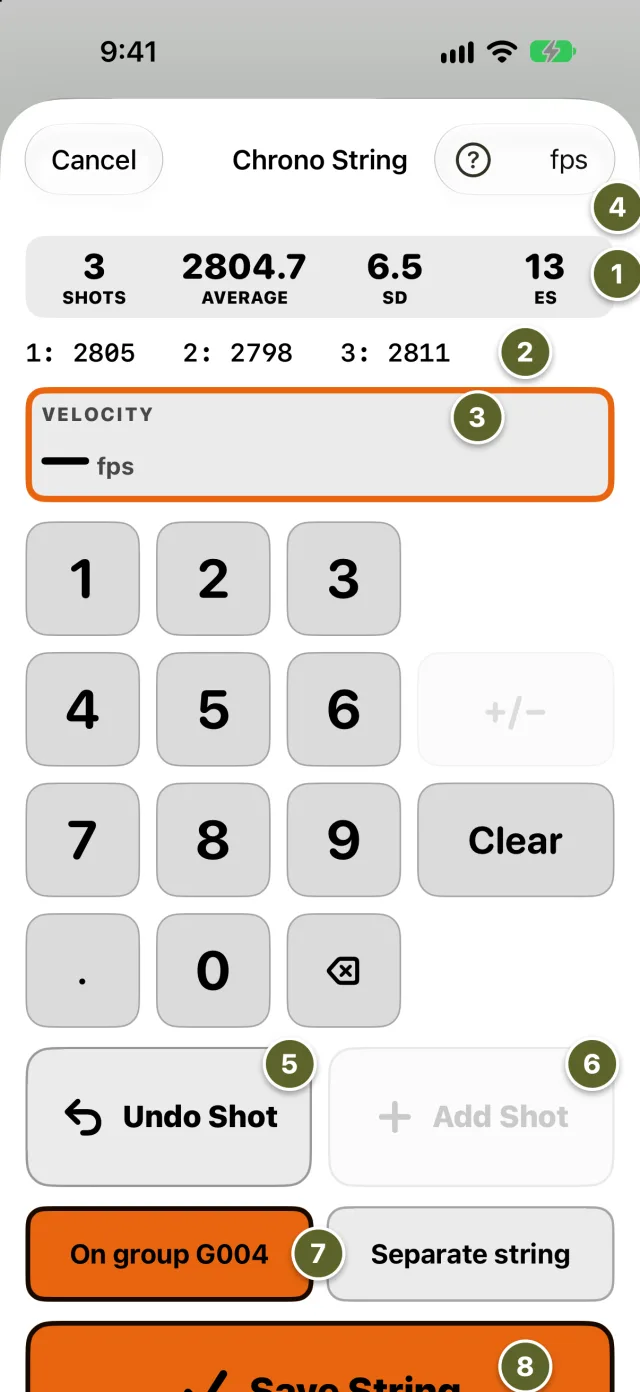
Numbers on the picture: 1 Shots, Average, SD, ES, 2 the shot list, 3 Velocity, 4 the unit (fps / m/s), 5 Undo Shot, 6 Add Shot, 7 On group / Separate string, 8 Save String.
-
Check the unit at the top right: fps or m/s, as your chronograph shows.
- Type the first velocity, like 2710, and tap Add Shot. It joins the list (“1: 2710”) and the figures update.
- Repeat for each shot. Typed the wrong number before adding? Clear or ⌫. Already added it? Undo Shot removes the last one.
- If you’ve added a group for this firearm in the session, choose where the string goes:
- On group G031 (the last group): these were the group’s shots.
- Separate string: shots that aren’t in a group, like a velocity-only string over the chronograph.
- Tap Save String. A velocity still on the pad is added as the last shot. Range Mode shows “Saved 5 shots on the chronograph”.
Why it’s useful
Velocity is the number that tells you whether a box of ammunition is consistent, and the bench is where you see it: most chronographs show one reading at a time and forget it later. Recording each shot as it appears, without a phone keyboard, means you keep the whole string, not just the average you remembered.
Who uses it: shooters testing factory ammunition compare one load’s SD against another’s, and see which lot is steadier. Long-range shooters need a real average velocity to build their own dope cards in other software and compare it later. Hunters confirm that a new box of their usual load runs like the last. Competitors in classes with a power factor floor check the velocity before a match. Someone who just bought a chronograph learns what “consistent” looks like. A string tied to a group lets you see later whether the flyer was a slow round.
What each option means
The figures are worked out for display only; the saved record keeps each shot’s velocity, and the group or session shows the same figures.
Example
Five shots of Ridgeline Match 140 gr over your chronograph after group G031.
- Chrono String, unit fps.
- Type and add 2710, 2695, 2722, 2704, 2716.
- The panel shows Shots 5, Average 2709.4, SD 10.5, ES 27.
- Leave On group G031 selected, tap Save String. “Saved 5 shots on the chronograph”. Rounds doesn’t change (those shots were already counted with the group).
- At home, group G031 lists the readings with “Average 2709.4 fps”, “Extreme spread 27 fps” and “Standard deviation 10.5 fps”.
Tips
- Five shots or more give an SD worth comparing; two or three tell you little.
- Save on the group when the chronograph caught the group’s shots, so a slow round can be matched to a flyer.
- Use Separate string for velocity-only strings, like a cold-bore-to-hot test.
- Record every shot, even the odd one. Leaving out “bad” readings makes your SD look better than your ammunition is.
- Compare strings later with the Velocity statistics calculator or Ammo comparison.
What it affects
- On a group: the string is saved on that group; no rounds are added.
- Separate string: the string is saved on the session, and its shots are added to the firearm’s Rounds fired.
- Undo in Range Mode removes the whole string and takes back any rounds it added.
- Velocities appear in Group History and Ammo comparison averages.
If something goes wrong
- “Type the velocity on the pad”. You tapped Add Shot with nothing typed. Type the velocity, then tap Add Shot.
- “Velocity must be from 100 to 5,000 fps” (or “Velocity must be from 30 to 1,524 m/s”). The number is outside what a chronograph reads; check for a missing or extra digit, or the wrong unit.
- “Add at least one shot first”. You tapped Save String with no shots. Add the shots, then save.
- There’s no On group choice. This firearm has no group in this session yet; the string goes on the session. Add the group first if the shots belong to it.
- Wrong unit. Change fps / m/s before saving; the unit applies to every shot in the string.
- My chronograph shows 2710.5. The pad takes a decimal point; up to five digits in all.
Related
- Range Mode, Range Mode: add a group, A group record.
- Velocity statistics calculator, Velocity trends calculator, Ammo comparison.
- Learning path: Testing factory ammo.
- Words used here: chronograph, standard deviation, extreme spread, power factor.
Guides on this topic
Still stuck? In the app, open More > Help > Contact Support, or More > Settings > Support, which also has Send Error Log (the error log helps us find the problem), or email contact@setriksoftware.com. You can also browse the Help Center or the messages the app can show.