
Shooting and range sessionsGun Diary Pro
"Range Mode: add a group"
Record a group at the bench in two taps plus the number, on a big number pad: size, shots, offset from your aim and distance, with the firearm, ammunition and target carried over.
In Range Mode, Add Group opens a big number pad for one group. The firearm, ammunition, distance and the target you just photographed are already filled in, so a group takes two taps plus its size. Leave the size blank if you can’t measure it yet: the group is saved as a draft and you finish it at home.
Steps
-
In Range Mode, tap the orange Add Group button. (If no firearm is chosen yet, Which Firearm? opens first; pick one and the pad follows.)
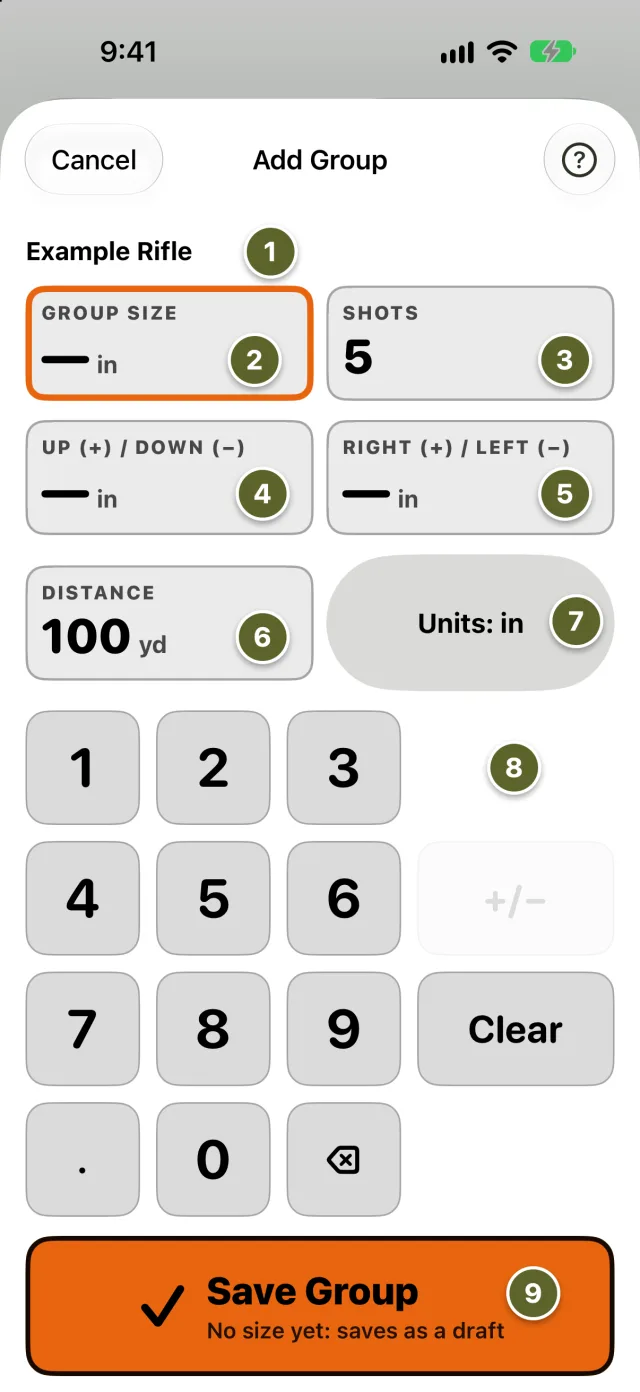
Numbers on the picture: 1 the firearm and target line, 2 Group size, 3 Shots, 4 Up (+) / down (−), 5 Right (+) / left (−), 6 Distance, 7 Units, 8 the number pad, 9 Save Group.
-
Group size is selected (outlined in orange). Type the size on the pad, like 1.2.
- To change another value, tap its box first, then type:
- Shots: how many shots are in the group.
- Up (+) / down (−) and Right (+) / left (−): where the group’s center landed from your point of aim. Tap +/− for down or left.
- Distance: the distance to the target.
- To change the unit of the size and offsets, tap the Units button (it reads like “Units: in”) until it shows the one you want: in, mm, MOA, mil.
-
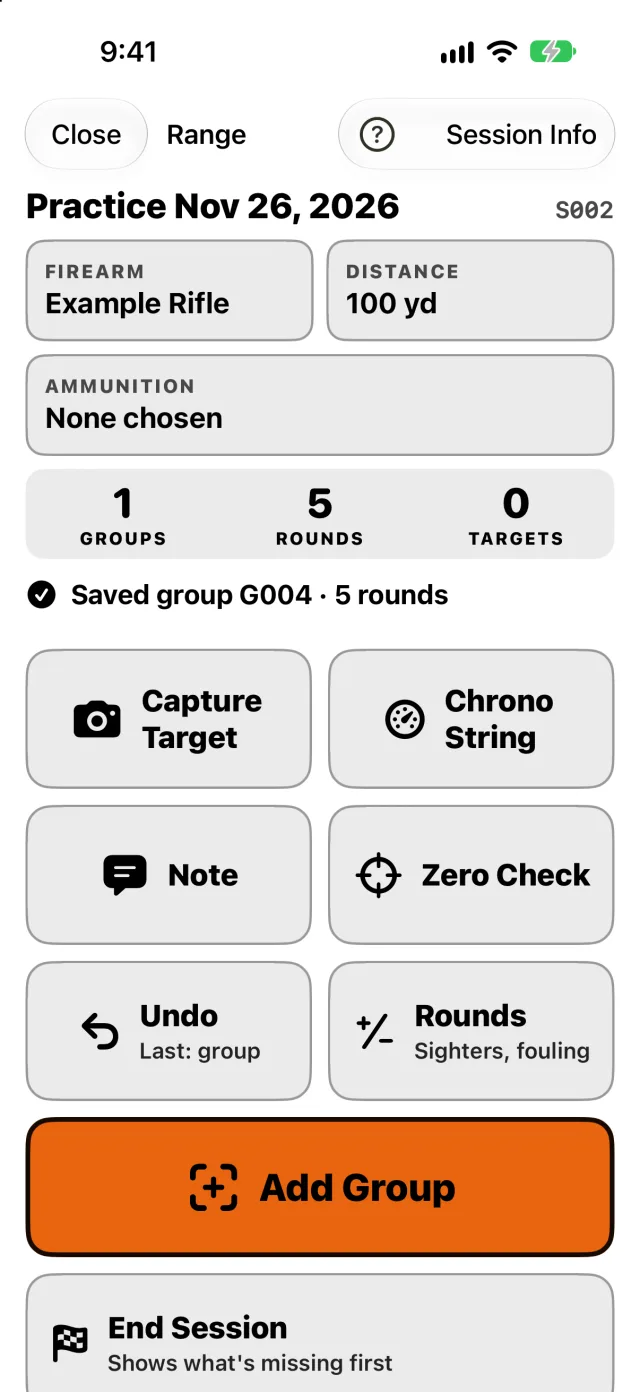
Tap Save Group. You’re back in Range Mode with “Saved group G031 · 5 rounds” under the card, and the counts go up.
Why it’s useful
The group is the core result of a range trip, and the bench is where you know it best: you just watched the shots land. Capturing it in seconds means you never lose a group because typing was too fiddly in gloves.
Different shooters fill in different parts. Someone sighting in a new scope types the offset up/down and left/right, so they (and the Sight clicks calculator) can work out the correction. A shooter testing factory ammunition types size and shots and moves on, changing the Ammunition chip between strings. A long-range shooter proving dope at 400 yards types the offset in mil, exactly as read through the reticle, so the group can be saved as dope later. A hunter checking a rifle may only type 3 shots and leave the rest for home. A new shooter who isn’t sure how to measure leaves the size blank and measures from the photo with help.
What each option means
The group gets:
- this session, the firearm, and the ammunition and lot set on the Ammunition chip;
- the target you captured last in this session (if any);
- the firearm’s setup on today’s date;
- the measure “Center to center”.
Example
The Mountain Rifle at 100 yards, target T014 just captured.
- Add Group. The line reads “Mountain Rifle · on target T014”. Distance shows 100 yd, Shots 5.
- Type 1.2 in Group size.
- Tap Up (+) / down (−), type 1.5. Tap Right (+) / left (−), type 0.6, tap +/−: −0.6 (left).
- Save Group. “Saved group G031 · 5 rounds”. Groups 1, Rounds 5.
- At home, G031 shows “1.5 in up · 0.6 in left” on its point-of-aim section, with the clicks to move.
Tips
- Distance and shots carry over. After the first group of a string you usually type only the size.
- Use the reticle’s units for offsets at distance. If you read “0.3 mil low” through the scope, set Units to mil and type −0.3. Note that the unit applies to the size too.
- Center to center is what the app assumes. If you measured outside edges, subtract one bullet diameter, or fix the measure on the full group form later.
- No caliper at the bench? Leave the size blank, capture the target, and use Measure a group from a photo at home (Pro).
What it affects
- A new group with the next code (G031…), in this session and in Group History. Without a size it’s a draft in Drafts.
- Rounds fired for the firearm goes up by Shots, once. See Round counts.
- Undo in Range Mode removes the group and takes those rounds back.
- The Distance chip changes to this group’s distance, for the next group.
If something goes wrong
- Save Group says “No size yet: saves as a draft”. That’s fine: it saves as a draft. Open it from the session or Drafts later and add the size.
- The pad typed into the wrong box. Typing goes to the outlined box. Tap the box you want first; Clear empties it.
- I can’t type a decimal in Shots. Shots are whole numbers.
- The group has the wrong ammunition. Set the Ammunition chip before adding groups. To fix a saved group, open it from the session and change Ammunition on the group form.
- The distance unit is wrong. Change it on the Distance chip in Range Mode (yd or m), then add the group.
- It linked to the wrong target. Groups link to the last target captured. Open the target at home and fix its regions. See A target and its groups.
Related
- Range Mode, Record a group (the full form), A group record, Save group as dope.
- Range Mode: chrono string, Measure a group from a photo.
- Learning path: Sighting in a new scope.
- Words used here: group, point of aim, point of impact, MOA, mil, draft.
Gun Diary keeps records you enter and does arithmetic on them. It never predicts a trajectory; confirm every hold by shooting it at the range, and always know your target and what is beyond it.
Still stuck? In the app, open More > Help > Contact Support, or More > Settings > Support, which also has Send Error Log (the error log helps us find the problem), or email contact@setriksoftware.com. You can also browse the Help Center or the messages the app can show.