
"Calculator #4: Sight Clicks"
Turn how far a group landed from your aim into turret clicks, up or down and left or right, for your scope's click value.
Sight Clicks (calculator #4) tells you how many turret clicks to dial, and which way, to move your point of impact onto your point of aim. Type how far the group’s center is from where you aimed, the distance, and your scope’s click value. It converts what you measured; it never predicts drop or wind.
Steps
-
On the Tools tab, under Angles and clicks, tap Sight Clicks. (From a group record, Open in Unit Converter opens this same tool with the group’s offset and distance filled in; see A group record.)
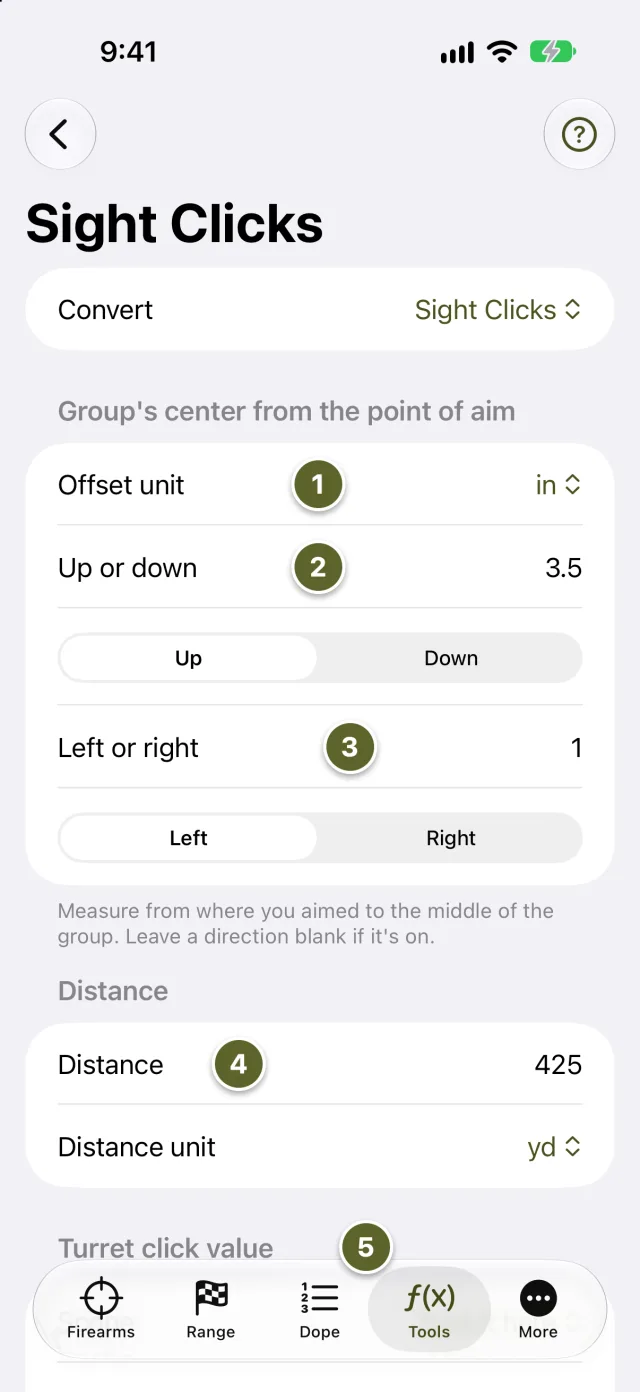
Numbers on the picture: 1 Offset unit, 2 Up or down and its direction, 3 Left or right and its direction, 4 Distance, 5 Turret click value (Scope and Click value, just below). The clicks to dial are in the next picture.
-
Pick the Offset unit: in, mm or cm for a length you measured on paper, or mil or MOA if you read the miss in your reticle.
- Under Group’s center from the point of aim, type how far the group is Up or down and pick Up or Down (where the group is). Then type Left or right and pick Left or Right. Leave a direction blank if it’s on.
- For a length, type the Distance and pick the Distance unit. (For mil or MOA there’s no distance section: an angle is the same at any distance.)
- Under Turret click value, pick your scope in Scope to use its click value from the Garage, or pick the Click value yourself. For an unusual turret pick Custom and type Custom click value and Custom click unit.
-
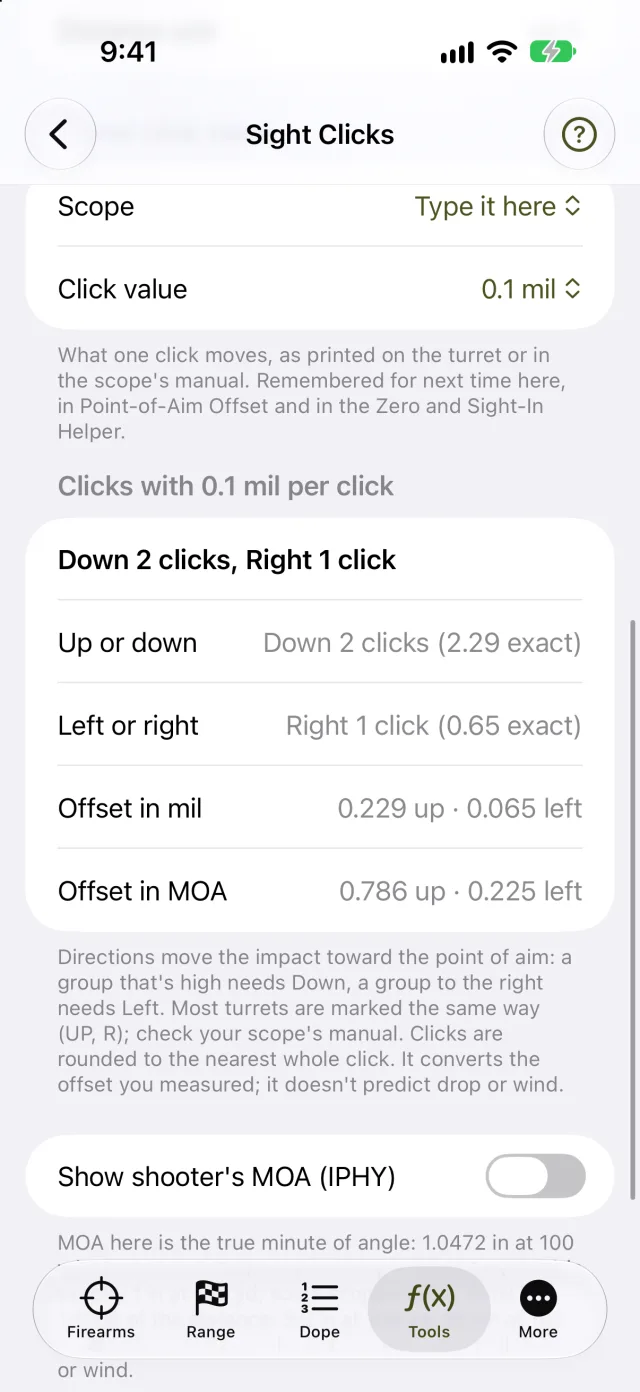
Read the result under Clicks with … per click: the line in large type is what to dial, for example “Down 2 clicks, Right 1 click”.
Why it’s useful
“The group is 3 inches high” isn’t something you can dial. Your turret moves in clicks, each a small angle, and an angle covers more inches the farther away the target is. Sight Clicks does that conversion in the right direction every time.
Who uses it, and how:
- New gun owners sighting in a first scope: shoot a group, measure from the aim point to the middle of the group, and dial what it says.
- Hunters checking zero before the season: a quick “still on, or how much off?” at 100 yards.
- Anyone who’s ever turned the turret the wrong way: the directions are worked out for you (a high group needs Down).
- Long-range shooters: turn a miss you spotted at distance, measured or read in the reticle, into a correction.
- Shooters with several rifles: pick each scope from the Scope list so each one’s click value is used.
What each option means
Results:
- The large line: the clicks to dial, each axis rounded to the nearest whole click; “No change (under half a click)” when both round to 0.
- Up or down and Left or right: direction, whole clicks, and the exact value, like “Down 2 clicks (2.29 exact)”.
- Offset in mil, Offset in MOA: the offset as angles.
The formula, in plain words: the offset is turned into an angle (for a length: size ÷ distance, in your click’s unit), then divided by the click value. The direction is the opposite of where the group is: a high group needs Down, a group to the right needs Left. Most turrets are marked the same way (UP, R); check your scope’s manual.
Example
At 425 yards your Mountain Rifle’s group center is 3.5 inches high and 1 inch left. The scope has 0.1 mil clicks.
- Offset unit in. Up or down 3.5, Up. Left or right 1, Left.
- Distance 425, yd. Click value 0.1 mil.
- The large line reads “Down 2 clicks, Right 1 click”.
- Up or down: Down 2 clicks (2.29 exact)
- Left or right: Right 1 click (0.65 exact)
- Offset in mil: 0.229 up · 0.065 left
- Offset in MOA: 0.786 up · 0.225 left
With a 1/4 MOA scope instead, the same offset is Down 3 clicks (3.15 exact).
Tips
- Measure to the middle of the group, not the nearest hole. With five shots, the center is more trustworthy than any one shot.
- Shoot a fresh group after dialing. Then run it again; small corrections often take two rounds.
- For several shots, let the app find the center. Zero and Sight-In Helper takes each shot’s position and works out the center and the clicks for you.
- Set your scope up once. Click value, reticle and focal plane in Optic settings feed this picker and other calculators.
What it affects
Nothing is saved as a record. The click value you pick (or the one from a scope) is remembered for next time here, and is also the starting Click value in Point-of-Aim Offset and the Zero and Sight-In Helper. A group record’s Clicks row, Zero Check and your dope tables don’t use it: they use the click value in the scope’s optic settings.
If something goes wrong
- “Type the offset above.” Type at least one of Up or down or Left or right.
- “Type a distance above 0 and a click value to see the clicks.” For in, mm or cm, Gun Diary needs the distance; and the click value can’t be 0.
- It says Down but my group is low. Check the direction under each number: it’s where the group is, not which way to dial. Pick Down for a low group and the result will say Up.
- My scope isn’t in the Scope list. Only scopes on a firearm’s current setup that have optic settings with a click value are listed. Add them in the Garage, or pick the click value by hand. See Optic settings.
- “No change (under half a click)”. You’re closer than half a click on both axes. Leave the turret alone.
Related
- Next: Zero and Sight-In Helper.
- Point-of-Aim Offset, Size to Angle, Zero Check, A group record.
- Learning path: Sighting in a new scope.
- Words used here: point of aim, point of impact, click value, turret, zero.
Gun Diary keeps records you enter and does arithmetic on them. It never predicts a trajectory; confirm every hold by shooting it at the range, and always know your target and what is beyond it.
Guides on this topic
- Mil vs MOA: What Each Unit Means and How to Convert Them
- How to Zero a Red Dot Scope: Steps, Click Math and the Record to Keep
- What Is 1 MOA at 100 Yards? The Exact Inches and the 1-Inch Shorthand
Still stuck? In the app, open More > Help > Contact Support, or More > Settings > Support, which also has Send Error Log (the error log helps us find the problem), or email contact@setriksoftware.com. You can also browse the Help Center or the messages the app can show.