
Record a group
Write down one group you shot (distance, size, shots, ammunition, where it hit, velocities, weather and photos) so you can compare it with every other group later.
A group is the cluster of holes a string of shots makes on the target, and it’s the core result of a range day. Gun Diary keeps each group as its own record: which firearm and ammunition shot it, how far, how big, how many shots, where it landed compared with where you aimed, the chronograph readings and the weather. Recording groups is free and unlimited.
Steps
-
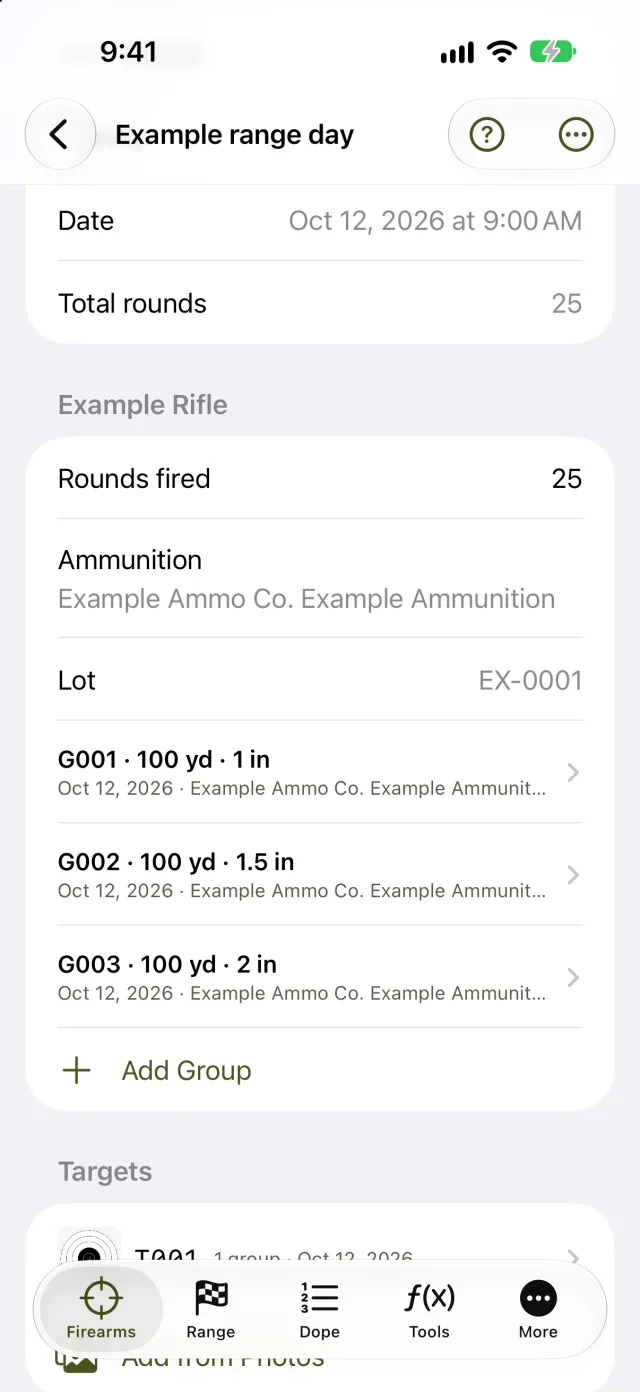
Start a new group from one of these places (they all open the same New Group form):
- A session: under the firearm’s name, tap Add Group. The group belongs to that session and picks up the ammunition set for that firearm in the session. See A session.
- The Range tab: tap Quick Entry, tap the firearm, then Add a Group. See Quick entry.
- A target: tap Mark a Group Region or Add Group Without a Region. See A target and its groups.
- In Range Mode, Add Group opens a bigger, simpler pad made for the bench. See Range Mode: add a group.
-
If Gun Diary needs to know which firearm shot the group, Which Firearm? opens first. Tap the firearm.
-
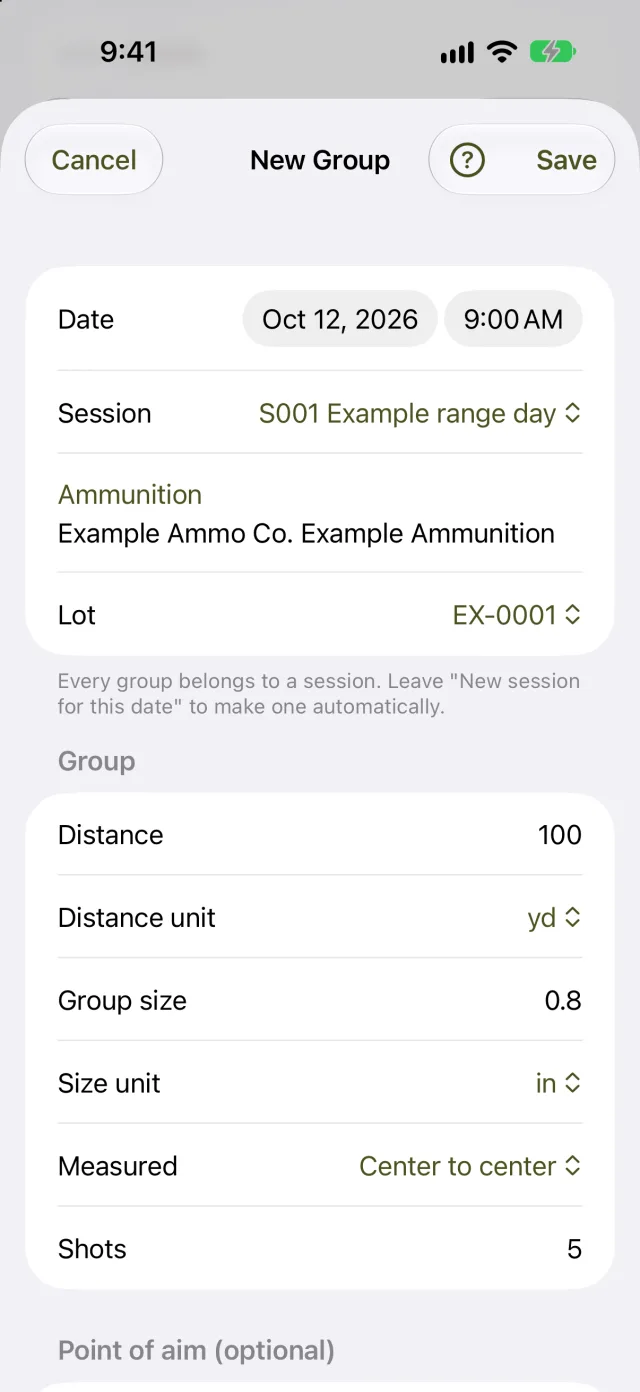
In the top section, check the Date, the Session and the Ammunition. To pick the ammunition, tap Ammunition and choose it from your Ammo Library. If that ammunition has lots, a Lot row appears: pick the lot printed on the box, or leave No lot.
-
Under Group, type the Distance and pick its Distance unit (yd or m). Type the Group size, pick the Size unit (in, mm, MOA or mil) and how you Measured it (Center to center, Edge to edge or Other). Type the number of Shots.
-
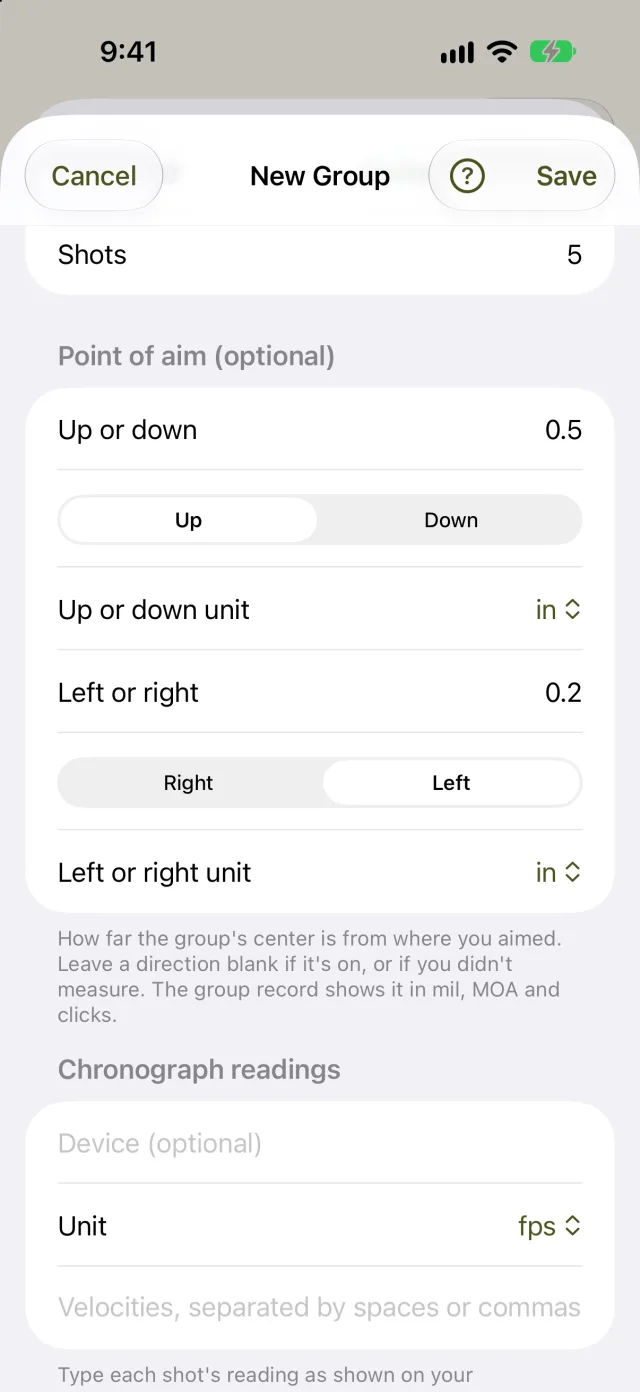
Optional: under Point of aim (optional), type how far the group’s center landed from where you aimed. For Up or down, type the distance, tap Up or Down, and pick the unit. Do the same for Left or right with Right or Left. Leave a direction blank if the group was centered that way or you didn’t measure it.
-
Optional: under Chronograph readings, type the chronograph’s name in Device (optional), pick the Unit (fps or m/s), and type each shot’s velocity, separated by spaces or commas. A line under the field shows the count, average, ES and SD as you type.
- Optional: turn on Weather for this group only if the weather changed since the session started; otherwise the group uses the session’s weather.
- Optional: under Photos, tap Take Photo or Add from Photos (up to 10 at a time) for a close-up of the group. Add Tags and Notes if you like.
-
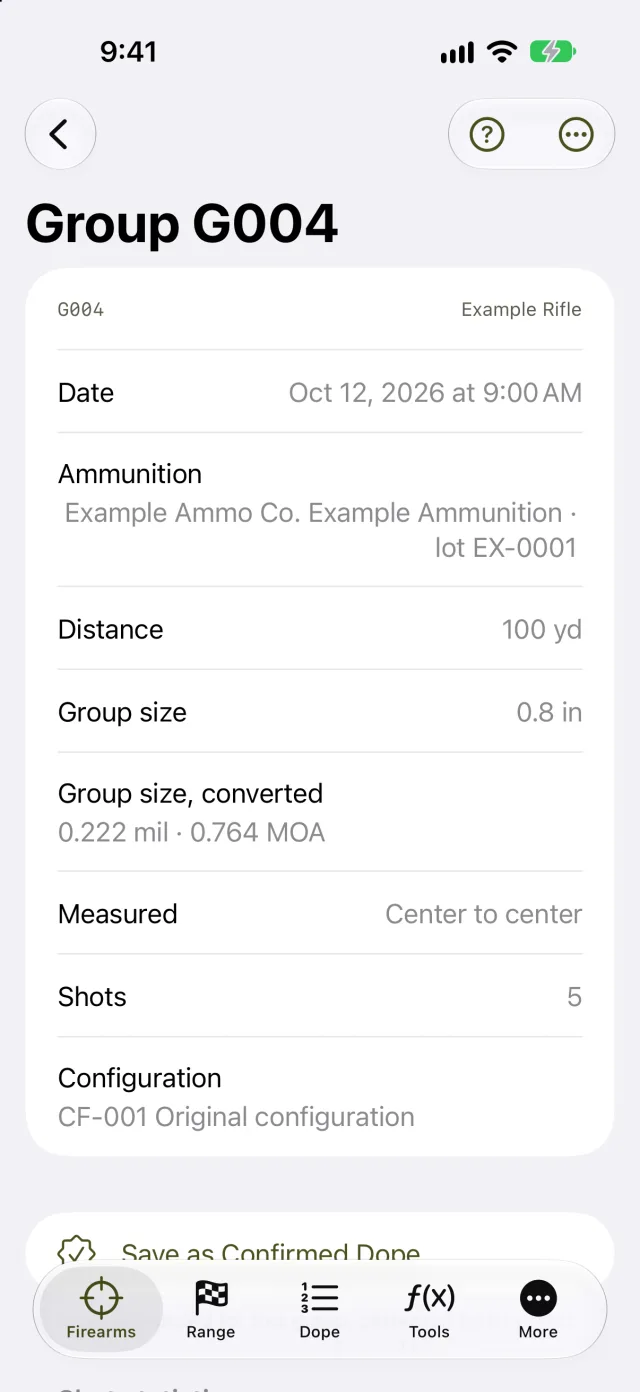
Tap Save. The group is saved, finished, in its session.
Not ready to finish? Tap Cancel, then Keep as Draft: the group is saved as a draft and waits in Drafts. Discard Group throws it away.
Why it’s useful
One group on its own says little; fifty groups recorded the same way tell you which ammunition your rifle likes, whether a new scope mount changed anything, and whether you’re getting better. Writing each group down while it’s fresh, with the conditions that went with it, is what makes those comparisons honest later.
Who uses it, and how:
- New gun owners: record every group from the first range trips. In a few months, Group History shows how much tighter your groups became, which is real proof of progress.
- Anyone testing factory ammunition: shoot several groups of each kind at the same distance and record the ammunition and lot for each. Ammo Comparison and Group History then line them up side by side.
- Hunters: a group shot from the bench before the season, with its offset from your point of aim, shows the rifle is still zeroed and becomes part of your pre-hunt record.
- Long-range shooters: record the size in MOA or mil, or in inches and let the group record convert it; the offset becomes proof for a dope row with Save as Confirmed Dope.
- Competitors: groups shot in practice, with velocities from the chronograph, show whether a lot of ammunition is consistent enough for a match.
- Collectors shooting old guns: a short note and a photo per group keep the story of how a vintage rifle shoots, without needing any other numbers.
- Busy range days: leave the size blank and save a draft; measure the paper or the photo at home.
What each option means
Every group belongs to a session. If you leave New session for this date, saving makes a practice session named “Groups” and the date, with this firearm in it.
The chronograph line (for example “5 shots · average 2711.6 fps · ES 25 fps · SD 10 fps”) is worked out for display only. Average is the mean, ES (extreme spread) is fastest minus slowest, SD is the sample standard deviation. A value that isn’t a number is left out.
Editing later: open the group and tap ••• > Edit Group. The form is called Edit Group with the group’s code (for example “Edit Group G004”) and has Done instead of Save. Changes are kept as you type, even if you swipe the form down.
Example
After a morning at the range, you open session S004 (the Mountain Rifle, 6.5 Creedmoor, with Example Ammunition set) and record your second group.
- Under Mountain Rifle, tap Add Group. New Group opens with today’s date, Session S004, the ammunition and its lot already filled in, Distance 100 yd and Shots 5 copied from your first group.
- Your calipers say 0.9 in center to center. Type 0.9 in Group size; Size unit is in, Measured is Center to center.
- The group’s center was 1.2 in high and 0.6 in left of the aiming dot. Under Point of aim (optional): Up or down 1.2, Up, in; Left or right 0.6, Left, in.
- Under Chronograph readings, type “2705 2718 2699 2712 2724”. The line below reads “5 shots · average 2711.6 fps · ES 25 fps · SD 10 fps”.
- Tap Take Photo and photograph the group, then Save.
The group record shows Group size, converted 0.25 mil · 0.859 MOA, and in Point of aim the clicks to move your scope (with 0.1 mil per click in the scope’s optic settings: Down 3 clicks, Right 2 clicks). See A group record.
Tips
- Set up the session first. When the session’s firearm row already has the ammunition, every Add Group picks it up.
- Testing more than one ammunition? The session’s ammunition is only where a new group starts. Set this group’s Ammunition (and Lot) to what you actually shot in it; Ammo comparison goes by the group’s ammunition.
- Clicks need the scope’s click value. The group’s clicks come from the scope’s optic settings; set them once in the Garage.
- Record groups in the order you shoot them. Distance and shots copy from the last group, so a string of groups at one distance takes seconds each.
- Record how you measured. Edge to edge is one bullet width bigger than center to center. Keep to one way, so your groups compare fairly.
- Use MOA or mil when you shoot at several distances. An angle compares groups at 100 and 300 yd directly; inches don’t.
- Measure at home if you’re in a hurry. Save a draft, then use Measure a group from a photo (Pro) or Type Shot Positions (free).
- A sheet with several groups: photograph it once as a target in the session, then mark each group’s region; don’t add the same photo to every group. See Mark group regions on a target.
- Rounds fired go on the session, not the group. Type the firearm’s Rounds fired in the session (sighters and fouling shots included) so the round counters are right. See Round counts.
What it affects
- The session: the group appears under its firearm in the session, and a new session is made when you left New session for this date.
- The firearm: the group shows in the firearm’s Shooting Diary and Group History, and in Ammo Comparison.
- The ammunition and lot: the group is listed where that ammunition is used. If the session’s firearm row had no ammunition yet, the group’s ammunition and lot are set there too.
- The configuration: the group is filed under the firearm’s setup on that date, so groups shot before and after a scope change stay apart.
- Round counters: no change from this form. Rounds come from the firearm’s Rounds fired in the session. (Groups added with Range Mode’s big Add Group pad are different: they add their shots to Rounds fired for you.)
- Drafts: a group kept as a draft is listed in Drafts and marked “Draft” until you tap Save or Done.
- Reports and exports: finished groups appear in session and group reports and in Export All Data.
- Change History: edits to a finished group are recorded; see Change history and locking.
If something goes wrong
- I can’t swipe the New Group form away. A new group must be saved or cancelled on purpose. Tap Cancel, then Keep as Draft or Discard Group.
- The ammunition I want isn’t in the list. Add it to your Ammo Library first. See Add an ammunition.
- There’s no Lot row. The ammunition has no lots yet. Add one in Lots, or leave it.
- The distance, shots or ammunition were filled in wrong. They’re copied from your last group (or the session) to save typing. Change them before you save.
- My group went into a new session I didn’t want. Session was left on New session for this date. Open the group, ••• > Edit Group, and pick the right session.
- Group size, converted doesn’t show on the record. A size in inches or mm needs a distance to be shown in mil and MOA; a size in MOA or mil needs a distance to be shown in inches. Add the distance.
- The chronograph line shows a different number of shots than I fired. Anything that isn’t a number (a typo, a letter) is left out, and a thousands comma splits a reading in two: “2,705” counts as 2 and 705. Type readings with spaces between them and no thousands separator.
- “Weather isn’t available right now. Type the values in instead.” Getting the weather needs a connection. Type the values or fill them in later.
- The round count didn’t change. Groups recorded with this form don’t count rounds. Type Rounds fired for the firearm in the session.
Related
- Next: A group record: what the saved group shows and what you can do with it.
- Measure a group from a photo, Shot holes and shot positions, A target and its groups.
- Log a session, Quick entry, Range Mode: add a group, Drafts.
- Learning paths: New gun owner, Testing factory ammo.
- Words used here: group, session, center to center, edge to edge, point of aim, MOA, mil, lot, configuration, extreme spread, standard deviation, flyer, draft, dope.
Gun Diary keeps records you enter and does arithmetic on them. It never predicts a trajectory; confirm every hold by shooting it at the range, and always know your target and what is beyond it.
Guides on this topic
- Mean Radius vs Group Size: Why MR Uses Every Shot
- Shot Group: What It Is, How Many Shots, and How to Measure One
Still stuck? In the app, open More > Help > Contact Support, or More > Settings > Support, which also has Send Error Log (the error log helps us find the problem), or email contact@setriksoftware.com. You can also browse the Help Center or the messages the app can show.