
Search, history and comparison
Group History
List your groups for one firearm or all of them, filtered by activity, ammunition, tag, dates and distance, with the columns you choose; export them or save the view.
Group History is a list of the groups you’ve recorded, newest first, for one firearm or for all of them. Filter it down to what you want to look at (an ammunition, a distance, a date range, an activity, a tag), choose which details each row shows, and export the list as a spreadsheet or PDF. Save a set of filters as a saved view to come back to it.
Steps
-
Open it one of these ways:
- A firearm’s dashboard > Group History (only that firearm’s groups; the title reads “Group History: Mountain Rifle”).
- More > Group History (every firearm).
- At the bottom of Search: Group History for all firearms.
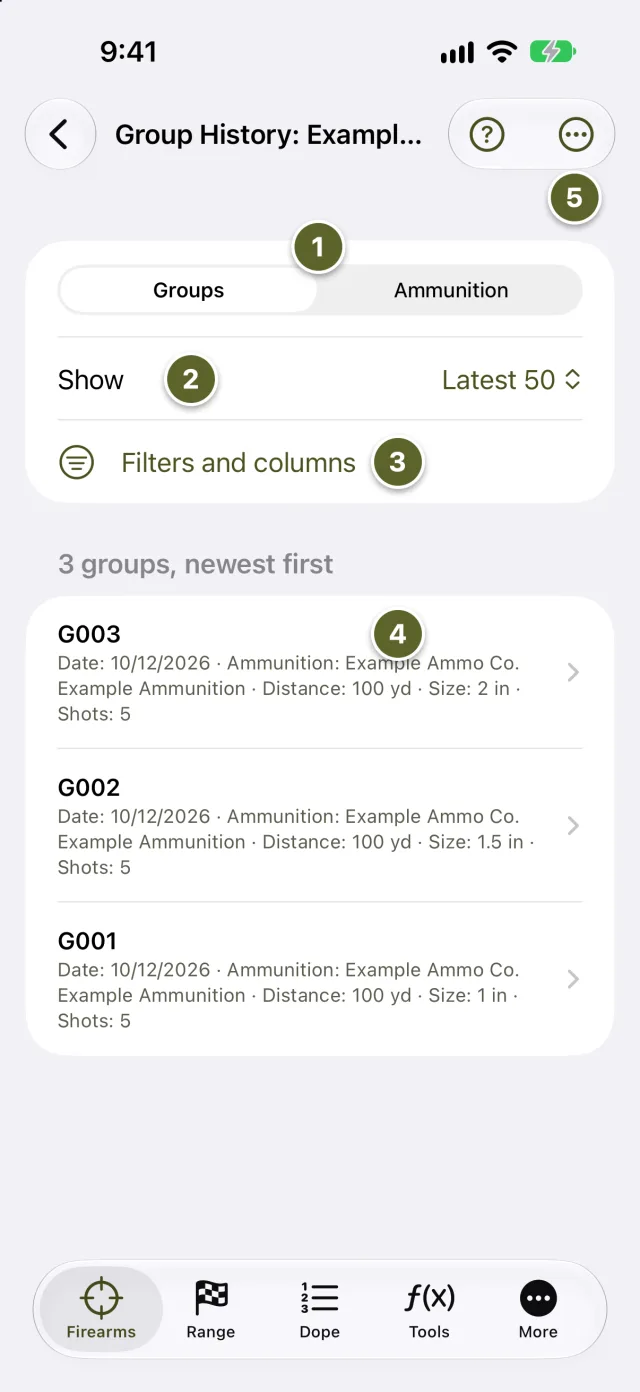
Numbers on the picture: 1 Groups / Ammunition, 2 Show, 3 Filters and columns, 4 a group row, 5 the Views menu (•••).
- Choose how many groups to list with Show: Latest 10 to Latest 100, or All. The default is Latest 50.
-
Tap Filters and columns to narrow the list and pick what each row shows (see below). Tap Done to come back. The button then reads “Filters:” followed by what’s on, like “Filters: Sight-in, 100 distance”.
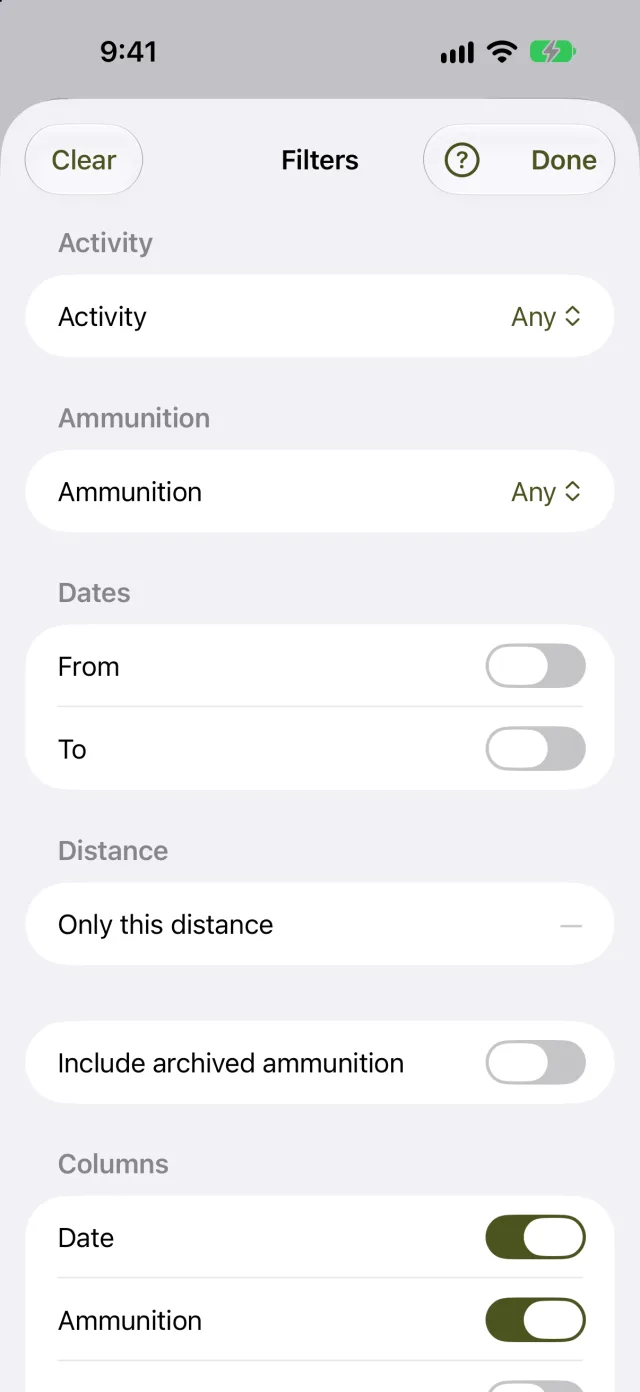
-
Read the list. Each row shows the group’s code and the columns you chose, like “Date: 10/12/2026 · Ammunition: Ridgeline Match · Distance: 100 yd · Size: 0.9 in · Shots: 5”. The heading says how many groups are shown.
- Tap a row to open the group. See A group record.
- Tap Ammunition at the top to see one row per ammunition instead: how many groups and the sizes you recorded. Tap a row to open that ammunition.
-
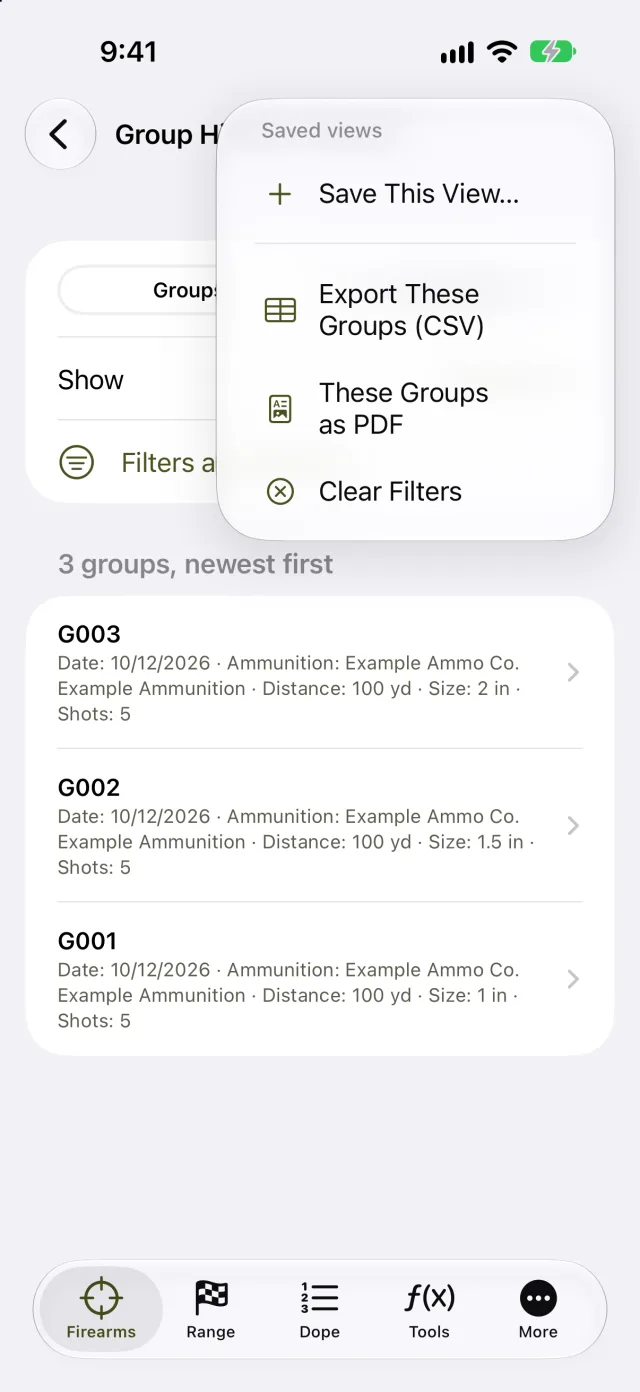
Tap ••• (Views) for more:
- Saved views (at the top): your saved views for this firearm (or for all firearms), and Save This View… (Pro). See Saved views.
- Export These Groups (CSV): a spreadsheet of the groups shown, with every column. Free.
- These Groups as PDF: a printable table with your columns. Pro.
- Clear Filters: back to the defaults.
Why it’s useful
One group says little; twenty groups say a lot. Group History lines up your results so you can see trends: whether a rifle is grouping as well as it did last year, which ammunition it prefers at 100 yards, how a new scope changed things.
Who uses it, and how:
- New gun owners see their groups shrink as they practice, with Latest 20 and the Size column.
- People testing factory ammo filter by Ammunition and a single distance, or switch to the Ammunition view to see sizes side by side. For averages, see Ammo comparison.
- Long-range shooters add Avg velocity and SD columns to watch speed and consistency from their chronograph.
- Hunters filter Activity to Sight-in or Zero check before the season to see that the rifle still groups.
- Competitors filter by tag (“match”) or dates to review a season.
- Shooters with several firearms use More > Group History to see everything together, then save “all firearms” views.
What each option means
The top of the screen
Filters
Draft groups (unfinished ones in Drafts) and deleted groups are never listed. Avg velocity and SD come from the group’s first chronograph string; SD is shown to one decimal. Aim offset is the group’s point of impact offset from the point of aim, if you recorded it.
Example
You want to see how the Mountain Rifle groups at 100 yards with Ridgeline Match this year:
- Dashboard > Group History.
- Filters and columns: Ammunition Ridgeline Match, From Jan 1, 2026, Only this distance 100. Under Columns, turn on Lot and Avg velocity. Done.
- The heading reads “8 groups, newest first”. The rows show sizes from 0.7 in to 1.2 in, lot 24A-118 for the first five and 25C-041 for the last three, and average speeds near 2695 and 2712 fps.
- ••• > Export These Groups (CSV) to keep a copy, or Save This View… to come back to it (Pro).
Tips
- Set Show to All when you filter tightly, so nothing is cut off.
- Filter by one distance when you compare sizes. A 1 in group at 100 yd and at 300 yd mean very different things. (The distance filter matches the number only, so if you shoot in both yards and meters, check the Distance column.)
- Turn on the Lot column when you buy a new lot.
- Use the CSV to make your own charts in a spreadsheet app.
- Save the views you use often (Pro). They stay up to date as you record new groups.
What it affects
Nothing. Group History only reads your groups; filters and columns don’t change any record. Export These Groups (CSV) and These Groups as PDF make files you can save or send. Saving a view adds a saved view (see Saved views).
If something goes wrong
- “Groups you record appear here” with “Change or clear the filters if you expected results.”: no group matches. Tap ••• > Clear Filters.
- A group is missing. It may be a draft (finish it in Drafts), use archived ammunition (turn on Include archived ammunition), be older than the Show limit, or be on another firearm.
- The Ammunition view shows fewer groups. Groups without an ammunition aren’t in that view.
- The distance filter mixes yards and meters. It matches the number in the group’s own unit; 100 matches both 100 yd and 100 m, and 91 m won’t match 100 yd.
- Avg velocity is blank. The group has no chronograph string.
- These Groups as PDF shows the Pro screen. The PDF is part of Gun Diary Pro; the CSV is free.
- Save This View… shows the Pro screen. Saved views are part of Gun Diary Pro.
Related
- Next: Ammo comparison, Saved views.
- A group record, Record a group, Search.
- Learning paths: Testing factory ammo, Sighting in a new scope.
- Words used here: group, chronograph, standard deviation, point of impact, lot, saved view, Pro.
Guides on this topic
Still stuck? In the app, open More > Help > Contact Support, or More > Settings > Support, which also has Send Error Log (the error log helps us find the problem), or email contact@setriksoftware.com. You can also browse the Help Center or the messages the app can show.