
Search, history and comparisonGun Diary Pro
Saved views
Save a set of Group History filters and columns under a name, pin it to a firearm's dashboard or the More tab, and open it in one tap; it stays up to date as you record groups.
A saved view is a Group History setup (its filters, columns, view and how many groups to show) saved under a name like “Last 20 groups” or “100 yd only”. Open it and Group History appears exactly that way, with any groups you’ve recorded since. Views for one firearm pin to its dashboard; views for all firearms pin to the More tab. Saving views is part of Gun Diary Pro.
Steps
Save a view
- Open Group History for a firearm (its dashboard > Group History) or for all firearms (More > Group History).
- Set it up the way you want: Groups or Ammunition, Show, and Filters and columns.
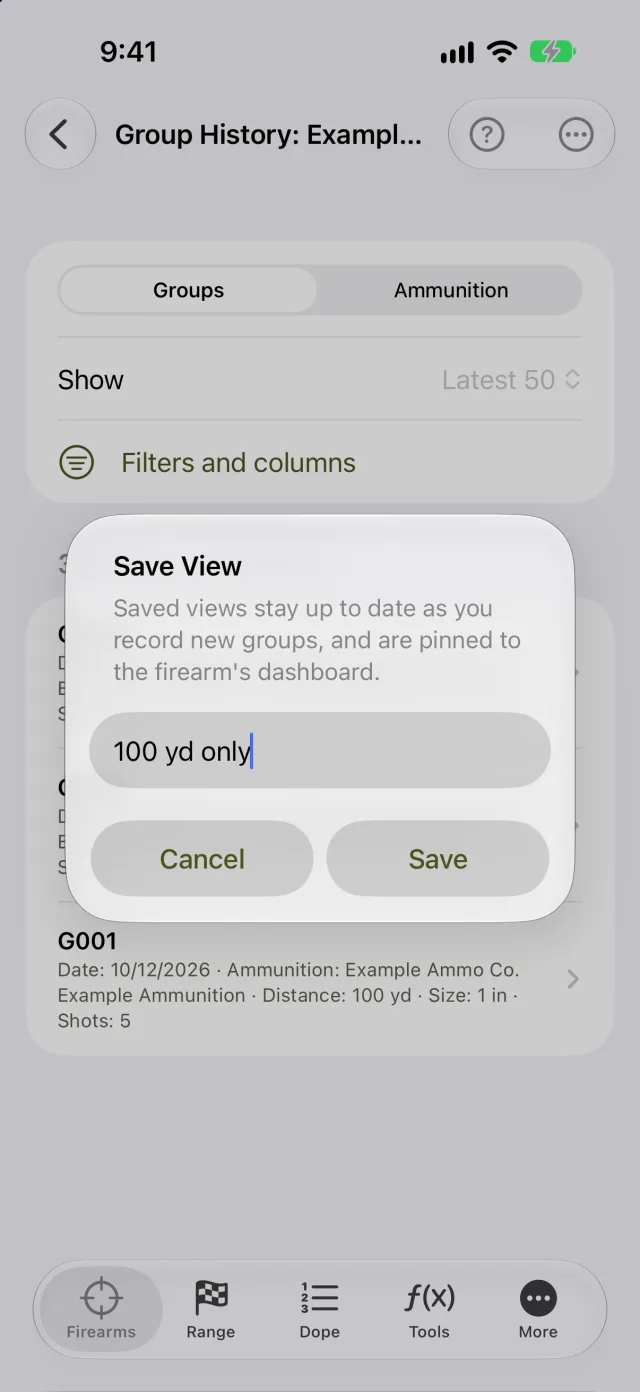
- Tap ••• (Views) > Save This View….
-
Type a name (like “Last 20 groups”) and tap Save. The view is saved and pinned: to the firearm’s dashboard (under Saved Views), or, for all firearms, to Pinned Views on the More tab.
Use and manage your views
- Open a view by tapping it on the dashboard, under Pinned Views on the More tab, in More > Saved Views, or in Group History’s ••• menu (the view’s name > Show).
-
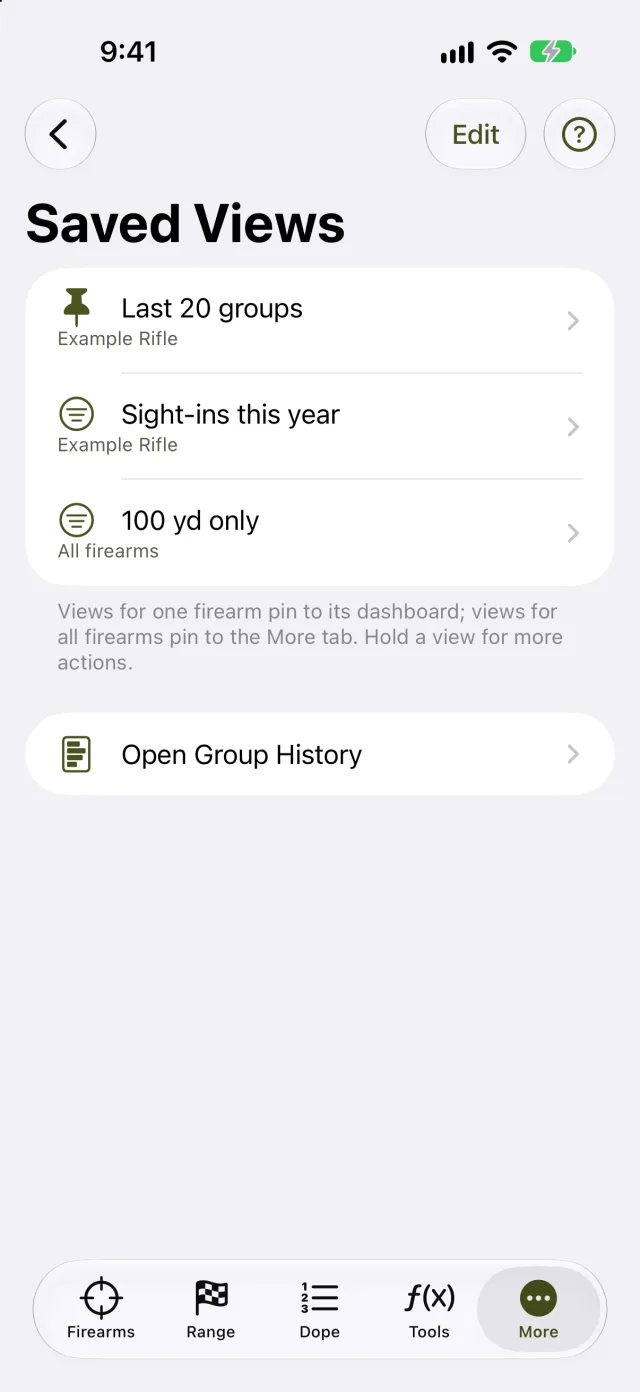
Open More > Saved Views to see all of them. Each row shows the name, a pin if pinned, and the firearm it’s for (or “All firearms”).
-
Manage a view on this screen:
- Swipe left: Rename or Delete.
- Swipe right: Pin or Unpin.
- Touch and hold: Rename…, Pin / Unpin, Duplicate, Delete View.
- Tap Edit and drag to reorder, then Done.
- To change what a view shows, open Group History, set the filters, then ••• > the view’s name > Update to These Filters.
Why it’s useful
Most people look at the same few slices of their history again and again: “my last 20 groups”, “this rifle at 100 yards”, “sight-ins this year”. Setting the filters each time is slow. A saved view is one tap, and because it stores the filters rather than a list, it always includes your newest groups.
Who uses it, and how:
- Hunters save “Sight-ins this year” (activity Sight-in, from Jan 1) on the hunting rifle’s dashboard and check it before the season.
- Long-range shooters keep “100 yd only” and “Lot 25C” views with Avg velocity and SD columns turned on.
- People testing factory ammo save one view per candidate ammunition.
- Competitors save a tag view (“match”) with the columns they review after each match.
- Shooters with many firearms keep “all firearms” views on the More tab, like “Last 50 groups, every gun”.
- Instructors and families keep a view per tag to follow one shooter’s groups.
What each option means
A view saved from one firearm’s Group History is for that firearm only; a view saved from More > Group History covers every firearm. Opening a view shows Group History with the view’s name as its title.
Example
Before elk season you want to check the Mountain Rifle’s recent sight-ins in one tap:
- Mountain Rifle dashboard > Group History.
- Show: All. Filters and columns: Activity Sight-in, From Jan 1, 2026. Done.
- ••• > Save This View…, name “Sight-ins this year”, Save.
- The dashboard now has a Saved Views section with “Sight-ins this year”. Each time you tap it, Group History opens with those filters, including the sight-in groups you record next week.
- In More > Saved Views, you touch and hold it > Duplicate, then open the copy and use Update to These Filters to make a “Sight-ins last year” view.
Tips
- Name views by question: “Last 20 groups”, “100 yd only”, “Lot 25C”.
- Use Show All in views with tight filters, so nothing is cut off.
- Unpin views you rarely use to keep the dashboard short; they stay in More > Saved Views.
- Duplicate, then update to make a family of similar views quickly.
- Saved views aren’t text searches. To find a record by a word, use Search.
What it affects
- The firearm’s dashboard (Saved Views section) or the More tab (Pinned Views) show pinned views.
- Search finds views by name, under Saved views.
- Your groups are never changed: a view only stores filters.
- Backups and exports include your views.
If something goes wrong
- “Saving views is part of Gun Diary Pro. Views you already have keep working.” You can open, rename, pin and delete views you have; saving new ones needs Pro. Tap See Gun Diary Pro.
- Save This View… shows “Saved views are part of Gun Diary Pro”. Same reason. See Compare Free and Pro.
- “Save a search to reuse it” on the Saved Views screen: you have no views yet. Make one in Group History.
- My view isn’t on the dashboard. It’s unpinned, or it’s an all-firearms view (those pin to the More tab). Pin it on the Saved Views screen.
- The Saved Views section is missing from the dashboard. No view of that firearm is pinned, or the section is hidden; see Arrange the dashboard.
- I don’t see a view in Group History’s menu. The menu lists only the views of the firearm you’re on (or only all-firearm views on More > Group History). More > Saved Views shows them all.
- The view shows fewer groups than expected. Check its Show limit and filters, then Update to These Filters.
Related
- Group History, Firearm dashboard, Arrange the dashboard.
- Compare Free and Pro, Search.
- Words used here: saved view, group, tag, Pro.
Still stuck? In the app, open More > Help > Contact Support, or More > Settings > Support, which also has Send Error Log (the error log helps us find the problem), or email contact@setriksoftware.com. You can also browse the Help Center or the messages the app can show.