
Arrange the dashboard
Put a firearm's dashboard sections in the order you use them and hide the ones you don't, without losing any records.
Each firearm’s dashboard can be set up the way you use that gun: the sections you open most at the top, the ones you never use out of sight. The layout is kept per firearm, so your deer rifle and your trap gun can look different. Hidden sections keep every record; you can turn them back on any time.
Steps
- Open the firearm’s dashboard (Firearms tab, then the firearm).
-
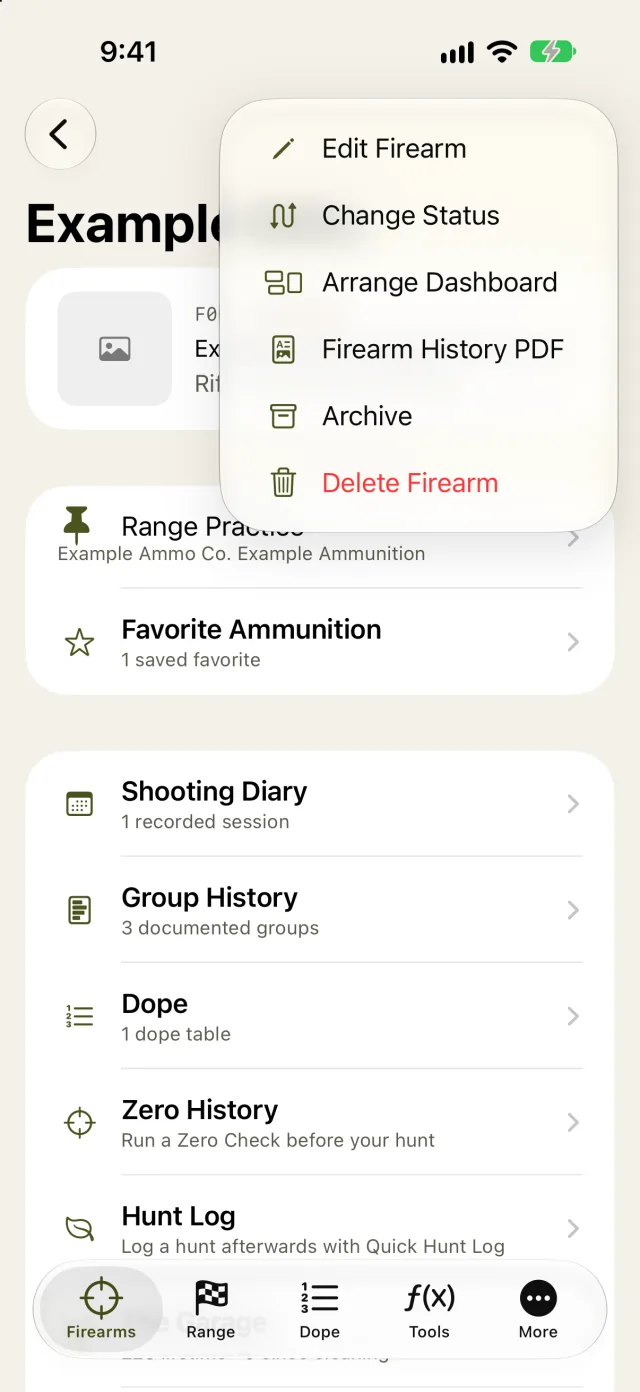
Tap ••• at the top right, then Arrange Dashboard.
-
To move a section, touch and hold the handle (three lines) on the right of its row and drag it up or down.
-
To hide a section, turn its switch off. To show it again, turn it on.
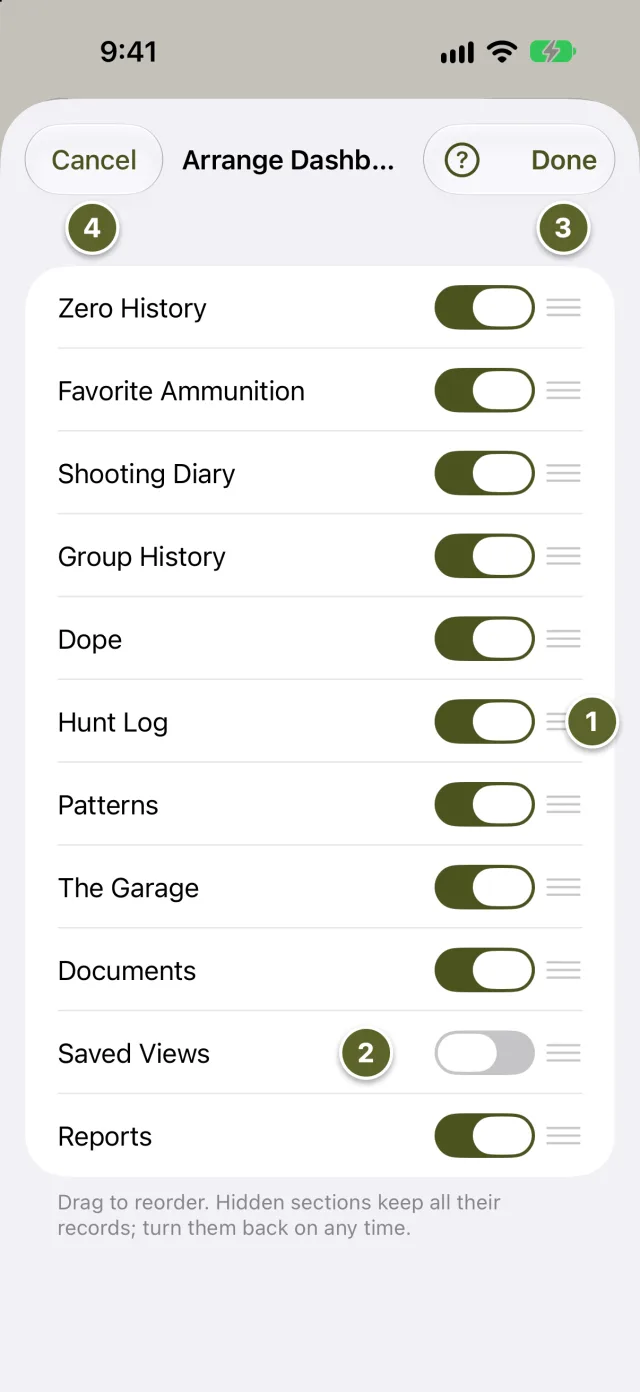
Numbers on the picture: 1 a drag handle, 2 a switch (off hides the section), 3 Done, 4 Cancel.
-
Tap Done to keep the new layout, or Cancel to leave it as it was.
Why it’s useful
Not everyone uses a gun the same way, and the same person uses different guns differently. A dashboard with every section in a fixed order works, but the one you open every trip shouldn’t be five rows down. Arranging it takes a minute and saves a scroll every time.
Who uses it, and how:
- A hunter puts Zero History, Favorite Ammunition and Hunt Log at the top of the hunting rifle, and hides Saved Views.
- A long-range or precision shooter puts Dope and Group History first.
- A competitor puts Shooting Diary (match results and drills) and The Garage (round count on the barrel) first.
- A collector puts Documents and Reports first on a gun that’s mostly kept, not shot, and hides the shooting sections.
- A new gun owner hides what they don’t use yet, so the page stays short, and turns sections on later.
- A shotgunner puts Patterns first on the trap or turkey gun.
What each option means
The footer says: “Drag to reorder. Hidden sections keep all their records; turn them back on any time.”
Not in this list: the header (always at the top) and Drafts (always at the bottom, only when this gun has unfinished records). A section switched on here can still be missing from the dashboard when there’s nothing to show (Saved Views with nothing pinned), when it doesn’t apply (Patterns on a gun that isn’t a shotgun) or when the feature is off for the whole diary in Personalize your diary (Dope, Hunt Log, Patterns).
Example
Your Mountain Rifle is mostly a hunting rifle. Before the season:
- Mountain Rifle > ••• > Arrange Dashboard.
- Drag Zero History to the top, then Favorite Ammunition under it, then Hunt Log.
- Turn off Saved Views and Group History.
- Done.
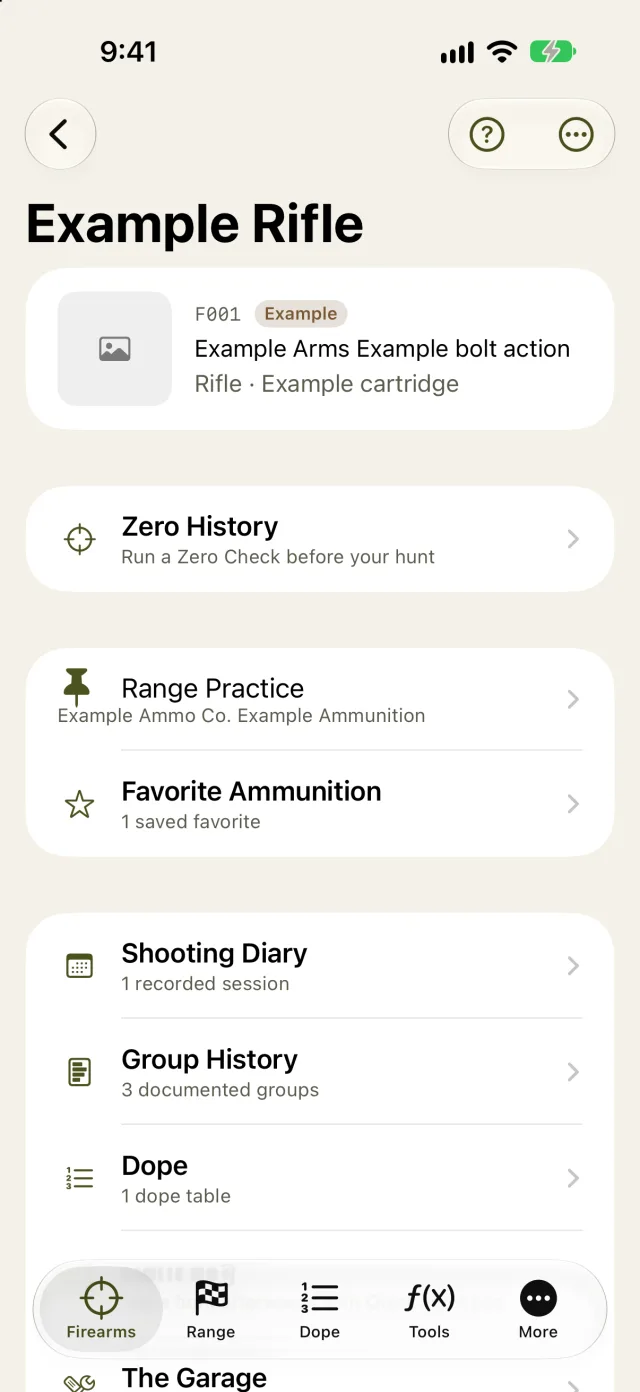
The dashboard now opens on “Zero History”, then your favorite ammunition, then the hunt log. The groups are still there: turn Group History back on when you go to the range to test a new box of ammunition.
Tips
- Each firearm has its own layout. Arranging one gun’s dashboard doesn’t change another’s.
- Hiding is not deleting. A hidden section’s records still show in Search, reports and exports.
- To hide a feature everywhere, not just on one gun, use Personalize your diary instead.
What it affects
- Only this firearm’s dashboard: the order and what shows. Nothing else changes.
- Sync: the layout syncs to your other devices with iCloud on, and is kept in backups.
If something goes wrong
- A section I turned on doesn’t show. It has nothing to show yet (Saved Views), doesn’t apply to this kind of gun (Patterns), or the feature is off in Personalize.
- I can’t drag a row. Touch and hold the handle on the right of the row, not the switch, then move your finger.
- My changes didn’t stick. Tap Done, not Cancel or a swipe down.
Related
- The firearm dashboard, Personalize your diary, Saved views.
- See also the learning path Before and after the hunt.
Still stuck? In the app, open More > Help > Contact Support, or More > Settings > Support, which also has Send Error Log (the error log helps us find the problem), or email contact@setriksoftware.com. You can also browse the Help Center or the messages the app can show.