
Search, history and comparison
Ammo comparison
See, for one firearm, every ammunition (or lot) you've shot side by side, with average group size in MOA, mean radius, velocity and SD from your own records.
Ammo Comparison answers the factory shooter’s question, “which ammunition does this gun shoot best?”, from your own records. Pick a firearm and it lists every ammunition you’ve recorded groups with, each with its number of groups and shots and the averages of what you measured: group size as an angle (MOA), mean radius, velocity and SD. Switch to Lots to compare lots of the same ammunition. Gun Diary shows the numbers; it doesn’t rank or recommend ammunition.
Steps
-
Open it one of these ways:
- More > Ammo Comparison.
- A firearm’s dashboard > Reports section > Ammo Comparison (opens on that firearm).
- More > Reports > Ammo Comparison.
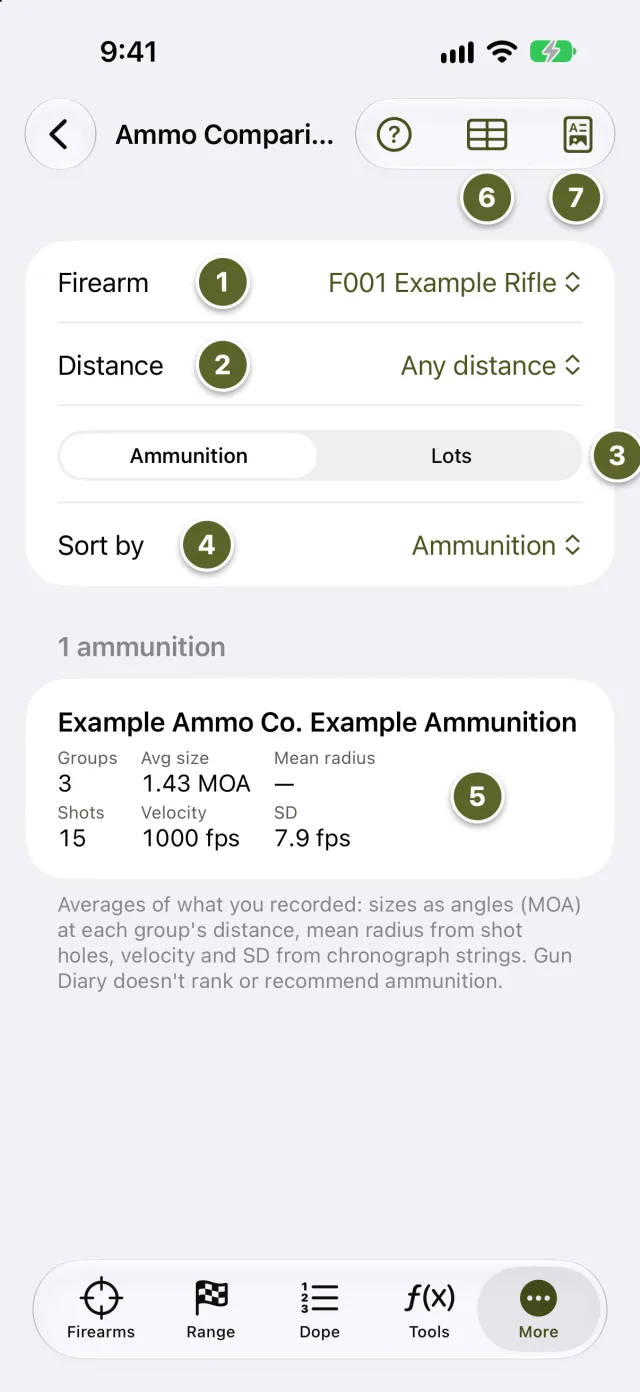
Numbers on the picture: 1 Firearm, 2 Distance, 3 Ammunition / Lots, 4 Sort by, 5 an ammunition row, 6 Share Spreadsheet (CSV), 7 Share PDF.
- Check the Firearm (each listed with its code, like “F001 Mountain Rifle”). It starts on the firearm you came from; from More, on your first firearm by code that isn’t the Example Rifle.
- Pick a Distance band: Any distance, Under 200 yd, 200 to 399 yd, 400 to 599 yd or 600 yd and over.
- Choose Ammunition (one row per ammunition) or Lots (one row per lot; groups with no lot form a “No lot” row).
- Choose Sort by: Ammunition (A to Z), Groups (most first), Group size, Mean radius and SD (smallest first), or Velocity (fastest first).
- Read each row: the ammunition (and “Lot …”), then Groups, Avg size, Mean radius, Shots, Velocity and SD. A dash (—) means nothing of that kind was recorded.
- To keep or send the table, tap the table icon (Share Spreadsheet (CSV), free) or the document icon (Share PDF, Pro) at the top right; both are icons without words. The PDF opens in a preview; tap Share to save or send it.
Why it’s useful
Testing ammunition is the most common question factory shooters ask of their records. One great group with a box proves little; five groups averaged across sessions say much more. This screen does the averaging for you, from the groups you’ve already recorded, and converts sizes shot at different distances into the same unit (MOA) so they can sit side by side.
Who uses it, and how:
- People testing factory ammo for a new rifle shoot three to five groups with each candidate, then read the Avg size column at Under 200 yd.
- Hunters compare their hunting ammunition with their practice ammunition, to see whether the cheaper box is close enough for practice.
- Long-range shooters compare Velocity and SD between ammunitions or lots, because consistent speed matters more as distance grows.
- Competitors compare Lots of their match ammunition before buying a case.
- Handgun shooters compare groups of carry ammunition and range FMJ at 7 or 15 yards.
- Shotgunners can compare slugs by group; pattern loads are compared in Patterns.
What each option means
Only groups with an ammunition count. Archived ammunition is included. Avg size uses the size you typed on each group (usually the extreme spread, center to center); this screen doesn’t measure anything new.
Example
You tested two hunting ammunitions in the Mountain Rifle (6.5 Creedmoor) at 100 yd, five-shot groups:
- Ridgeline Match: three groups of 0.9, 1.1 and 1.0 in, shot holes marked (mean radius 0.35, 0.40 and 0.33 in), one chronograph string per group with SDs of 9.8, 11.2 and 10.4 fps.
- Summit Hunter: two groups of 1.4 and 1.6 in, no shot holes, strings with SDs of 14 and 16 fps.
Ammo Comparison, Mountain Rifle, Under 200 yd, Ammunition, Sort by Group size:
| Groups | Shots | Avg size | Mean radius | SD | |
|---|---|---|---|---|---|
| Ridgeline Match | 3 | 15 | 0.95 MOA | 0.34 MOA | 10.5 fps |
| Summit Hunter | 2 | 10 | 1.43 MOA | — | 15 fps |
(1.0 in average at 100 yd is 0.95 MOA; 1.5 in is 1.43 MOA.) Your Velocity column shows the average of all your chronograph shots for each, like 2705 fps and 2690 fps. You decide what that means for your hunt; Gun Diary only shows the arithmetic.
Tips
- Shoot several groups per ammunition before reading much into the numbers. Two groups are a start, not an answer.
- Compare like with like: pick a Distance band, and shoot each ammunition the same day if you can, so weather and your own form are similar.
- Mark shot holes on target photos to get Mean radius, which uses every shot instead of only the two widest. See Shot holes.
- Record a chronograph string with each group to fill in Velocity and SD.
- Tidy the library first. Two records of the same ammunition make two rows; see Merge duplicate ammunition.
- Compare lots with Lots after you buy a new case.
What it affects
Nothing. The screen only reads your groups. The CSV and PDF are files you can save or send; making them changes no record.
If something goes wrong
- “Shoot two ammunitions in one firearm to compare”: this firearm has no finished groups with an ammunition in this distance band. Check the Firearm, set Distance to Any distance, and make sure your groups have an ammunition picked.
- A group isn’t counted. It’s a draft, has no ammunition, is on another firearm, or has no distance while a band is chosen.
- Avg size shows “—”. The groups have no size, or no distance (needed to turn inches into MOA).
- Mean radius shows “—”. No group of that ammunition has shot holes marked.
- Velocity and SD show “—”. No chronograph strings on those groups.
- Share PDF shows the Pro screen. The PDF is part of Gun Diary Pro; the CSV and the screen are free.
- Tapping a share button shows “Pick a firearm to compare its ammunition”. No firearm is picked: pick one next to Firearm. With no firearm in the diary yet, it says “Add a firearm first (Firearms tab)”.
- The same ammunition is on two rows. With Lots, that’s one row per lot. With Ammunition, it’s two records: merge them.
Related
- Group History, Record a group, Shot holes, Lots.
- Merge duplicate ammunition, Save and share PDF reports, Reports.
- Learning path: Testing factory ammo.
- Words used here: MOA, mean radius, standard deviation, extreme spread, chronograph, lot, group, Pro.
Guides on this topic
Still stuck? In the app, open More > Help > Contact Support, or More > Settings > Support, which also has Send Error Log (the error log helps us find the problem), or email contact@setriksoftware.com. You can also browse the Help Center or the messages the app can show.