
Change history and locking
See every change made to a finished group or session, with the old and new values and when, and lock a group so it can't be edited, measured or deleted by accident.
Once a group or session is finished, Gun Diary keeps a Change History for it: each edit is listed with the field, the old value, the new value, and when it was made. A group can also be locked with Lock Record, so it can’t be edited, measured or deleted until you unlock it on purpose. Together they keep your results trustworthy years later.
Steps
See a record’s change history
- Open a finished group or session (from its firearm, the session, Search or Group History).
-
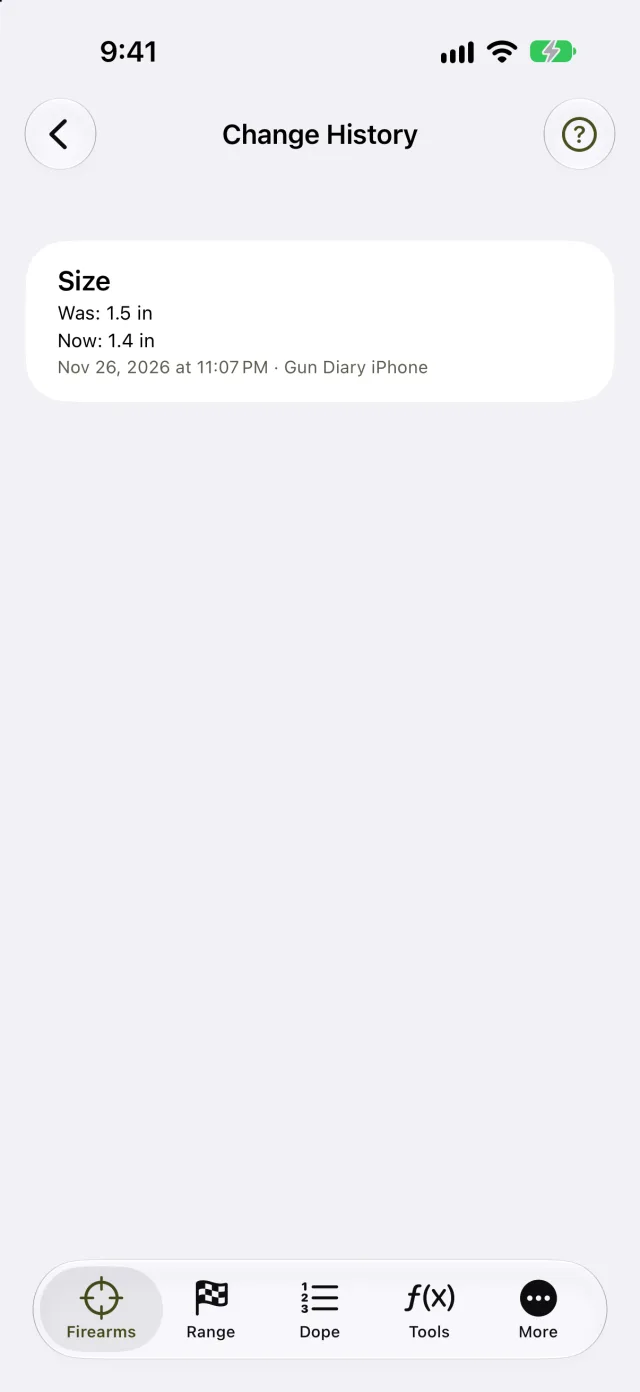
Tap ••• > Change History.
-
Each entry shows the field that changed, “Was:” and “Now:” values (“blank” when a value was empty), and the date, time and device. The newest change is at the top.
Lock a group
-
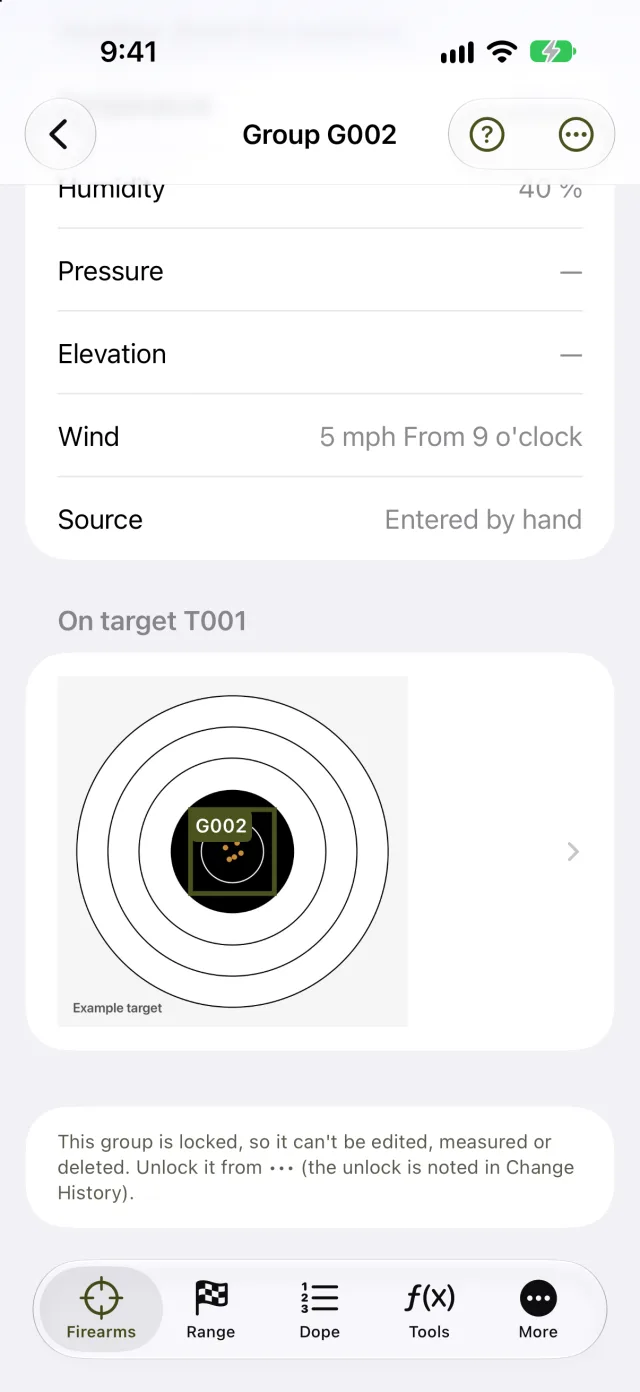
Open the group and tap ••• > Lock Record. A lock appears next to the group’s title, and the note “This group is locked, so it can’t be edited, measured or deleted. Unlock it from ••• (the unlock is noted in Change History).” appears at the bottom.
-
While it’s locked, Edit Group, Measure from Photo and Delete Group are greyed out in •••.
Unlock a group
- Tap ••• > Unlock.
- In “Unlock this record?”, tap Unlock. The unlock is written to the group’s Change History.
Why it’s useful
A shooting record is evidence: of what an ammunition did, of what proved a dope row, of what a rifle shot before a change. If a number can change silently, you can’t trust it later. The change history shows what was edited and when; the lock stops edits by accident, like a stray tap on a size that took you an evening to measure.
Who uses it, and how:
- Precision shooters: lock the groups that proved your dope, so the proof can’t drift.
- Ammunition testers: lock the groups of a finished test before you start comparing, so the comparison rests on fixed numbers.
- Competitors: the session’s history shows when a score or placement was corrected.
- Anyone sharing a device or iCloud account: see what changed and on which device.
- After a surprise: “why is this group 1.1 in, I’m sure it was 0.9?” The history answers it.
What each option means
What’s recorded: edits to a finished record, including measurements from a photo. A draft‘s edits aren’t listed (it isn’t finished yet), and neither is the first save. Only groups can be locked. Dope rows keep their own history of earlier values; see A dope row.
Example
Your 300 yd group G041 proved a dope row. Months later its size reads 1.4 in and you remember 1.2. ••• > Change History shows “Size, Was: 1.2 in, Now: 1.4 in”, dated the evening you re-measured it on your iPad. You decide 1.4 in is right after all, then tap ••• > Lock Record so nothing changes it again.
Tips
- Lock proof groups. Any group behind a dope row, a zero record or an ammunition decision is worth locking.
- Lock after you finish measuring, not at the range: a locked group can’t be measured from its photo.
- Locking doesn’t stop Save as Dope. You can still build dope from a locked group; that doesn’t change the group.
- Deleted records keep their history while they’re in Recently Deleted and get it back when restored.
What it affects
- Locking blocks editing, measuring and deleting that group, on every device that syncs. Everything else (viewing, sharing, reports, Save as Dope, its session) works as usual.
- The history is part of your diary: it syncs and goes into backups. It never changes the record itself.
If something goes wrong
- Edit Group is greyed out. The group is locked. ••• > Unlock > Unlock.
- Change History is empty: “No changes”. The record hasn’t been edited since it was finished, or it’s still a draft.
- The device shows only “iPhone”. Recent iOS versions give apps a general device name instead of the name you set; the date still tells you when.
- I can’t find Lock Record on a session. Only groups can be locked.
Related
- Next: Reference Library.
- A group record, A session, A dope row, Recently Deleted.
- Words used here: change history, lock, group, session, dope, draft.
Still stuck? In the app, open More > Help > Contact Support, or More > Settings > Support, which also has Send Error Log (the error log helps us find the problem), or email contact@setriksoftware.com. You can also browse the Help Center or the messages the app can show.