
A dope row and its history
Open one proven distance to see its come-up and clicks, conditions, proof and every earlier value it had; edit it, replace it with a newly proven value, or delete it.
Each proven distance on a dope table is a row with its own page: the come-up and clicks, when and how it was proven, the conditions, the groups that showed it, and every earlier value that distance had. Tap a proven row on a dope table to open it.
Steps
-
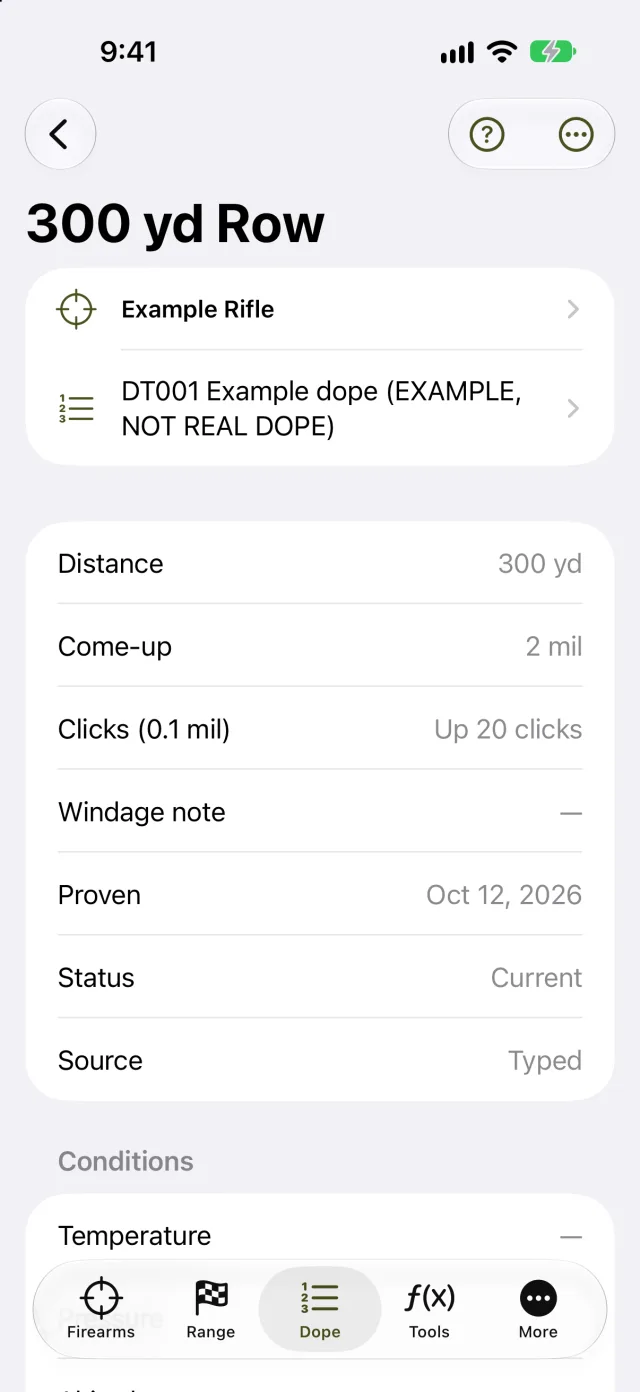
On a dope table, tap a proven row (in-between rows marked est. can’t be opened; they aren’t saved). The screen is titled with the distance (“300 yd Row”).
-
At the top, tap the firearm to open its dashboard, or the table (code and name) to go back to it.
- Read the row: Distance, Come-up, the clicks for the table’s scope (for example “Clicks (0.1 mil)”: “Up 20 clicks”), Windage note, Proven (the date), Status and Source.
-
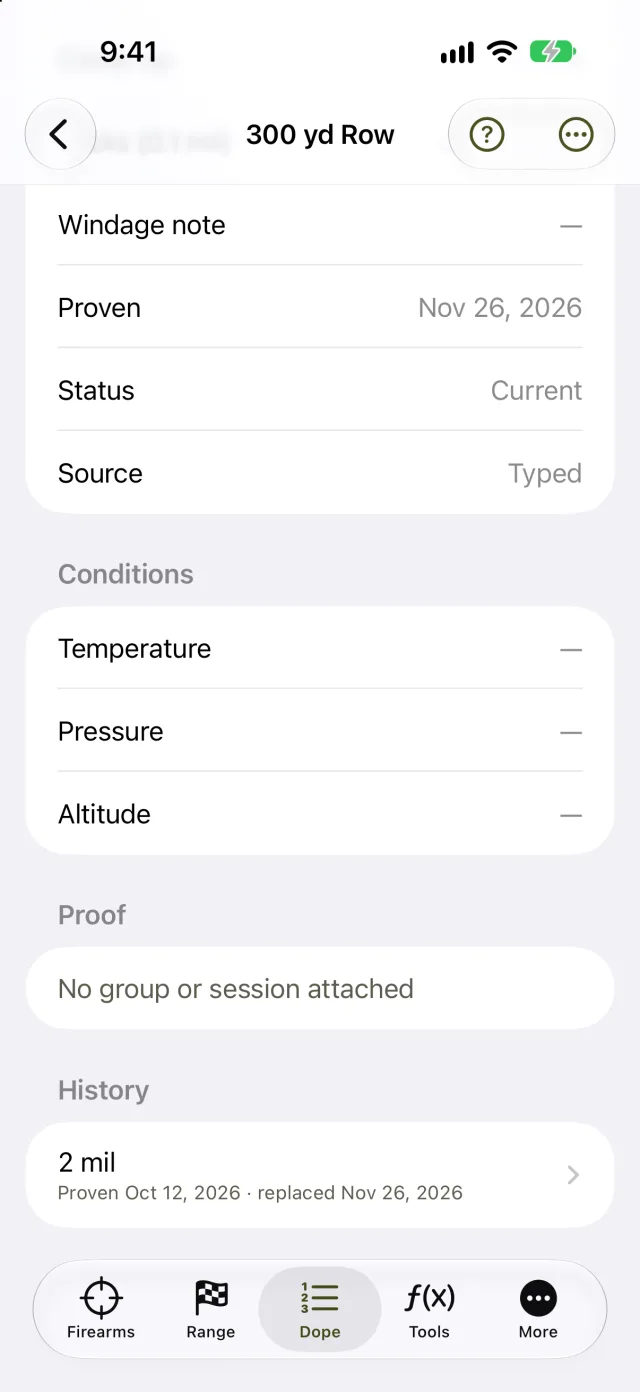
Scroll down for Conditions (temperature, pressure, altitude), Proof (tap a group or session to open it) and History (every earlier value at this distance, newest first; tap one to open it).
-
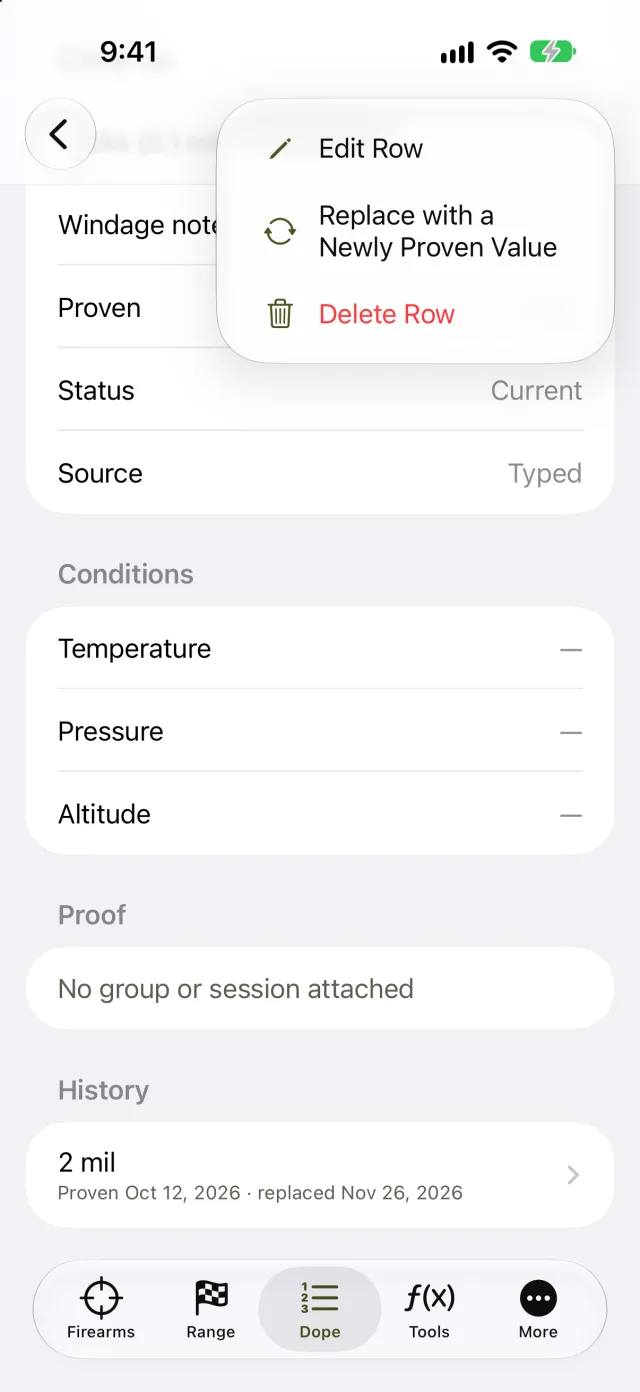
Tap ••• for the actions:
- Edit Row: fix the row in place (a typo, a wrong date). No history is kept for an edit. If you change the distance to one that already has a current row, that row becomes an earlier value, so each distance keeps one current row. See Add a dope row.
- Replace with a Newly Proven Value: you proved this distance again and got a different come-up. The current value moves to History with the date it was replaced. (Only on the current value.)
- Delete Row: removes the row for good.
-
Deleting: the question “Delete this row?” tells you what happens. If the row replaced an earlier value, that value becomes current again (the message names it, for example “The earlier value 1.2 mil (proven Sep 2, 2026) becomes current again.”), so deleting undoes a replace. Otherwise it says it can’t be undone and that earlier values at this distance stay in the history. Tap Delete Row to confirm.
Why it’s useful
Dope changes slowly: a barrel wears, a new lot shoots a touch higher, a winter morning differs from a summer afternoon. When you prove a distance again, you want the new number on your card without losing the old one. The row page keeps both, with dates, so you can see how a distance has moved and why.
Who uses it, and how:
- Long-range shooters tracking barrel wear: the history shows a come-up creeping up over a season.
- Hunters: check how recent a row is before relying on it, and see the group that proved it.
- Shooters who shoot in all seasons: compare the conditions on the current value with an earlier one.
- Anyone who makes a typing mistake: edit the row in place, or delete a wrong replacement to bring the earlier value back.
- Coaches and students: the proof links lead straight to the target and its group numbers.
What each option means
Example
Casey’s 400 yd row on DT002 reads Come-up 2.1 mil, “Clicks (0.1 mil)”: “Up 21 clicks”, Proven Oct 20, 2026, Status Current, Source Saved from a group. Proof lists G031 and its session. History lists 2 mil, “Proven Sep 30, 2026 · replaced Oct 20, 2026”.
Casey realizes G031 was shot with the wrong lot. Casey taps ••• > Delete Row; the message says “The earlier value 2 mil (proven Sep 30, 2026) becomes current again. Other earlier values stay in the row’s history.” After Delete Row, the table’s 400 yd row is back to 2 mil.
Tips
- Replace, don’t edit, when you re-prove a distance. That’s what keeps the history honest.
- Open an earlier value from History to see its own conditions and proof.
- Delete with care. A deleted row doesn’t go to Recently Deleted; only a whole table does.
- An earlier value can’t be replaced, only the current one. Open the current row (from the table) to replace it.
What it affects
- Replace: the new value appears on the table, in in-between rows around it, on cards and in reports at once; the old one stays in history (and in the Dope Table report when you include history).
- Edit: changes the row everywhere it appears, without history.
- Delete: removes the row for good. A deleted current row hands “current” back to its newest earlier value. Hunt shots that named this row keep their own hold text.
If something goes wrong
- There’s no Replace with a Newly Proven Value. You’ve opened an earlier value from History. Go back to the table and open the current row.
- No clicks row. The table’s scope has no click value. Set it in Optic settings.
- “No group or session attached”. The row was typed without proof. Tap ••• > Edit Row and pick the groups under Proof: groups that showed it.
- A proof group is missing. Groups in Recently Deleted aren’t listed. Restore the group from Recently Deleted.
- I deleted the wrong row. Row deletes can’t be undone. Add the value again with Add a Proven Distance (with its original Proven on date).
Related
- Next: Save a group as dope.
- A dope table, Add a dope row, A group record, Optic settings.
- Learning path: Building your dope card.
- Words used here: come-up, click value, dope, group.
Gun Diary keeps records you enter and does arithmetic on them. It never predicts a trajectory; confirm every hold by shooting it at the range, and always know your target and what is beyond it.
Guides on this topic
Still stuck? In the app, open More > Help > Contact Support, or More > Settings > Support, which also has Send Error Log (the error log helps us find the problem), or email contact@setriksoftware.com. You can also browse the Help Center or the messages the app can show.