
"Calculator #8: Velocity Statistics"
Type chronograph velocities, one string per line, and get each string's average, standard deviation and extreme spread, plus all strings combined.
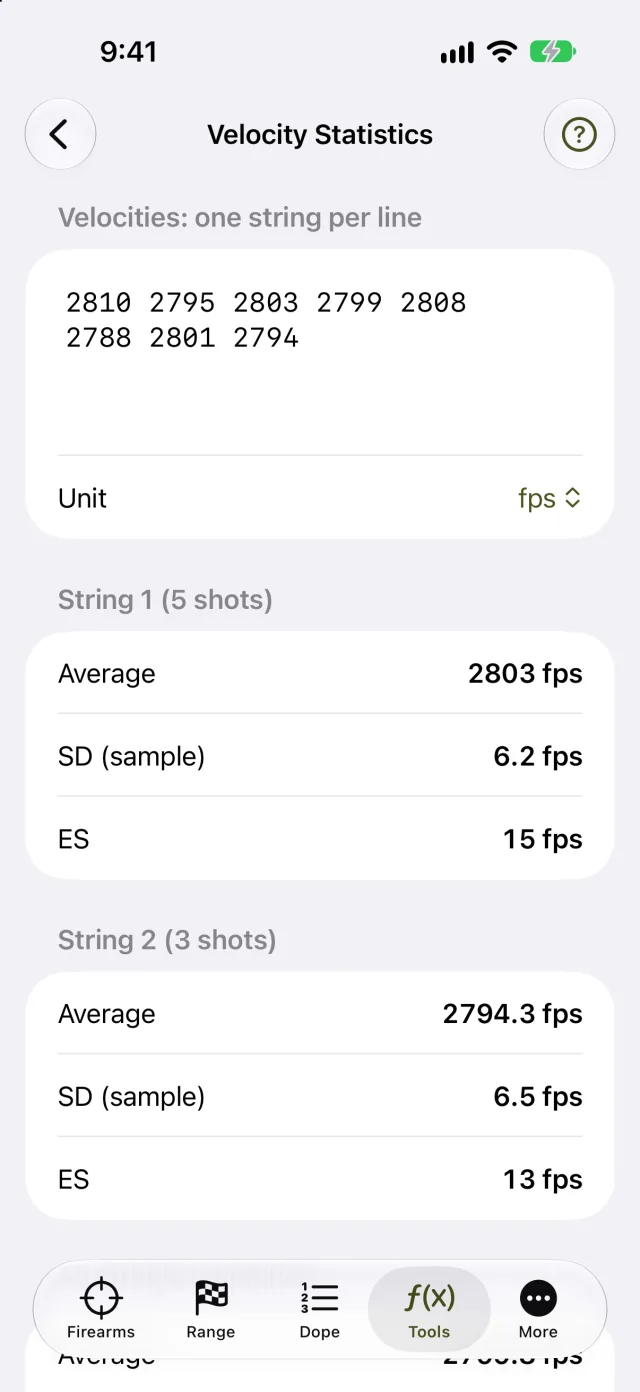
Velocity Statistics (calculator #8) takes the speeds your chronograph read and works out each string‘s average, standard deviation (SD) and extreme spread (ES). Type one string per line; with two or more lines it also shows all strings combined.
Steps
-
On the Tools tab, under Groups and velocity, tap Velocity Statistics. It opens with two example strings typed in.
-
In the box under Velocities: one string per line, clear the example and type the speeds of one string on a line, separated by spaces, commas or semicolons. Start a new line for the next string.
- Pick the Unit: fps or m/s. It labels the results.
- Read each String section (for example String 1 (5 shots)): Average, SD (sample) and ES.
- With two or more strings, All strings combined shows the same three for every shot together.
Why it’s useful
Velocity consistency drives vertical spread at distance: a load with a 15 fps SD keeps its shots at the same height far better than one with 40. The average speed matters too, for energy, for comparing lots, and for checking a new box of ammo against the last. Velocity Statistics gives the numbers instantly from whatever your chronograph showed, even if you just wrote them on the target.
Who uses it, and how:
- Factory-ammo testers: compare two loads or two lots by SD and ES.
- Long-range shooters: check that a new lot’s average speed matches the one your dope was proven with.
- Hunters: know your load’s real speed rather than the box’s.
- Anyone with a notebook of old chronograph readings: type them in for numbers you never worked out.
What each option means
The formulas, in plain words: average = the sum ÷ the number of shots. ES = highest − lowest. SD (sample) = the square root of (the sum of each shot’s squared difference from the average ÷ (shots − 1)); this “sample” SD is the one chronographs and most shooters use.
Example
Two five-shot strings of a factory 140 gr load through your Mountain Rifle:
2742 2751 2738 2747 2745 2744 2756 2739 2750 2741
- String 1 (5 shots): Average 2744.6 fps, SD (sample) 4.9 fps, ES 13 fps
- String 2 (5 shots): Average 2746 fps, SD (sample) 7 fps, ES 17 fps
- All strings combined: Average 2745.3 fps, SD (sample) 5.7 fps, ES 18 fps
Tips
- Ten shots or more give an SD worth comparing; five is a quick look.
- Keep strings separate when the conditions changed (a different day, a hot barrel); the combined numbers then show the whole picture.
- Record strings at the range instead. In Range Mode a chronograph string is saved with the session and its statistics show on the record. See Range Mode: chrono string.
- Watch speed against temperature with Velocity Trends.
What it affects
Nothing is saved.
If something goes wrong
- SD (sample) reads “needs 2 shots”. That string has only one speed.
- A string has fewer shots than I typed. Anything that isn’t a number is skipped; check for letters or stray symbols.
- Two strings merged. Each string needs its own line.
Related
- Next: Zero and Sight-In Helper.
- Range Mode: chrono string, Velocity Trends, Energy, Momentum, Power Factor, Ammo comparison.
- Learning path: Testing factory ammo.
- Words used here: chronograph, string, standard deviation, extreme spread, lot.
Guides on this topic
Still stuck? In the app, open More > Help > Contact Support, or More > Settings > Support, which also has Send Error Log (the error log helps us find the problem), or email contact@setriksoftware.com. You can also browse the Help Center or the messages the app can show.