
Shooting and range sessionsGun Diary Pro
"Range Mode: notes"
Save a time-stamped note in one tap with a quick-note button like "Called flyer" or "Wind gust", or dictate your own; change the quick notes in Settings.
Things you notice at the bench are easy to forget by evening: the shot you pulled, a gust that pushed a group, a failure to feed, the moment you dialed the scope. In Range Mode, Note saves them in one tap with the time and the group they belong to, using big quick-note buttons or your voice. You choose which quick notes appear in Settings.
Steps
-
In Range Mode, tap Note.
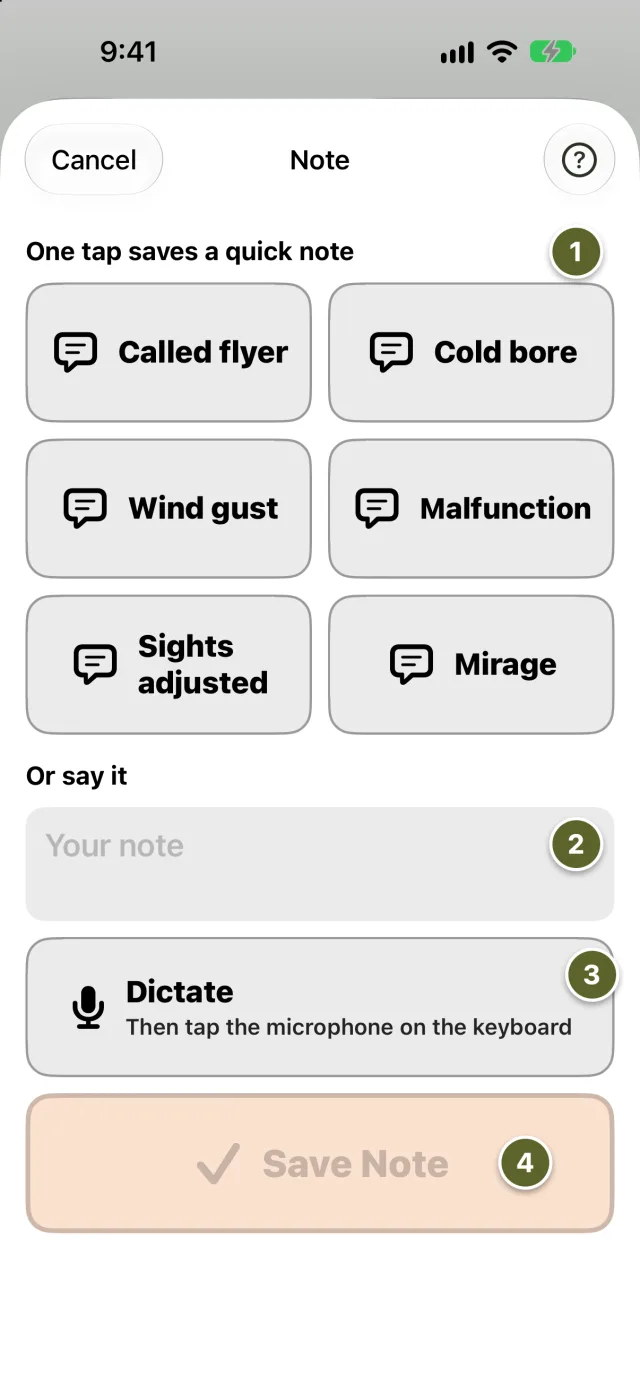
Numbers on the picture: 1 the quick-note buttons, 2 Your note, 3 Dictate, 4 Save Note.
-
For a quick note, tap its button, like Called flyer. It’s saved at once and you’re back in Range Mode (“Note saved”).
- For your own words, under “Or say it”:
- Tap Dictate, then tap the microphone on the keyboard and speak. Or tap the Your note box and type.
- Tap Save Note.
- The note goes into the session’s notes as a line like “9:12 AM G031: Called flyer“: the time, the code of the last group you added, and the note.
To change the quick notes:
-
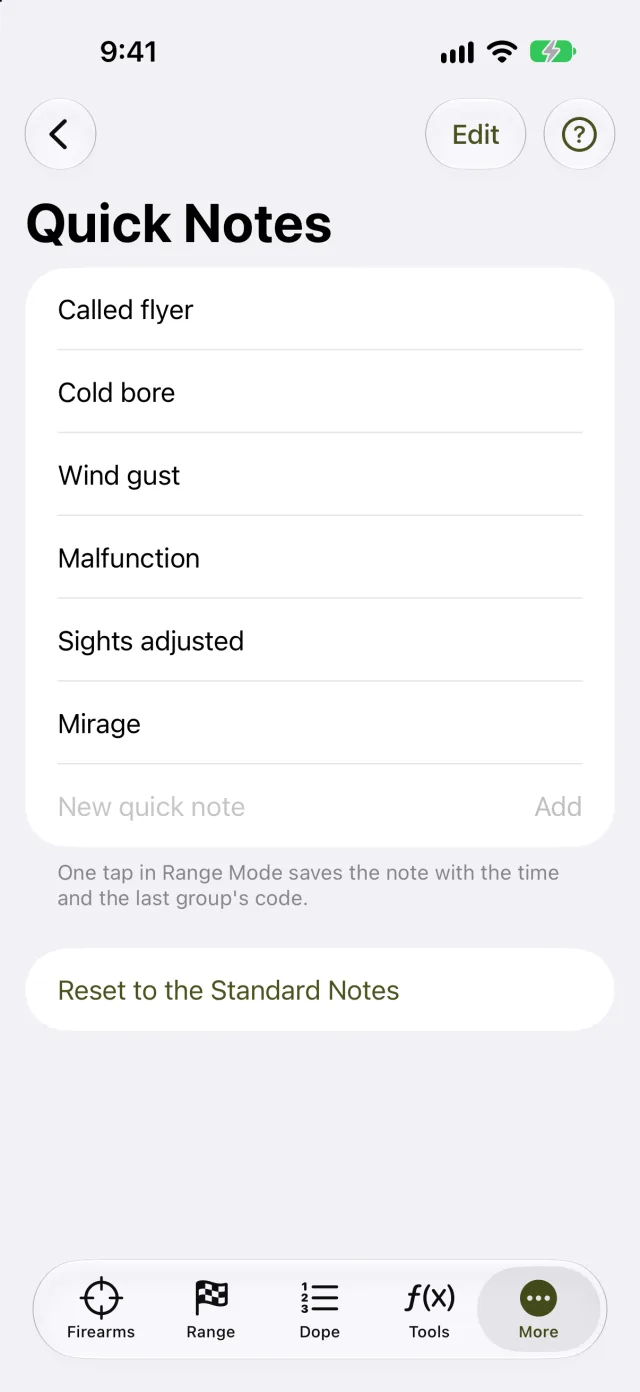
Tap More > Settings, and in Range Mode and Zero Check tap Quick notes.
-
Tap a note to change its words.
- To add one, type it in New quick note and tap Add.
- To reorder or delete, tap Edit, then drag the handles or tap the red delete buttons. Tap Done.
- To go back to the six standard notes, tap Reset to the Standard Notes.
Why it’s useful
A group’s size tells you what happened; a note tells you why. “Called flyer” next to group G031 means that big group was your fault, not the ammunition’s, which matters when you compare loads later. “Sights adjusted” marks the point where the zero changed during a sight-in. “Cold bore” marks the first shot of the day for hunters who care where it goes. “Malfunction” flags a problem you may want to record as a safety observation at home.
Competitors note wind calls and equipment trouble between stages without breaking rhythm. Hunters at a pre-season check note the cold bore shot. New shooters build the habit of writing down what they felt, which is how you get better. And because quick notes are one big tap, you can do it with gloves on or a rifle in the other hand. Dictation covers everything the buttons don’t, without a keyboard.
What each option means
The Quick Notes footer explains: “One tap in Range Mode saves the note with the time and the last group’s code.” Your quick notes sync to your other devices with the rest of Settings.
Example
A breezy morning with the Mountain Rifle.
- After group G031 you felt the trigger pull wrong on shot four: Note > Called flyer. Line: “9:12 AM G031: Called flyer”.
- Before group G032 you dial 3 clicks down: Note > Sights adjusted.
- A target frame blows over: Note > Dictate, then say “Range went cold for ten minutes, frames reset”. Save Note.
- At home the session’s Notes read:
- 9:12 AM G031: Called flyer
- 9:20 AM G031: Sights adjusted
- 9:41 AM G032: Range went cold for ten minutes, frames reset
Tips
- Make quick notes for what you say often: “Switched to bipod”, “New lot”, “Suppressor on”, “Light primer strike” (a dent in the primer that didn’t fire it).
- Put your most-used notes first with Edit; they appear in that order, two to a row.
- Note right after the group, before adding the next one, so the note carries the right group code.
- Undo in Range Mode takes back the last note if you tapped the wrong button.
What it affects
- Each note adds one line to the session’s Notes (on the session screen and in the session report).
- Nothing else changes: notes don’t add rounds or change groups.
- Undo removes the note’s line from the session’s notes.
- Changing quick notes in Settings changes only the buttons, never notes already saved.
If something goes wrong
- Dictate doesn’t start listening. It opens the keyboard; tap the keyboard’s microphone. If there’s no microphone key, turn on Dictation in the iPhone Settings app > General > Keyboard > Enable Dictation.
- The note has the wrong group code. It uses the last group added in the session at that moment. Edit the session’s notes at home (••• > Edit Session > Notes).
- “Type or dictate the note first”. Your note is empty. Type or dictate the note, then tap Save Note.
- My quick notes are gone. An empty list falls back to the six standard notes. Add yours again in Quick Notes.
Related
- Range Mode, Range Mode: add a group, A session, Settings, Safety observations.
- Words used here: range mode, flyer, cold bore, mirage, session.
Guides on this topic
Still stuck? In the app, open More > Help > Contact Support, or More > Settings > Support, which also has Send Error Log (the error log helps us find the problem), or email contact@setriksoftware.com. You can also browse the Help Center or the messages the app can show.