
Scan a target
Open a target or group record straight from the paper: point the camera at a printed QR code or a target number like T014 (printed or handwritten), read it from a photo, or type it.
Every target and group has a number: targets start with T (T014), groups with G (G017). Scan Target finds the record from that number, whether it’s in the QR code on a printed target sheet, printed under it, or written on the paper by hand. Scanning is free; making printed sheets is part of Gun Diary Pro.
Steps
-
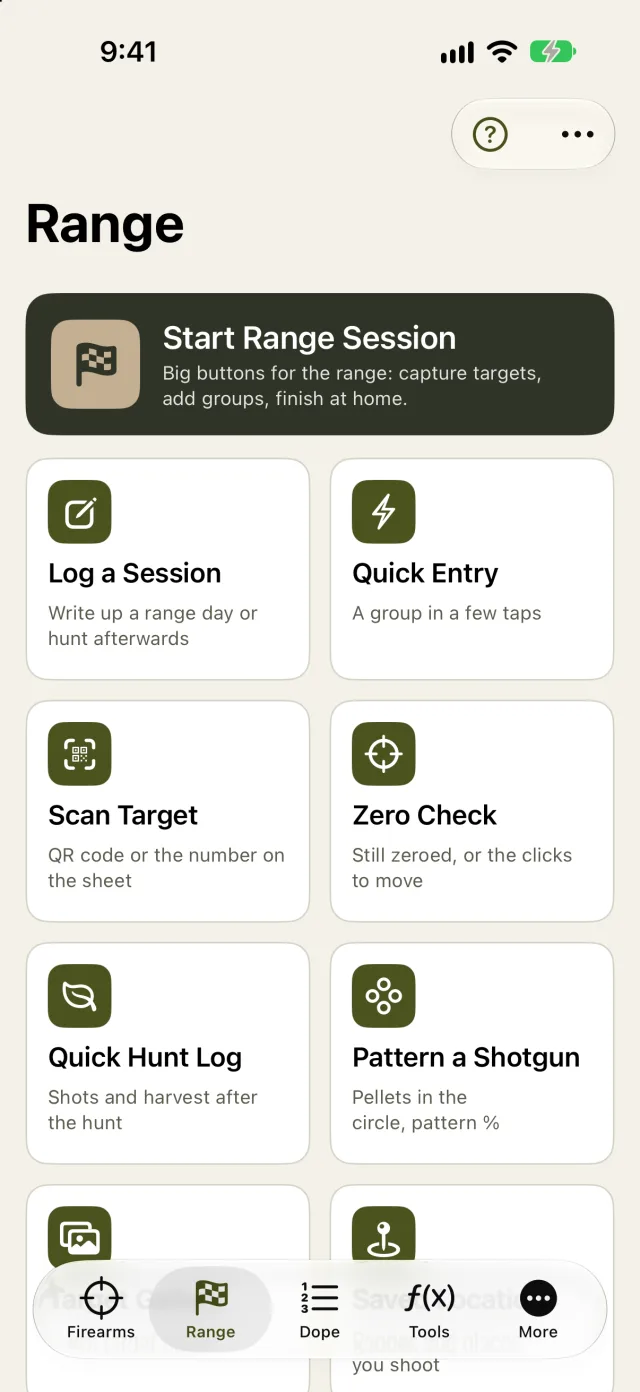
Tap Scan Target on the Firearms tab or the Range tab.
-
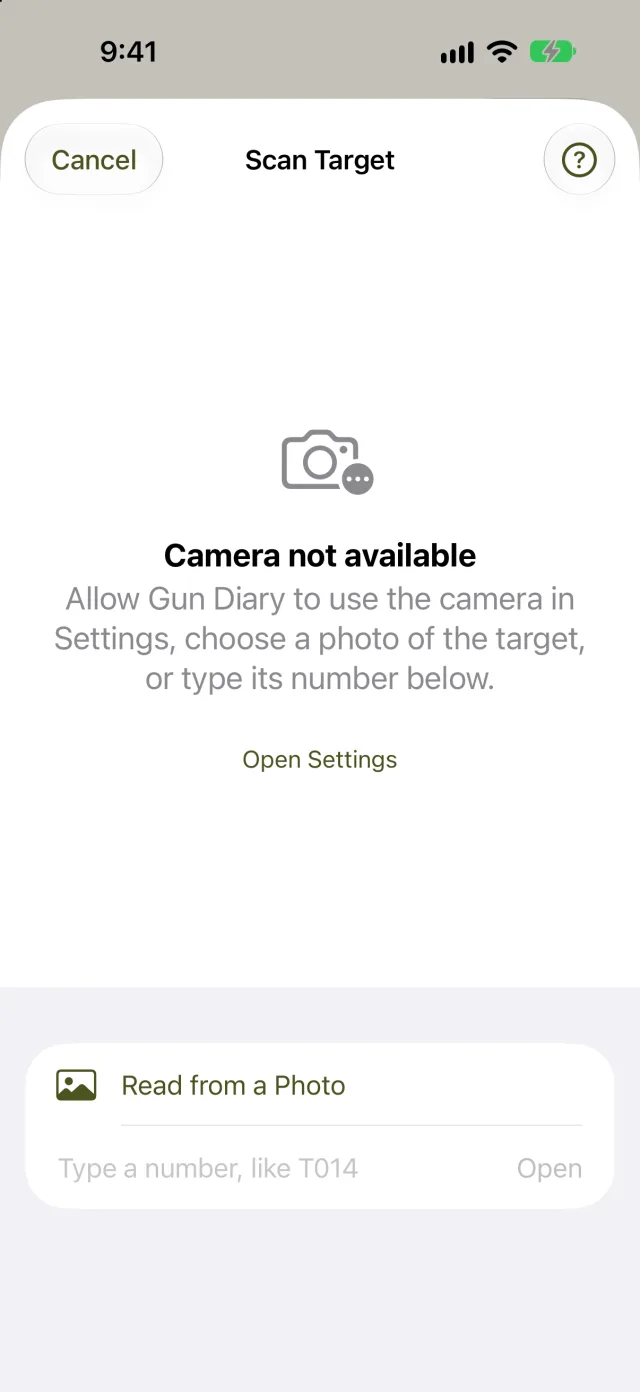
The Scan Target screen opens with the camera: “Point at the QR code or the target number (like T014) on your target sheet.” Hold the phone over the sheet. When Gun Diary reads a code or number that’s in your diary, the screen closes and the record opens.
-
No camera handy, or the light is poor? Use the rows under the camera:
- Read from a Photo: pick a photo of the sheet from your library. “Reading photo…” shows while it looks for a QR code or a number.
- Type the number in the “Type a number, like T014” field and tap Open.
- What opens: a target with exactly one group opens that group; a target with no groups or several opens the target; a group number opens the group.
You can also scan a sheet’s QR code with the iPhone’s own Camera app: tap the link that appears, and Gun Diary opens the record on its Range tab.
Why it’s useful
A stack of paper targets after a range day is hard to match with records: which sheet was the second ammunition, which was the 200 yd group? With a number on every sheet, one scan opens the right record, so the photo, the measurements and the notes go to the right place.
Who uses it, and how:
- Users of printed target sheets: scan the QR code at home to open the target, add the photo and mark the groups. See Make target sheets.
- Range Mode users: when Gun Diary captures a target it tells you its number; write it on the paper and scan or type it later.
- Anyone with a pile of old targets: write each target’s number on it with a marker; Gun Diary reads handwriting too.
- Competitors and clubs: a sheet with a QR code goes back to exactly the right stage or practice record.
- Free users: scanning and typing numbers are free, for targets made any way (photos, Range Mode, sheets from another device).
What each option means
What a QR code holds: only a link with the record’s hidden ID, never its number, firearm or ammunition. Someone scanning your sheet with another phone learns nothing about your diary.
Example
Back from the range with four printed sheets, T021 to T024. You tap Scan Target on the Range tab and hold the phone over T021’s QR code. T021 opens (it has no groups yet). You tap Take Photo, photograph the sheet, and mark its groups. Back on Range > Scan Target for T022, and so on. One sheet’s code is torn, so you type “T23” in the number field and tap Open.
Tips
- Fill the frame with the QR code and hold still; good light helps.
- Write numbers clearly, with the letter: “T 14” reads better than “14”.
- Try the number when the code won’t read: the plain-text number printed at the top and bottom of every sheet works too.
- Photos from your library: a straight, close, sharp picture of the code or number reads best.
- On a new device, wait for iCloud to finish syncing before scanning sheets printed on another one.
What it affects
Nothing is created or changed: scanning only opens an existing record. Deleted targets and groups aren’t found.
If something goes wrong
- “Camera not available” (“Allow Gun Diary to use the camera in Settings, choose a photo of the target, or type its number below.”). Tap Open Settings and turn on the camera for Gun Diary, or use Read from a Photo or type the number. Some devices have no camera that can scan.
- “T014 isn’t in your diary on this device. If it was made on another device, wait for iCloud to sync, then try again.” The number doesn’t match a record here: it may be on another device that hasn’t synced yet, in Recently Deleted, or a different number. For a QR code the message starts “This code”.
- “No QR code or target number was found in that photo. Try a closer, sharper photo, or type the number.” Take a closer, straight photo, or type the number.
- “That isn’t a target or group number. Numbers look like T014 or G017.” What you typed doesn’t look like a number. Type the letter T or G and the digits.
- “Type the target’s number, like T014”. Open was tapped with the number field empty. Type the number first.
- The camera reads the wrong thing. Cover other codes or numbers on the page with your hand, or type the number.
- The target opened instead of the group. The target has no groups or several; tap the group you want under Groups on this target.
Related
- Make target sheets, A target and its groups, A group record.
- Range Mode, Target gallery.
- Words used here: QR code, target, group.
Still stuck? In the app, open More > Help > Contact Support, or More > Settings > Support, which also has Send Error Log (the error log helps us find the problem), or email contact@setriksoftware.com. You can also browse the Help Center or the messages the app can show.