
The Range tab
Start a range session, log one afterwards, check your zero, log a hunt, pattern a shotgun and find every session you've recorded, all from one tab.
The Range tab is where every trip to the range, the field or a match starts and ends up. The top of the tab holds the ways to record something; below them are any sessions you haven’t finished and then your whole range diary, newest month first.
Steps
-
Tap Range in the tab bar (on iPad, in the sidebar).
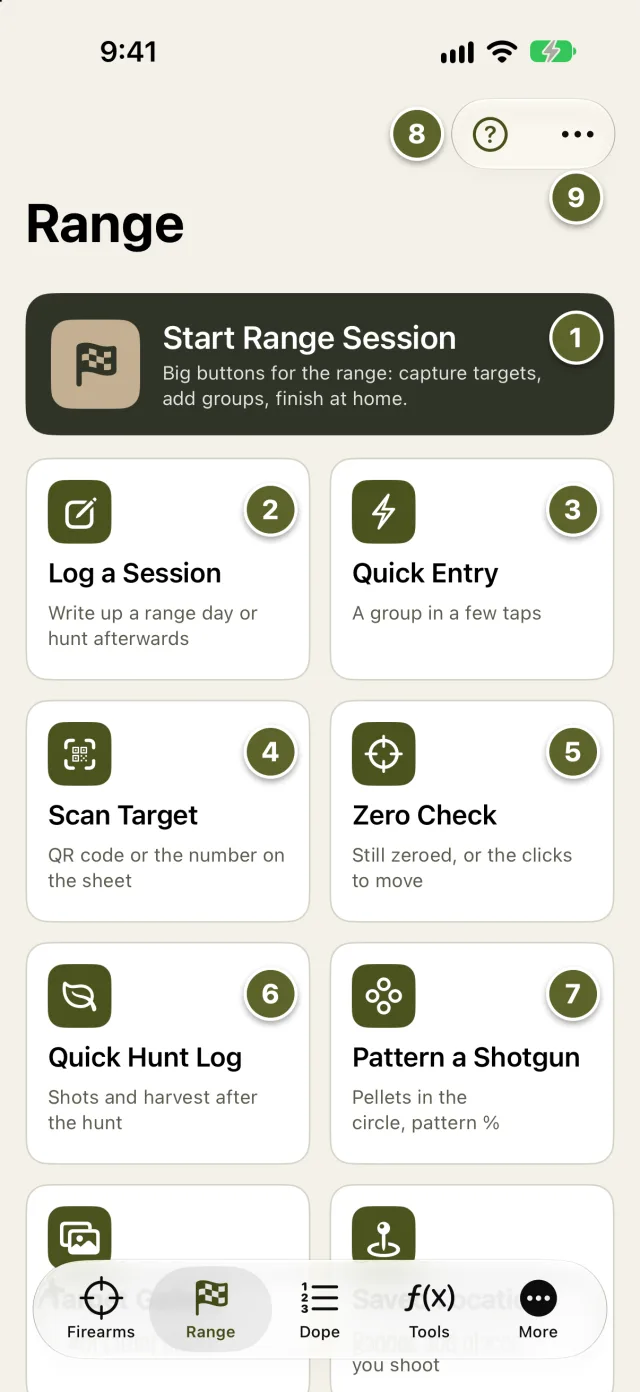
Numbers on the picture: 1 Start Range Session, 2 Log a Session, 3 Quick Entry, 4 Scan Target, 5 Zero Check, 6 Quick Hunt Log, 7 Pattern a Shotgun, 8 the ? help button, 9 the ••• menu (filter by activity).
-
Pick what you’re doing:
- At the range, with the phone in your hand: Start Range Session opens Range Mode (Gun Diary Pro).
- Writing up a day afterwards: Log a Session opens the full session form. See Log a session.
- Just one group to jot down: Quick Entry. See Quick Entry.
- Checking that a rifle still hits where it’s aimed: Zero Check. See Zero Check.
- Back from a hunt: Quick Hunt Log. See Quick Hunt Log.
- Testing a shotgun’s choke and shells: Pattern a Shotgun. See Pattern a shotgun.
- Holding a printed target sheet: Scan Target opens its record from the QR code or the number. See Scan a target.
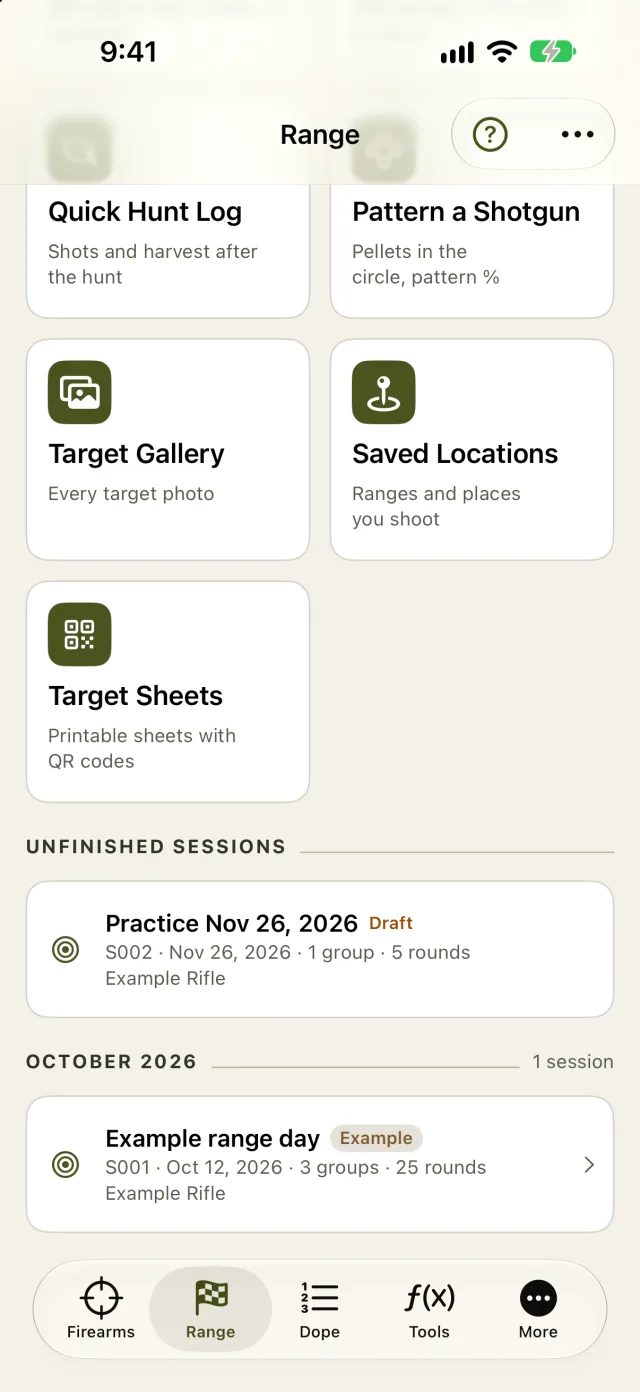
- Scroll down for Target Gallery, Saved Locations and Target Sheets.
- Under the tiles, Unfinished sessions lists sessions that are still drafts. Tap one to carry on: a Range Mode session reopens in Range Mode, any other opens its session screen.
-
Below that is your range diary: every finished session, under a heading per month (like “November 2026”) with the number of sessions in that month. (The Range diary heading itself shows only while it’s empty.) Tap a session to open it. See A session.
-
To see only one kind of session, tap ••• at the top and pick an activity (All activities shows everything again).
- If you’ve archived sessions, a Show archived sessions switch appears at the bottom. Turn it on to see only the archived ones; turn it off to go back.
Why it’s useful
Shooting happens in very different ways, and the Range tab puts each one a single tap away instead of forcing everything through one long form. A competitor standing at the line between stages wants big buttons and nothing to type; that’s Range Mode. A hunter who got home late wants to write up the morning in two minutes; that’s Quick Hunt Log. Someone who only went to check a rifle before deer season wants a yes or no and the clicks to move; that’s Zero Check. A new gun owner who shot a box of ammunition at a public range can write it all up later with Log a Session, or just drop one group in with Quick Entry. Shotgunners patterning a new choke get their own tile.
The lower half answers “what have I done?” Every session for every firearm lands in one diary by month, so you can scroll back to last spring’s sight-in or last year’s league night. Unfinished sessions sit at the top so a day you started at the bench and meant to finish at home never gets lost. Collectors who mostly shoot occasionally, and long-range shooters who keep dozens of sessions a season, both get the same simple list, with an activity filter when it grows long.
What each option means
Quick Hunt Log, Pattern a Shotgun and Target Sheets disappear when you turn off Hunting, Shotgun Patterns or Target Sheets in Personalize your diary. Your records stay; only the tiles hide.
Each row in the lists shows the activity icon, the session’s name (or the activity and date), any Example, Draft or Archived badge, then its code, date, number of groups, total rounds and the firearms in it.
Example
On a Saturday you take the Mountain Rifle (6.5 Creedmoor) to the county range.
- At the bench, you tap Start Range Session and record three groups in Range Mode. You get a phone call and tap Close.
- Back on the Range tab, the session shows under Unfinished sessions as “Practice Nov 28, 2026 · Draft”.
- You tap it, it reopens in Range Mode, and you finish with End Session.
- It now sits in the range diary under “November 2026”, which reads “3 sessions”.
- A month later you want only the sight-in days: ••• > Sight-in.
Tips
- Use the right tool for the moment. Range Mode at the bench, Log a Session at the kitchen table, Quick Hunt Log after a hunt. They all make the same kind of session record, so you can mix them freely.
- Name sessions you’ll look for again (“Pre-season zero”, “League night 4”) in the session form; unnamed sessions show the activity and date.
- Archive old sessions instead of deleting them. Archived sessions keep their groups, rounds and dope proof but leave the main list.
- The Firearms tab’s Range Day tile brings you straight here.
What it affects
- Opening the tab changes nothing. Each tile creates its own kind of record; see its article.
- Start Range Session and Log a Session create a draft session right away, with the next session code (S003…). It’s listed under Unfinished sessions and in Drafts until you finish it.
- The activity filter and the archived switch only change what you see.
If something goes wrong
- Start Range Session shows a Gun Diary Pro screen (“Range Mode is part of Gun Diary Pro”). Range Mode is Pro. Without Pro, use Log a Session, Quick Entry, Zero Check and Quick Hunt Log, which are all free.
- I can’t find Quick Hunt Log or Pattern a Shotgun. They’re hidden when Hunting or Shotgun Patterns is off in More > Personalize Your Diary. See Personalize your diary.
- A session I know I logged isn’t in the list. Check the ••• filter (set it to All activities), then turn on Show archived sessions. A session that’s still a draft is under Unfinished sessions, not in the diary. A deleted one is in Recently deleted for 30 days.
- An unfinished Range Mode session opened as a normal session screen. That happens without Pro. Finish it from its session screen: ••• > Edit Session > Done.
Related
- Next: Range Mode or Log a session.
- A session, Shooting Diary, Quick Entry, Saved locations, Drafts.
- Learning paths: New gun owner, Testing factory ammo.
- Words used here: session, range mode, draft, zero, Pro.
Still stuck? In the app, open More > Help > Contact Support, or More > Settings > Support, which also has Send Error Log (the error log helps us find the problem), or email contact@setriksoftware.com. You can also browse the Help Center or the messages the app can show.