
Quick Hunt Log
After the hunt, log each shot (result, distance, position, follow-ups and the hold or dope row you used) and the harvest (species, tag number, weight, photos) in a few big taps; it saves a hunting session.
Quick Hunt Log is for after the hunt, back at the truck or at home. In a few big taps you record each shot you took (hit or miss, distance, position, follow-up shots, and the hold or dope row you used) and the harvest (species, tag number, weight, photos). It saves everything as a hunting session. Gun Diary is never meant to be used during a shot; the printed dope card goes into the field.
Steps
-
On the Range tab, tap Quick Hunt Log (or + on the Hunt Log).
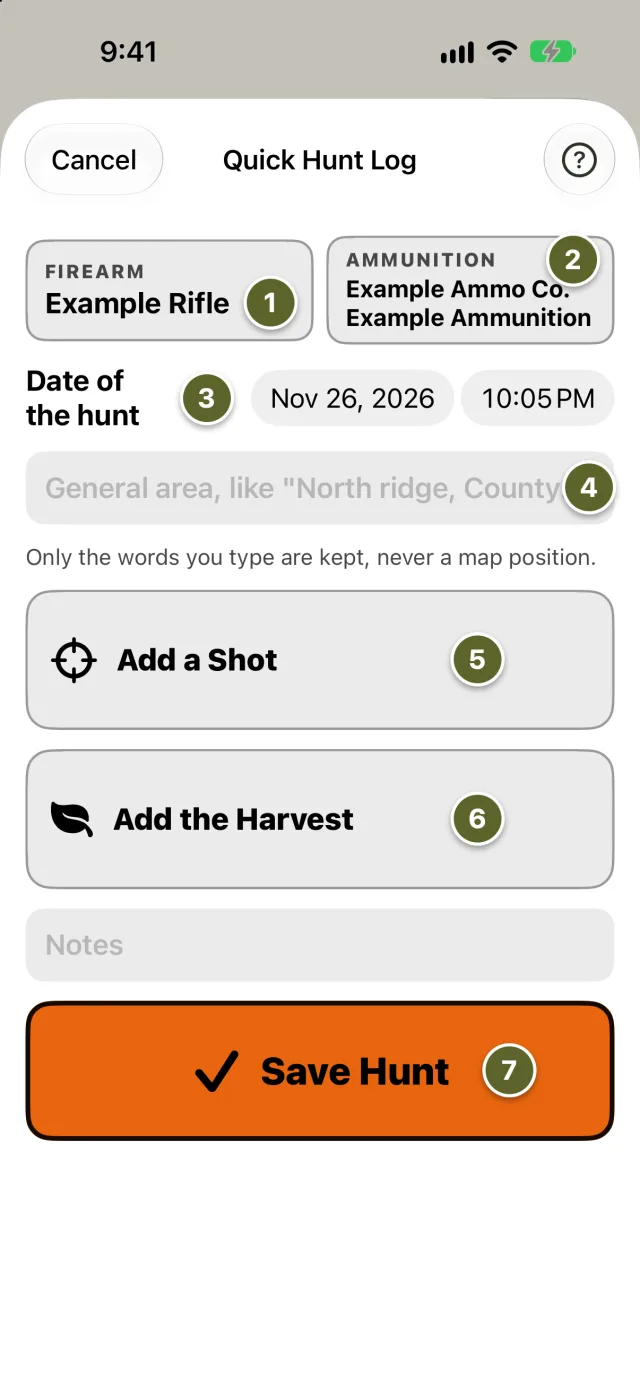
Numbers on the picture: 1 Firearm, 2 Ammunition, 3 Date of the hunt, 4 the general area, 5 Add a Shot, 6 Add the Harvest, 7 Save Hunt.
-
Check Firearm and Ammunition (tap to change), and set the Date of the hunt.
- Optionally type the general area, like “North ridge, County unit 4”. Only the words you type are kept, never a map position.
-
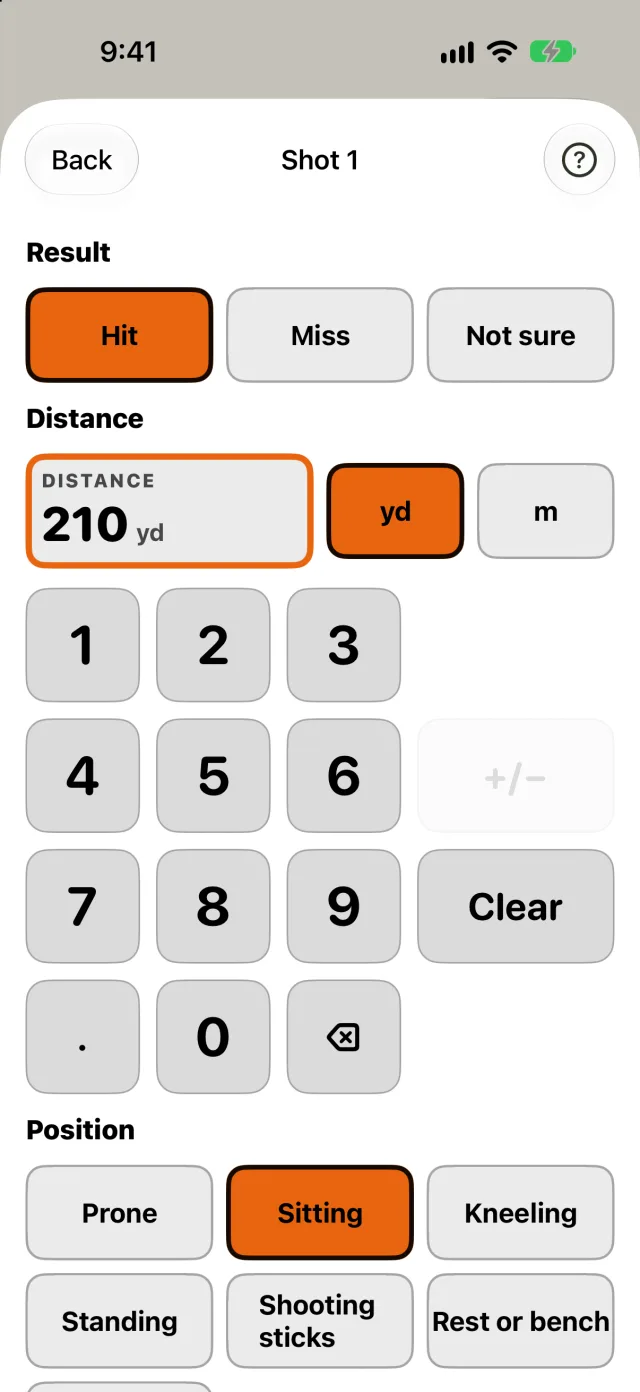
Tap Add a Shot. On the Shot 1 screen:
- Result: Hit, Miss or Not sure.
- Distance: type it on the pad, pick yd or m.
- Position: Prone, Sitting, Kneeling, Standing, Shooting sticks, Rest or bench or Other.
- Follow-up shots: + or −.
- Hold or dope used: tap one of the firearm’s dope rows, or type the hold, like “held top of back”.
- Tap Save Shot.
-
Add more shots the same way. Remove Last Shot takes the last one off.
-
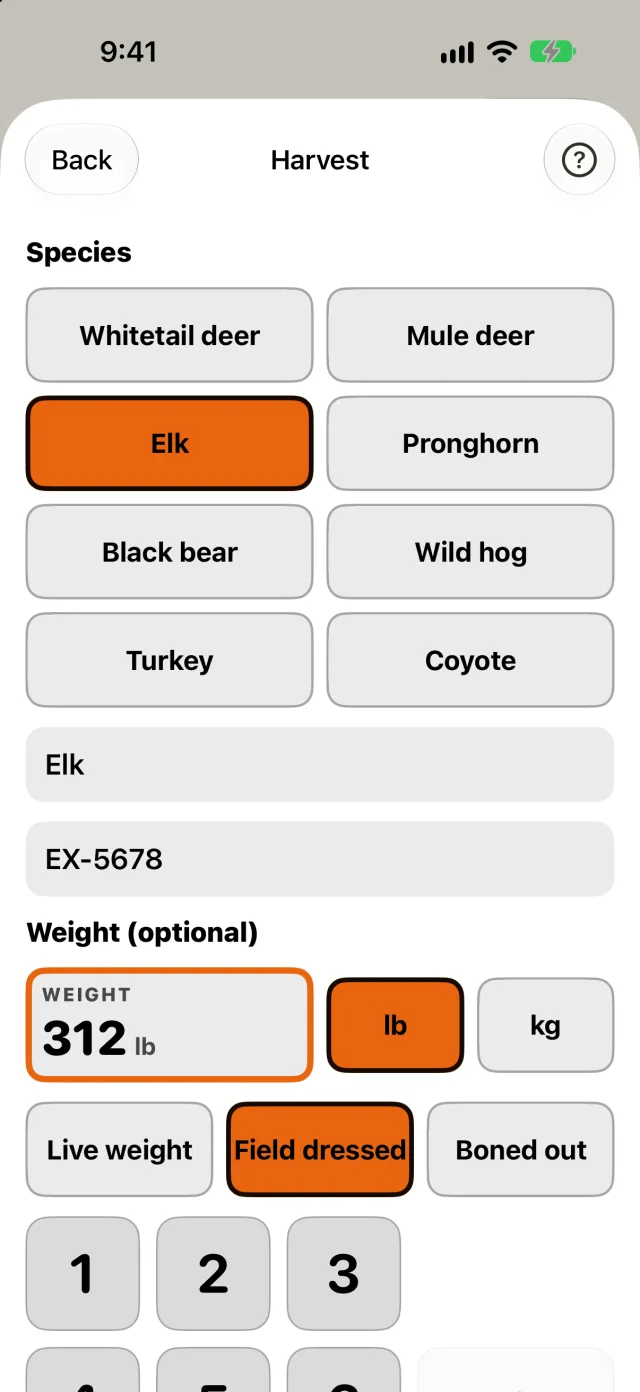
If you took an animal, tap Add the Harvest:
- Tap a species, or type it in Or type the species.
- Type the Tag number.
- Optionally the weight: type it, pick lb or kg, and Live weight, Field dressed or Boned out.
- Add a Trophy note (points, length, score) and Harvest notes.
- Tap Save Harvest.
-
Back on the first screen, type any Notes. Once a harvest is added, Add from Photos and Take Photo appear there too, for harvest photos.
- Tap Save Hunt. Started from the Range tab, the new hunting session opens; started from the Hunt Log, you’re back on the list with the new hunt in it.
Change a shot or harvest later: open the session from the Hunt log. Tap a hunt shot to open Hunt Shot (every field, Done), or tap the harvest to edit it. Add Hunt Shot and Add Harvest add more.
Why it’s useful
A hunt is over in seconds and remembered for years, but details fade fast: was it 240 yards or 280? Did you hold or dial? Was the follow-up needed? Logging it the same day keeps the honest record, and linking each shot to the dope row you used shows whether your dope worked in the field, not just at the range.
Who it’s for: deer and elk hunters who want a season-by-season record of shots, distances and harvests; hunters in states that issue tags, who like the tag number with the record; long-range hunters checking that a 400-yard come-up worked on game; new hunters learning from every shot, misses included; turkey and predator hunters with a shotgun or rifle; and families who keep the story of a first deer with its photos. The shots’ rounds count toward the rifle’s round counters, so nothing is missed.
What each option means
First screen: | On screen | What it is | |—|—| | Firearm | Required; picked from the big list. It starts on the firearm you came from, else your only firearm, else the one you shot most recently | | Ammunition | What you were shooting; starts as the firearm’s last group’s ammunition | | Date of the hunt | Date and time | | General area | Words only (“Only the words you type are kept, never a map position.”). Also written into the session’s notes as “Area: …” | | Add a Shot | Opens the next shot | | Add the Harvest / “Harvest: …” | Opens the harvest; shows the species once added | | Remove Last Shot | Takes the last shot off the list | | Add from Photos, Take Photo | Harvest photos; shown once you’ve added the harvest | | Notes | Notes for the hunt | | Save Hunt | Saves the session; needs a firearm |
Shot screen: | On screen | What it is | |—|—| | Result | Hit, Miss, Not sure. Default Hit | | Distance | The distance to the animal, yd or m (the unit carries to the next shot) | | Position | How you were shooting. Default Prone | | Follow-up shots | Extra shots after this one, at the same animal | | Hold or dope used | A current row from the firearm’s dope tables (like “300 yd: 1.6 mil up”), or the hold in words | | Save Shot / Back | Keep the shot, or go back without it |
Harvest screen: species presets (Whitetail deer, Mule deer, Elk, Pronghorn, Black bear, Wild hog, Turkey, Coyote) or your own; Tag number; weight in lb or kg as Live weight, Field dressed (default) or Boned out; Trophy note; Harvest notes; Save Harvest; Remove the Harvest.
Example
Opening morning with the Mountain Rifle.
- Quick Hunt Log. Mountain Rifle, Ridgeline Match 140 gr. Date of the hunt Nov 15, 7:10 AM. Area “North ridge, unit 4”.
- Add a Shot: Hit, 280 yd, Shooting sticks, follow-ups 1, dope row “300 yd: 1.6 mil up” from your table. Save Shot.
- Add the Harvest: Whitetail deer, tag 2026-48817, 142 lb Field dressed, trophy “8 points”. Save Harvest.
- Take Photo of the buck. Save Hunt.
- The session “Hunt: Whitetail deer” opens: activity Hunting, Rounds fired 2 (the shot plus its follow-up), notes “Area: North ridge, unit 4”, the hunt shot linked to harvest H003.
Tips
- Log the same day, while distances and holds are fresh.
- Log misses too. They teach the most, and they’re part of an honest record.
- Link the dope row when you dialed or held from your card; later you’ll see which distances your dope proved in the field.
- Keep the area vague if you share exports; it’s only words, and never a map position.
- Run a Zero Check before the season so the hunt’s session has proof the rifle was on.
What it affects
- A new hunting session named “Hunt: (species)” or “Hunt”, with the firearm, ammunition and lot. The general area you typed is also put in the session’s notes as “Area: …”, so it travels with the session (Export All Data includes session notes); edit the notes to change or remove it.
- Rounds fired = every shot plus its follow-ups, added to the round counters once.
- A harvest record (H001…) when you added one, linked to the hits.
- Photos are saved with the session and the harvest.
- The Hunt log, the firearm’s Shooting Diary and the Hunt log report.
If something goes wrong
- “Pick the firearm first”. Tapping Add a Shot, Add the Harvest or Save Hunt with no firearm shows this under the Firearm button. Tap it and pick one. (It starts on the only firearm, or the one you shot most recently.)
- There are no dope rows to tap. The firearm has no dope table with current rows. Type the hold instead, or build a table. See Dope tables.
- I tapped Back and the shot is gone. Back leaves the shot without saving. Add it again.
- Quick Hunt Log isn’t on the Range tab. Hunting is turned off in Personalize your diary.
- Deleting a hunt shot didn’t change the rounds. That’s on purpose (“Rounds fired for the hunt don’t change; edit them on the session.”). Change Rounds fired on the session.
- “Delete this shot?” Tap Move to Recently Deleted; you can restore it for 30 days.
Related
- Next: Hunt log.
- Zero Check, Dope tables, Proven holds, A session, Hunt log report.
- Learning path: Before and after the hunt.
- Words used here: dope, come-up, hold, follow-up shot, harvest, field dressed.
Gun Diary keeps records you enter and does arithmetic on them. It never predicts a trajectory; confirm every hold by shooting it at the range, and always know your target and what is beyond it.
Guides on this topic
- Hunting Log: How to Record Every Shot, Hits and Misses
- How to Keep a Hunting Journal You'll Still Use in Five Years
- Duck Hunting Log Book: What to Write After Every Hunt
Still stuck? In the app, open More > Help > Contact Support, or More > Settings > Support, which also has Send Error Log (the error log helps us find the problem), or email contact@setriksoftware.com. You can also browse the Help Center or the messages the app can show.