
Pattern report
Print or export a shotgun's pattern records, summed up by choke and ammunition with the average pattern percentage, then every pattern with its pellet counts.
The Pattern Report sums up one shotgun’s pattern records: a table by choke and ammunition with how many patterns you shot and the average pattern percentage, then every pattern with its distance and the pellets counted in the circle for each shell. It shows which choke and load put the most pellets where you aim. The PDF is part of Gun Diary Pro; the spreadsheet is free.
Steps
-
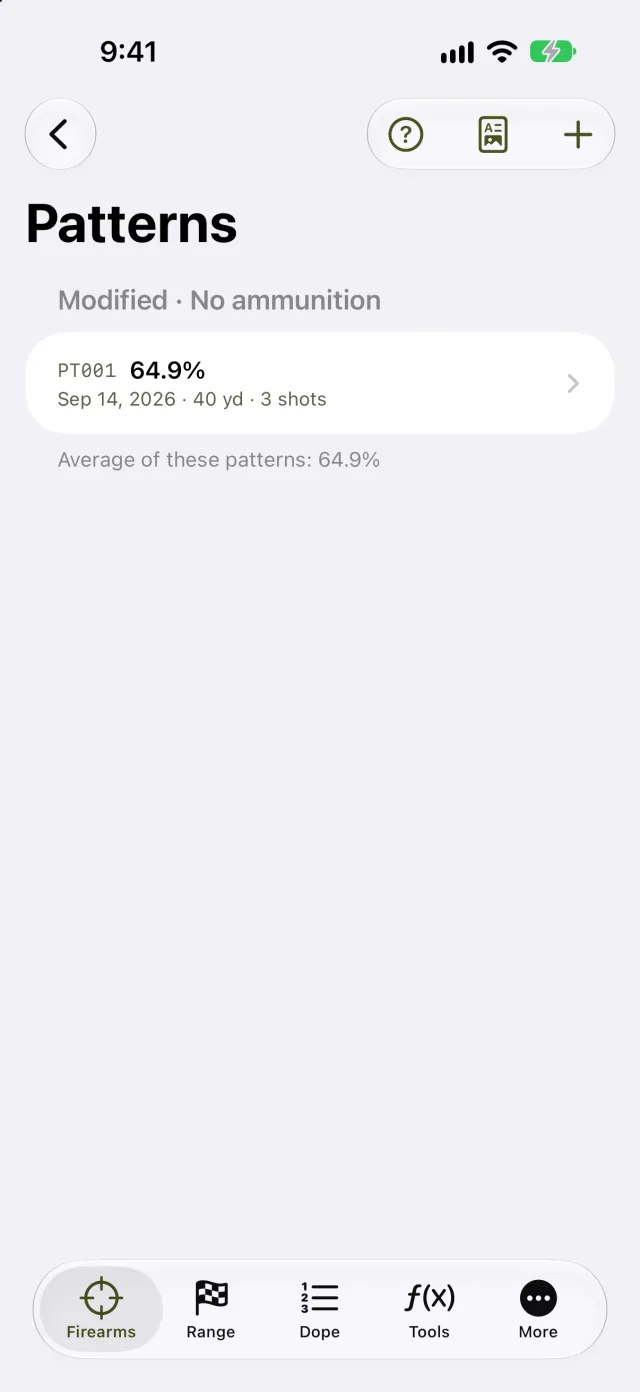
Tap More > Reports > Pattern Report (under Dope and the field). Or on a shotgun’s Patterns screen, tap the document button (Pattern Report) at the top right.
-
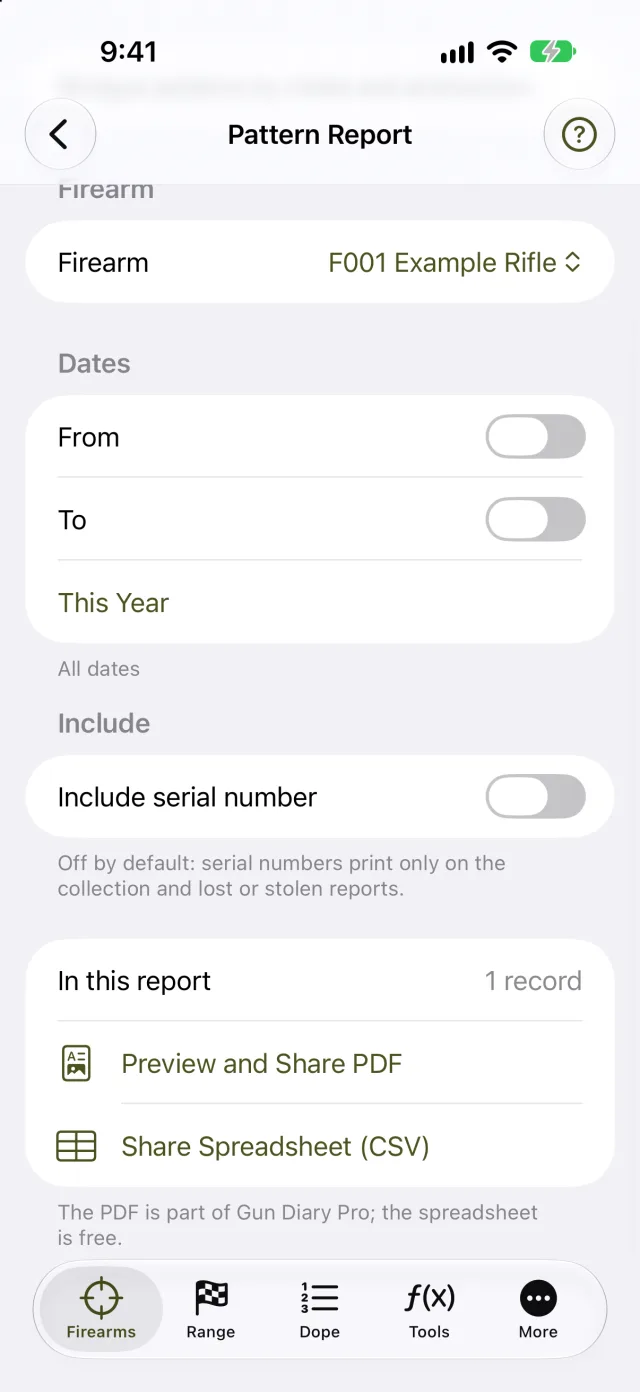
Pick the shotgun next to Firearm.
- Under Dates, limit the dates if you want.
- Switch Include serial number on only if needed.
-
Tap Preview and Share PDF or Share Spreadsheet (CSV).
Why it’s useful
Patterning takes an afternoon of counting holes; the result is only useful if you can compare it. The report lines up every choke and load you tried, averaged, so the choice for turkey, waterfowl or clays is on one page.
Who uses it, and how:
- Turkey hunters compare tight chokes and loads at 40 yards.
- Waterfowl and upland hunters check how a choke and shot size pattern at their usual distance.
- Clay shooters compare chokes for trap, skeet or sporting clays.
- New shotgun owners learn what their gun actually does with each choke.
- Spreadsheet users chart pellet counts per shell from the CSV.
What’s on the Pattern Report screen
What the PDF prints
- Title, the shotgun, when it was prepared and the date range.
- By choke and ammunition: Choke, Ammunition, Patterns, Average pattern.
- Every pattern: Code, Date, Choke, Ammunition, Distance, Pellets in circle (each shell’s count, like “262; 281; 255”), Pattern (that record’s average).
- A note on how it’s worked out: pattern % = pellets inside the circle (30 in unless you set another size) divided by pellets per shell, averaged over the shells.
With none: “No patterns in this range.” File: “Pattern report – Bird Gun.pdf”.
What the spreadsheet holds (one row per pattern record): Firearm code, Firearm, Code, Date, Choke, Ammunition, Lot, Distance, Distance unit, Circle, Circle unit, Pellets per shell, Pellets in circle per shell, Average pattern %, Notes, Pattern ID.
Example
You’re choosing a choke for turkey season with your Bird Gun.
- Bird Gun > Patterns > the report button.
- Preview and Share PDF. By choke and ammunition: “Full, Spring Tom #5, 3 patterns, 71%”; “Modified, Spring Tom #5, 3 patterns, 65%”.
- Every pattern shows PT004 at 40 yd, pellets per shell 410, counts “262; 281; 255”: (262 + 281 + 255) ÷ 3 ÷ 410 = 65%.
- You’ll use the Full choke, and save the report with your turkey gear notes.
Tips
- Shoot at least three shells per choke and load; one shell can mislead.
- Enter pellets per shell (from the box or a count) so the percentage can be worked out.
- Keep the distance the same when comparing chokes.
What it affects
Nothing. The report reads pattern records and builds a new file.
If something goes wrong
- The Pro screen opens. The PDF is Pro; the spreadsheet is free.
- “No patterns in this range.” Turn the dates off, or pick the right shotgun.
- The pattern percentage is blank. Pellets per shell or the counts are missing on that record. See Patterns.
- The Pattern Report row isn’t in Reports. Patterns are hidden in Personalize your diary.
Related
- Next: Pattern a shotgun: record a pattern.
- Patterns: the list and each record.
- Pattern percent calculator, Reports.
- Learning path: Shotgun patterning.
- Words used here: pattern percentage, lot.
Guides on this topic
Still stuck? In the app, open More > Help > Contact Support, or More > Settings > Support, which also has Send Error Log (the error log helps us find the problem), or email contact@setriksoftware.com. You can also browse the Help Center or the messages the app can show.