
The More tab
Pro, the Ammo Library, Search, Group History, Ammo Comparison, reports, documents, tags, backups, drafts, Recently Deleted, settings, help and support, all in one list.
The More tab (the last tab, bottom right) holds everything that isn’t about one firearm or one range day: the Ammo Library, Search, history and comparison, reports, documents, backups, drafts, Recently Deleted, settings, and the way to reach help and support. Come here to find ammunition, compare results, make a backup, find something you deleted, change a setting or ask us a question.
Steps
-
Tap the More tab at the bottom right.
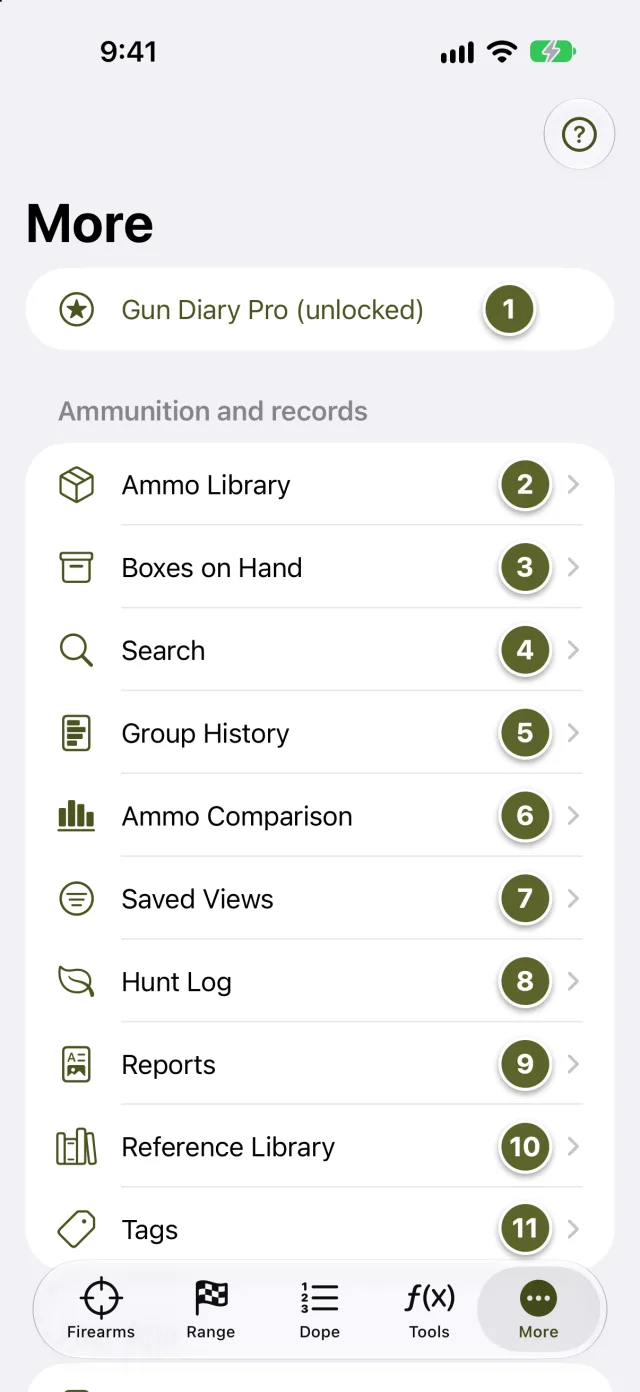
Numbers on the picture: 1 Gun Diary Pro, 2 Ammo Library, 3 Boxes on Hand, 4 Search, 5 Group History, 6 Ammo Comparison, 7 Saved Views, 8 Hunt Log, 9 Reports, 10 Reference Library, 11 Tags.
- At the top, tap Gun Diary Pro to see the plans, buy or restore Pro. It reads Gun Diary Pro (unlocked) once Pro is unlocked. See Free and Pro.
- Under Ammunition and records, tap the row you need:
- Ammo Library: the factory ammunition you’ve added, with lots. See The Ammo Library.
- Boxes on Hand: rounds on hand per ammunition and lot (only if turned on in Personalize Your Diary). See Inventory.
- Search: find any record. See Search.
- Group History: groups by any filter, with averages. See Group history.
- Ammo Comparison: which ammunition or lot groups best in one firearm. See Ammo comparison.
- Saved Views: your named Group History filters (Pro). See Saved views.
- Hunt Log: every hunt, for all firearms (hidden when Hunting is turned off). See Hunt log.
- Reports: every report in one place. See Reports.
- Reference Library: manuals, receipts, warranties and notes. See Reference Library.
- Tags: rename, merge or delete your tags. See Tags.
- Under Pinned Views (only when you’ve pinned an all-firearm saved view), tap a view to open it.
-
Scroll down. Under Your data:
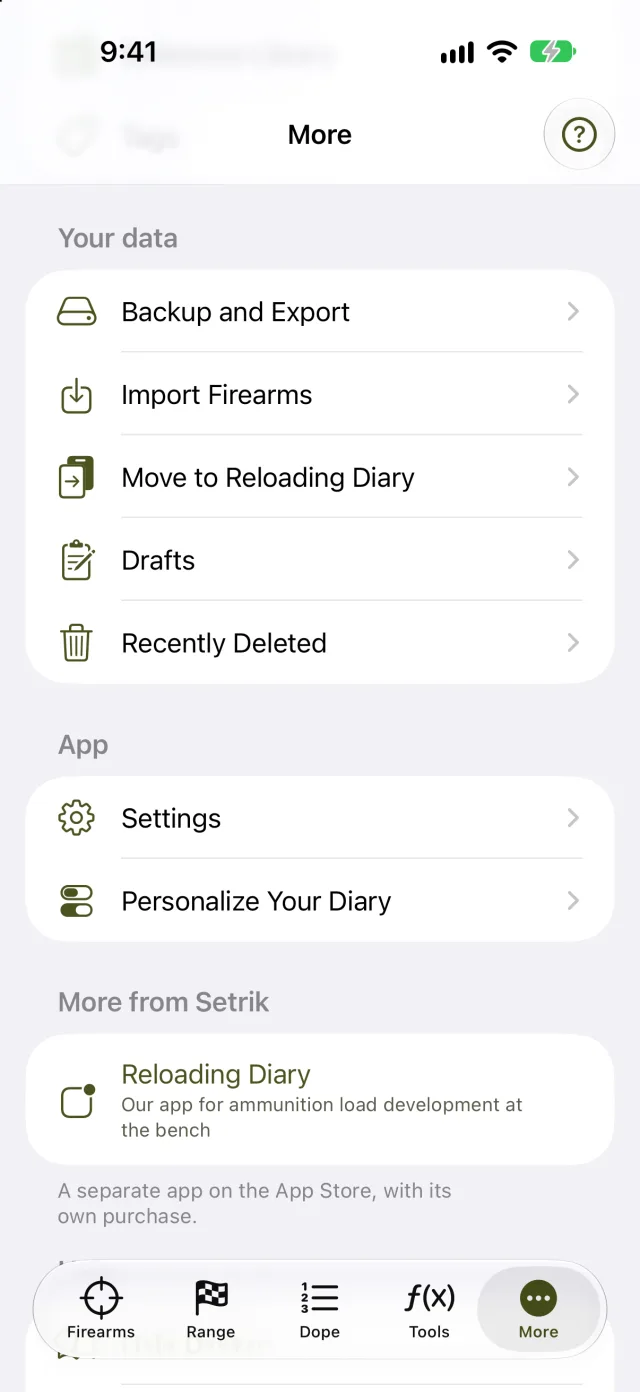
– Backup and Export: make or restore a backup, or export everything. See Back up and restore and Export all your data. – Import Firearms: bring in a gun list from a spreadsheet (Pro). See Import a gun list. – Drafts: unfinished groups and sessions. See Drafts. – Recently Deleted: bring back anything deleted in the last 30 days. See Recently Deleted. 6. Under App: – Settings: iCloud status, units, Range Mode and Zero Check, the Example Rifle, support. See Settings. – Personalize Your Diary: hide features you don’t use. See Personalize your diary. 7. Under More from Setrik, Reloading Diary opens the App Store page of our separate app for ammunition load development at the bench (its own purchase). 8. Under Help: – Help Center: these help articles, in an in-app browser. Tap Done to come back. – About Estimates: what “est.” means on a result and what each estimating calculator assumes (About estimates). – Contact Support: an email to us with the app’s error log attached. See Contact support and the error log. – Send Error Log: an email that’s just the error log report, for when something went wrong. – Privacy Policy and Terms of Use: open in the in-app browser. 9. At the bottom, Version shows the app version and build, like 1.0 (1). The line under it is the app’s records-only note: Gun Diary keeps the records you enter and never predicts bullet drop, wind or a trajectory.
Why it’s useful
The other tabs are about doing: your firearms, the range, your dope, the calculators. More is everything around them: finding and comparing (Search, Group History, Ammo Comparison), getting records out (reports, export), keeping them safe (backups, Recently Deleted), shaping the app to how you work (settings, personalize) and getting help.
Who uses it, and how:
- Factory ammo testers: Ammo Comparison after a test session shows which box shot best.
- Everyone, once a month: Backup and Export > Make a Backup. iCloud sync keeps devices the same, but it isn’t a backup.
- After a mistake: Recently Deleted brings back a deleted firearm, session, group, dope table and more for 30 days.
- After a busy range day: Drafts lists everything you started and didn’t finish.
- Collectors: Reports for the collection report, Reference Library for receipts and manuals, Import Firearms for a gun list.
- Hunters: the all-firearms Hunt Log for the season.
- Someone who shoots one way: Personalize Your Diary hides boxes on hand, competition, hunting, patterns and more.
- Anyone with a question: the Help Center answers most; Contact Support reaches us with the details we need already filled in.
What each option means
Example
After a test day with three factory loads, you tap More > Ammo Comparison, pick your rifle, and see that the 140 gr load averaged the smallest groups. You make a backup while you’re here (Backup and Export > Make a Backup). Then you notice a group you deleted by mistake last week: Recently Deleted, swipe right on it, Restore.
Tips
- Almost every screen has its own help. The ? at the top of a screen opens the article for that screen (camera screens don’t have one; their help is on the screen that opens them); Help Center opens the home page with the learning paths.
- Check the version (bottom of More) before writing to us, or if a help article doesn’t match your screen: your app may need an update.
- On iPad, Ammo Library and Search are also in the sidebar.
What it affects
The More tab itself changes nothing; each row opens its own screen. Sending a support email shares only what you see in the email.
If something goes wrong
- Boxes on Hand, Hunt Log or Reference Library isn’t in the list. It’s turned off in Personalize Your Diary. Turn it back on there; nothing was lost.
- Saved Views, Import Firearms or a PDF opens the Pro screen. Those are part of Gun Diary Pro. See Free and Pro.
- The Help Center, Privacy Policy or Terms of Use page doesn’t load. They’re web pages and need a connection. Everything else in the app works offline.
- Contact Support opens a different email app, or nothing happens. The iPhone has no Mail account set up. See Contact support and the error log.
Related
- Next: Settings.
- Free and Pro, Back up and restore, Drafts, Recently Deleted, Personalize your diary.
- See also the learning path Keeping your records safe.
- Words used here: Pro, backup, draft, recently deleted, saved view, error log.
Still stuck? In the app, open More > Help > Contact Support, or More > Settings > Support, which also has Send Error Log (the error log helps us find the problem), or email contact@setriksoftware.com. You can also browse the Help Center or the messages the app can show.