
Tags
Label groups, sessions and documents with your own words, then rename, merge or delete those tags in one place.
Tags are your own short labels, like “elk 2026”, “club match” or “new barrel“, that you put on groups, sessions and documents. They make records easy to find and gather together later. The Tags screen lists every tag with how many records use it, and lets you rename, merge or delete them.
Steps
Add tags to a record
- Open the edit form of a group (Edit Group), a session (Edit Session) or a document in the Reference Library.
- In the Tags field (“Tags, separated by commas”), type one or more tags separated by commas, like
elk 2026, cold bore. An existing tag is reused whatever its capitals; a new one is created. - Save the record. To take a tag off, delete it from the field.
Manage your tags
-
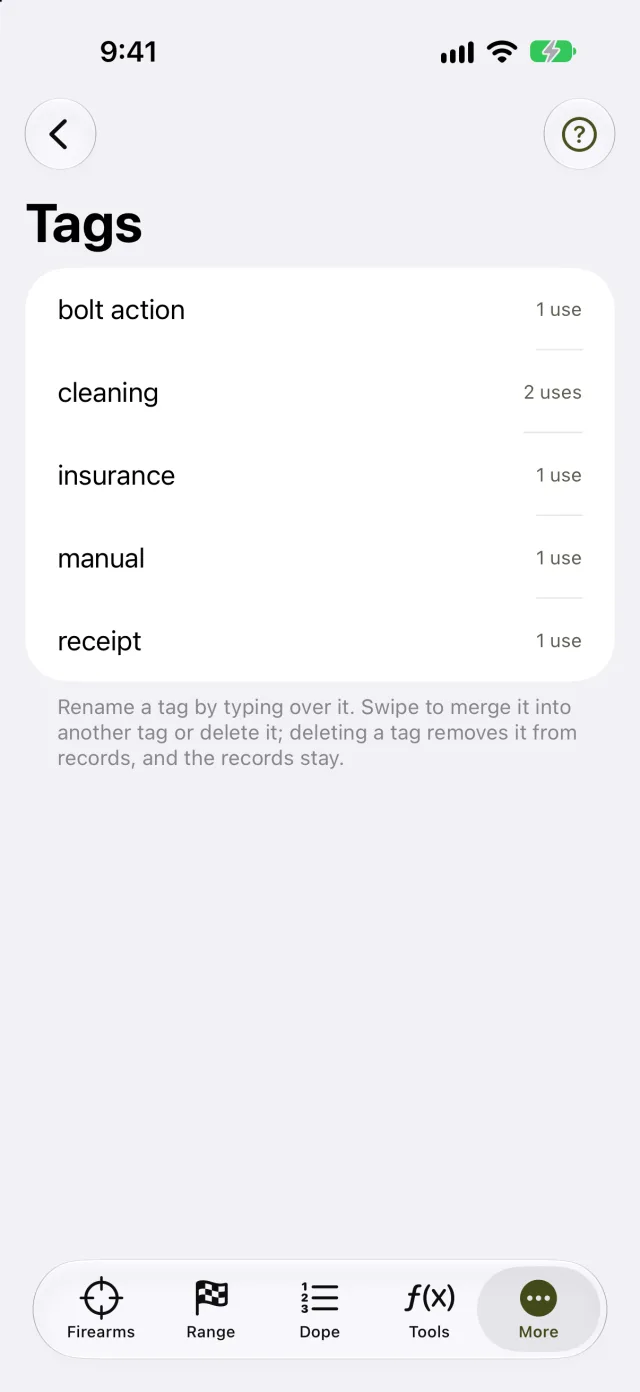
Tap More > Tags.
-
To rename a tag, tap its name and type over it. Every record that has it shows the new name.
-
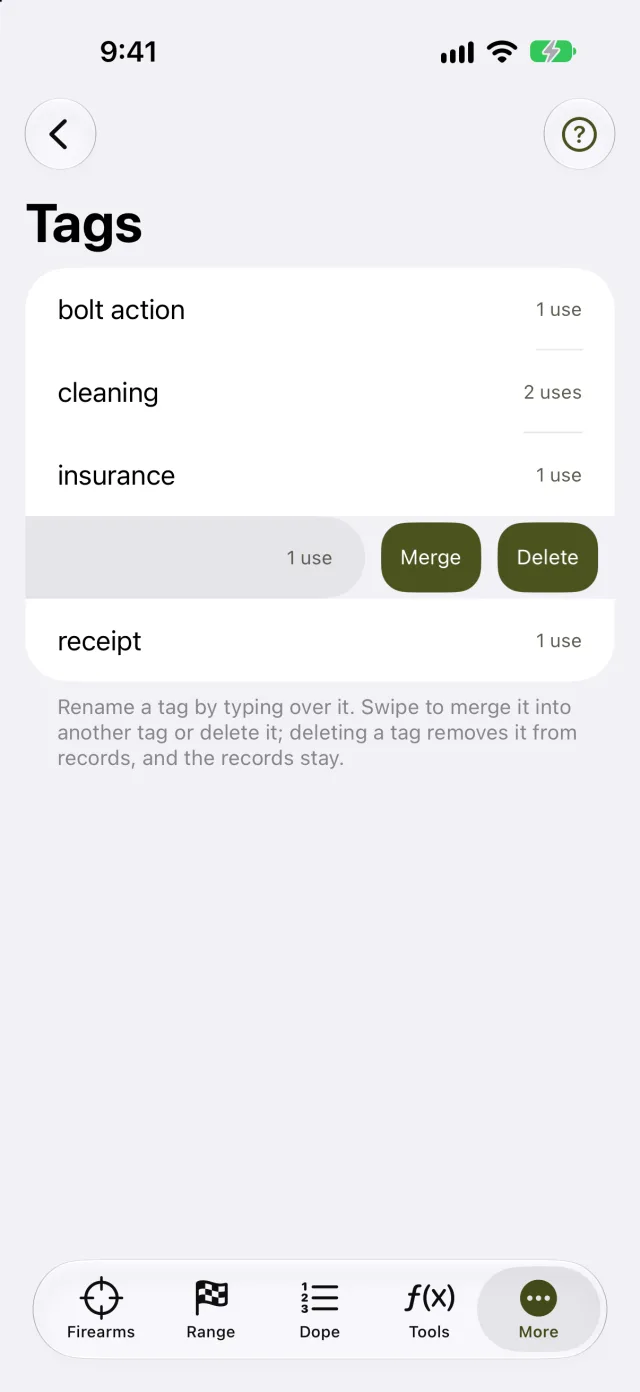
To merge one tag into another (like “Elk” into “elk 2026”), swipe left on it, tap Merge, then pick the tag to keep in “Merge … into…”.
-
To delete a tag, swipe left, tap Delete, then Delete Tag. It comes off every record; the records stay.
Why it’s useful
Firearms, ammunition, sessions and dates already organize your diary. Tags cover everything else: a hunting trip that spans three sessions, a scope you’re testing on two rifles, a match season, a class you took. Type the tag once on each record and Search gathers them together.
Who uses it, and how:
- Hunters: tag every session and group of a trip (“Wyoming elk 2026”) to see the whole trip at once.
- Competitors: tag sessions by match or season (“PRS 2026″).
- Ammo testers: tag the groups of one test (“140 vs 147 test”) across several sessions.
- Collectors: tag documents (“insurance 2026”) to find the year’s paperwork.
- Instructors and students: tag sessions by course or drill.
What each option means
Tags are matched without regard to capitals: “Elk” and “elk” are the same tag.
Example
After a week-long elk hunt you have four sessions, eleven groups (zero checks and practice) and a scanned license. You tag each with “elk 2026”. Later, on the Tags screen you see both “elk 2026” (16 uses) and “Elk26” (3 uses) from a typo. You swipe left on “Elk26”, tap Merge, and pick “elk 2026”: now it’s one tag with 19 uses. In Search, typing “elk 2026” brings up the whole trip.
Tips
- Keep tags few and consistent. “elk 2026” every time, not “Elk”, “elk hunt” and “2026 elk”.
- Use tags for what isn’t already a field. Firearm, ammunition, date and activity are already searchable; don’t tag them.
- Merge typos instead of deleting them, so their records keep the right tag.
What it affects
- Renaming and merging change the tag on every record at once.
- Deleting a tag removes it from its records; the records themselves are untouched.
- Search finds groups and sessions by their tags, and Group History can filter by a tag (a group counts if it or its session has the tag).
- A group’s or session’s tags are part of its change history.
- Tags sync, and go into backups and exports (each record’s tags in its spreadsheet row).
If something goes wrong
- Merge isn’t offered. You have only one tag; there’s nothing to merge into.
- I deleted a tag by mistake. Tag deletions can’t be undone. Add the tag again to the records that need it.
- A tag I typed doesn’t appear on the Tags screen. The record wasn’t saved, or the tag was typed with a different spelling; check the record’s Tags field.
Related
- Next: Contact support and the error log.
- Search, Record a group, Log a session, Reference Library.
- Words used here: tag, group, session.
Still stuck? In the app, open More > Help > Contact Support, or More > Settings > Support, which also has Send Error Log (the error log helps us find the problem), or email contact@setriksoftware.com. You can also browse the Help Center or the messages the app can show.