
The firearm dashboard
What's on a firearm's own page: its header, favorite ammunition, Shooting Diary, Group History, dope, zero history, hunt log, patterns, The Garage, documents, pinned views, reports and drafts, and the ••• menu.
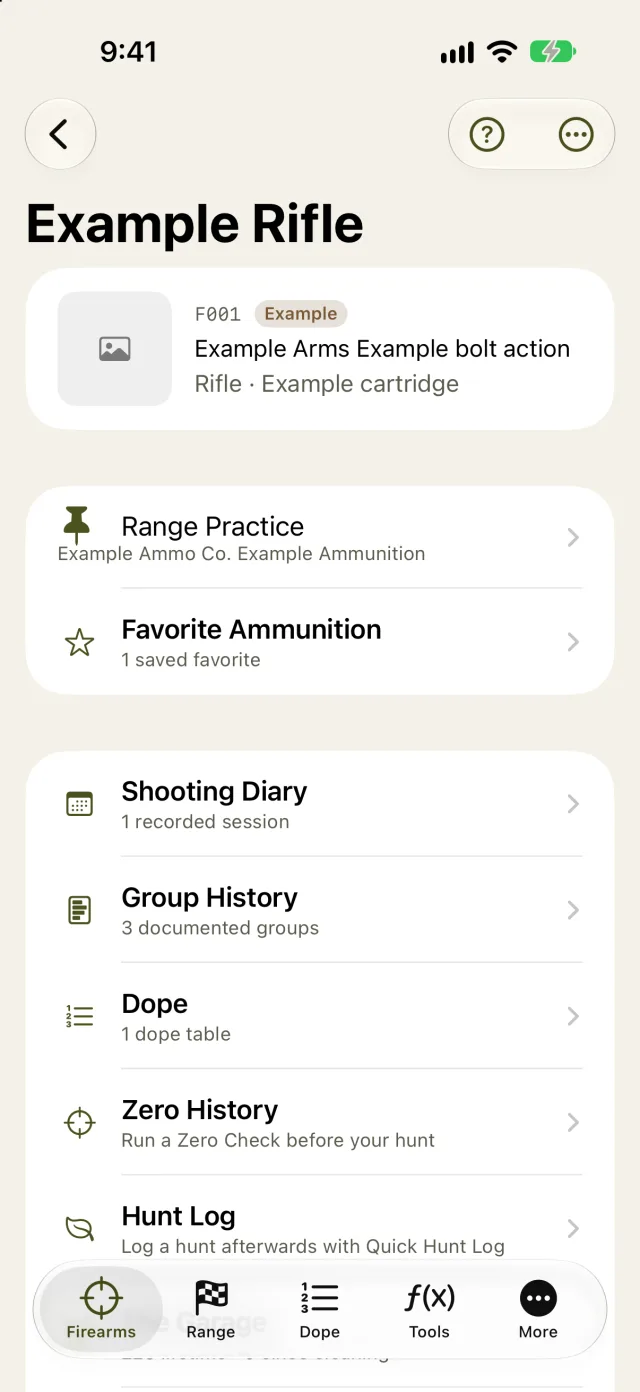
Each firearm has its own dashboard: one page with a short summary of everything recorded for that gun and a row to open each part. Tap a firearm’s card on the Firearms tab to open it. Every section says what goes there even when it’s empty, so a new gun’s dashboard is also a checklist of what you can record.
Steps
- Tap the Firearms tab, then the firearm’s card.
- Read the header at the top: the photo, the code (F001…), an Example badge on the Example Rifle, “Archived” if archived, the maker and model, the kind and cartridge, and, when the gun isn’t Active, its status line (for example “Sold Mar 3, 2026 to Pat Smith”). Tap the status line to open Change Status.
- Tap any section row to open it. Each row shows a count or, when empty, what to do first.
-
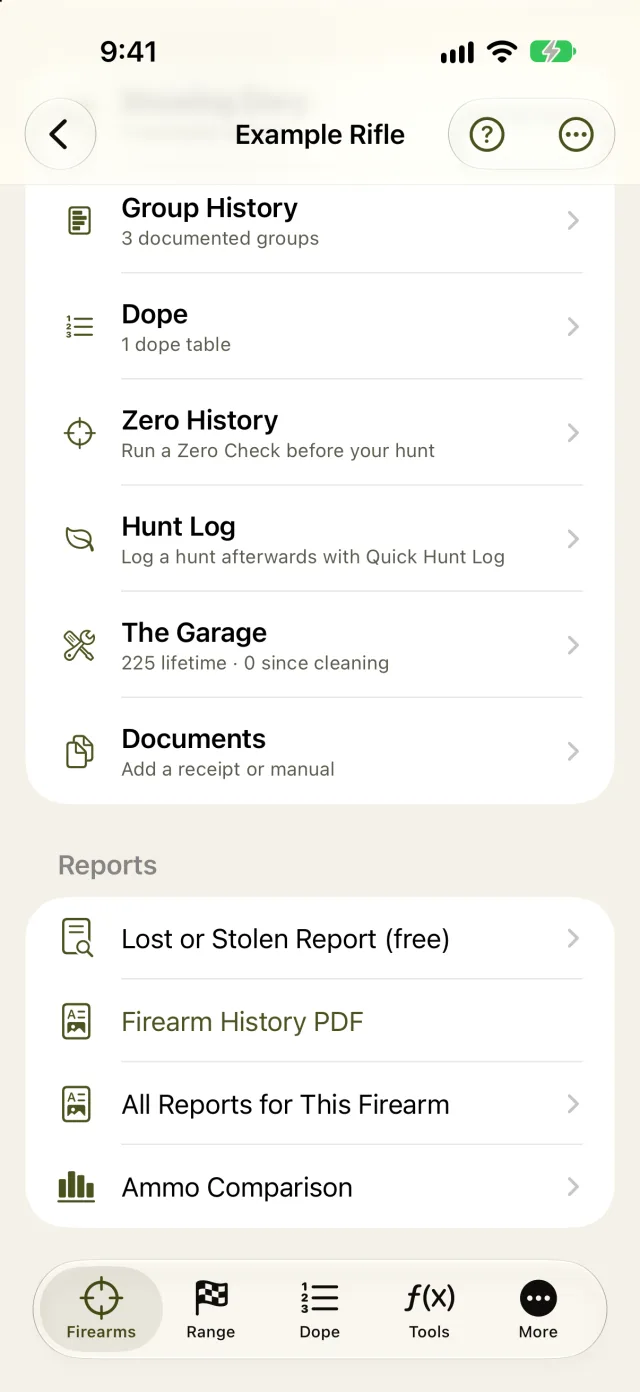
Scroll down for The Garage, Documents, Reports and, when there are any, Saved Views and Drafts.
-
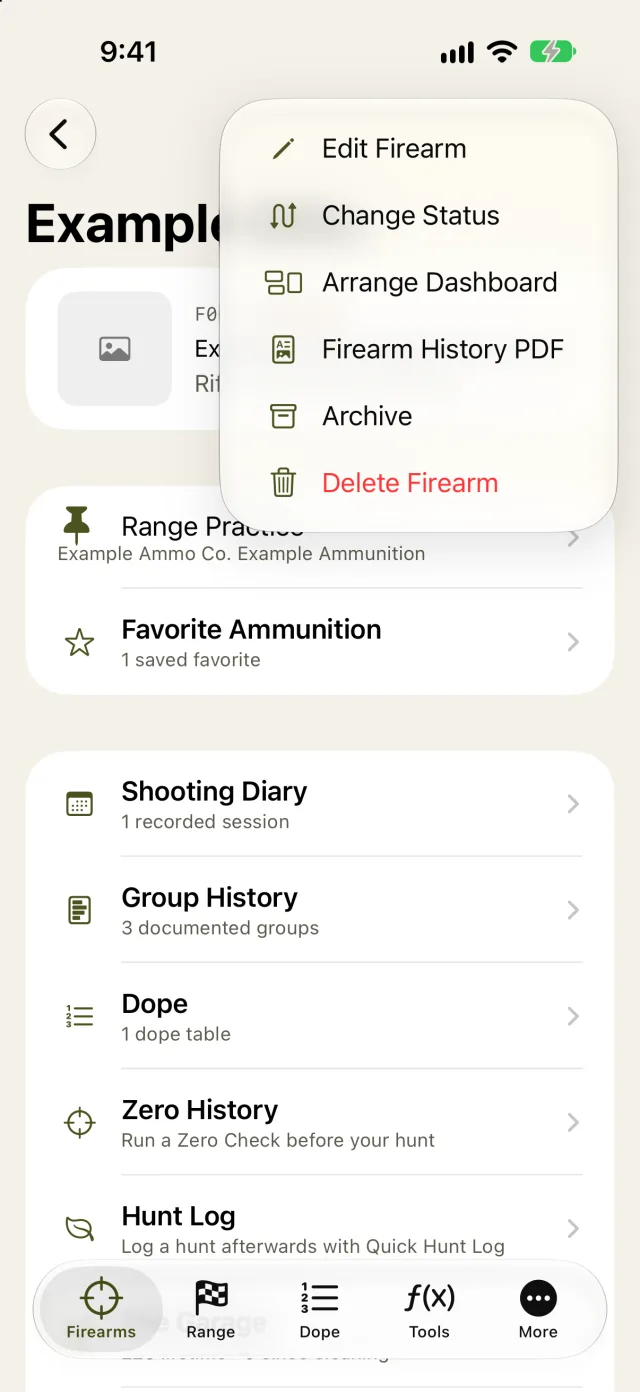
Tap ••• at the top right for the firearm’s actions: Edit Firearm, Change Status, Arrange Dashboard, Firearm History PDF, Archive (or Unarchive) and Delete Firearm.
-
To put the sections in your own order or hide some, tap ••• > Arrange Dashboard. See Arrange the dashboard.
Why it’s useful
Most questions about a gun are about that gun: “when did I last clean it?”, “what’s it zeroed with?”, “how many rounds are on the barrel?”, “where’s the receipt?”. The dashboard answers them from one place, without hunting through tabs, and its counts show at a glance what’s been recorded and what hasn’t.
Who uses it, and how:
- New gun owners follow the empty rows (“Log your first session”, “Prove your first distance”) as a list of what to do next.
- Hunters open Zero History before the season and Hunt Log after it; the favorite ammunition row shows the ammunition you picked as this rifle’s favorite (the confirmed zero is in Zero History).
- Long-range shooters go straight to Dope and Group History for the rifle they’re shooting today.
- Competitors open the Shooting Diary for match results and drill runs, and The Garage for the round count on the barrel.
- Shotgunners get a Patterns row on guns whose kind is Shotgun.
- Collectors use Documents for receipts and manuals and the Reports section for the free lost or stolen report and the firearm history PDF.
What’s on the dashboard screen
Sections you may not see: Dope and Hunt Log are hidden when you’ve turned those features off in Personalize your diary; Patterns shows only on shotguns (and only when patterns are on); any section can be hidden with Arrange Dashboard. Hidden sections keep all their records.
The ••• menu: | Action | What it does | |—|—| | Edit Firearm | Change any field. See Edit a firearm | | Change Status | Sold, traded, gifted, lost, stolen, recovered. See Change a firearm’s status | | Arrange Dashboard | Order and hide sections | | Firearm History PDF | The gun’s whole history as a PDF (Pro) | | Archive / Unarchive | Hide the gun from the main list without deleting anything | | Delete Firearm | Two-step delete to Recently Deleted |
Example
The Example Rifle’s dashboard, right after you install the app: the header reads “F001 Example”, “Example Arms Example bolt action”, “Rifle · Example cartridge”. Favorite Ammunition lists “Range Practice” (pinned) with “1 saved favorite”. Shooting Diary: “1 recorded session”. Group History: “3 documented groups”. Dope: “1 dope table”. Zero History: “Run a Zero Check before your hunt” (none yet). The Garage: “225 lifetime · 0 since cleaning”.
After you sell an old rifle and record it with Change Status, its header shows “Sold Mar 3, 2026 to Pat Smith” in brown; tap it to change the details.
Tips
- Put your most-used section first. A hunter might put Zero History at the top; a long-range shooter Dope. See Arrange the dashboard.
- Pin a Group History view (Pro) to see it right on the dashboard. See Saved views.
- Finish drafts from here. An unfinished group or session for this gun shows under Drafts; tap it to carry on.
- The lost or stolen report is free and one tap away under Reports. Fill in the serial number and photo now, not on the worst day.
What it affects
The dashboard only shows and opens records; it doesn’t change them. The section order and hidden sections are kept per firearm and sync with iCloud.
If something goes wrong
- I don’t see Dope or Hunt Log. The feature is off in More > Personalize Your Diary, or the section is hidden with Arrange Dashboard. Records are kept either way.
- I don’t see Patterns on my shotgun. The gun’s Kind isn’t Shotgun. Tap ••• > Edit Firearm and change it.
- A section I hid is gone. Tap ••• > Arrange Dashboard and turn its switch back on.
- I can’t find Lost or Stolen Report. The Reports section may be hidden: tap ••• > Arrange Dashboard and turn Reports back on.
- The Pro screen opened. Firearm History PDF is part of Pro; the lost or stolen report and CSV files are free. See Free and Pro.
- The counts look wrong. Counts leave out records in Recently Deleted and drafts. Round counts come from sessions; see Round counts.
Related
- Next: Arrange the dashboard.
- The Garage, Shooting Diary, Group History, Dope tables, Zero history, Hunt log, Patterns, Firearm documents, Lost or stolen report, Reports.
- Edit, archive or delete a firearm and Change a firearm’s status.
- See also the learning path New gun owner.
- Words used here: code, dope, zero, draft.
Still stuck? In the app, open More > Help > Contact Support, or More > Settings > Support, which also has Send Error Log (the error log helps us find the problem), or email contact@setriksoftware.com. You can also browse the Help Center or the messages the app can show.