
Maintenance log
Record cleanings, repairs, professional service, modifications and other work on a firearm, with the date and time, photos, attached files and the round count at the time; a cleaning resets the Since cleaning counter.
The Maintenance Log is a firearm’s service record: every cleaning, repair, trip to the gunsmith, modification or other job, with the date and time, what was done, photos, attached files such as invoices, and the round count at the time. A cleaning also resets the Since cleaning counter. Add an entry each time you work on the gun or have work done.
Steps
Record a cleaning (the quick way)
- Open the firearm and tap The Garage.
- Tap Record Cleaning.
-
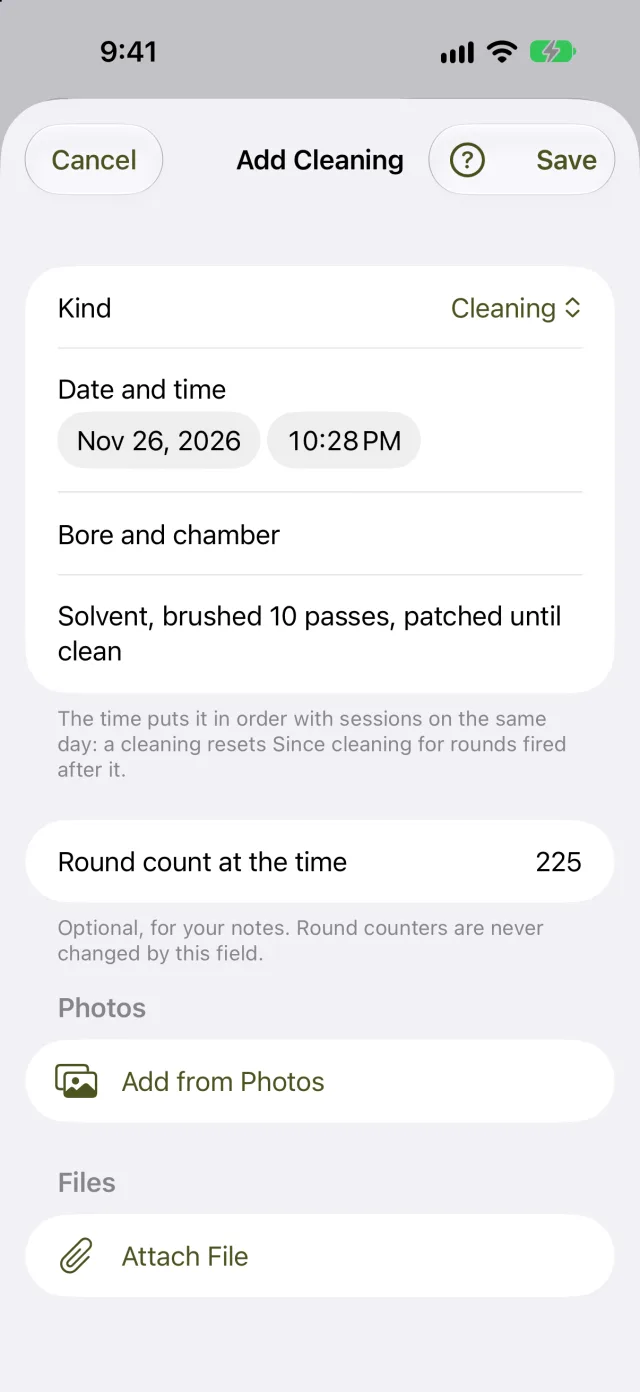
Check the Date and time, type a Title (like “Bore and chamber”) and, if you like, What was done. The time puts the cleaning in order with a session on the same day: rounds fired after it count toward Since cleaning.
-
Tap Save. Since cleaning goes back to 0.
Record any kind of work
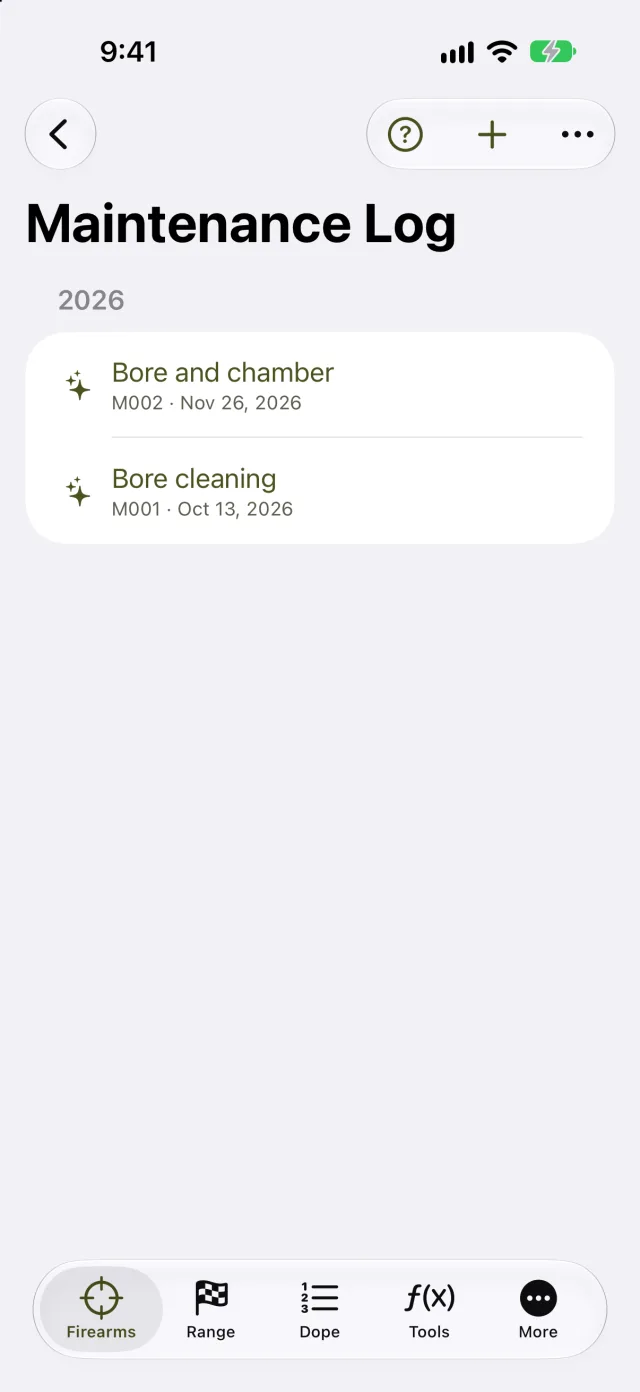
- In The Garage, tap Maintenance Log.
-
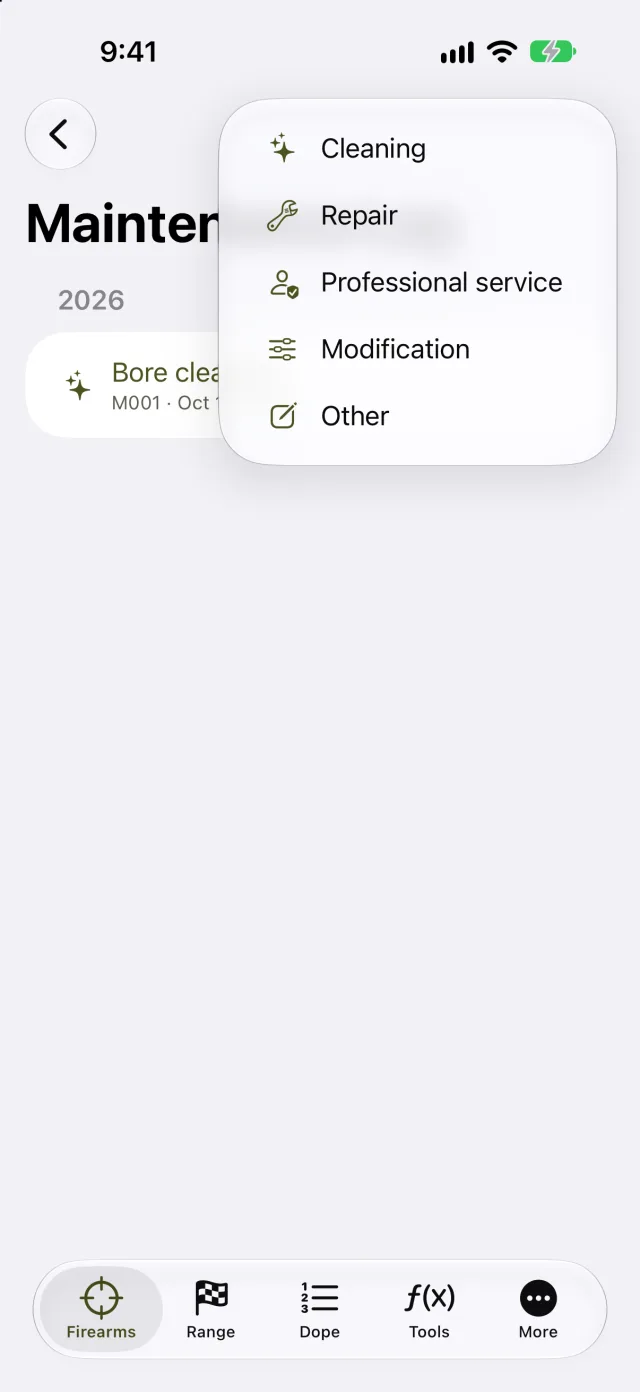
Tap Add Entry (+ at the top right) and pick the kind: Cleaning, Repair, Professional service, Modification or Other.
-
Set the Date and time and a Title, and describe the work in What was done.
- Check Round count at the time. It starts at the gun’s current lifetime count; change it if the work was done earlier.
- For a Modification that changed the gun’s equipment, turn on Create a new configuration. See Record an equipment change.
- Under Photos, tap Take Photo or Add from Photos (the invoice, the worn part, the new trigger).
- Under Files, tap Attach File to add a PDF, image or text file (an invoice, a gunsmith’s report).
- Tap Save.
Find, edit, repeat or delete an entry
- In Maintenance Log, entries are grouped by year, newest first. To see one kind only, open the menu at the top right and pick it under Show (All kinds shows everything).
-
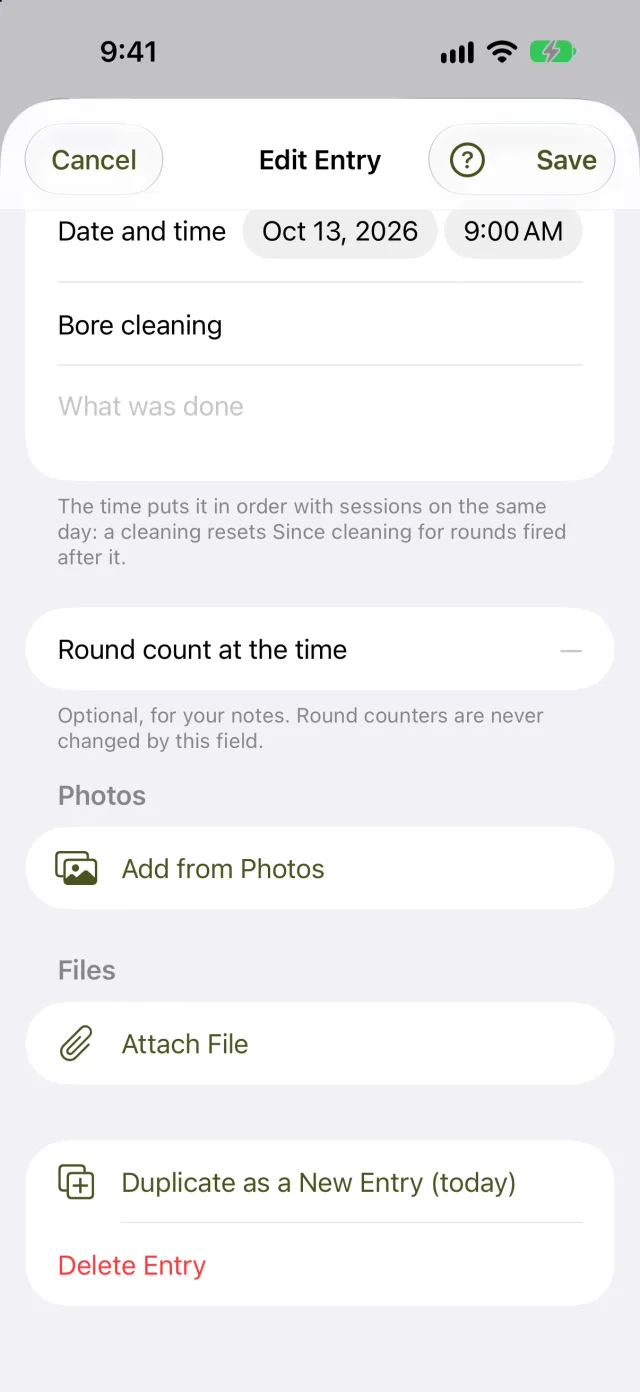
Tap an entry to open Edit Entry. Change anything, including the Kind, and tap Save.
-
To log the same job again (your usual cleaning), tap Duplicate as a New Entry (today). A copy dated now is made with the kind, title and details (not the photos, files or round count).
- To delete it, tap Delete Entry, then Move to Recently Deleted. You can restore it for 30 days.
Why it’s useful
“When did I last clean it?” and “how many rounds were on it when the gunsmith replaced the extractor?” are questions every gun owner asks, usually after the notebook is lost. The log answers them with dates, photos and receipts, and it sits next to the round counters and the sessions, so a change in how a gun shoots can be seen next to the work done to it.
Who uses it, and how:
- New gun owners record each cleaning and see Since cleaning count up between them, building a routine.
- Precision shooters record every cleaning and watch Since cleaning to keep the bore in the same state before a match or a test.
- Hunters record the pre-season cleaning and any work, so the rifle is ready and documented.
- Handgun and carry owners log cleanings and parts replaced (springs, extractors) with the round count at the time.
- Competitors keep gunsmith invoices and photos with the date and round count, for warranty claims or resale.
- Collectors keep a care history (cleanings, storage prep, appraisals) that adds to a gun’s value.
- Anyone selling a gun can show its maintenance history (the Maintenance PDF is a Pro report; the CSV is free).
The app doesn’t remind you or tell you when to clean; it records what you did. Follow the maker’s manual for how to clean and maintain your gun.
What each option means
Kinds, and when to pick which
- Cleaning: any cleaning you want to reset Since cleaning. Only this kind affects a counter.
- Repair: fixing something broken (a firing pin, an extractor, a cracked stock).
- Professional service: work done by a gunsmith or an armorer, whatever it was.
- Modification: a change to the gun (trigger, muzzle brake, bedding, a new sight). Pair it with a new configuration if the equipment changed.
- Other: anything else (inspection, scope mount torque check, storage prep, an appraisal).
In the list: each row shows the title (or the kind), its code (M001, M002…) and date, under a heading for its year. With nothing recorded: “No maintenance yet”, “Record your first cleaning. A cleaning resets only the “since cleaning” counter.” and a Record Cleaning button.
Attached files are stored in the Reference Library (category Other; set the right one there) when you tap Save, and linked to this gun too, so they also show in the gun’s Documents. Swipe left on a file and tap Remove to unlink it from the entry.
Example
After a 60-round range day on April 5, the Mountain Rifle’s counters read 660 lifetime, 660 current barrel, 60 since cleaning.
- That evening you tap Record Cleaning. Date and time stays at April 5, this evening (after the session), Title “Bore and chamber”, What was done “Copper solvent, 10 patches, light oil”. Round count at the time already says 660. Save.
- It’s M004. Since cleaning now reads 0; the other counters still read 660.
- In May the gunsmith adjusts the trigger. Maintenance Log > Add Entry > Professional service, Title “Trigger adjusted to 2.5 lb”, a photo of the rifle, Attach File with the PDF invoice, Save. It’s M005, listed under 2026 above the cleaning.
- After the next range trip, open M004 and tap Duplicate as a New Entry (today): M006 “Bore and chamber”, dated now.
Tips
- Record the cleaning on the right day and time. Since cleaning counts rounds dated after the cleaning, so a cleaning dated too late hides rounds and one dated too early counts too many.
- Use the title for what matters in a list. “Bore and chamber” or “Recoil spring replaced” reads better a year later than a list of “Cleaning”.
- Duplicate your usual cleaning instead of typing it each time.
- Round count at the time is a note. It’s what the counters said on that day; it never changes them, so it stays right even if sessions are added or corrected later.
- Record malfunctions as safety observations, and the fix as a Repair. See Safety observations.
What it affects
- Since cleaning: every Cleaning entry resets it; it counts rounds and adjustments dated after the most recent cleaning. Deleting, restoring or redating a cleaning recalculates it at once. Other kinds never change a counter.
- Lifetime rounds and Current barrel: never changed by maintenance entries, including Round count at the time.
- Configurations: a new Modification with Create a new configuration on makes a configuration named after the title (or “Modification”), starting on the entry’s day. See Record an equipment change.
- Shooting Diary timeline: entries appear by date next to your sessions. See Shooting Diary.
- Search: entries are found by title, details or code. See Search.
- Reports and export: in the Maintenance PDF and the maintenance report (PDF Pro, CSV free), the firearm history PDF (Pro), backups and Export All Data. See Maintenance report.
If something goes wrong
- Since cleaning still counts rounds I shot before cleaning. The cleaning is dated earlier than the session. Open the entry and check its Date and time; if you shot and cleaned on the same day, set the cleaning’s time after the session’s.
- Since cleaning went to 0 but I didn’t clean. An entry was saved with the kind Cleaning. Open it and change Kind.
- I don’t see Create a new configuration. It’s only on new entries whose kind is Modification. For an existing entry, use New Configuration in Specs and Equipment.
- I tapped Cancel and lost the entry. Unsaved entries aren’t kept as drafts. Add it again. Files you attached with Attach File during that edit are removed too (they’re not left in the Reference Library).
- I deleted an entry by mistake. More > Recently Deleted, swipe right on it and tap Restore within 30 days. The counters recalculate.
- The Pro screen opened instead of a PDF. The Maintenance PDF is part of Pro; the maintenance report’s CSV is free. See Free and Pro.
Related
- Next: Round counts: how cleanings reset Since cleaning.
- The Garage, Record an equipment change, Safety observations, Firearm documents, Recently Deleted, Maintenance report.
- Learning path: New gun owner.
- Words used here: maintenance entry, round count, configuration.
Still stuck? In the app, open More > Help > Contact Support, or More > Settings > Support, which also has Send Error Log (the error log helps us find the problem), or email contact@setriksoftware.com. You can also browse the Help Center or the messages the app can show.