
Your first day with Gun Diary
Set up the diary in the right order, step by step: look at the example, check iCloud, add your firearm and its scope, add your ammunition, log your first range session and groups, save proven dope, and make your first backup.
This is the order that makes the rest of the app easy: the firearm first, then its scope, then the ammunition you shoot, then the range. Each step says why it comes where it does. Plan on 15 to 25 minutes for steps 1 to 7 at home; steps 8 to 10 happen at the range or when you get back, and step 11 takes a minute. You can stop after any step: everything saves as you go.
Steps
- Look around the example (5 minutes). On the Firearms tab, tap the Example Rifle, open its Shooting Diary, one group, its Dope and The Garage. Why first: you see how a session, its groups, the ammunition, the round counters and a dope table connect before you type anything. See Explore the Example Rifle.
-
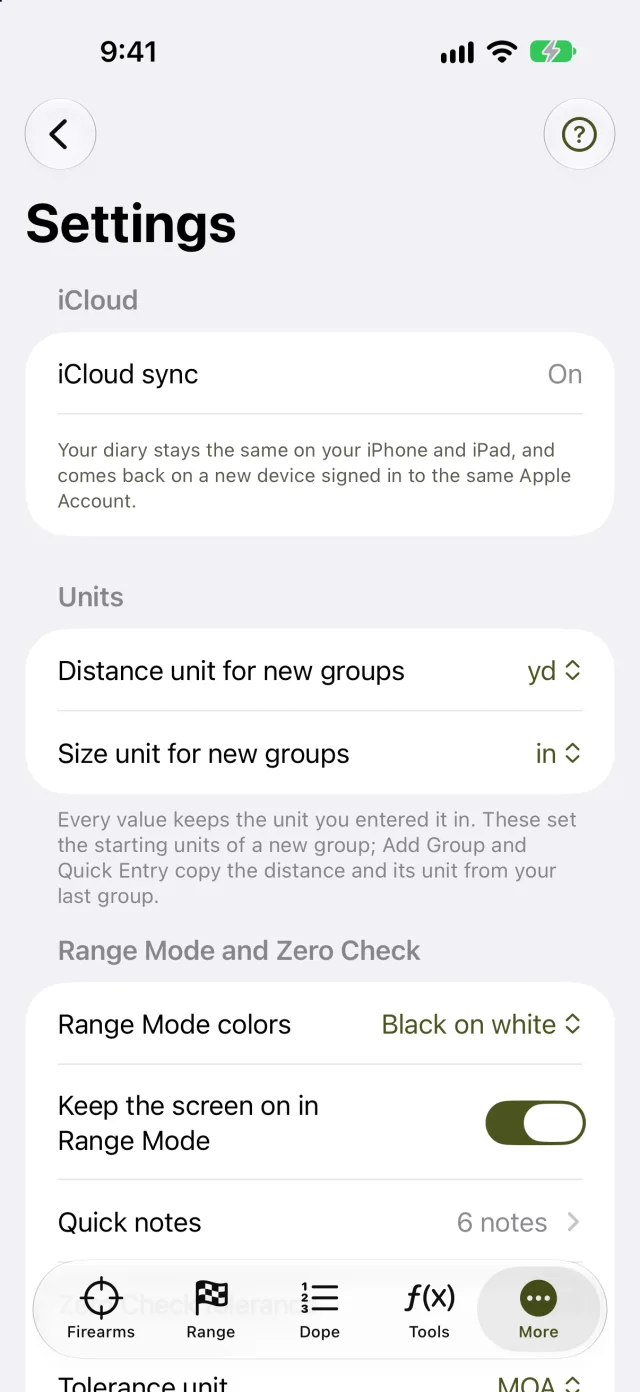
Check iCloud. Tap More > Settings and look at iCloud sync. On means your diary also appears on your iPad and on a new iPhone signed in to the same Apple Account. Why now: if it says Not signed in to iCloud, you’ll know to sign in (in the iPhone’s Settings app) or to make backups from the start. See Settings.
-
Hide what you won’t use (optional, 1 minute). More > Personalize Your Diary. Turn off, for example, Competition and Drills if you don’t compete, Shotgun Patterns if you have no shotgun, or Boxes on Hand if you don’t want to count ammunition. Why now: fewer buttons on every screen. Nothing is deleted, and you can turn them back on any day. See Personalize your diary.
-
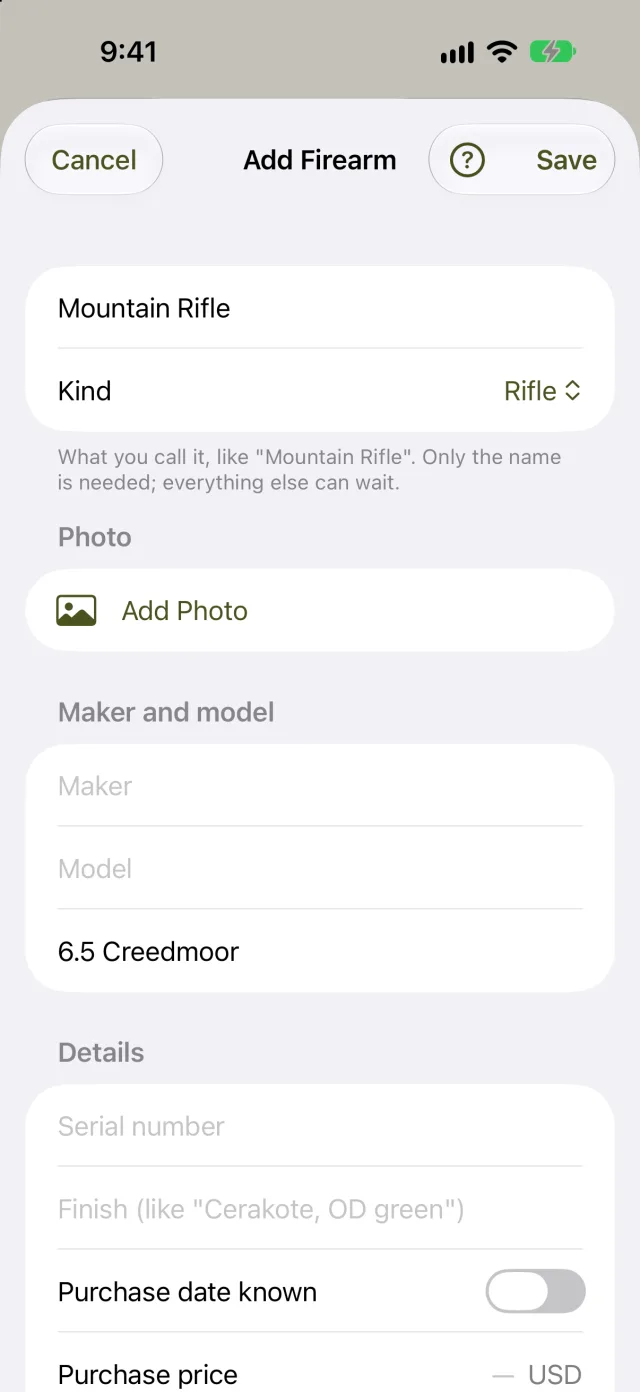
Add your firearm. On Firearms, tap +. Type a Name (required) (like “Mountain Rifle”), pick the Kind, and if you know them, the Maker, Model, Cartridge (like 6.5 Creedmoor) (or the gauge for a shotgun) and Rounds already fired. Tap Save. Why the firearm first: every session, group, dope table, zero check and cleaning belongs to a firearm. Why the rounds already fired: the round counters start from the right number instead of zero. Collectors can add the serial number and purchase details now or later. See Add a firearm.
-
Record the scope in The Garage (5 minutes). Open the firearm > The Garage > Specs and Equipment, and use Add Equipment in the Optic category for your scope (and the mount, trigger or anything else you want on record). Then tap the optic settings line under the scope and set the Click value (like 0.1 mil or 1/4 MOA), Reticle units and Focal plane. Why before your first group: each group remembers the firearm’s configuration on its date, and every click count in the app (the group’s Clicks row, Zero Check, dope tables and cards) uses the scope’s click value from its optic settings. Without optic settings, Gun Diary shows no clicks and says so. When you change the scope later, older groups keep the old setup. See Specs, equipment and configurations and Optic settings.
- Add your ammunition. More > Ammo Library > Add Ammunition. Enter the maker, the product line, the cartridge and the bullet weight (as printed on the box), and tap Save. Then open it and use Add Lot to type the lot number printed on the box. Why before the range: picking ammunition from a list takes one tap, and the lot number is the record you’ll most wish you had when two boxes of the same ammo shoot differently. You can also add ammunition from inside a session with Add Custom Product. See Add an ammunition.
- Make it a favorite (optional). Firearm dashboard > Favorite Ammunition > Add Favorite: name it (like “Deer load”) and pick the ammunition. Why: the ammo this firearm likes is one tap away, with dated changes when you switch. See Favorite ammunition.
- At the range: log the session. On the Range tab, tap Log a Session (or Start Range Session for big-button Range Mode, Pro). Pick the Activity (Sight-in for a new scope, Practice otherwise), turn on the switch next to your firearm, enter its Rounds fired and pick its Ammunition; turn on Record weather and tap Fill In Current Weather if you have signal. Why a session: it’s the trip (date, place, weather), and its Rounds fired is what adds to the round counters. See Log a session.
- Record each group. Open the session and tap Add Group under your firearm. Enter the distance, the size (and whether you measured center to center), the number of shots, where it hit compared with your aim if you know it, and any chronograph readings; add a photo of the target. Why: the group is the evidence of what the firearm and ammunition did. At the range, speed beats completeness: Cancel > Keep as Draft and finish at home. See Record a group.
- Save a proven distance as dope (if you shoot at distance). Open a group that hit your aim at a distance, tap ••• > Save as Dope, and confirm the come-up you dialed. If you pick New table for this ammunition, the new table has no zero distance yet: open it, tap ••• > Edit Dope Table and type the Zero distance, so your card prints what the come-ups are measured from. Why: a dope table built from real groups is a number you can trust in the field. See Save a group as dope.
- Make your first backup. More > Backup and Export > Make a Backup, pick Full Backup, and save the file to Files or iCloud Drive. Why now: iCloud keeps your devices the same, but a deletion syncs too; a backup is a separate copy you can always go back to. See Back up and restore.
After day one, open the firearm’s dashboard: the session is in the Shooting Diary, the groups in Group History, the round count in The Garage, and your first dope in Dope.
Why it’s useful
Gun Diary connects records to each other, so the order you create them in matters a little. A session needs a firearm to give rounds to; a group picks its firearm, its ammunition and lot, and links itself to the firearm’s setup on its date; a dope row points at the groups that proved it. Doing it in this order means every record has something to point at when you make it, and you never have to go back and fix links.
Who this order helps:
- New gun owners: a clear path from the firearm to the first group, with nothing skipped. Read Shooting basics for beginners alongside.
- Someone sighting in a new scope: steps 4, 5, 8 and 9 are the whole job; Sighting in a new scope goes deeper.
- Hunters: steps 4 to 9, then a Zero Check before the season; see Before and after the hunt.
- Long-range shooters: step 10 is where your dope card starts; see Building your dope card.
- Factory ammo testers: add each ammunition and lot in step 6, shoot them in the same session, then open Ammo Comparison; see Testing factory ammo.
- Collectors: step 4 with the details (serial, purchase, insured value), then documents; skip the range steps. See Keeping your collection’s records.
- Shotgunners: skip step 5’s scope and step 10, set the firearm’s Kind to Shotgun, and pattern it (Shotgun patterning).
- Handgun, iron-sight and red-dot owners: step 5 is optional; see “Not a scoped rifle?” in Optic settings.
What each step needs
| Step | Needed? | Can I do it later? |
|---|---|---|
| Explore the example | No | Yes, until you remove it |
| Check iCloud | Recommended | Yes |
| Personalize | No | Yes, any time; hidden features keep their data |
| Add your firearm | Yes, first | n/a |
| Scope in The Garage | Recommended for scoped firearms | Yes, but add equipment before the date of the groups it applies to, or record a dated change (Record an equipment change) |
| Ammunition and lot | Recommended | Yes, or from inside a session with Add Custom Product |
| Favorite | No | Yes |
| Session and rounds fired | Yes, for round counts | Yes, from the session later |
| Groups | Yes, for results | Yes: keep them as drafts at the range, finish at home |
| Save as dope | Only if you shoot at distance | Yes, from any group later |
| Backup | Strongly recommended | Do it monthly |
Example
Sam has a new 6.5 Creedmoor and a notebook. On Saturday morning:
- Sam taps through the Example Rifle, then checks iCloud sync: On.
- Turns off Shotgun Patterns and Competition and Drills.
- Adds “Mountain Rifle”, Kind Rifle, cartridge 6.5 Creedmoor, Rounds already fired 40 (the rounds from the gun shop’s test day).
- In The Garage, adds the scope as Optic with click value 0.1 mil, reticle in mil, first focal plane.
- In the Ammo Library, adds a 140 gr factory load and its lot “2316A”.
- At the range: a Sight-in session, 30 Rounds fired, weather filled in. Four 3-shot groups at 100 yd; the last one is 0.9 in center to center, right on the aim.
- The next weekend, a group at 300 yd with 1.6 mil dialed lands on the aim, so Sam uses Save as Dope for 300 yd: 1.6 mil, proven.
- Back home, a full backup to iCloud Drive.
The Garage now reads 70 lifetime rounds; Group History shows the five groups; the Dope tab has Sam’s first proven row.
Tips
- Don’t type your whole history on day one. Start with today. Add older sessions when you need them, with their real dates.
- Use the same name for the same thing. “Mountain Rifle”, not “mtn rifle” one day and “6.5 CM” the next. Codes (F002, S002) are permanent; names are what you search.
- Leave blanks blank. A blank means “not recorded”; never type 0 for something you didn’t measure.
- Photograph every target. A photo can be measured later (Measure a group from a photo, Pro) and is the best record of all.
- Remove the Example Rifle when you’re done with it: More > Settings > Remove Example Rifle.
What it affects
- Your firearm is your one free firearm (the Example Rifle doesn’t count). A second one needs Gun Diary Pro. See Free and Pro.
- The session’s Rounds fired adds to all three round counters (lifetime, current barrel, since cleaning). Groups never add rounds, so nothing is counted twice. See Round counts.
- Boxes on Hand, if you use it, is a count you keep by hand: sessions don’t subtract from it. Add a box when you buy, subtract when you shoot. See Inventory.
- Everything you enter syncs to your other devices if iCloud is on, and goes into backups and Export All Data.
If something goes wrong
- The Pro screen opened when I tapped + on Firearms. You already have one firearm of your own. See Free and Pro.
- My ammunition isn’t in the list when I pick it in a session. Tap Add Custom Product in the list; you come back to the session with your work kept. See Pick an ammunition.
- The round counters show a dash. Nothing has been recorded yet; a dash means “not recorded”, not zero. Enter Rounds fired on a session, or the starting counts. See Round counts.
- “Weather isn’t available right now. Type the values in instead.” No connection at the range. Type what you know, or fill the weather in later from the session.
- “Add the group’s distance first (Edit Group)”. Tapping Save as Dope shows this when the group has no distance (or “Pick the group’s firearm first” with no firearm). Tap Edit Group and fill it in.
- “Not signed in to iCloud”. Your diary is on this device only. Sign in to iCloud in the iPhone’s Settings app, and make backups.
Related
- Next: pick a learning path, like New gun owner.
- A tour of Gun Diary: every area in one page.
- Shooting basics for beginners: the words used here.
- Words used here: configuration, click value, lot, session, group, center to center, chronograph, come-up, dope, round count, backup.
Gun Diary keeps records you enter and does arithmetic on them. It never predicts a trajectory; confirm every hold by shooting it at the range, and always know your target and what is beyond it.
Still stuck? In the app, open More > Help > Contact Support, or More > Settings > Support, which also has Send Error Log (the error log helps us find the problem), or email contact@setriksoftware.com. You can also browse the Help Center or the messages the app can show.