
The Ammo Library
Your own list of every factory ammunition you shoot, entered once and picked from any session, group, favorite, Zero Check or dope table.
The Ammo Library is your own list of the factory ammunition you shoot: each box type you buy, with its maker, product line, cartridge or gauge, and bullet or shot. You type each one once, and from then on you pick it from a list whenever you record a session, a group, a favorite, a Zero Check or a dope table. Gun Diary keeps factory ammunition only; it has no handloading records.
Steps
-
Tap the More tab at the bottom of the screen, then tap Ammo Library (under Ammunition and records). On iPad, Ammo Library also has its own place in the sidebar.
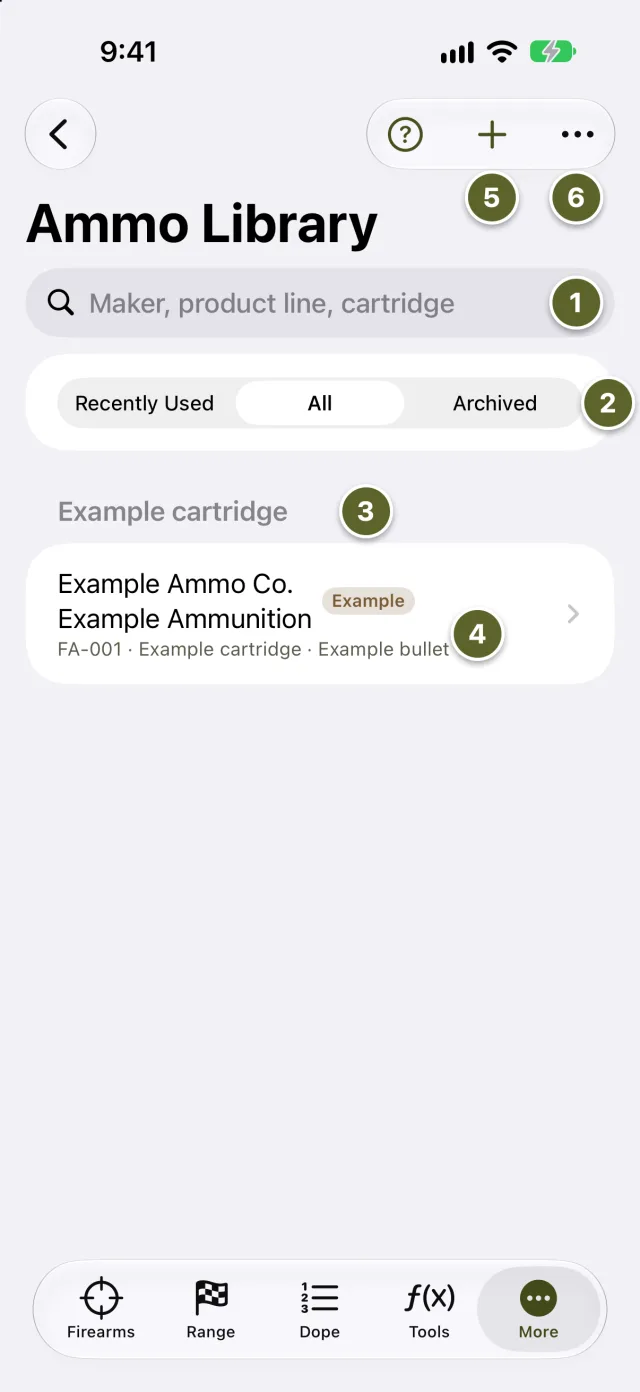
Numbers on the picture: 1 the search box, 2 Recently Used / All / Archived, 3 a cartridge heading, 4 an ammunition row, 5 Add Ammunition (+), 6 the ••• menu that holds Filter.
- Look at the list. With All chosen, your ammunition is grouped under a heading for each cartridge or gauge (A to Z), and sorted by name inside each heading. Ammunition with no cartridge typed in sits under No cartridge or gauge.
- Each row shows the maker and product line, then a second line with its code (like FA-002), the cartridge or gauge, the bullet type or shot details, and the product number. A box photo, if you added one, shows on the left.
- To find one ammunition, tap the search box (Maker, product line, cartridge) and type. It also finds bullet types, product numbers and codes.
- To narrow the list, tap ••• at the top right, then Filter, and pick a Maker or a Cartridge or gauge. Pick Every maker or Every cartridge to undo it. The Filter icon in that menu fills in while a filter is on.
- Tap Recently Used to see the ammunition you picked most recently first (up to 20), or Archived to see ammunition you’ve put away.
- Tap a row to open the ammunition: its details, lots, boxes on hand and where it was used. See An ammunition record.
- To add one, tap + (Add Ammunition) at the top right. See Add an ammunition.
Why it’s useful
Most shooters buy the same few kinds of ammunition again and again. Without a library you would type “Ridgeline Match 6.5 Creedmoor 140 gr” into every session, spelled a little differently each time, and later a search for “everything I shot with that ammo” would miss half of it. The Ammo Library fixes that: enter once, pick forever. Each ammunition is one record with one code, and every session, group, favorite, Zero Check, dope table, report and comparison points to that same record.
Who uses it, and how:
- New gun owners usually have one or two boxes. Add them once (or add them on the spot the first time you record a session) and you’re done.
- Hunters keep their hunting load and their cheaper practice ammunition apart, so their Zero History and dope always say which one was proven.
- Long-range shooters and competitors add each match ammunition with its lots, because two lots of the same ammunition can shoot to different points and speeds.
- People testing factory ammo add every candidate box, shoot groups with each, then compare them side by side in Ammo comparison.
- Shotgunners add shotshells with gauge, shot size, shot weight and shell length, and pick them when patterning.
- Collectors with many calibers use the cartridge headings and Filter to find the right box quickly.
Ammunition doesn’t belong to one firearm. One box type can be used in every gun chambered for it; its record lists sessions across all your firearms.
Nothing is pre-loaded: Gun Diary has no maker catalog. The library holds only what you add, plus the made-up Example ammunition (marked Example) until you remove the Example Rifle.
What each option means
Example
You’ve just bought two kinds of ammunition for your Mountain Rifle in 6.5 Creedmoor, a match box and a hunting box:
- More > Ammo Library > +. You add “Ridgeline Match”, cartridge 6.5 Creedmoor, 140 gr, bullet type “Match HP”. It becomes FA-002 (the Example ammunition already uses FA-001).
- + again: “Summit Hunter”, 6.5 Creedmoor, 143 gr, “Bonded SP”. It becomes FA-003.
- The library now shows a heading 6.5 Creedmoor with both boxes, and the Example cartridge heading with the Example ammunition.
Later you add a 12 gauge shotshell for the duck blind. With six ammunitions across three cartridges, you tap ••• > Filter > Cartridge or gauge > 6.5 Creedmoor to see just the rifle ammunition.
Tips
- Type the cartridge the same way every time. The headings and the Cartridge or gauge filter use exactly what you typed.
- One record per real ammunition, not per firearm. Add “Ridgeline Match 140” once, even if three rifles shoot it.
- Use lots for what changes between purchases. The ammunition stays the same; each case or box has a lot number. Add a lot instead of a second ammunition. See Lots.
- Archive instead of deleting when you stop buying an ammunition. It leaves your lists and pickers but stays on every old session and group.
- Add a box photo. A photo of the box end (with its lot and product number) makes the row easy to spot and keeps the details if you lose the box.
- Made duplicates by accident? Combine them with Merge duplicate ammunition.
What it affects
- Sessions, groups, favorites, Zero Checks, hunts, patterns and dope tables point to library ammunition. Change an ammunition’s details and every record that uses it shows the new details.
- Pickers (Select Ammunition) show only ammunition that isn’t archived. Records that already use an archived ammunition keep it.
- Search: ammunition and lot numbers are found by Search too, with archived ones labeled.
- Group History and Ammo comparison group results by these records, so one clean record per ammunition gives clean comparisons.
- Exports and backups: every ammunition is in Export all your data and in every backup.
If something goes wrong
- “Add an ammunition” with an empty list: you haven’t added any yet. Tap Add Ammunition.
- “Nothing matches”: your search words or filter hide everything. Clear the search box, and set Filter back to Every maker and Every cartridge.
- “Ammunition you pick in a session or group shows here.” under Recently Used: you haven’t picked an ammunition from the Select Ammunition list yet. Tap All to see everything.
- An ammunition I added isn’t listed. It may be archived: tap Archived. If you deleted it, it’s in Recently Deleted for 30 days. If you merged it into another, it now lives inside that one.
- The same ammunition is under two headings. The cartridge was typed two ways. Open one, tap ••• > Edit, and make the cartridge match.
- I can’t find a maker’s product to pick. There’s no built-in catalog. Add it yourself with +.
- Ammunition marked Example. It belongs to the Example Rifle and goes away when you remove the Example Rifle in Settings.
Related
- Next: Add an ammunition.
- An ammunition record, Pick an ammunition, Lots, Boxes on hand, Favorite ammunition.
- Learning path: Testing factory ammo.
- Words used here: factory ammunition, code, lot, cartridge, gauge, archive.
Still stuck? In the app, open More > Help > Contact Support, or More > Settings > Support, which also has Send Error Log (the error log helps us find the problem), or email contact@setriksoftware.com. You can also browse the Help Center or the messages the app can show.