
Add a firearm
Create a home for a rifle, handgun, shotgun or any other gun with just a name, then add its photo, maker, model, cartridge or gauge, serial number, purchase details and the rounds it fired before this diary whenever you like.
A firearm is the home for everything else in Gun Diary: its sessions, groups, dope tables, zero checks, hunts, patterns and its Garage history all belong to it. Add one for each gun you want to keep records for. Only a name is needed; the photo, maker, serial number and purchase details can wait until you have them in hand.
Steps
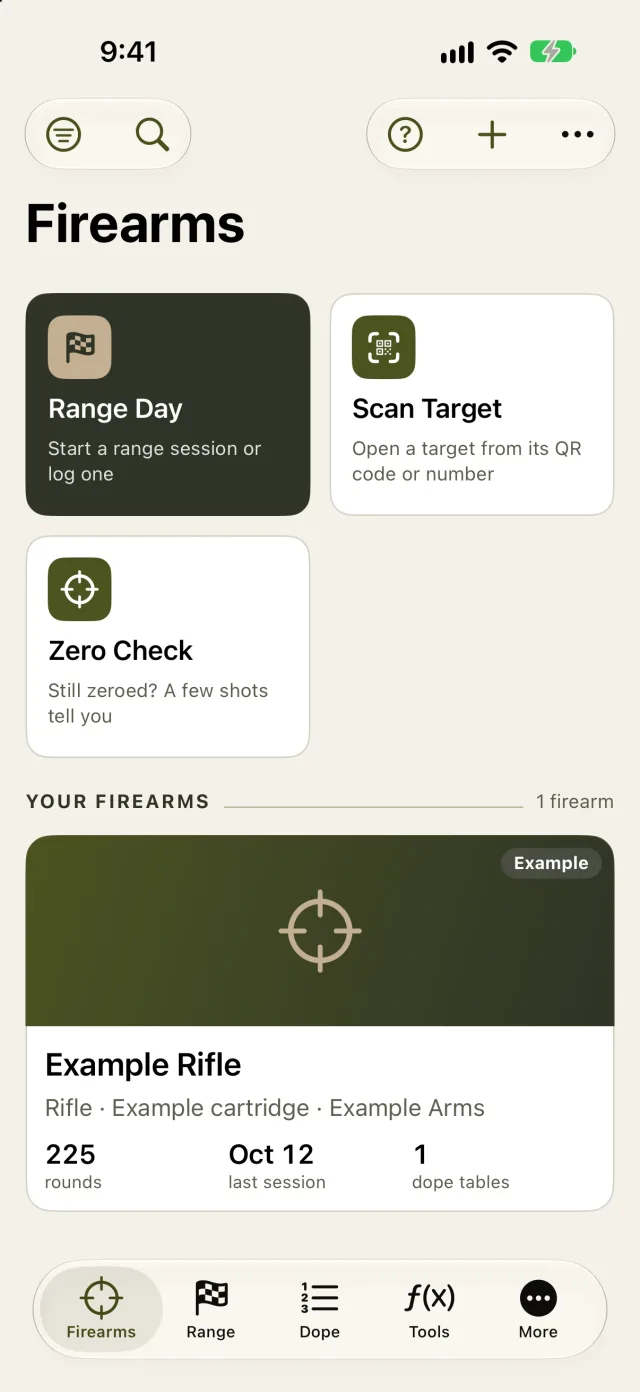
- Tap the Firearms tab at the bottom left.
-
Tap + at the top right (Add Firearm). If the list is empty (for example after you removed the Example Rifle), you can also tap the Add Firearm button under “Add your first firearm”.
-
Type a Name (required): what you call the gun, like “Mountain Rifle” or “Duck Gun”.
-
Pick its Kind: Rifle, Handgun, Shotgun, Rimfire, Muzzleloader or Other. It starts at Rifle.
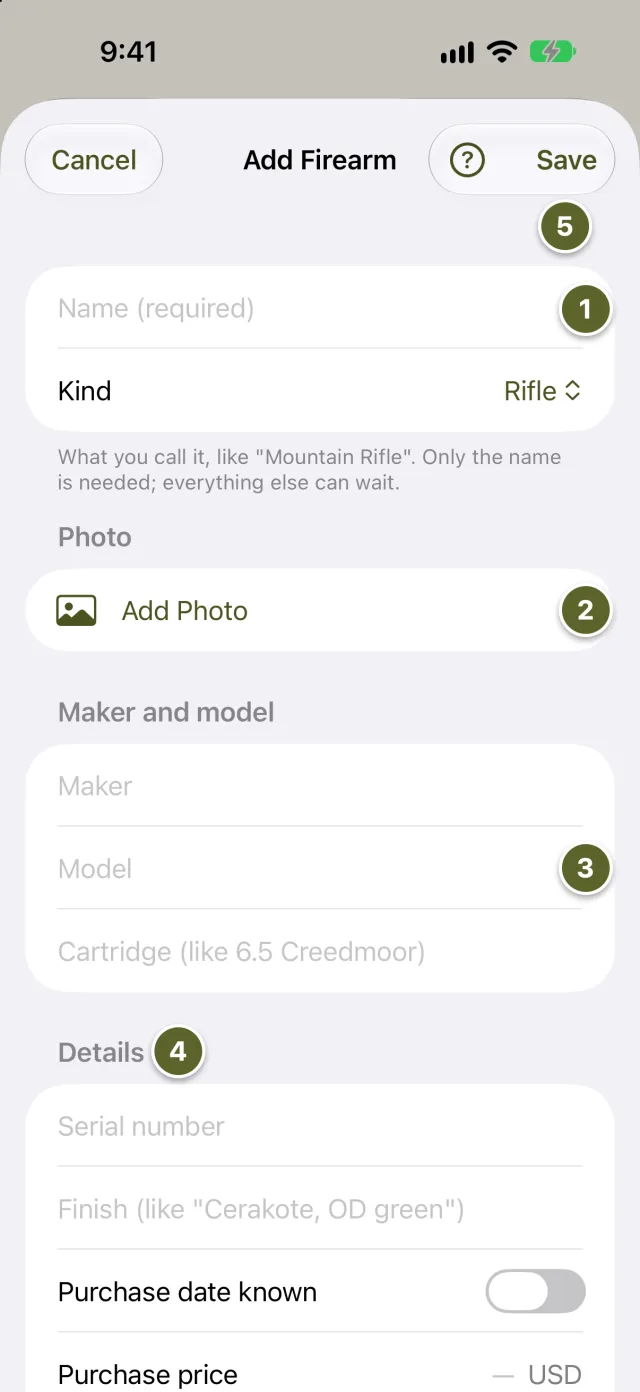
Numbers on the picture: 1 the name and kind, 2 the photo, 3 maker, model and cartridge, 4 the Details section, 5 Save. Rounds already fired is further down the form.
- Optional: under Photo, tap Add Photo and choose a picture from your photo library. Tap Change Photo to pick another, or Remove Photo to take it off.
- Optional: under Maker and model, type the Maker, Model and the cartridge. For a shotgun the field reads Gauge (like 12 ga); for every other kind it reads Cartridge (like 6.5 Creedmoor).
-
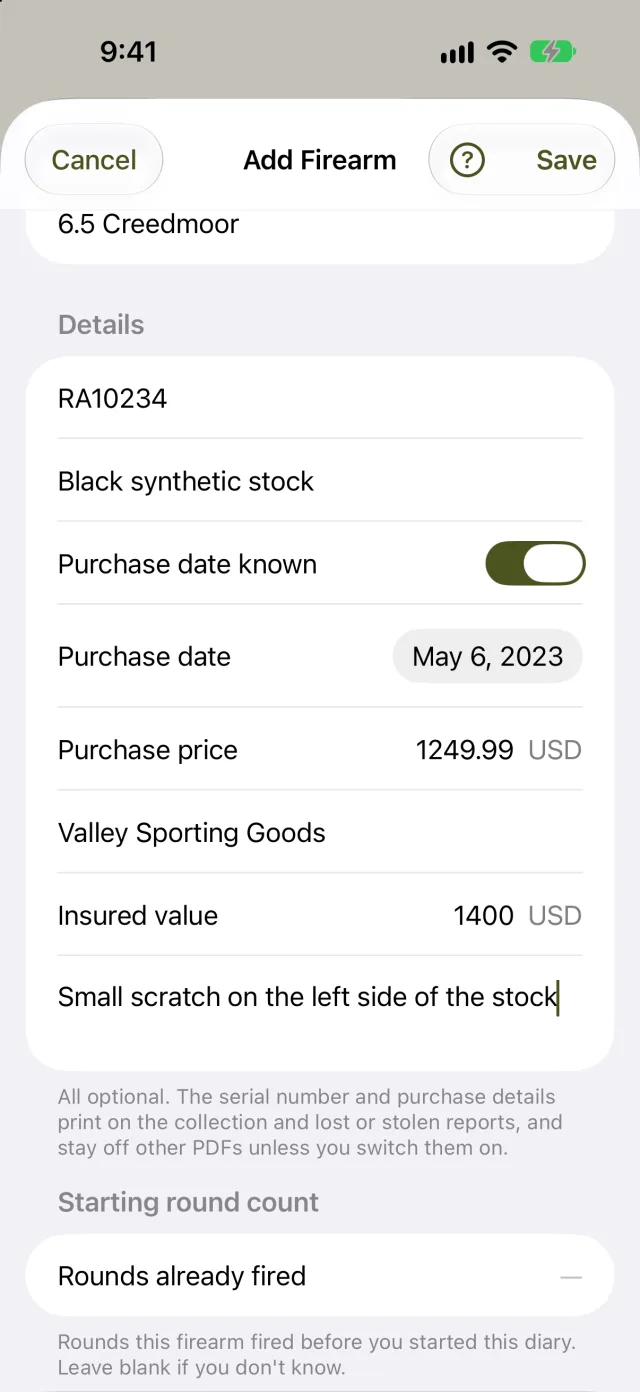
Optional: fill in Details (all optional): Serial number, the finish, Purchase date known (turn it on to pick the Purchase date), Purchase price, Bought from, Insured value and Distinguishing marks (engraving, scratches, repairs).
-
Optional: under Starting round count, type Rounds already fired if the gun was shot before you started this diary. Leave it blank if you don’t know.
- Optional: add Notes.
-
Tap Save. Without a name, the form says “Type a name for the firearm” under Name (required) instead of saving.
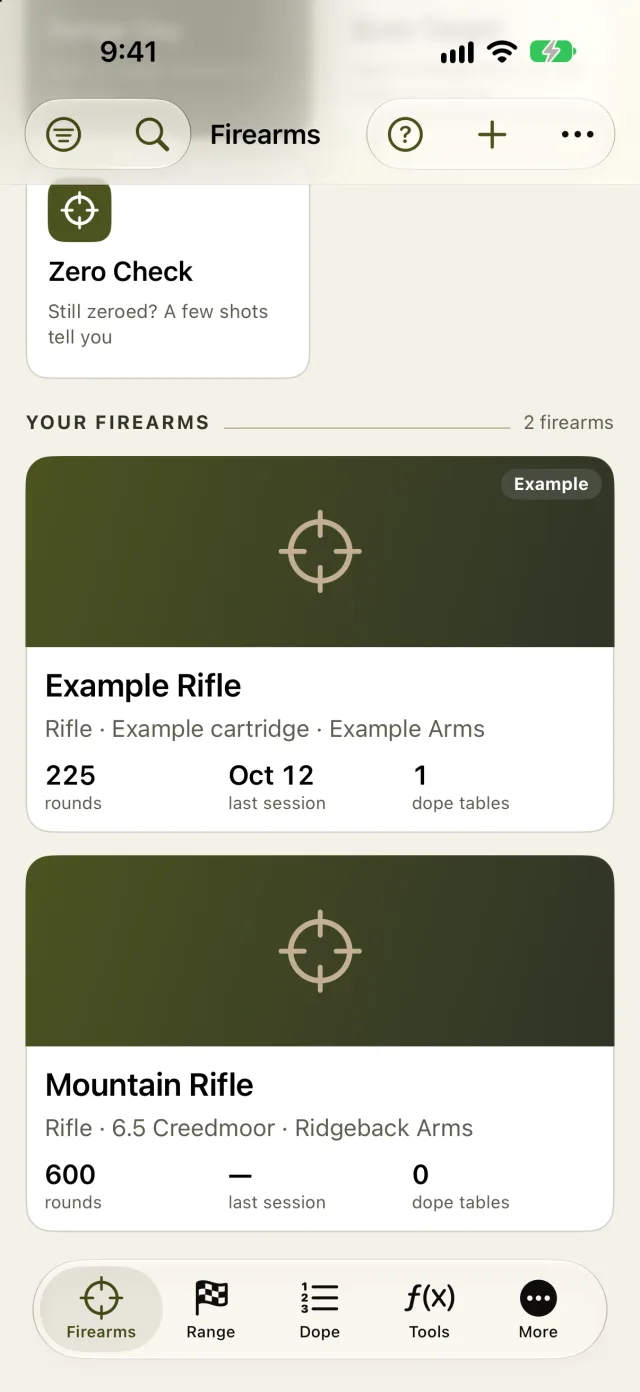
The firearm appears on the Firearms tab as a card with its own code (F001, F002…). Tap it to open its dashboard.
Why it’s useful
Gun Diary is built around the gun, because that’s how shooters think: “what does this rifle like?”, “is this shotgun’s pattern good at 40 yards?”, “what’s the serial number of the pistol that was stolen?”. Every record you make later belongs to one firearm, so years of history stay together even when the scope, the barrel or the ammunition changes.
Who uses it, and how:
- A new gun owner with one gun: add it, and the rest of the app has somewhere to put your first range trip and your first group. The name is all you need to start. See the learning path New gun owner.
- Hunters: the firearm holds its zero checks, its proven dope and its hunt log, so before the season you can see it’s ready.
- Long-range and precision shooters: one firearm per rifle keeps each rifle’s dope tables, scope settings and round counts apart, even when two rifles share a cartridge.
- Competitors: sessions, match results and drill runs stay with the gun you shot them with, and the round count shows barrel wear across a season.
- Shotgunners: pick Shotgun as the kind and the dashboard gets a Patterns section for choke and shell testing.
- Collectors and anyone who wants records for insurance or theft: the serial number, purchase date, price, seller, insured value, distinguishing marks and a photo are what an insurer or the police ask for. They print on the collection report and the free lost or stolen report. See the path Keeping your collection’s records.
- Moving from a notebook: type the rounds the gun already fired into Rounds already fired, so the counters start from the right number instead of zero. With many guns on a spreadsheet, import the list instead (Pro).
- A used gun with an unknown past: leave the starting count blank. Blank means “not known”, and the app never pretends it’s zero.
Why only a name? You may be adding the gun at the counter or at the range with your hands full. The app asks for the least it needs to make a record; everything else can be added later with Edit Firearm.
What each option means
The section footer says it plainly: “All optional. The serial number and purchase details print on the collection and lost or stolen reports, and stay off other PDFs unless you switch them on.”
The code (F001…) is given for you. It stays with the firearm when you rename it, and it’s never reused for another firearm, even after one is deleted. (Rarely, restoring a backup gives a record a new code, when its code is already used on this device.)
Example
On January 10, 2026 you start the diary for a used 6.5 Creedmoor you bought in 2023 and have shot about 600 rounds through, recorded in a paper notebook.
- Firearms > +.
- Name (required): Mountain Rifle. Kind: Rifle.
- Add Photo: a picture of it on the bench.
- Maker: Ridgeback Arms. Model: Hunter. Cartridge (like 6.5 Creedmoor): 6.5 Creedmoor.
- Serial number: RA10234. Purchase date known on, Purchase date May 6, 2023. Purchase price: 1249.99. Bought from: Valley Sporting Goods. Insured value: 1400. Distinguishing marks (engraving, scratches, repairs): “Small scratch on the left side of the stock”.
- Rounds already fired: 600.
- Save.
It’s F002 (the Example Rifle is F001). Its card on the Firearms tab reads “Rifle · 6.5 Creedmoor · Ridgeback Arms” and shows 600 rounds. Open it, then The Garage: lifetime rounds 600, current barrel 600, since cleaning “—” (nothing has been fired since you started the diary).
Tips
- Name it the way you talk about it. “Mountain Rifle” is easier to find in a year than “Rifle 2”. You can rename it any time without breaking anything.
- Add the serial number now while the gun is in front of you. It’s the one thing you can’t look up later if the gun is lost or stolen, and Search finds a gun by it. Who can see it, and how to lock the app with Face ID: Your records and your privacy.
- Take the photo to show the marks. A clear side view, plus a close photo of engraving or repairs, makes the lost or stolen report far more useful.
- Add the cartridge or gauge. It shows on the card and helps Search find the gun.
- If the gun has been rebarreled, record the barrels in Barrel history so the current barrel counter starts right.
- Scope, trigger, muzzle device and stock go in The Garage, not here. See Specs, equipment and configurations.
- Try the Example Rifle first if you want to see a filled-in firearm before making your own. See Explore the Example Rifle.
What it affects
- The Firearms tab: the new firearm appears as a card, in the list’s current sort order. See Your firearms list.
- The dashboard: the firearm gets its own dashboard. A Shotgun gets a Patterns section too. See The firearm dashboard.
- The Garage: an Original configuration is made for the firearm, dated the day you added it. Equipment you add later goes there. See Specs, equipment and configurations.
- Round counters: Rounds already fired adds to the lifetime count, and to the current barrel count until you add barrels. It never adds to “since cleaning”. You can change it later in The Garage > Round Count History > Edit Starting Counts. See Round counts.
- Reports: the serial number always prints on the lost or stolen report (free), and on the collection report (Pro) unless you switch Include serial number off there. Other PDFs leave it off unless you switch Include serial number on. See Save and share PDF reports.
- The free version: the free diary holds one firearm of your own. The Example Rifle doesn’t count; an archived firearm, or one marked sold, traded, gifted, lost or stolen, does. See Free and Pro.
- Sync and backups: with iCloud on, the firearm appears on your other devices; it’s in every backup and in Export All Data.
If something goes wrong
- The Pro screen opens with “Your free diary holds one firearm”. You already have one firearm of your own. Archived firearms and ones with a status other than Active count too. Upgrade to Gun Diary Pro for unlimited firearms, or delete a firearm you no longer need (it waits in Recently Deleted for 30 days).
- “Type a name for the firearm” under Name (required). Save always works, and says this when the name is empty or only spaces. Type a name; it’s the one required field.
- The cartridge field says Gauge. The Kind is Shotgun. Change the kind if that’s wrong.
- The price shows the wrong currency. Prices use your phone’s region currency. Change the region in the iPhone’s Settings if it’s wrong.
- The photo looks cropped on the card. The card shows a wide band; the dashboard shows a small square. Pick a photo with the gun in the middle, or tap Change Photo.
- I typed the wrong starting count. Open the firearm, tap ••• > Edit Firearm, fix Rounds already fired and tap Save. The counters update at once.
- My new firearm isn’t on the Firearms tab. Check the search field at the top is empty and the Filter button isn’t set to one kind or status.
Related
- Next: The firearm dashboard: what’s on the firearm’s own page.
- Edit, archive or delete a firearm and Change a firearm’s status.
- Import a gun list: many firearms at once from a spreadsheet (Pro).
- The Garage: equipment, barrels, maintenance and round counts.
- Your records and your privacy: who can see your serial numbers.
- Your first day and the learning paths New gun owner and Keeping your collection’s records.
- Words used here: code, configuration, round count, serial number, Pro.
Guides on this topic
Still stuck? In the app, open More > Help > Contact Support, or More > Settings > Support, which also has Send Error Log (the error log helps us find the problem), or email contact@setriksoftware.com. You can also browse the Help Center or the messages the app can show.