
Your firearms list (the Firearms tab)
The home screen: your firearm cards, the Range Day, Scan Target and Zero Check shortcuts, and how to add, search, sort and filter firearms, including sold, stolen and archived ones.
The Firearms tab is the first tab and the home of Gun Diary. It shows a card for each of your firearms with its round count, last session and dope tables, plus three shortcuts for the range. Tap a card to open that firearm’s dashboard, where everything about it lives.
Steps
-
Tap the Firearms tab at the bottom left.
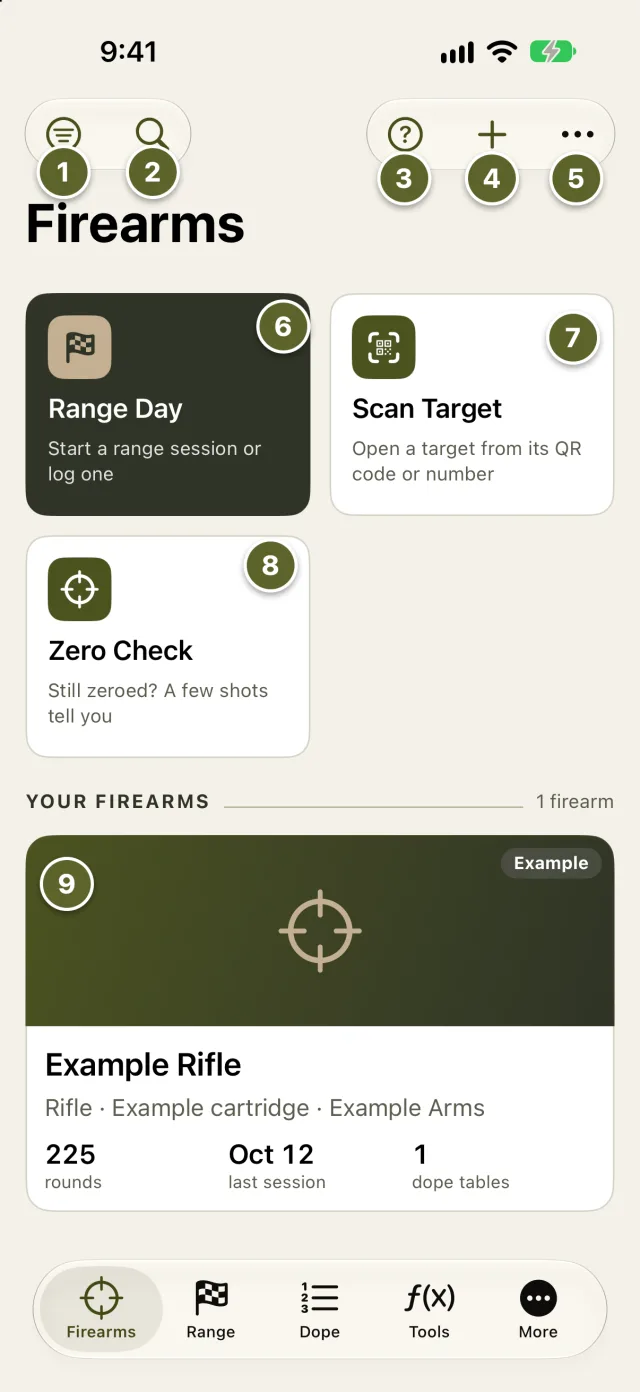
Numbers on the picture: 1 Filter, 2 Search, 3 ? help, 4 Add Firearm (+), 5 ••• (sort), 6 Range Day, 7 Scan Target, 8 Zero Check, 9 a firearm card.
- To open a firearm, tap its card. Its dashboard opens; see The firearm dashboard.
- To add a firearm, tap + at the top right, fill in the form and tap Save. See Add a firearm.
- To find a firearm, use the list’s own search field, which reads “Name, maker, serial” (if you don’t see it, pull the list down a little), and type part of its name, maker, model, cartridge, code (like F003) or serial number. This only filters the cards; the magnifying glass at the top left opens the full Search of every record.
-
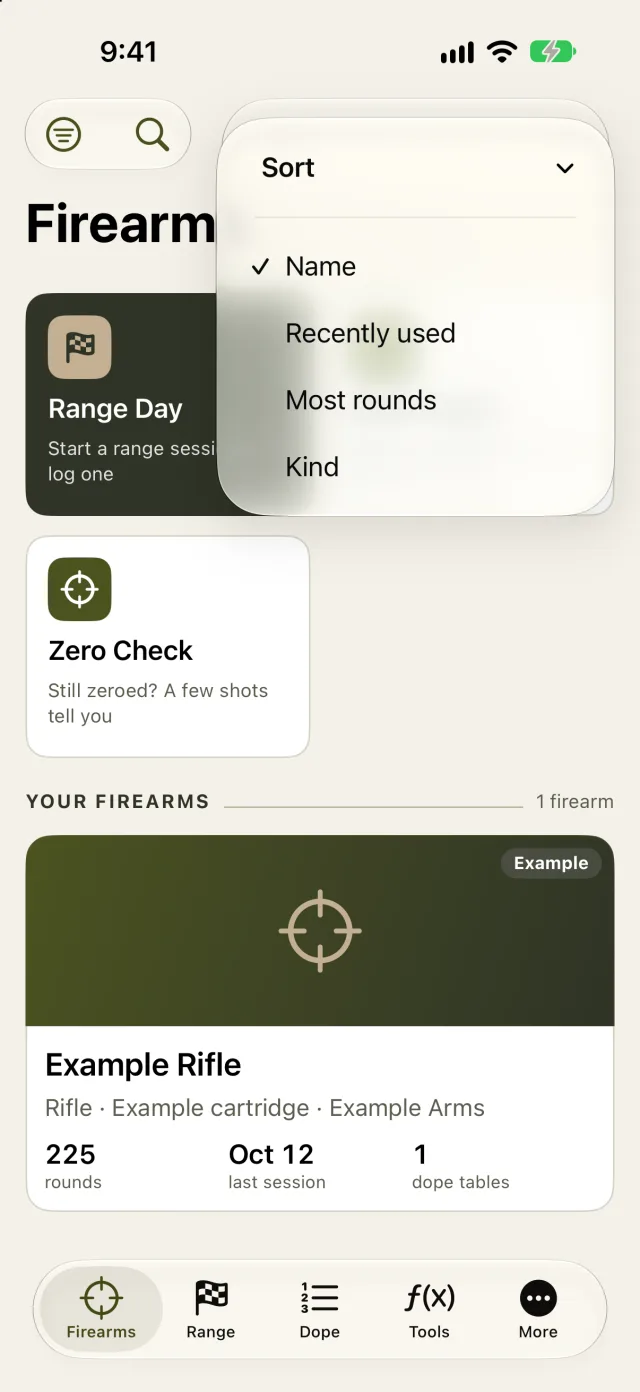
To change the order, tap ••• > Sort and pick Name, Recently used, Most rounds or Kind.
-
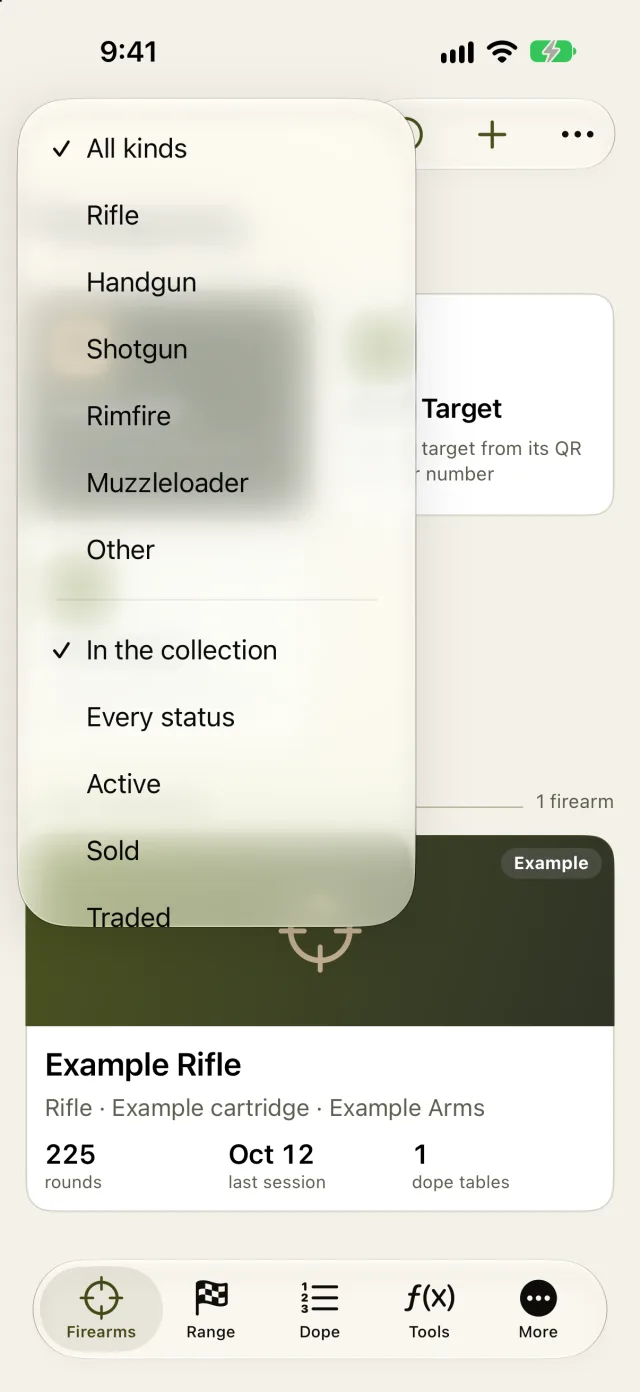
To show only some firearms, tap Filter (top left):
- Kind: All kinds, or one kind (Rifle, Handgun, Shotgun, Rimfire, Muzzleloader, Other).
- Status: In the collection (the usual list), Every status, or one status (like Stolen or Sold).
-
To see archived firearms, scroll to the bottom and turn on Show archived firearms (it’s there only when you have archived one). The title changes to Archived Firearms; turn the switch off to go back.
- Use the shortcuts at the top:
- Range Day opens the Range tab, where you start or log a session.
- Scan Target opens a printed target’s record from its QR code or number. See Scan a target.
- Zero Check starts a zero check without going to the Range tab. See Zero Check.
Why it’s useful
Every record in Gun Diary belongs to a firearm, so this list is the front door to all of them. The cards answer the quick questions at a glance (how many rounds, when it was last shot, whether it has dope), and the shortcuts cover the two things people do most on the way to the range.
Who uses it, and how:
- One-gun owners: the card is your rifle’s summary; tap it and everything is there.
- Hunters on the way out: Zero Check from the home screen, without hunting for the right tab.
- People with several guns: sort by Recently used to keep this season’s guns at the top, or by Most rounds to see which barrels work hardest.
- Collectors: search by serial number, filter by kind, and keep sold or traded guns in the diary without cluttering the list. A gun you sold, traded or gave away leaves the main list but keeps all its records.
- After a theft: filter Status to Stolen to get to that firearm and its Lost or Stolen Report quickly.
- Anyone who printed QR target sheets: Scan Target goes straight from paper to record.
What’s on the Firearms tab
Which firearms show without a filter: active and recovered ones that aren’t archived. Sold, traded, gifted, lost and stolen ones are behind Filter > Status; archived ones behind Show archived firearms. Nothing is ever deleted by a status or an archive.
Example
You own four guns, sold one last year and archived an old .22 you no longer shoot. The list shows three cards. You tap ••• > Sort > Recently used: your deer rifle, shot last week, moves to the top, its card reading 1,140 rounds, Nov 19 last session and 2 dope tables. To find the sold shotgun for its bill of sale, you tap Filter > Status > Sold; it’s the only card, with a Sold badge. You set Status back to In the collection.
Tips
- Search finds serial numbers. Typing the last four digits of a serial is often the quickest way to a gun.
- Use Archive for guns you keep but don’t shoot; use a status (sold, stolen…) for guns that left. Both keep every record. See Change a firearm’s status.
- Add a photo in Edit Firearm: cards with photos are much quicker to tell apart.
- The sort and filter are remembered until you change them, so check the Filter icon if a gun seems missing (it’s filled in when a filter is on).
What it affects
- The list itself changes nothing. Sorting and filtering only change what you see.
- + creates a firearm only when you tap Save on the form.
- Archived firearms and non-active ones still count toward the free one-firearm limit; the Example Rifle and firearms in Recently Deleted don’t.
If something goes wrong
- A firearm is missing. Check, in order: the search field is empty; Filter shows All kinds and In the collection; it isn’t archived (Show archived firearms); its status isn’t sold, traded, gifted, lost or stolen (Filter > Status > Every status); it isn’t in More > Recently Deleted.
- “No matching firearms”. A filter hides everything. Change it with the Filter button.
- “Add your first firearm” shows but I have firearms. They’re all archived or non-active; see above.
- + opens the Pro screen: “Your free diary holds one firearm”. The free diary holds one firearm of your own. See Free and Pro.
- A card shows “—” for rounds. No rounds recorded yet: enter Rounds already fired on the firearm or Rounds fired on a session. See Round counts.
Related
- Next: Add a firearm, then The firearm dashboard.
- Change a firearm’s status, Import a gun list (Pro).
- The Range tab, Zero Check, Scan a target.
- See also the learning path Keeping your collection’s records.
- Words used here: round count, dope table, disposition, archive, zero check, QR code.
Still stuck? In the app, open More > Help > Contact Support, or More > Settings > Support, which also has Send Error Log (the error log helps us find the problem), or email contact@setriksoftware.com. You can also browse the Help Center or the messages the app can show.