
A target and its groups
Keep the photo of a whole target sheet as one record, with a box and a group record for each group shot on it, its own notes, and actions to view, edit, reprint or delete it.
A target is the paper you shot at, kept as its own record with a number like T001. One target can hold several groups: you photograph the sheet once, then draw a box around each group and link it to its group record. The image is never copied or cut up, so a sheet with five groups is one photo, five boxes and five group records.
Steps
- Make a target. Any of these creates one with the next number:
- In a session, under Targets, tap Take Photo or Add from Photos. Each photo becomes its own target (“Each target photo becomes a target record; mark a region for each group on it.”).
- In Range Mode, tap Capture Target. See Range Mode.
- Print target sheets: each sheet gets a target number before you shoot it (Pro). See Make target sheets.
-
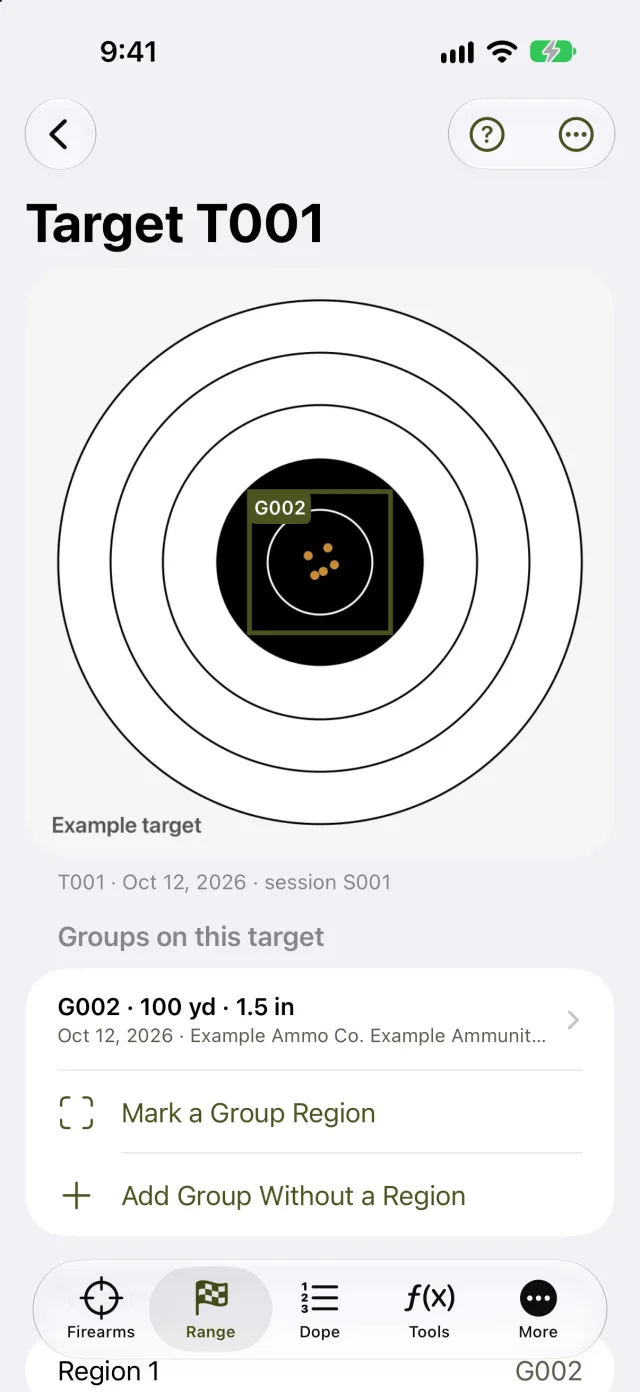
Open the target: tap it under Targets in its session, in the Target gallery or the Target Sheets list, or find it with Scan Target. The title is Target and its number.
-
If the target has no photo yet (a printed sheet, for example), tap Take Photo or Add from Photos at the top to add it.
- For each group on the sheet, tap Mark a Group Region, drag a box around the group, and link it to a group. See Mark group regions on a target.
- For a group you don’t want to box (a hole-in-paper count, or a target without a photo), tap Add Group Without a Region, pick the firearm under Which Firearm?, and fill in the group.
- Type anything about the sheet under Notes. It’s saved as you type.
-
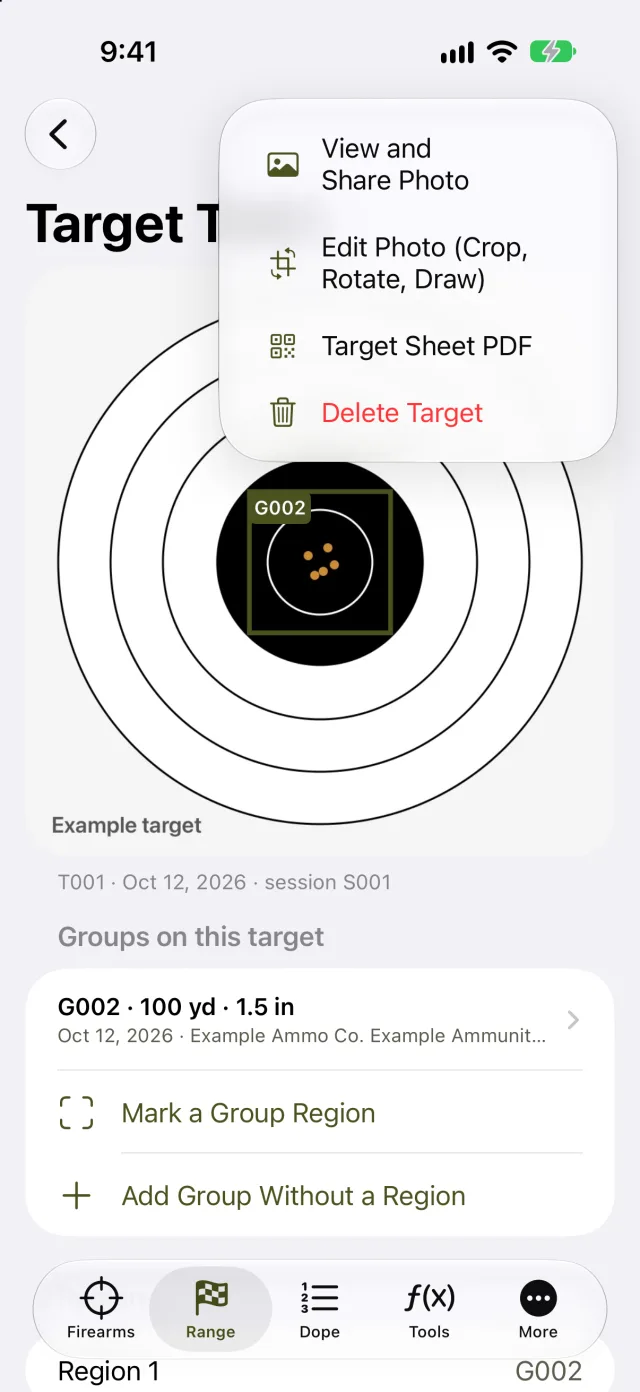
Tap ••• for the target’s actions: View and Share Photo, Edit Photo (Crop, Rotate, Draw), Target Sheet PDF and Delete Target.
Why it’s useful
Many shooters put several groups on one sheet: a ladder of distances, different ammunition in each corner, or five shots at each of five aiming points. Writing all of that down one group at a time loses the picture of the whole sheet. A target record keeps the sheet together, and each box says which group record it belongs to, so you can go from the photo to the numbers and back.
Who uses it, and how:
- Ammunition testers: one sheet with four aiming points, four kinds of ammunition. Mark four regions; each group record keeps its own ammunition, size and notes, and the sheet shows how they compare at a glance.
- Shooters sighting in: a sheet with a first group off the paper’s center and a second group after dialing. Both groups, one photo, and the correction is easy to see.
- Competitors: a match target or practice stages, with notes about each relay or stage.
- Users of printed sheets: the sheet’s number is printed on the paper, so the photo you take later goes to the right target. See Scan a target.
- Anyone who wants the photo to be the record: the original photo is kept exactly as taken, whatever you crop, rotate or draw for sharing.
- New shooters: a coach or friend can look at the shared photo, with your drawing on it, and the group records keep the numbers.
What each option means
How groups added here start out: each is a draft dated like the target, in the target’s session when it has one, with the ammunition and lot set for that firearm in the session. Distance and shots are copied from the last group on this target or in its session.
Example
Testing three kinds of ammunition, you shoot three groups on one 8.5 x 11 sheet at 100 yd during session S006.
- In S006, under Targets, you tap Take Photo and photograph the sheet: target T009 appears.
- You open T009 and tap Mark a Group Region, drag a box around the top-left group, tap Use This Region, then A New Group. The firearm is chosen for you (S006 has one firearm), and New Group opens. You pick the first ammunition, type 1.1 in, Save: G021.
- You repeat for the other two groups: G022 (0.8 in) and G023 (1.4 in), each with its own ammunition.
- Under Notes you type “Light wind from 3 o’clock, all from the bench“.
T009 now shows three labelled boxes, Groups on this target lists G021, G022 and G023, and each group record shows the sheet with its own box under On target T009.
Tips
- Photograph the whole sheet straight on, in good light, before you take it down. One clear photo serves every group on it.
- Mark regions in shooting order, so “Region 1”, “Region 2” match the order you shot.
- Keep a ruler or a known grid in the photo if you plan to measure groups from it later with Measure from Photo.
- Use Add Group Without a Region for groups you only counted or that went off the photo.
- Write the target number on the paper if it wasn’t printed, so a stack of sheets can be matched at home.
What it affects
- Groups: each group marked or added here is linked to this target, shows the sheet under On target on its record, and appears in the session.
- The session: the target is listed under Targets; groups added here join the session under their firearm.
- Target gallery: the target’s photo appears there, newest first.
- Regions: deleting a region removes only the box: “Only the box on the photo goes. The photo and the group stay.”
- Deleting the target: “Its groups stay in your diary. Its code is never given to another target.” It goes to Recently Deleted for 30 days; its photo leaves the gallery.
- Editing the photo changes how it’s shown and shared, never the original, so boxes and measurements stay in place.
- Round counts: no change.
If something goes wrong
- There’s no Mark a Group Region. The target has no photo. Add one at the top first.
- Only one photo shows. A target uses its first photo. For a second sheet, add the photo as a new target in the session.
- A box is in the wrong place. Boxes can’t be moved. Swipe left on it under Regions, tap Delete Region (and Delete Region again to confirm), and mark it again.
- A region says “No group”. Its group was deleted or discarded. Delete the region and mark it again, linking the right group.
- Which Firearm? lists firearms that weren’t there. The target has no session (a printed sheet made from the Target Sheets list), so every active firearm is listed. Pick the one that shot.
- My drawing doesn’t show on this screen. This screen shows the original so the boxes line up. View and Share Photo shows your edits.
- Target Sheet PDF isn’t in the menu. Target Sheets is turned off in Personalize Your Diary.
- I deleted a target by mistake. More > Recently Deleted: restore it within 30 days.
Related
- Next: Mark group regions on a target.
- Record a group, A group record, Edit a photo, View a photo.
- Target gallery, Scan a target, Make target sheets, A session.
- Learning path: Testing factory ammo.
- Words used here: target, group, region, session, draft, lot.
Guides on this topic
Still stuck? In the app, open More > Help > Contact Support, or More > Settings > Support, which also has Send Error Log (the error log helps us find the problem), or email contact@setriksoftware.com. You can also browse the Help Center or the messages the app can show.