
View a photo
See any photo in your diary full screen, zoom in on the holes, compare your edited version with the original, and share or save it.
Tap any photo thumbnail in Gun Diary (a group’s, a target’s, a session’s, a pattern‘s, or one on a firearm or maintenance record) to see it full screen. You can zoom in to look at single holes, switch between your edited version and the original, open the editor, and share the picture with the iPhone’s share sheet.
Steps
-
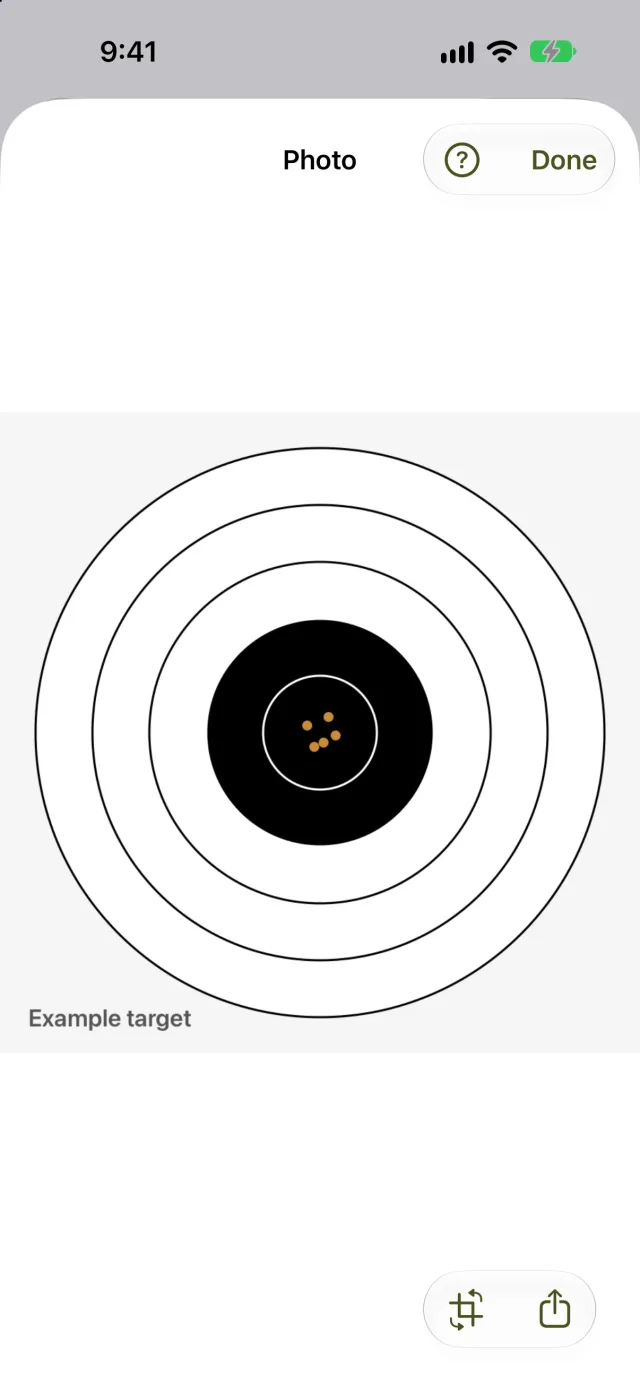
Tap a photo thumbnail on any record. For a target, tap ••• > View and Share Photo. The photo opens full screen; the title is Photo.
-
Pinch to zoom in (up to 8 times), drag to look around, and double-tap to zoom in or back out.
- If the photo has been edited, tap Show Original at the bottom to see it as taken; the title changes to Original Photo. Tap Show Original again to go back to the edited version.
- To change the crop, rotation or drawing, tap Edit (the crop-and-rotate icon at the bottom right, next to the share button). See Edit a photo.
- To share, tap the share button at the bottom right. The iPhone’s share sheet opens: pick an app (Messages, Mail), Save Image to keep a copy in your Photos library, or Print. Whatever is on screen is shared: the edited picture, or the original when Show Original is on.
- Tap Done to close.
To remove a photo from a record (on a form where photos can be changed, like Edit Group): touch and hold its thumbnail, tap Remove Photo, then Remove Photo again.
Why it’s useful
Thumbnails are too small to judge a group or read a note on a target. Full screen with zoom, you can count holes, see which one was the flyer, check a group’s photo before measuring it, or read the label on an ammunition box. Sharing from here sends the picture as you want it seen, while the record keeps the original.
Who uses it, and how:
- Checking a group: zoom in on the target photo to see torn edges, keyholes or two shots through one hole before you write down the shot count.
- Sharing results: send a cropped, circled target to a friend, a coach, a match director or an online forum.
- Proof for others: show the original (Show Original) when someone asks whether the photo was changed.
- Collectors and owners: look closely at a firearm photo, a serial number plate or damage, and save a copy to Photos for an insurer.
- Printing: print a target photo for a range notebook or a club board.
- New shooters: show the picture to an instructor on the spot and talk through what happened.
What each option means
On the share sheet (Apple’s screen; the choices depend on your iPhone’s apps): Save Image puts a copy in your Photos library, Print prints it, and apps like Messages, Mail or AirDrop send it.
Example
A friend asks how your new rifle shot. You open group G012, tap its photo, pinch in to check the five holes, then tap Edit and circle the group in red, tap Save, and tap the share button > Messages. Your friend gets the circled picture; G012 keeps the original, and Show Original shows it any time.
Tips
- Zoom before you measure. Look at the photo full screen first to decide which holes are the two farthest apart.
- Save Image makes a copy in your Photos library; the photo in Gun Diary stays where it is.
- Share the original when it matters (a warranty claim, a dispute about a score): turn on Show Original, then share.
- For many photos at once, use Export All Data: every photo is included as its own file. See Export all your data.
What it affects
- Viewing, zooming and sharing change nothing in your diary.
- Save Image adds a copy to your iPhone’s Photos library.
- Edit changes how the photo is shown and shared; the original is kept.
- Remove Photo removes the photo from that record for good: “The photo is removed from this record for good. Export All Data or a backup made earlier still has it.”
If something goes wrong
- “Photo not available”. The picture’s data couldn’t be read on this device. If it was added on another device, wait for iCloud to finish syncing, then open it again.
- There’s no Show Original. The photo has no edits, so the original is what you see.
- Save Image isn’t on the share sheet. Gun Diary may need permission to add photos. Allow it in the iPhone’s Settings app under Gun Diary > Photos, then try again.
- I can’t remove a photo here. Removing is done on the record’s form (like Edit Group), by touching and holding the thumbnail.
- The shared picture is cropped. The edited version was on screen. Turn on Show Original before sharing to send the whole photo.
Related
- Edit a photo, A target and its groups, Target gallery.
- A group record, Export all your data.
- Words used here: target, group, flyer.
Still stuck? In the app, open More > Help > Contact Support, or More > Settings > Support, which also has Send Error Log (the error log helps us find the problem), or email contact@setriksoftware.com. You can also browse the Help Center or the messages the app can show.