
Zero history
See every Zero Check a firearm has had, grouped by its setup, and open any zero record for its shots, result, clicks and session; edit, print or delete it.
Zero History lists every Zero Check a firearm has had, newest first, grouped by the setup (scope, mount and other equipment) it had on the day. Open a record to see each shot, the result and any clicks you dialed. Over time it becomes the rifle’s proof: when it was checked, with what ammunition, and whether it held its zero through a season, a trip or a scope change.
Steps
-
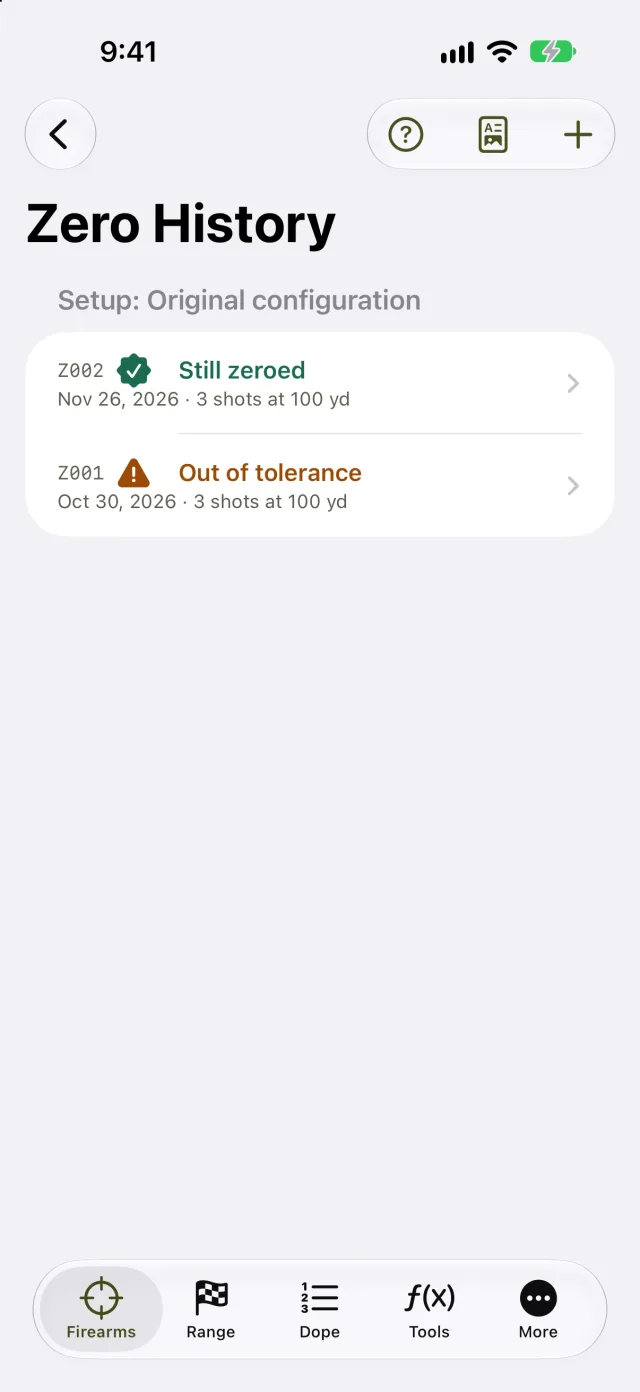
On the Firearms tab, open the firearm and tap Zero History on its dashboard. (The row shows how many zero checks it has, or “Run a Zero Check before your hunt”.)
-
Each row shows the record’s code, its result (Still zeroed, Out of tolerance or Sight adjusted), the date, the number of shots and the zero distance. Records are grouped under “Setup: …” headings.
-
Tap a record to open it.
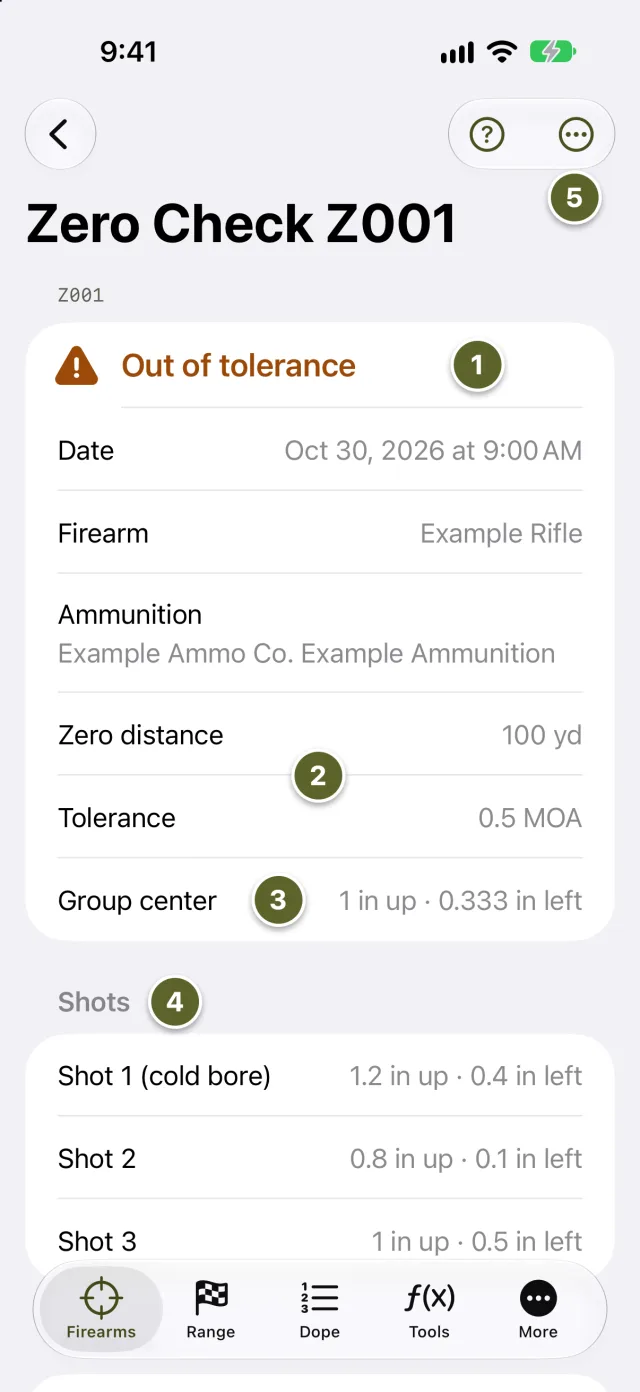
Numbers on the picture: 1 the result, 2 Zero distance and Tolerance, 3 Group center, 4 Shots, 5 Actions. Further down: Clicks dialed (when you dialed the sight) and the Session.
-
On the record, tap the session under Session to open it.
- Tap Actions (•••) for:
- Edit Zero Check: the Zero Check screen with this record’s shots. Change them and tap Save Changes.
- Zero Record PDF: a one-page record of this check (Pro).
- Delete Zero Check: moves it to Recently Deleted.
- To run a new check for this firearm, tap + (Zero Check) on Zero History.
- To print the whole history, tap the report button at the top right (Zero History Report, a page icon). See Zero history report.
Why it’s useful
One zero check tells you about today. A history tells you about the rifle. If every check over two years says Still zeroed, you can trust that scope and mount. If the zero moved twice, both right after the rifle travelled by air, you’ve learned something about the case. Because records are grouped by setup, a scope swap starts a new group, and you see at a glance which checks belong to the current scope.
Hunters keep the record of the pre-season check, with the date and ammunition, which some hunting guides and outfitters like to see. Long-range shooters look back to see how often their 100-yard zero needed a click. People new to scopes learn how stable their equipment really is. Collectors who shoot a rifle once a year keep a dated record that it was checked. A printed zero record is a tidy proof page for a hunting file.
What each option means
On Zero History: | On screen | What it is | |—|—| | “Setup: …” | Records made while the firearm had that configuration (dated setup). “Setup not recorded” when none was known | | Result | Still zeroed (within tolerance), Out of tolerance (outside, not adjusted) or Sight adjusted (outside, and you dialed the clicks) | | Row details | Date, shots, zero distance | | + (Zero Check) | A new Zero Check for this firearm | | Zero History Report (page icon) | The report screen for this firearm’s zero history |
On a zero record: | On screen | What it is | |—|—| | Date | When the check was saved | | Firearm, Ammunition | What was checked, with what | | Zero distance, Tolerance | As set on the check | | Group center | The average of all shots from the aim point, like “1 in up · 0.4 in right” | | Clicks dialed | Only for Sight adjusted: the clicks you dialed, like “Down 3 clicks, Left 1 click” | | Shots | Each shot from the aim point; “(cold bore)” marks the cold bore shot, “· photo” a shot tapped on a photo | | Session | The session it belongs to | | Notes | Your notes |
Example
The Mountain Rifle’s Zero History after a scope change:
- “Setup: Summit Optics 3-9x, new rings” (Oct 2026): Z005 Still zeroed, Nov 20 · 3 shots at 100 yd; Z004 Sight adjusted, Nov 20 · 3 shots at 100 yd.
- “Setup: Original configuration”: Z003 Still zeroed (Sep 2026), Z002 Still zeroed (Nov 2025).
You open Z004: Group center “1 in up · 0.4 in right”, Clicks dialed “Down 3 clicks, Left 1 click”. The ring change moved the zero; Z005 proves it’s back.
Tips
- Record every check, even the boring ones. A row of Still zeroed is the history you want.
- Record equipment changes in the Garage so each check lands under the right setup. See Record an equipment change.
- Use I dialed it on the check when you adjust, so the record shows Sight adjusted with the clicks instead of only Out of tolerance.
- Before a hunt, print the latest record with Zero Record PDF (Pro) for your hunting folder.
What it affects
- Viewing changes nothing.
- Edit Zero Check rewrites the shots and result. If the number of shots changes, the session’s Rounds fired changes by the difference.
- Delete Zero Check moves the record to Recently Deleted. Its session and the rounds fired stay. You can restore it for 30 days. See Recently deleted.
- The firearm’s next Zero Check uses the zero distance of its latest record.
If something goes wrong
- “Run a Zero Check before your hunt” and nothing listed. This firearm has no zero records yet. Tap + to run one.
- A check is under “Setup not recorded”. The firearm had no configuration on that date. Add the firearm’s equipment in the Garage, dated from when it was fitted.
- I can’t change the firearm when editing. A record stays with its firearm. Delete it and run a new check on the right firearm.
- Zero Record PDF shows a Gun Diary Pro screen. PDFs are Pro (except the lost or stolen report). The report screen’s CSV is free.
- “Delete Zero Check …?” Tap Move to Recently Deleted. The message says: “Its session and the rounds fired stay. You can restore it from More > Recently Deleted for 30 days.”
Related
- Zero Check, Zero history report, Firearm dashboard.
- Specs, equipment and configurations, Optic settings, A session, Recently deleted.
- Learning path: Before and after the hunt.
- Words used here: zero, configuration, tolerance, cold bore.
Gun Diary keeps records you enter and does arithmetic on them. It never predicts a trajectory; confirm every hold by shooting it at the range, and always know your target and what is beyond it.
Guides on this topic
- How to Zero a Rifle Scope (and Keep a Record That Lasts)
- What Is a Cold Bore Shot, and Should You Log It?
Still stuck? In the app, open More > Help > Contact Support, or More > Settings > Support, which also has Send Error Log (the error log helps us find the problem), or email contact@setriksoftware.com. You can also browse the Help Center or the messages the app can show.