
Pick an ammunition
Choose the ammunition (and its lot) for a session, group, favorite or dope table from your Ammo Library, or add a missing one on the spot without losing what you've typed.
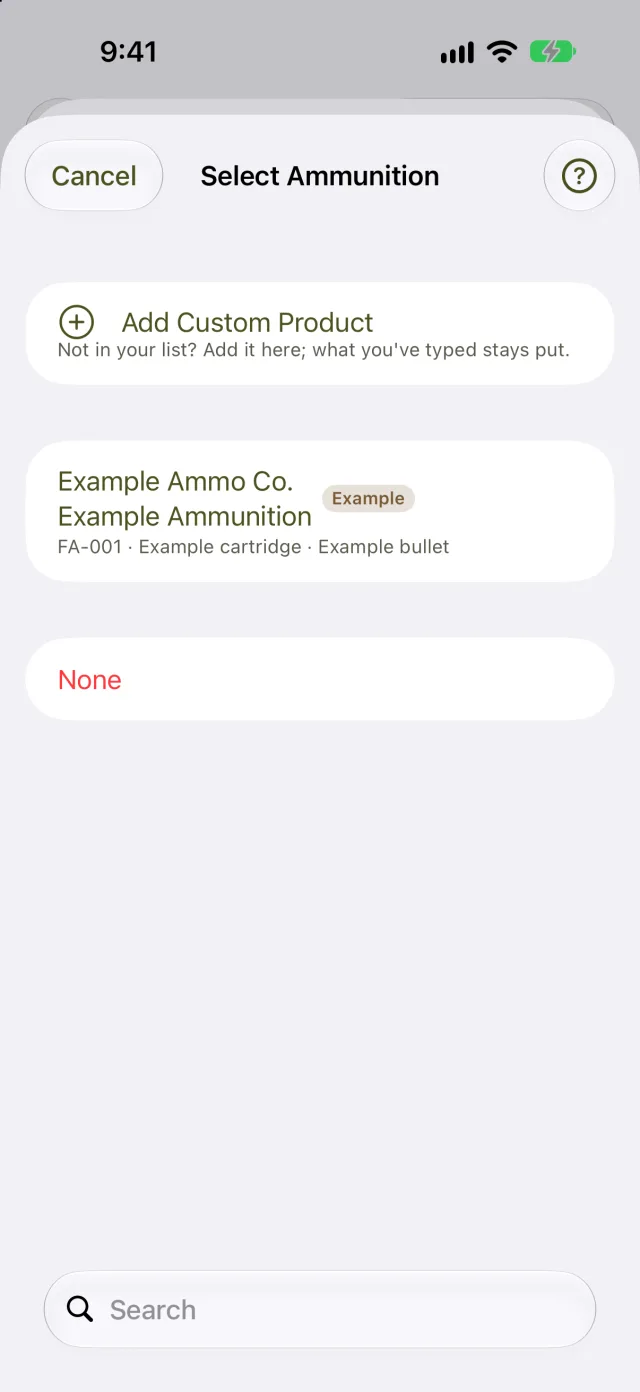
Whenever a record asks what you shot, you choose from your Ammo Library on the Select Ammunition list instead of typing it. If the box isn’t in your library yet, add it right from the list with Add Custom Product: everything you’ve already typed in the session or group stays where it is.
Steps
-
In the form you’re filling in, tap the Ammunition row (it reads Choose until something is picked):
- In a group, the row opens Select Ammunition at once.
- In a session, each firearm’s Ammunition row opens a short menu: that firearm’s Favorites (if it has any), Choose ammunition… and None. Tap a favorite to use it, or Choose ammunition… to open the list.
- In a favorite, tap Ammunition (or New ammunition when changing it).
-
Find the ammunition. The list puts the ones you picked most recently first. To search, tap the Search box at the bottom of the screen and type part of the maker, product line, cartridge, bullet type, product number or code.
- Tap the ammunition. The list closes and the row shows its name.
- If the ammunition has lots, a Lot row appears under it. Tap it and pick the lot, or leave No lot.
-
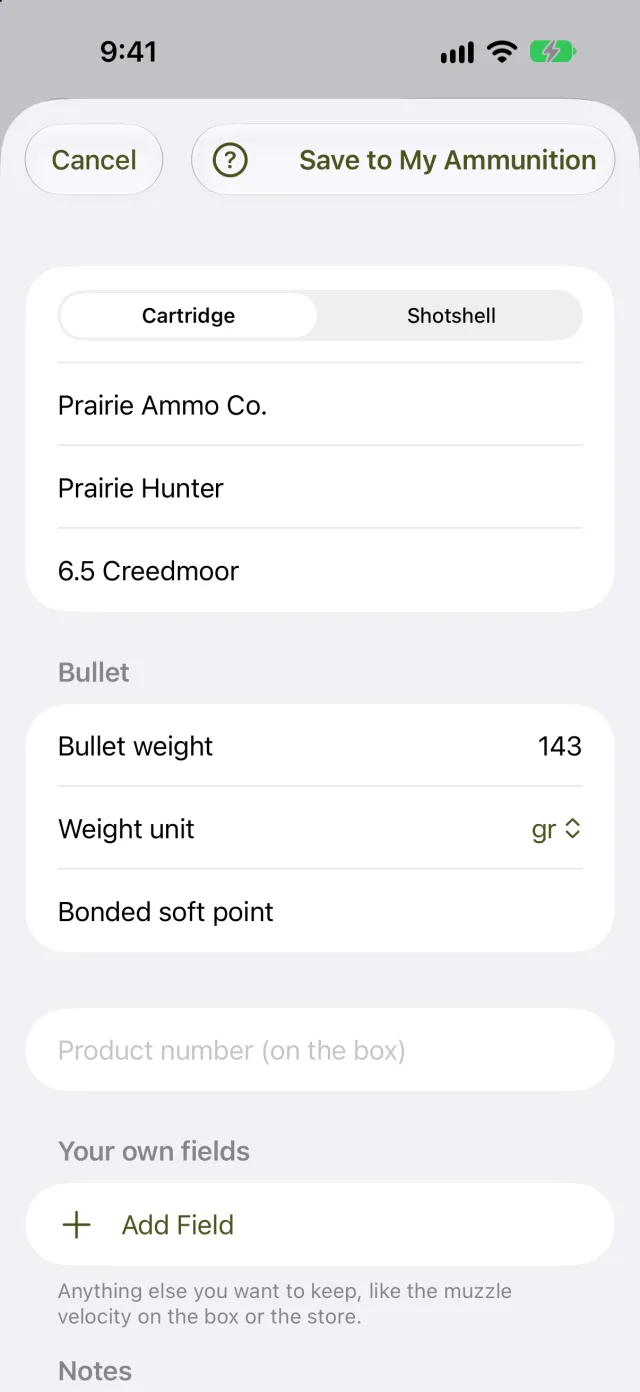
Not in the list? Tap Add Custom Product at the top. Fill in the form (see Add an ammunition) and tap Save to My Ammunition. It’s saved to your library and picked for you.
-
To clear the ammunition, tap None at the bottom of the list (or None in a session’s menu). To close the list without changing anything, tap Cancel.
In Range Mode, Zero Check and the Quick Hunt Log, the same choice is a page of big buttons: the ammunition this firearm has used and its favorites, then Other Ammunition… (which opens Select Ammunition) and No Ammunition. If the ammunition you tap has lots, Which lot? follows, with No lot and each lot as a big button. See Range Mode.
Why it’s useful
The value of a diary is in connecting results to what was in the gun. Picking from one list, instead of typing, means every group with “Ridgeline Match” really points to the same ammunition, so Group History, Ammo comparison and your dope tables can line them up.
Who uses it, and how:
- Everyone, every session: two taps to record what you shot, with the most recent ammunition at the top.
- Shooters who keep favorites: in a session the firearm’s favorites are offered first. “Elk Hunting” picks the right box without you remembering which one it is now.
- Long-range shooters and competitors pick the lot as well, so a change in speed or point of impact can be traced to a new lot.
- People at the range who just opened a new kind of box: Add Custom Product adds it without leaving the group you’re typing.
- Testing ammunition: record each group with its own ammunition, then compare them in Ammo comparison.
What each option means
Example
At the range you open a new box of hunting ammunition for the Mountain Rifle and want to record a group with it:
- In the group form you tap Ammunition (Choose). Select Ammunition opens.
- “Summit Hunter” isn’t there yet. You tap Add Custom Product, type maker “Summit”, product line “Hunter”, 6.5 Creedmoor, 143 gr, and tap Save to My Ammunition.
- You’re back in the group form with Ammunition set to Summit Hunter, and the distance and size you typed are still there.
- At home you open Summit Hunter in the Ammo Library and tap Add Lot to record the lot from the box. Next time, the group form shows a Lot row you can set.
Tips
- Use favorites in sessions. A session that picks a favorite remembers which ammunition the favorite pointed to that day, even if you change the favorite later. See Favorite ammunition.
- Add lots before you shoot, so you can pick the lot at the bench.
- Archived ammunition isn’t offered. To shoot it again, open it in the library (Archived) and tap ••• > Unarchive.
- Search by product number when two boxes have similar names.
What it affects
- The entry (session, group, favorite, dope table, Zero Check…) now points to that ammunition and lot. Its name shows on the record, in reports and in Group History.
- The ammunition’s record lists the session under Used in.
- Recently Used in the Ammo Library, and the order of this list, move the ammunition to the top.
- Add Custom Product adds a new ammunition to the library, with the next code.
If something goes wrong
- My ammunition isn’t in the list. It may be archived or deleted. Check Archived in the Ammo Library, or Recently Deleted. Otherwise add it with Add Custom Product.
- There’s no Lot row. The ammunition has no lots (or only archived ones). Add one on the ammunition’s record; see Lots.
- I can’t see the search box. It sits at the bottom of the screen, above the keyboard when you’re typing. If the keyboard is hidden and the box is not there, close the list with Cancel and open it again.
- I tapped None by mistake. Tap the Ammunition row again and pick the ammunition.
- A session shows the favorite’s old ammunition. That’s on purpose: it records what the favorite meant on the session’s date. To use the new one, pick it with Choose ammunition….
Related
- Add an ammunition, Lots, The Ammo Library.
- Where you pick it: Log a session, Record a group, Favorite ammunition, New dope table, Zero Check.
- Words used here: lot, favorite, factory ammunition.
Still stuck? In the app, open More > Help > Contact Support, or More > Settings > Support, which also has Send Error Log (the error log helps us find the problem), or email contact@setriksoftware.com. You can also browse the Help Center or the messages the app can show.