
Reports, backup and exportGun Diary Pro
Save and share PDF reports
Preview any PDF Gun Diary makes, then print it, save it to the Files app or iCloud Drive, email it, message it or AirDrop it, and keep serial numbers and private notes out of what you share.
Every PDF Gun Diary makes (reports, the session and Zero Check reports, the Group History table, dope cards and target sheets) opens in a preview first. From the preview you send it anywhere with the iPhone’s share sheet: print it, save it to the Files app, email it, message it or AirDrop it. This guide walks through each route step by step, and shows how to keep serial numbers off the copies you share.
Words used here
- PDF: a document file that looks the same on every phone, computer and printer. Every report is a PDF.
- Share sheet: the iPhone’s own panel of choices (Print, Save to Files, Mail, Messages, AirDrop) that slides up when you tap Share. See share sheet.
- Files app: the iPhone and iPad app that holds documents. On My iPhone keeps files on this device only; iCloud Drive keeps them in your iCloud so you can reach them on a Mac, a PC (at icloud.com) or another iPhone. See Files app.
- AirPrint: Apple’s way of printing without installing anything. Most Wi-Fi printers support it.
- AirDrop: sends a file straight to a nearby Mac, iPhone or iPad.
Before you start
- PDF reports are part of Gun Diary Pro. Two PDFs are free for everyone: the lost or stolen report and the pocket dope card. Without Pro, any other PDF button opens the Pro screen instead of a preview. The spreadsheets (CSV) of every report except the collection report, backups and Export All Data are free. See Compare Free and Pro.
- To print: a printer that supports AirPrint, on the same Wi-Fi as your iPhone.
- Nothing else. Making a PDF works without an internet connection; only email, Messages and saving to iCloud Drive need one to send.
Steps
-
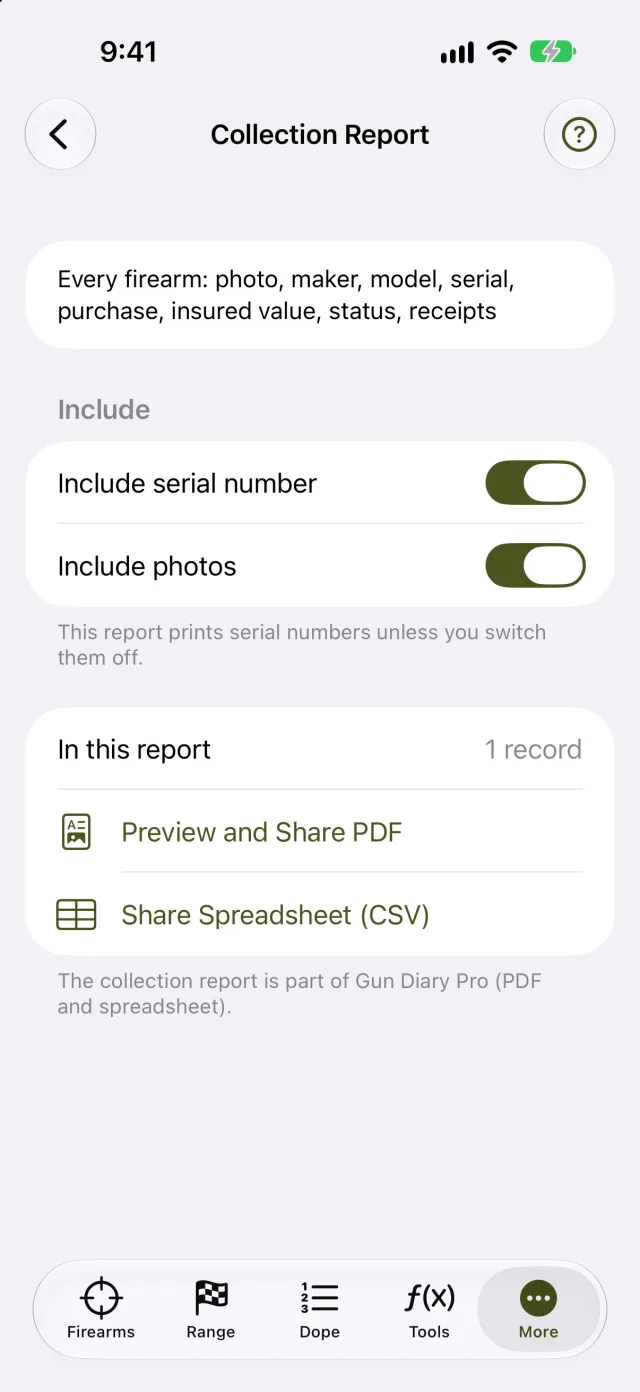
Make the PDF. Any of these opens the preview:
- In More > Reports: tap a report, set its options, then Preview and Share PDF. See Reports.
- On a firearm’s dashboard: the menu at the top right > Firearm History PDF, or in its Reports card, Lost or Stolen Report (free) > Make Lost or Stolen Report.
- In The Garage: Maintenance PDF at the top right.
- On a session: its menu > Session Report PDF. On a Zero Check: its menu > Zero Record PDF.
- On a dope table: Dope Table PDF. In Group History: Views > These Groups as PDF. In Boxes on Hand: Inventory PDF. In Ammo Comparison: Share PDF.
- Dope cards and target sheets: see Make a dope card and Make target sheets.
-
The preview opens at once (a long report can take a second or two). Its title at the top is the file’s name, like “Firearm history – Mountain Rifle”. Scroll down to read every page; pinch to zoom in.
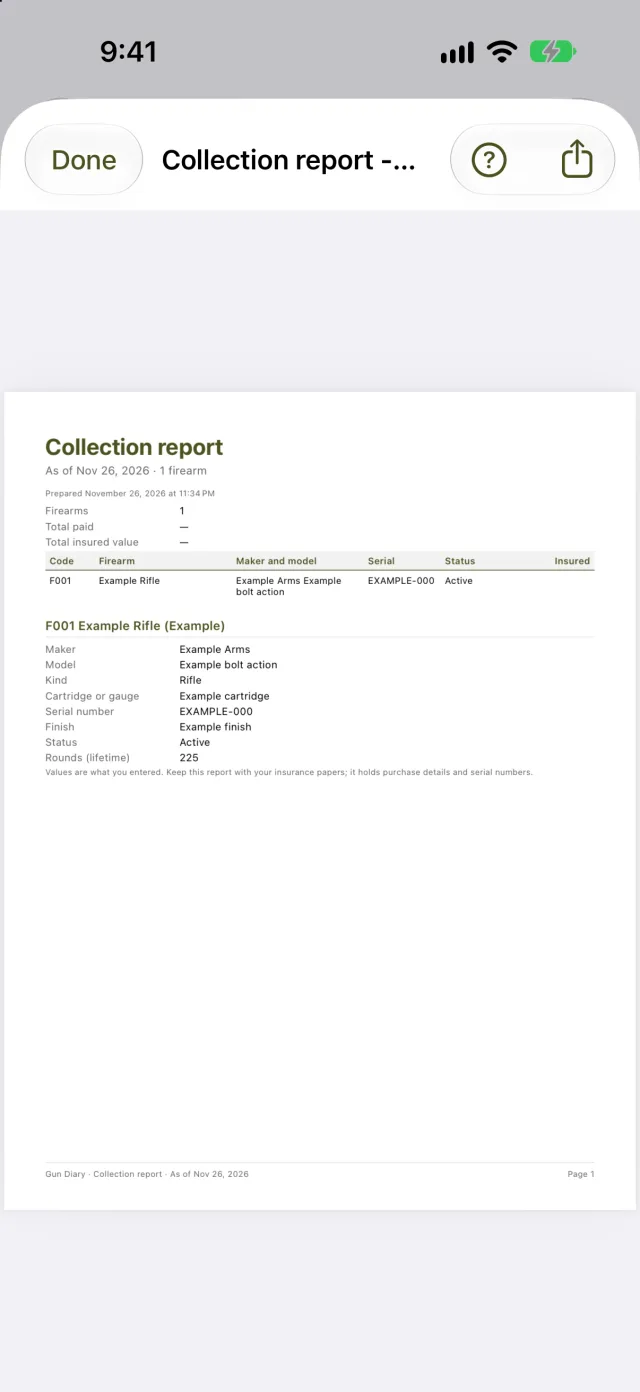
-
When the Share button (a square with an arrow pointing up) appears at the top right, tap it. The share sheet slides up.
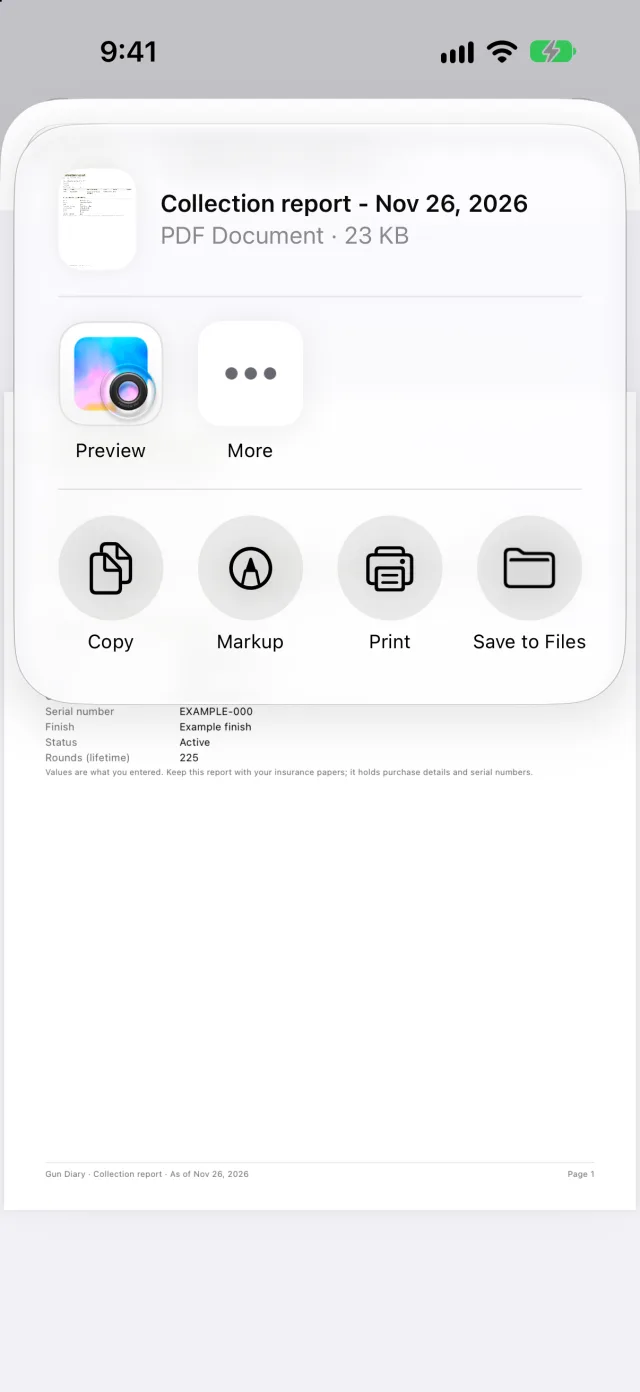
-
Choose where the PDF goes:
- Print: the Print Options open. Pick your printer, the number of copies and the page range if you want, then tap Print at the top right.
- Save to Files: pick iCloud Drive or On My iPhone, open the folder you want (or make a new one, like “Gun records”), then tap Save.
- Mail: a new email opens with the PDF attached. Type the address, a subject and a note, then send.
- Messages: a new message opens with the PDF attached. Pick the person and send.
- AirDrop: tap the nearby Mac, iPhone or iPad. On a Mac the file lands in the Downloads folder.
- When you’re back at the preview, tap Done at the top left to close it and return to where you were.
Share a spreadsheet instead
- On a report’s options screen, tap Share Spreadsheet (CSV) (or Dope Table Spreadsheet (CSV) on a dope table, or the CSV button in Ammo Comparison).
- The share sheet opens straight away (there’s no preview). Choose Save to Files, Mail, AirDrop, or an app such as Numbers or Excel. See Work with your exported spreadsheets for opening it.
Leave the serial number out (or put it in)
- Open the report from More > Reports (the options screen is where the switch lives).
- Under Include, look at Include serial number. Its footer says what this report does:
- Collection report: the switch is on. The footer reads “This report prints serial numbers unless you switch them off.”
- Lost or stolen report: there’s no switch; the serial always prints. The footer reads “The serial number always prints on this report: the police and your insurer need it.”
- Every other report: the switch is off. The footer reads “Off by default: serial numbers print only on the collection and lost or stolen reports.”
-
Switch it the way you want, then tap Preview and Share PDF and check the preview: with the switch on, a “Serial number” line sits under the title (or a Serial column in the collection report’s table).
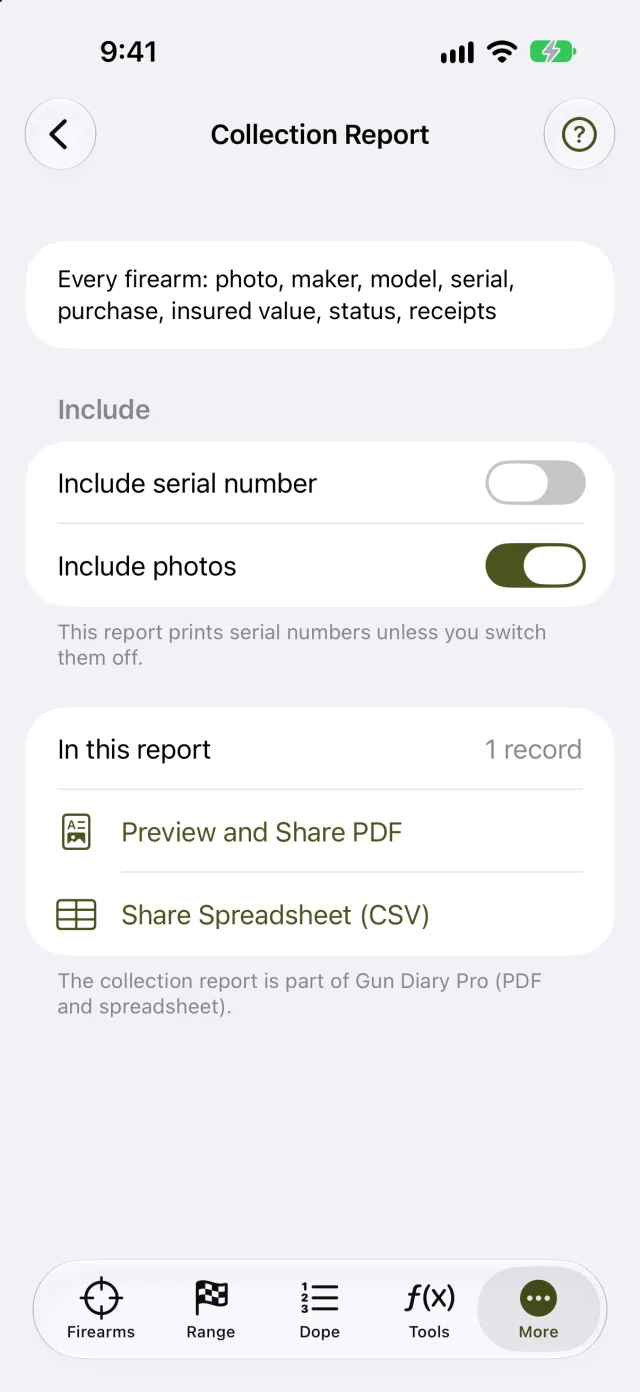
PDFs made from a button outside Reports (the dashboard’s Firearm History PDF, The Garage’s Maintenance PDF, session, Zero Check and Group History PDFs, dope cards, target sheets) never print a serial number. The lost or stolen report always prints it, because that’s what the police need (see “If something goes wrong”).
How to check it worked
- Saved to Files: open the Files app, tap Browse, then iCloud Drive or On My iPhone and the folder you chose. The PDF is there with the name shown in the preview’s title, ending in .pdf. Tap it to open it.
- Printed: every page (except dope cards and target sheets) has a footer reading “Gun Diary”, the report’s name, the firearm it covers, and “Page 1”, “Page 2″… The top of the first page says “Prepared” with the date and time.
- Emailed or messaged: the PDF shows as an attachment in your Sent mail or the conversation.
- AirDropped to a Mac: open Downloads in the Finder.
- Serial left out: read the top of the first page. No “Serial number” line (and, in the collection report, no Serial column) means it’s out.
Why it’s useful
Records on your phone are great until someone else needs them, or you want a copy that doesn’t depend on the app. A PDF is the universal answer: anyone can open it, it prints the same everywhere, and it keeps the date it was made.
Who uses it, and how:
- Insurance: email the collection report to your agent, and save a copy in iCloud Drive in case the phone is lost along with the guns.
- Theft or loss: print the free lost or stolen report and hand it to the police officer; email it to your insurer with the claim.
- Working with a gunsmith: send the Garage Maintenance or Round Count PDF before the visit, with the serial left out.
- Selling or passing on a gun: hand over a printed Firearm History.
- Long-range shooters: keep the Dope Table PDF in the range bag next to the dope card.
- Hunters: print the season’s Hunt Log for your records or a hunting partner.
- Competitors: message a match result or drill log to a squad mate.
- Collectors and record keepers: save every report to a “Gun records” folder in iCloud Drive, sorted by name.
What each option means
In the preview
In the share sheet (Apple’s own screen, so the exact list depends on your iPhone and apps):
Paper size and printing at 100%. Reports are US Letter (8.5 x 11 in) and fill the page with a margin, so they print fine on Letter at full size. On A4 paper the iPhone shrinks them slightly to fit; that’s fine for a report. Only the dope card has to print at exactly 100% (Actual size), because its rows are drawn to a real-world size: see Print a dope card at the right size.
Free and Pro PDFs.
Private details. Reports print what you recorded. Watch for:
- Serial numbers: only on the collection and lost or stolen reports unless you switch them on (steps above). Target sheets say so too: serial numbers never print on them.
- Purchase price, seller and insured value: on the collection and lost or stolen reports.
- Notes: maintenance details and notes, safety observation notes, dope table notes, Zero Check notes, session notes.
- Places: the hunt log prints only the general area you typed for a harvest, never a saved place or a map position. No other report prints a location.
Before sending a report to someone else, read the preview. If a note is private, edit it first and make the report again.
Example
Your rifle was stolen from your truck. You need a copy for the police and one for your insurer, and a collection report for the claim.
- On the Mountain Rifle’s dashboard, Change Status > Stolen, with the date last seen. See Change a firearm’s status.
- More > Reports > Lost or Stolen Report. Firearm: F002 Mountain Rifle. Before you share it lists “Police report number is empty”: you’ll add it after the officer gives you one.
- Preview and Share PDF. The preview, titled “Lost or stolen – Mountain Rifle”, shows “Stolen firearm: Mountain Rifle”, the photo, serial number, maker, model and distinguishing marks.
- Share > Print: one copy for the officer.
- Back on Reports > Collection Report (Pro): Include serial number is on. Preview and Share PDF > Share > Mail, to your insurance agent.
- Share > Save to Files > iCloud Drive > “Gun records” > Save. On your Mac you later find “Collection report – Nov 26, 2026.pdf” there.
Tips
- Make a “Gun records” folder in iCloud Drive and save every report there. It’s reachable from any computer, even if the phone is gone.
- Make reports fresh. A PDF is a snapshot; when records change, make it again rather than looking for an old copy.
- Print from a computer if you have trouble: save to Files or AirDrop to a Mac, then print from there.
- Spreadsheet for you, PDF for others. Send people a PDF; keep the CSV for your own charts.
- Check the serial switch every time. Options aren’t remembered: each report starts with its default.
What it affects
Nothing in your diary. Previewing, printing, saving or sending a PDF doesn’t change any record, and the app doesn’t keep a list of PDFs you’ve made. The copies you saved live in Files (or wherever you sent them). Making target sheets is the one exception: it creates the target records the sheets are printed for. See Make target sheets.
If something goes wrong
- The Pro screen opens instead of a preview, with “PDF reports are part of Gun Diary Pro”. That PDF is part of Pro. The lost or stolen report, the pocket dope card, the spreadsheets (except the collection report) and Export All Data stay free. See Compare Free and Pro.
- There’s no Share button. It appears once the file is ready, normally at once. If it doesn’t, the iPhone may be almost full: tap Done, free some space in the Settings app > General > iPhone Storage, and make the report again.
- No printer shows up. The printer must be on, on the same Wi-Fi as your iPhone, and support AirPrint. Restart it, or save the PDF to Files and print from a computer.
- The share sheet doesn’t show Mail. Apple’s Mail app isn’t set up on this iPhone. Use Save to Files, Messages or another email app.
- Mail says the file is too large. A collection report with many photos can grow. Make it again with Include photos off, or use Save to Files or AirDrop.
- I can’t find the file I saved. In the Files app tap Browse, then Recents, or search for its name (like “Collection report”).
- The serial number still prints on the lost or stolen report after I switched it off. In this version the lost or stolen report always prints the serial number (it’s the report’s main purpose). To share a page without it, use the Firearm History with Include serial number off.
- A report shows a note I didn’t want to share. Close the preview, edit the record’s note, and make the report again.
Related
- Next: Reports: every report and its options.
- Collection report and Lost or stolen report: the two reports that print serial numbers.
- Print a dope card at the right size: printing at 100%.
- Export all your data: every record as spreadsheets, free.
- Learning path: Keeping your records safe.
- Words used here: share sheet, Files app, Pro, serial number, CSV.
Still stuck? In the app, open More > Help > Contact Support, or More > Settings > Support, which also has Send Error Log (the error log helps us find the problem), or email contact@setriksoftware.com. You can also browse the Help Center or the messages the app can show.