
Lots
Record the lot number printed on each case or box of an ammunition, so groups, sessions and dope can say exactly which lot was shot.
A lot is one production run of an ammunition: the maker loads a batch and prints its lot number on every box and case from it. Two lots of the same ammunition can shoot a little differently, in speed and in where they hit. Lots are optional; add them when it matters to you.
Steps
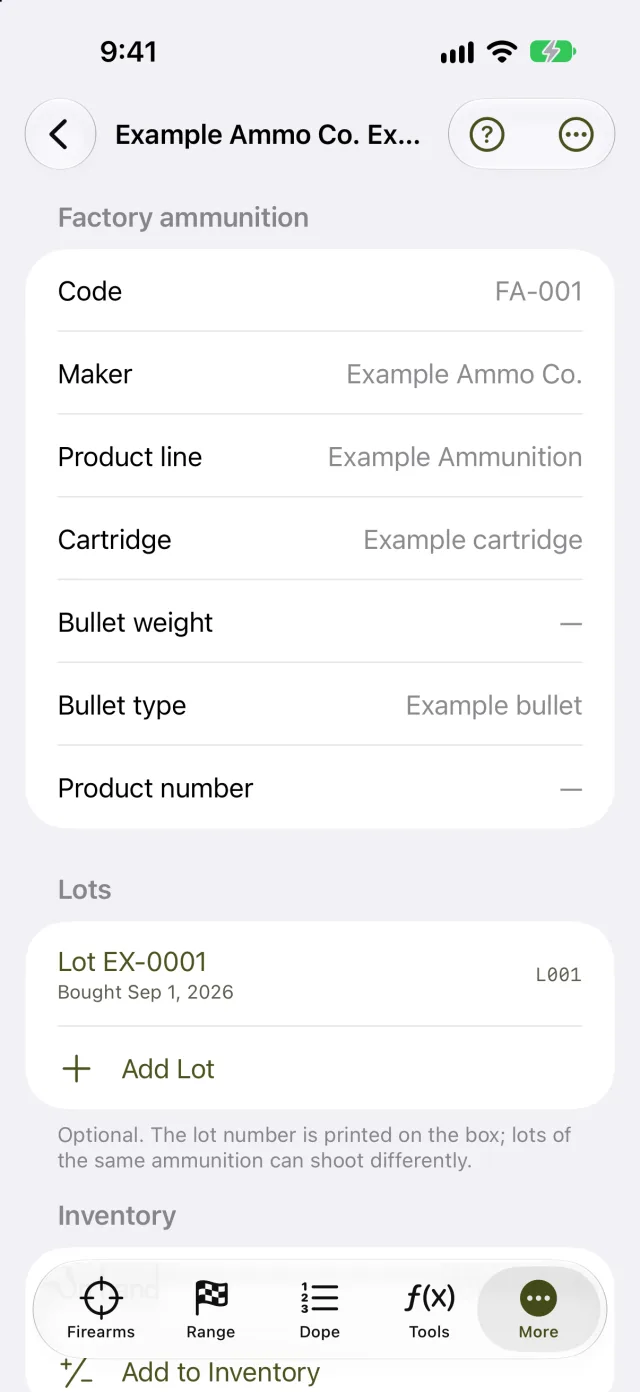
- Open the ammunition: More > Ammo Library > tap it.
-
Under Lots, tap Add Lot. The Lot sheet opens on a new lot, already saved with its own code (L002, L003…) and today as the date bought.
-
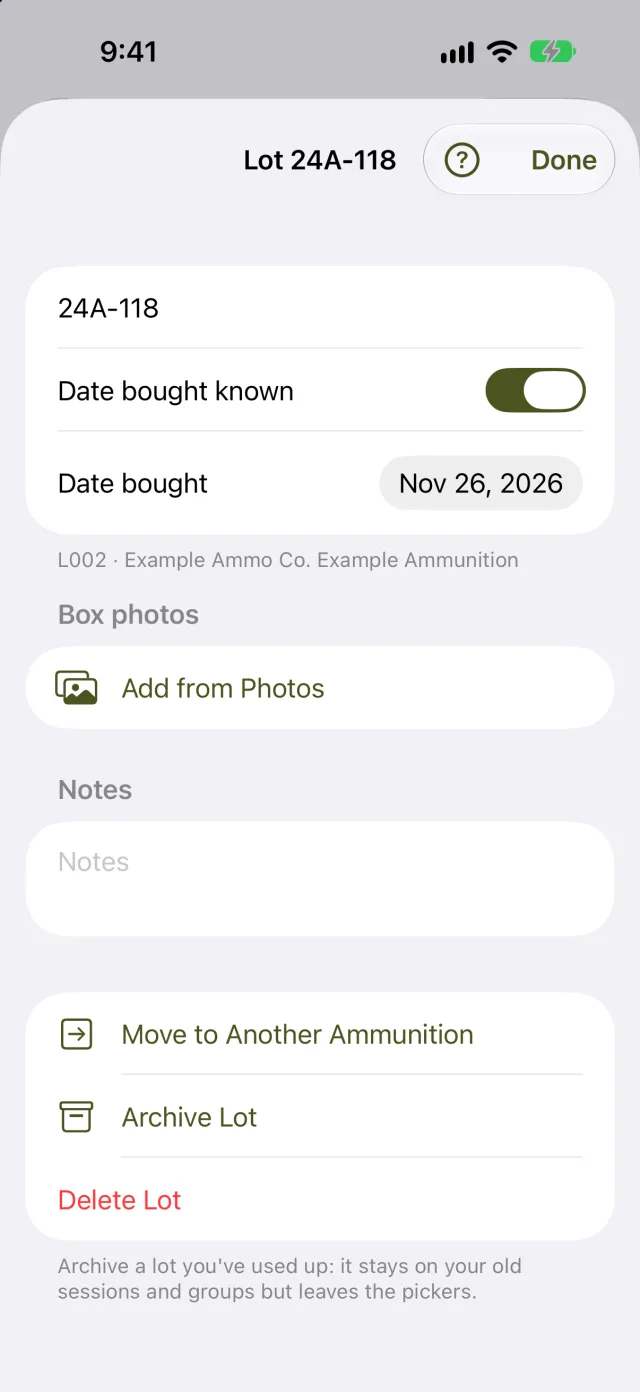
Type the Lot number (on the box). Letters are capitalized for you.
- Leave Date bought known on and set Date bought, or turn it off if you don’t know.
- Under Box photos, tap Take Photo or Add from Photos to keep a picture of the box end or case label.
- Add Notes if you like (where you bought it, how many cases).
-
Tap Done. The lot shows under Lots as “Lot 24A-118” with “Bought Mar 3, 2026” and its code.
-
To change a lot later, tap it under Lots. The same sheet has three more actions at the bottom:
- Move to Another Ammunition: for a lot filed under the wrong ammunition. Pick the right one; the lot’s sessions, groups and boxes on hand move with it.
- Archive Lot (or Unarchive Lot): for a lot you’ve used up. It leaves the pickers but stays on old records, under Archived lots on the ammunition.
- Delete Lot: then Move to Recently Deleted.
Once an ammunition has lots, a Lot row appears under Ammunition in groups, sessions, dope tables and Zero Checks.
Why it’s useful
Factory ammunition is made in batches, and makers don’t promise that every batch is identical. A new lot can change the average speed by a noticeable amount and move the point of impact at long range. Recording the lot lets you see whether a change in your results came from the lot, not from you or the rifle.
Who uses it, and how:
- Long-range shooters buy a case of one lot and build their dope with it. When they switch lots, the dope table names the lot, so they know to confirm their numbers again.
- Competitors test a few lots, then buy more of the one that grouped best in their rifle; Ammo comparison can compare by lot.
- Hunters note the lot they zeroed with, so a box from a different lot at the store is a reason for a quick Zero Check.
- Safety records: if a box had problems (hard extraction, a dud), the lot ties your safety observation to the exact batch, which is what a maker asks for.
- Casual shooters can skip lots entirely; nothing requires them.
What each option means
Lot codes (L001, L002…) are numbered across all your ammunition, so each lot’s code is unique in your diary.
Example
You buy a case of Ridgeline Match for the Mountain Rifle:
- Ammo Library > Ridgeline Match > Add Lot.
- Lot number (on the box): 24A-118. Date bought: Mar 3, 2026. Add from Photos: a photo of the case label. Done.
- At the range, the group form shows Lot; you pick 24A-118. Your dope table for the Mountain Rifle names lot 24A-118 too.
- In October you buy a new case, lot 25C-041, and add it the same way. Your first groups with it average 2712 fps against 2695 fps for the old lot: a reason to confirm your dope at distance.
- When the old case is empty, you open lot 24A-118 and tap Archive Lot. New entries offer only 25C-041; old groups still say 24A-118.
Tips
- Photograph the box end when you add a lot. Lot numbers are small and easy to mistype.
- Add the lot before the range trip, so you can pick it at the bench.
- One case, one lot, usually. If a case contains boxes from two lots, add both.
- Archive, don’t delete, a used-up lot: archived lots keep your history readable.
- Starting a new dope table for a new lot? Duplicate the table and pick the new lot; see Dope tables.
What it affects
- Groups, sessions, dope tables, Zero Checks, safety observations and patterns can record the lot. Group History has a Lot column, and Ammo comparison can compare Lots.
- Boxes on hand can be counted per lot (Boxes on hand).
- Archive: the lot leaves the Lot pickers; records that used it keep it.
- Delete: “Sessions and groups that used it stop showing the lot number while it’s in Recently Deleted.” Restore it within 30 days to bring it back.
- Move: the lot, its groups, session entries and boxes on hand now belong to the other ammunition.
If something goes wrong
- There’s a lot with no number (“Lot (no number yet)”). Add Lot saves the lot as soon as it opens. Tap it and type the number, or delete it with Delete Lot.
- The Lot row doesn’t appear in my group. The ammunition has no lots, or only archived ones. Add or unarchive one.
- I added the lot to the wrong ammunition. Open the lot and tap Move to Another Ammunition.
- A group shows the lot’s code (L002) instead of its number. The lot number is blank. Open the lot and type it.
- An old group lost its lot number. The lot was deleted. Restore it from Recently Deleted.
Related
- An ammunition record, Pick an ammunition, Boxes on hand.
- Ammo comparison, Dope tables, Safety observations.
- Learning paths: Testing factory ammo, Building your dope card.
- Words used here: lot, dope, zero, code, archive.
Guides on this topic
Still stuck? In the app, open More > Help > Contact Support, or More > Settings > Support, which also has Send Error Log (the error log helps us find the problem), or email contact@setriksoftware.com. You can also browse the Help Center or the messages the app can show.