
Search, history and comparison
Search your diary
Find any firearm, serial number, dope table, group, session, Zero Check, hunt, pattern, ammunition, lot, Garage record, document or saved view by typing a few letters.
Search looks through your whole diary at once: firearms (serial numbers too), dope tables and cards, groups, sessions, Zero Checks, harvests, patterns, drill runs, ammunition and lots, Garage records, favorites, documents, saved views, saved locations and tags. Use it when you remember a word, a number or a code but not where the record lives.
Steps
- Open Search one of these ways:
- On the Firearms tab, tap the magnifying glass (Search) at the top left.
- More > Search.
- On iPad, Search in the sidebar.
-
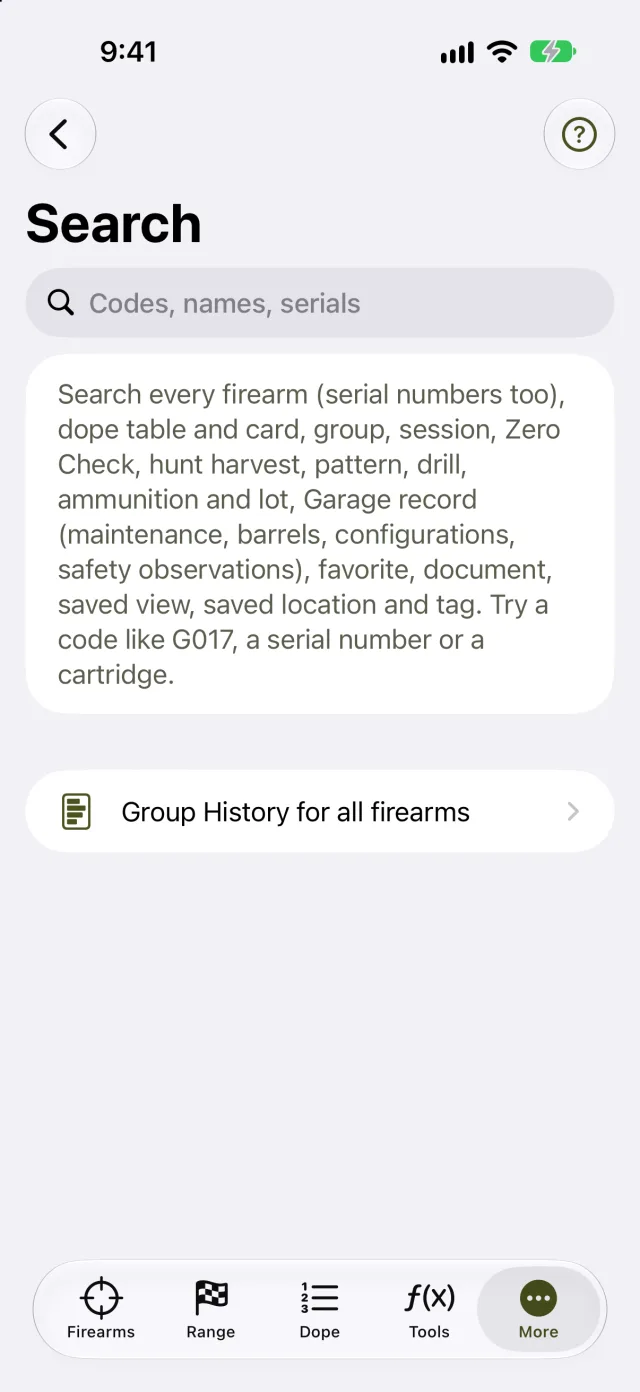
Tap the search box at the top (it reads Codes, names, serials) and type at least two letters.
-
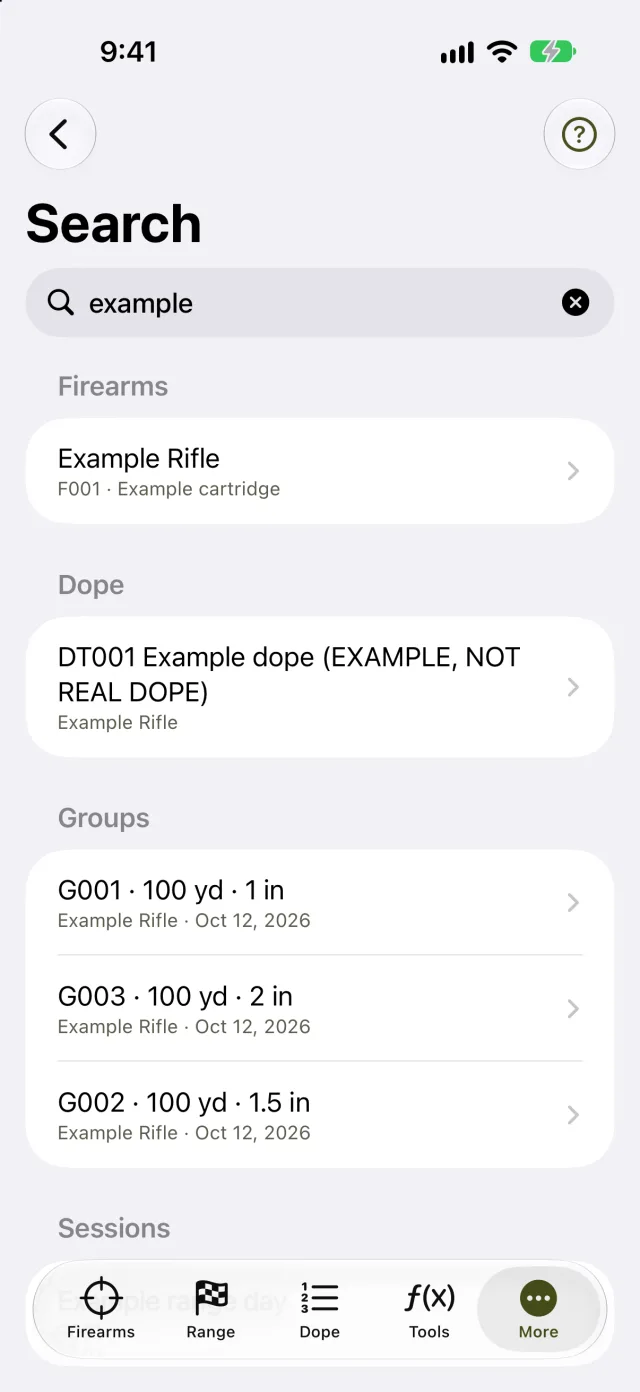
Results appear as you type, under headings in this order: Firearms, Dope, Groups, Sessions, Field, Favorites, Ammunition, Garage, Documents, Saved views, Locations, Tags. Each result has a second line (code, firearm, date) to tell similar records apart.
-
Tap a result to open it. Tap < (back) to return to your results; your search stays in the box.
- To narrow the results, type more words separated by spaces. A record only shows when it contains every word.
- To browse groups with filters instead, tap Group History for all firearms at the bottom. See Group History.
Why it’s useful
A diary kept for years is only useful if you can get back to a record quickly. Search is the fastest way when you know a detail but not the date or the firearm.
Who uses it, and how:
- Collectors and anyone filing a police or insurance report: type part of a serial number and the firearm comes up, with its code. See Lost or stolen report.
- Anyone with a code in hand: a target sheet, box label or notebook says G017 or S004. Type it and open the record. (For a printed target with a QR code, Scan a target is faster.)
- Hunters: type a species, a tag number or “elk” to find the harvest, the hunting session and the Zero Check before it.
- Ammunition testers: type a lot number to find the ammunition it belongs to and every group that names it.
- Keeping a firearm’s history: type “cleaning”, “trigger” or a scope’s maker to find maintenance entries and configurations under Garage.
- Shotgunners: type a choke (“Modified”) to find patterns.
- Beginners who aren’t sure where something was saved: type any word you remember writing.
What each option means
The search box. Two or more letters. Upper and lower case and accents don’t matter. Several words narrow the search: “G 100” finds records containing both “G” and “100”.
Each kind of record shows up to 50 results. Deleted records (in Recently Deleted) are never searched.
Before you type, a tip lists what you can search and suggests “a code like G017, a serial number or a cartridge”. No match shows the standard iPhone “No Results” message for your text.
Example
Your insurance company asks for the serial number of your shotgun, and you only remember it ends in 4471.
- More > Search, type
4471. - Under Firearms: “Field Shotgun” with “F003 · 12 ga”. Tap it; the dashboard opens and its details show the full serial number.
Another day you want the group you shot with lot 25C-041 last week. Type 25C-041: Ammunition shows Ridgeline Match (the lot belongs to it), and Groups lists every group recorded with that lot, with firearm and date.
Tips
- Codes are the fastest search. Every record has a short code (F001, G017, S004, FA-002). A code stays with its record; rarely, a restore gives a record a new code if its code was already used on this device. Write it on targets and box labels.
- Search a lot number to find all its groups.
- Search a tag to find every group and session that carries it.
- Use distinctive words in notes (“flyer“, “cold bore“, “new scope”): they make records easy to find later.
- Too many results? Add a word:
G Mountainshows groups on the Mountain Rifle.
What it affects
Nothing. Searching only reads your records; it doesn’t change or save anything, and your search text isn’t kept after you leave the screen.
If something goes wrong
- Nothing appears while I type. Type at least two letters. One letter shows the tip.
- “No Results”. Check the spelling, or type fewer words: every word must be in the same record.
- A record I know exists isn’t found. Search looks only in the fields in the table above. Groups don’t match their size or distance; find those in Group History with filters. Targets, lots on their own and dope rows aren’t listed: open them from their session, ammunition or table. A dope card is found by its code or title only.
- It was deleted. Look in Recently Deleted (kept 30 days).
- Only 50 results under a heading. Add another word to narrow the search.
- A record from my other device is missing. It hasn’t synced yet. Wait for iCloud with a connection, then search again.
Related
- Next: Group History.
- A group record, A session, The Ammo Library, Saved views.
- Scan a target: open a target from its printed QR code.
- Learning path: Keeping your collection’s records.
- Words used here: code, serial number, group, session, lot, tag.
Still stuck? In the app, open More > Help > Contact Support, or More > Settings > Support, which also has Send Error Log (the error log helps us find the problem), or email contact@setriksoftware.com. You can also browse the Help Center or the messages the app can show.