
Shooting Diary
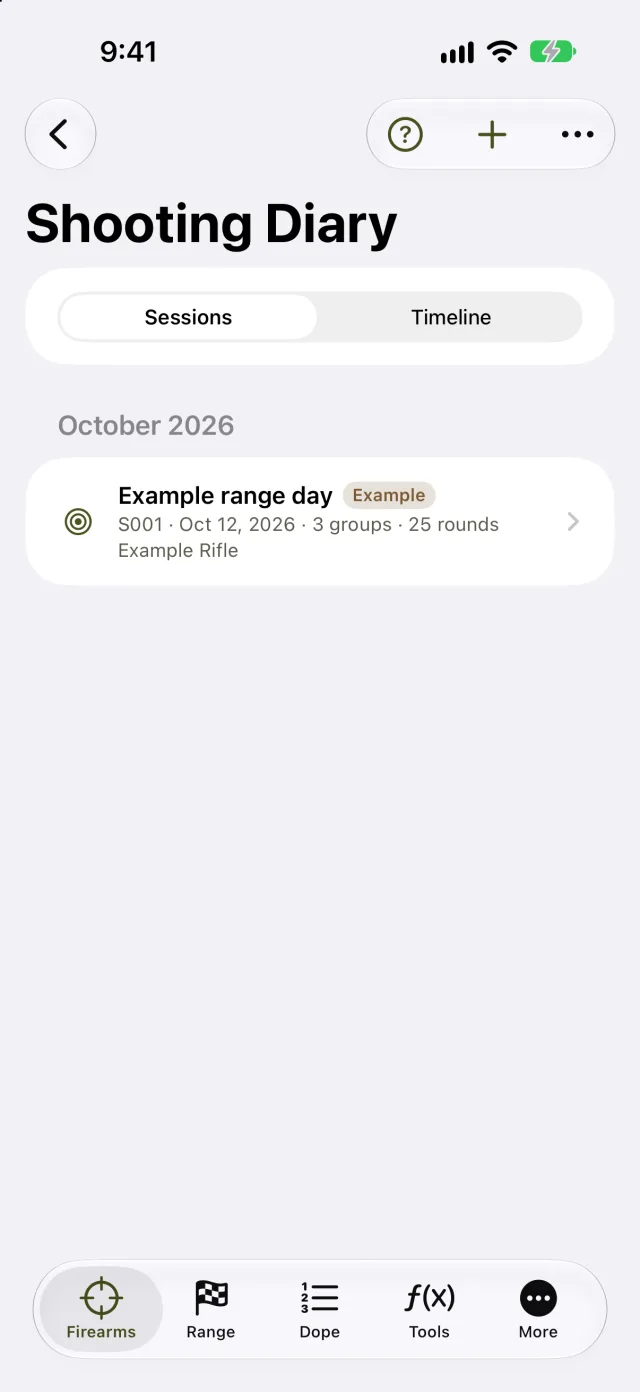
See every session one firearm has been in, by month, or switch to a timeline that mixes sessions with cleanings, equipment changes and safety observations.
The Shooting Diary is one firearm’s own list of sessions: every range day, hunt, match or zero check it took part in, newest first. Its Timeline view adds the firearm’s maintenance, equipment changes and safety observations in date order, so you can see what happened around a change in how it shoots.
Steps
- On the Firearms tab, tap the firearm to open its dashboard.
-
Tap Shooting Diary. (The row shows how many sessions it has, or “Log your first session”.)
-
Tap a session to open it. See A session.
- To add a session for this firearm, tap + (New Session) at the top. The form opens with this firearm already turned on. See Log a session.
- To see only one kind of session, tap ••• and pick an activity. All activities shows them all again.
-
To see the timeline, tap Timeline at the top.
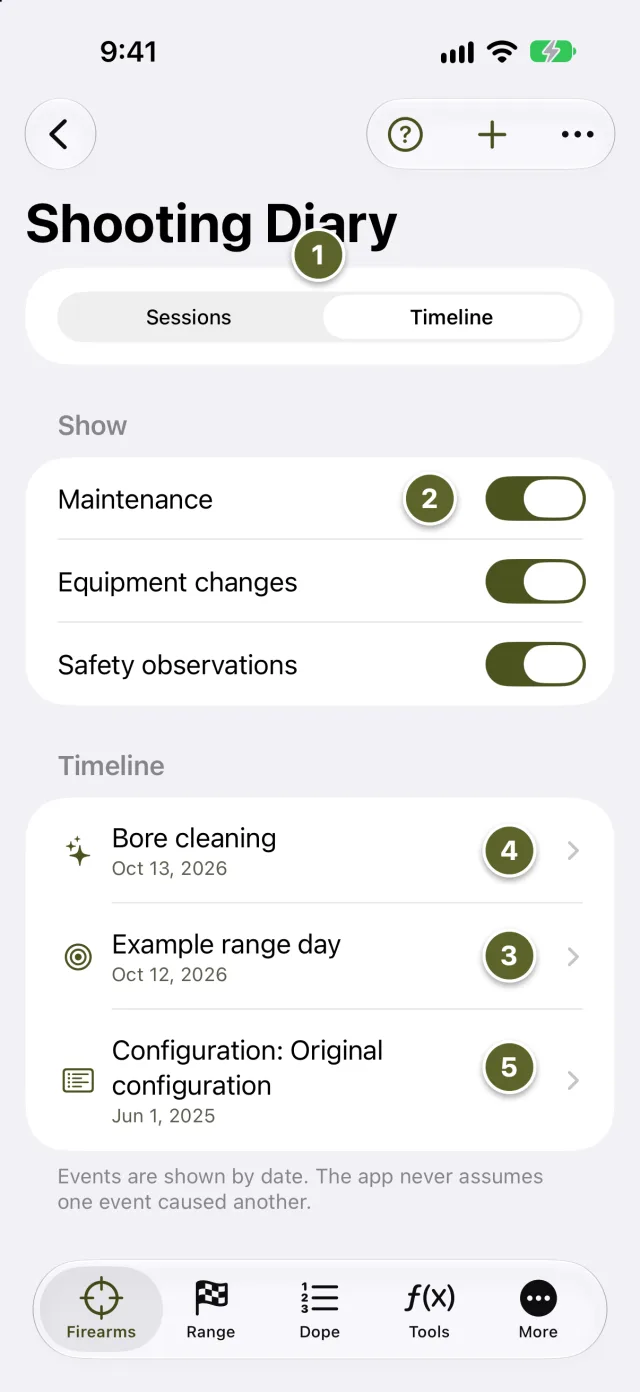
Numbers on the picture: 1 Sessions / Timeline, 2 the Show switches, 3 a session, 4 a maintenance entry, 5 a configuration (equipment change).
-
In the timeline, use the Maintenance, Equipment changes and Safety observations switches to show or hide each kind of event. Tap any line to open it.
- If some of this firearm’s sessions are archived, Show archived sessions appears at the bottom of the session list.
Why it’s useful
A firearm’s story is told by its sessions. The Range tab shows everything you shoot; the Shooting Diary narrows that to one gun, which is what you usually want when you ask “when did I last shoot this?”, “how many times did I take it out this year?” or “what did it do the last time I used this ammunition?”
The Timeline answers a harder question: what changed? If a rifle that always shot well suddenly opens up its groups or moves its zero, the timeline puts the sessions next to the cleaning, the new scope mount or the trigger job in date order. A long-range shooter can see that the zero moved right after a scope swap. A hunter can check that the rifle was cleaned and zero-checked before the season. A collector who shoots each gun a few times a year has a dated record of use and care, which also helps with insurance and resale. A new gun owner learns how often they really clean. The app shows events side by side and never claims that one caused another; you decide.
What each option means
Each session row shows the activity icon, its name (or activity and date), any Example, Draft or Archived badge, its code, date, groups, total rounds and every firearm in the session. The timeline’s switches are remembered for next time.
Example
Your Mountain Rifle used to hold 1 MOA. In October its groups opened to 2 inches.
- You open its Shooting Diary and tap Timeline.
- The list, newest first: “Practice Oct 18” (2 in groups), “Configuration: New scope rings” (Oct 10), “Cleaning” (Sep 30), “Sight-in Sep 14”.
- The ring change sits right before the groups opened up. You check the ring screws’ torque, re-zero, and record it all as a new session.
Tips
- Turn off the switches you don’t need to make a long timeline easier to read; turn them back on later.
- Archive old seasons’ sessions to shorten the list without losing them.
- A session with several firearms appears in each firearm’s diary.
- For a printed history, see the Firearm history report.
What it affects
- Looking at the diary changes nothing.
- + (New Session) creates a draft session linked to this firearm. If you choose Keep as Draft it stays in Drafts; Discard Session removes it.
If something goes wrong
- The list says “Log your first session” but I’ve shot this gun. First check the ••• filter (set it to All activities) and Show archived sessions: the same message shows when they hide every session. Otherwise, sessions only show here when this firearm is turned on in the session. Open the session and, in Edit Session, turn on the firearm under Firearms and rounds.
- A session is missing. Set the ••• filter to All activities and check Show archived sessions. Deleted sessions are in Recently deleted for 30 days.
- The timeline shows “Nothing recorded yet”. No sessions or events match the switches. Turn the switches back on.
- A timeline line opens a list, not the entry. Maintenance, equipment and observation lines open that Garage list; pick the entry there.
Related
- Firearm dashboard, A session, Log a session, The Range tab.
- Maintenance log, Record an equipment change, Safety observations.
- Learning path: Keeping your collection’s records.
- Words used here: session, configuration, timeline, MOA.
Still stuck? In the app, open More > Help > Contact Support, or More > Settings > Support, which also has Send Error Log (the error log helps us find the problem), or email contact@setriksoftware.com. You can also browse the Help Center or the messages the app can show.