
An ammunition record
See everything about one ammunition (details, lots, boxes on hand and where it was used) and edit, duplicate, merge, archive or delete it.
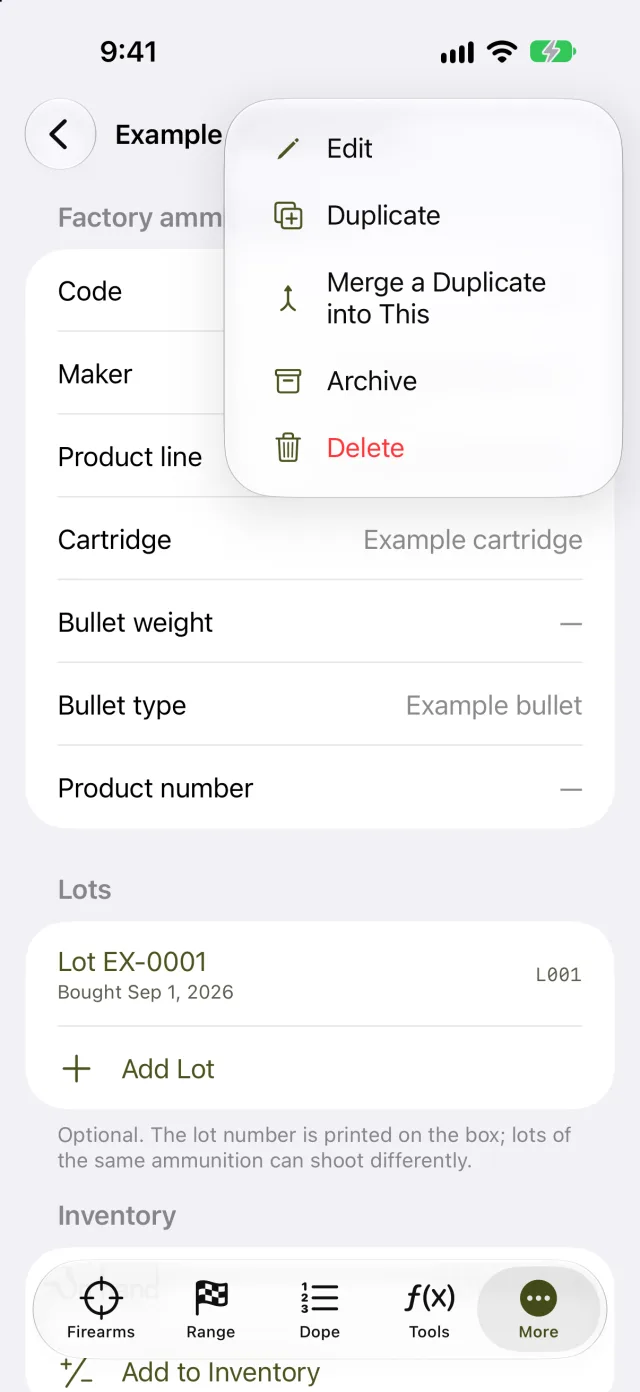
Tap any ammunition in the Ammo Library (or a link to it from a session, group, favorite or search result) to open its record. It shows the ammunition’s details, its lots, what you have on hand, and every session and favorite that used it. The ••• menu holds Edit, Duplicate, Merge a Duplicate into This, Archive and Delete.
Steps
-
Open the ammunition: More > Ammo Library > tap a row. You can also tap the ammunition’s name on a group, a favorite, a Group History row or a search result.
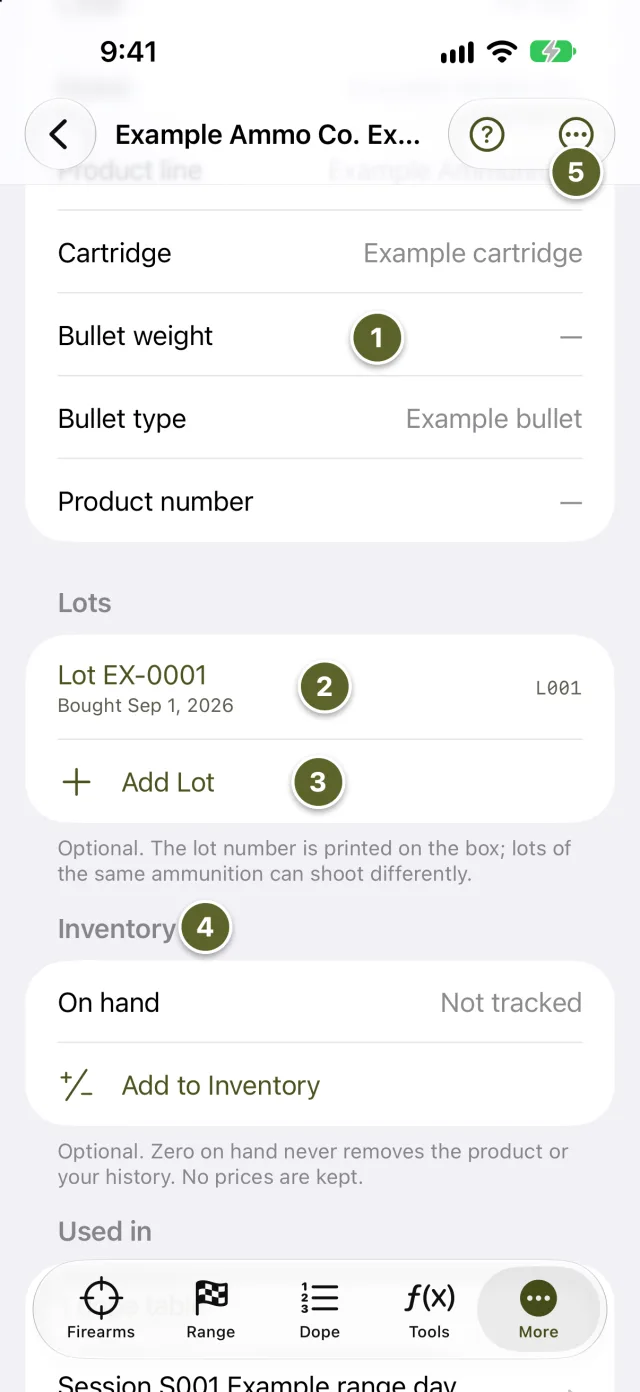
Numbers on the picture: 1 the details, 2 a lot, 3 Add Lot, 4 the Inventory section, 5 the ••• menu.
- Read the details at the top (headed Factory ammunition, or Shotshell for shells): Code, Maker, Product line, Cartridge (or Gauge), Bullet weight and Bullet type (or Shot weight and Shot size), Product number, your own fields and notes. Box photos, if any, show above them.
- Under Lots, tap a lot to edit it, or Add Lot to add one. Used-up lots you archived are under Archived lots. See Lots.
- Under Inventory (shown when Boxes on Hand is turned on), see what you have on hand and tap Add to Inventory to record boxes bought or used. See Boxes on hand.
- Under Used in, tap a session to open it, or a favorite (with its firearm) to open the favorite. The newest 20 sessions are listed; a line says how many more there are. When dope tables, Zero Checks, hunt shots or patterns use this ammunition, a line at the top counts them, like “1 dope table, 2 Zero Checks”.
- Under Documents, open any manual or receipt you linked to this ammunition in the Reference Library.
-
Tap ••• for the actions:
- Edit: change the details and add photos. See Add an ammunition.
- Duplicate: makes a copy (details and your own fields, not lots, photos or history) and opens it as Edit the Copy, for a near-twin like the same line in another bullet weight.
- Merge a Duplicate into This: see Merge duplicate ammunition.
- Archive (or Unarchive): puts it away from pickers and lists, keeping all history.
- Delete: see step 8.
-
To delete: tap ••• > Delete.
- If nothing used it yet, tap Move to Recently Deleted.
- If sessions, groups, favorites, dope tables, Zero Checks, hunt shots or patterns use it, Gun Diary suggests Archive Instead. To delete anyway, tap Delete Anyway, type the ammunition’s code (like FA-003) in the box, and tap Move to Recently Deleted.
Why it’s useful
This screen answers “what do I know about this ammunition?” in one place: what it is, which lots you bought, how much is left, and where you’ve shot it. It’s also where you keep the library tidy.
Who uses it, and how:
- Ammunition testers open a candidate and follow Used in to every session it was shot in, across all firearms.
- Long-range shooters and competitors add each new lot here before a match, so groups and dope can name the lot.
- Hunters check the box details (bullet type, weight) before the season, and see which favorite uses it.
- People tracking supply see On hand at a glance.
- Anyone tidying up archives ammunition they no longer buy, duplicates a near-twin instead of retyping it, and merges accidental duplicates.
What each option means
Example
You open “Ridgeline Match” (FA-002):
- Lots: Lot 24A-118, bought Mar 3, 2026, L002; Lot 25C-041, bought Oct 20, 2026, L003.
- Inventory: On hand 340 rounds.
- Used in: Session S014 “Fall practice” (Mountain Rifle), Session S011 (Mountain Rifle, Range Rifle), and the favorite “Match” · Mountain Rifle.
The maker also sells a 130 gr version you just bought. You tap ••• > Duplicate. Edit the Copy opens with everything filled in as FA-004; you change Bullet weight to 130 and tap Save. A month later you stop buying the 140 gr: ••• > Archive. It leaves the pickers, and every session above still shows it.
Tips
- Archive, don’t delete, ammunition you’ve shot. Deleting is for mistakes.
- Duplicate for near-twins (another bullet weight, another product line from the same maker). For a new box of the same ammunition, add a lot instead.
- Add a box photo through Edit: the lot number, product number and date code are all on the box end.
- Look at Used in before changing details. Editing changes what every one of those records shows.
What it affects
- Edit: every record using this ammunition shows the new details.
- Archive: it disappears from All, Recently Used and Select Ammunition, and appears under Archived. Records keep it. Group History hides archived ammunition unless you turn on Include archived ammunition.
- Delete: it moves to Recently Deleted. “Sessions and groups keep showing it until it’s purged after 30 days.” Restore it there if you change your mind.
- Duplicate: a new ammunition with its own code. The original is untouched.
If something goes wrong
- “It’s used in … sessions and … favorites. Archiving hides it but keeps your history.” You tried to delete ammunition you’ve shot. When dope tables, Zero Checks, hunt shots or patterns use it, the message names them too (“…, and in 1 dope table”); ammunition used only by a dope table still counts as used. Tap Archive Instead (recommended), or Delete Anyway to go on.
- “That didn’t match. Type “…” exactly to delete it”. What you typed isn’t the word the message asked for. Type it exactly as shown (it’s on the record, at the top), then tap Move to Recently Deleted again.
- I tapped Duplicate by mistake. Tap Cancel on Edit the Copy: the copy is removed. (Its code isn’t reused, so the next ammunition you add gets the code after it.)
- There’s no Inventory section. Boxes on Hand is turned off. Turn it on in Personalize your diary.
- Used in counts a dope table or Zero Check but doesn’t open it. That top line is a count only. Open dope tables from the Dope tab and Zero Checks from Zero history.
- I archived it and can’t pick it. Archived ammunition isn’t offered. ••• > Unarchive.
Related
- Lots, Boxes on hand, Merge duplicate ammunition, Add an ammunition.
- The Ammo Library, Favorite ammunition, Recently Deleted.
- Words used here: code, lot, archive, factory ammunition, shotshell.
Still stuck? In the app, open More > Help > Contact Support, or More > Settings > Support, which also has Send Error Log (the error log helps us find the problem), or email contact@setriksoftware.com. You can also browse the Help Center or the messages the app can show.