
Welcome to Gun Diary
What Gun Diary is for, who it's for, and the two ways to start from the Welcome screen: add your own firearm or explore the Example Rifle.
Gun Diary is a logbook for your firearms, your range days and the dope you’ve proven. The first time you open it, the Gun Diary Welcome screen says what the app holds and offers two ways in: add your own firearm right away, or look around a ready-made Example Rifle first. This article explains that screen, who the app is for, and what happens with each choice.
Steps
-
Open Gun Diary for the first time. The Welcome screen appears over the Firearms tab.
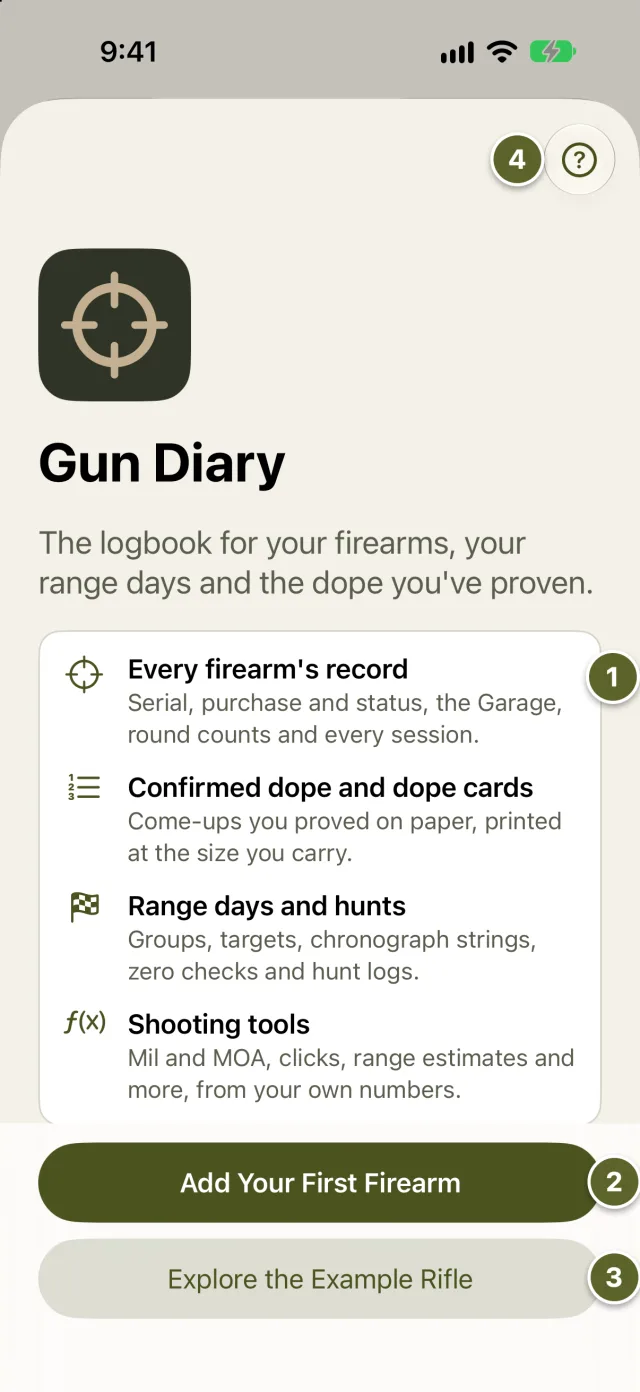
Numbers on the picture: 1 the four things Gun Diary keeps, 2 Add Your First Firearm, 3 Explore the Example Rifle, 4 the ? that opens this article. The note about the Example Rifle sits just above the buttons; on a small screen, scroll down a little to see it.
- Read the four points. They are the four big parts of the app:
- Every firearm’s record: serial, purchase and status, the Garage, round counts and every session.
- Confirmed dope and dope cards: come-ups you proved on paper, printed at the size you carry.
- Range days and hunts: groups, targets, chronograph strings, zero checks and hunt logs.
- Shooting tools: mil and MOA, clicks, range estimates and more, from your own numbers.
- Choose how to start:
- Tap Add Your First Firearm to go straight to the Add Firearm form. Only a name is needed; see Add a firearm.
- Tap Explore the Example Rifle to open the made-up rifle’s dashboard and see how the records connect. See Explore the Example Rifle.
- Either way, the Welcome screen closes and doesn’t come back on this device. Everything it points to is on the tabs at the bottom: Firearms, Range, Dope, Tools and More.
Why it’s useful
Most shooting apps open on an empty list and leave you guessing. Gun Diary holds a lot (firearm records, the Garage, ammunition and lots, sessions, groups and targets, Zero Check, hunt logs, shotgun patterns, dope tables and dope cards, 27 calculators, reports and backups), so the first screen gives you the map in four lines and a safe place to try things.
Who Gun Diary is for, and what the Welcome screen gives each of them:
- New gun owners: you may not know yet what’s worth writing down. Explore the Example Rifle shows a finished record (a session, three groups, a target photo, a dope table) so you can see what a good record looks like. Then read Shooting basics for beginners.
- Hunters: the app’s job is the check before the season and the log after the hunt. Add your hunting rifle, then see Zero Check and Quick Hunt Log.
- Target and long-range shooters: the dope you prove and the card you carry are the heart of it. Start with your rifle, then What confirmed dope is.
- Competitors: sessions with match scores, drill runs with times and hit factor.
- Shotgunners: shotguns are firearms here too, with round counts, cleaning, sessions and pattern records.
- Collectors: serial numbers, purchase details, insured values, documents, and what happened to a gun that left the collection, for insurance and theft records.
Gun Diary is for people who shoot factory ammunition they buy. It has no reloading features.
What’s on the Welcome screen
You can’t swipe the Welcome screen away; pick one of the two buttons. Both are safe: the Example Rifle stays in your diary whichever you tap, and adding a firearm can be cancelled.
Example
Jordan just bought a hunting rifle and has never kept a shooting record. On the Welcome screen Jordan taps Explore the Example Rifle, opens the Shooting Diary to see the example range day with its three 5-shot groups at 100 yd, and looks at the example dope table. Ten minutes later Jordan goes back to Firearms, taps +, and adds “Elk Rifle” with only a name and a cartridge. The rest can wait for the first range trip.
Tips
- Not sure where to begin? Tap Explore the Example Rifle. You lose nothing, and the button to add your own firearm is one tap away on the Firearms tab.
- Never copy anything from the Example. Its maker, cartridge, ammunition and dope are made up on purpose; its dope table even says “EXAMPLE, NOT REAL DOPE”.
- Almost every screen has a ? at the top that opens its own help article. Camera screens don’t; their help is on the screen that opens them.
- Wondering who can see your records? Nobody but you: see Your records and your privacy.
- Read the tour next (A tour of Gun Diary), then follow Your first day.
What it affects
- Tapping either button marks the Welcome screen as seen on this device; it won’t show again there. It shows once on each device, so a new iPad shows it too.
- Add Your First Firearm creates nothing until you tap Save on the form.
- The Example Rifle is already in your diary before you tap anything. It never counts as your one free firearm. You can remove it, and bring it back, in More > Settings.
If something goes wrong
- I tapped a button too fast and the Welcome screen is gone. It shows once only. Everything on it is in this help center: start with A tour of Gun Diary.
- I don’t see the Example Rifle on the Firearms tab. It was removed in Settings. Tap More > Settings > Restore Example Rifle.
- Tapping + on the Firearms tab opens the Pro screen. You already have one firearm of your own; the free diary holds one. See Free and Pro.
- The Welcome screen didn’t appear at all. It shows once on each device, the first time Gun Diary opens there. If you already tapped a button on this device, it won’t show again.
- I see two Example Rifles. Each device made its own Example before iCloud delivered the other device’s diary. Gun Diary removes the extra one by itself the next time it opens, comes back to the front or receives changes from iCloud; your own records are untouched. If you still see two, More > Settings > Remove Example Rifle removes both. See Use Gun Diary on iPhone and iPad.
Related
- Next: Explore the Example Rifle, then A tour of Gun Diary and Your first day.
- New to shooting? Shooting basics for beginners.
- Who can see your records: Your records and your privacy.
- Learning path: New gun owner.
- Words used here: dope, come-up, mil, MOA, click value, zero check, hit factor, Example Rifle.
Still stuck? In the app, open More > Help > Contact Support, or More > Settings > Support, which also has Send Error Log (the error log helps us find the problem), or email contact@setriksoftware.com. You can also browse the Help Center or the messages the app can show.