
Reference Library
Keep owner's manuals, receipts, warranties, insurance papers, police reports and notes in the diary, linked to the firearms and ammunition they belong to. Free.
The Reference Library keeps your paperwork with your guns: owner’s manuals, receipts and bills of sale, warranties, insurance papers, police reports, match scorecards and your own notes. Each document can be linked to the firearms and ammunition it belongs to, so it opens from their records too. It’s free, and nothing is bundled: you add your own files.
Steps
-
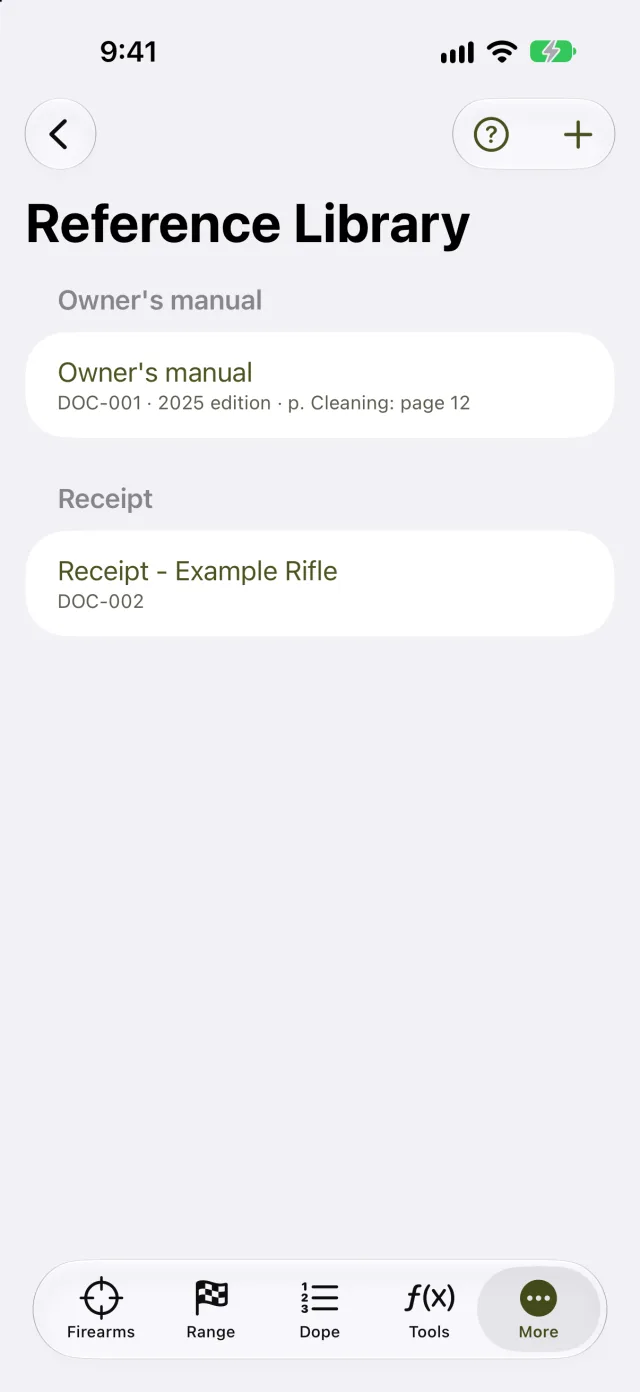
Tap More > Reference Library.
-
Tap + (Add File) at the top right, or Add a File when the library is empty. The Files picker opens.
-
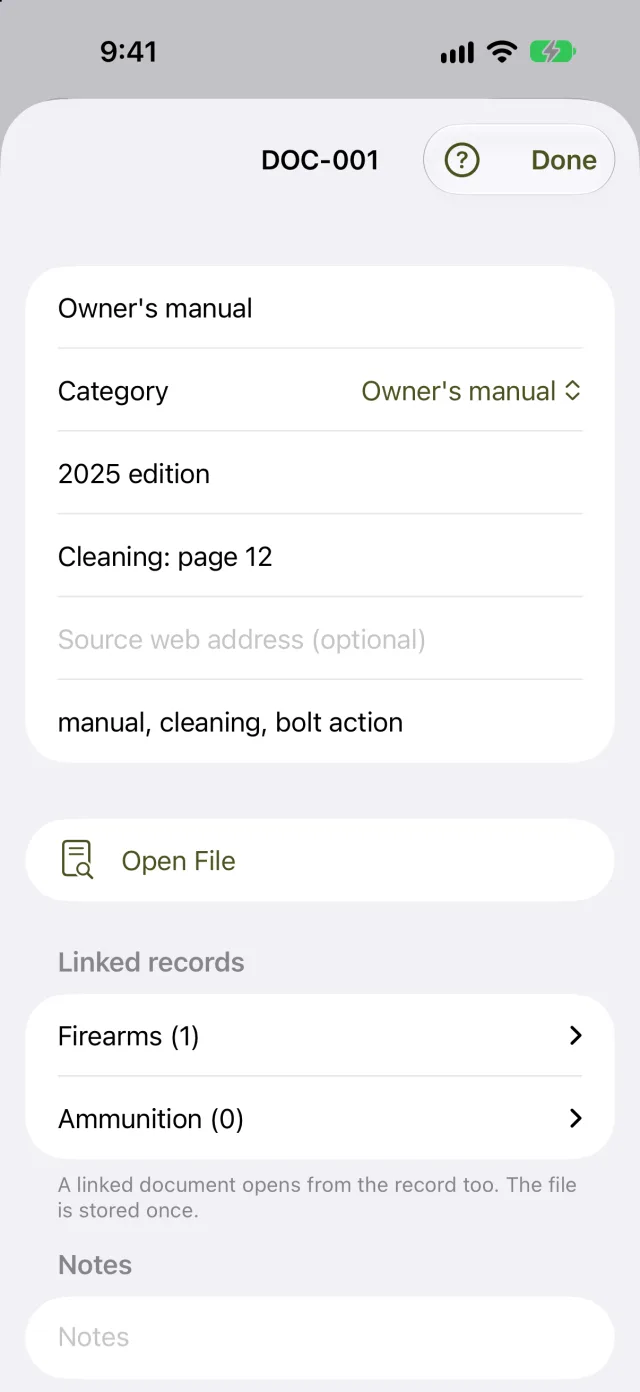
Pick a PDF, a photo or a text file (from iCloud Drive, On My iPhone, or another place in Files). The document’s screen opens, with the file’s name as its Title.
-
Fill in what helps you find it later:
- Title: like “Bill of sale, Mountain Rifle”.
- Category: Owner’s manual, Manufacturer publication, Receipt, Warranty, Insurance, Police report, Notes, Scorecard or Other.
- Edition and Page reference (for manuals), Source web address (optional).
- Tags, separated by commas.
- Under Linked records, open Firearms and turn on each firearm the document belongs to; do the same under Ammunition if it applies.
- Add Notes if you like, then tap Done. The document is saved as you go and gets a code like DOC-004.
- To read it, open it and tap Open File. It opens in a preview, from which you can share or print it.
- To delete it, open it, tap Delete Document, then Move to Recently Deleted.
Why it’s useful
Paperwork for a firearm tends to be scattered: a receipt in an email, a manual in a drawer, an insurance schedule in a folder. When you need it (a warranty claim, an insurance claim, a police report after a theft, a match protest) you need it fast. Keeping it in the diary, linked to the gun, means it’s there with the serial number and the history, on every device, and in your backups.
Who uses it, and how:
- Collectors: bills of sale, appraisals and insurance schedules for each gun; with the collection report, that’s your insurance file.
- After a theft or loss: the police report and the receipt with the serial number, next to the Lost or Stolen Report.
- New gun owners: the owner’s manual, so cleaning and take-down instructions are on your phone at the bench.
- Warranty claims: the receipt and warranty card, dated.
- Competitors: scorecards from matches, tagged by season.
- Hunters: the ammunition maker’s published data sheet, linked to that ammunition, for reference.
What each option means
The library list shows each document’s title, code, edition and page reference, grouped by category, and can be searched by title, notes, edition, code, page or tag.
Example
You buy a used rifle. At home you scan the bill of sale with the Files app‘s scanner and save it as a PDF. In Reference Library you tap +, pick the PDF, set the Title to “Bill of sale, Mountain Rifle”, Category to Receipt, and under Linked records > Firearms turn on Mountain Rifle. You add the seller’s name and the price in Notes and tap Done. The receipt now also opens from Mountain Rifle’s Documents on its dashboard.
Tips
- One file, many links. A manual for a scope used on two rifles can be linked to both; it’s stored once.
- Name files well before adding them; the file name becomes the first title.
- Keep the receipt with the serial number. It’s the document an insurer or the police will ask for.
- Photos of paperwork work too, but a PDF scan is easier to read and print.
What it affects
- Linked records: a linked document opens from the firearm’s Documents and from the ammunition’s record (in its Documents section).
- Backups and exports include your documents’ files (a records-only backup leaves photos out; check what it holds on the backup screen).
- Deleting a document removes it from every record it’s linked to and leaves it out of backups and exports. You can restore it from More > Recently Deleted for 30 days.
- Documents sync to your other devices with iCloud.
If something goes wrong
- Reference Library isn’t in the More tab. It’s turned off in Personalize Your Diary. Turn it back on.
- I can’t pick my file. Only PDFs, images and plain text files can be added. Save or export other files as PDF first.
- Open File does nothing. The file didn’t come through (for example, an iCloud Drive file that wasn’t downloaded), or the title contains a slash (/). Take the slash out of the Title and try again; if that doesn’t help, delete the document and add the file again after opening it once in Files.
- A document doesn’t show on my firearm. Open the document and check Linked records > Firearms.
Related
- Next: Tags.
- Firearm documents, Collection report, Lost or stolen report, An ammunition record.
- Learning path: Keeping your collection’s records.
- Words used here: reference library, document, tag, recently deleted.
Still stuck? In the app, open More > Help > Contact Support, or More > Settings > Support, which also has Send Error Log (the error log helps us find the problem), or email contact@setriksoftware.com. You can also browse the Help Center or the messages the app can show.