
Back up and restore
Make a backup file of your whole diary (every record, photo and document), choose a full or a small records-only backup, keep it safe, and restore it on a new, reset or second iPhone or iPad without losing or duplicating anything.
A backup is one file (a ZIP) holding your whole diary: every record, photo and document. Keep it somewhere safe and you can put your diary back on any iPhone or iPad. You can make a full backup, or a small Records only backup that leaves the photos out. Backups and restores are free on every plan.
Why back up if iCloud is on? iCloud sync keeps your devices the same, so something deleted on one device is deleted on all of them. A backup is a separate copy from a moment in time. The app says so on the screen: “iCloud sync is not a backup: a deletion syncs too.”
Words used here
- Backup file: one ZIP file named like
Gun Diary backup 2026-11-26 1405.zip(the date, then the time as hours and minutes). A Records only backup adds “records only”:Gun Diary backup 2026-11-26 1405 records only.zip. See backup. - Files app: the iPhone and iPad app that holds documents. iCloud Drive keeps files in your iCloud, reachable from all your devices and icloud.com; On My iPhone keeps them on this device only. See Files app.
- Restore: reading a backup file back into the app.
Before you start
- To make a backup: free space on the iPhone for about two copies of the backup (the app writes it first, then copies it where you save it). The app checks before it starts.
- To restore: the backup file must be in the Files app on the device you’re restoring to (iCloud Drive or On My iPhone/iPad). If it’s on a computer, AirDrop it to the device or save it to iCloud Drive first.
Steps
Make a backup
-
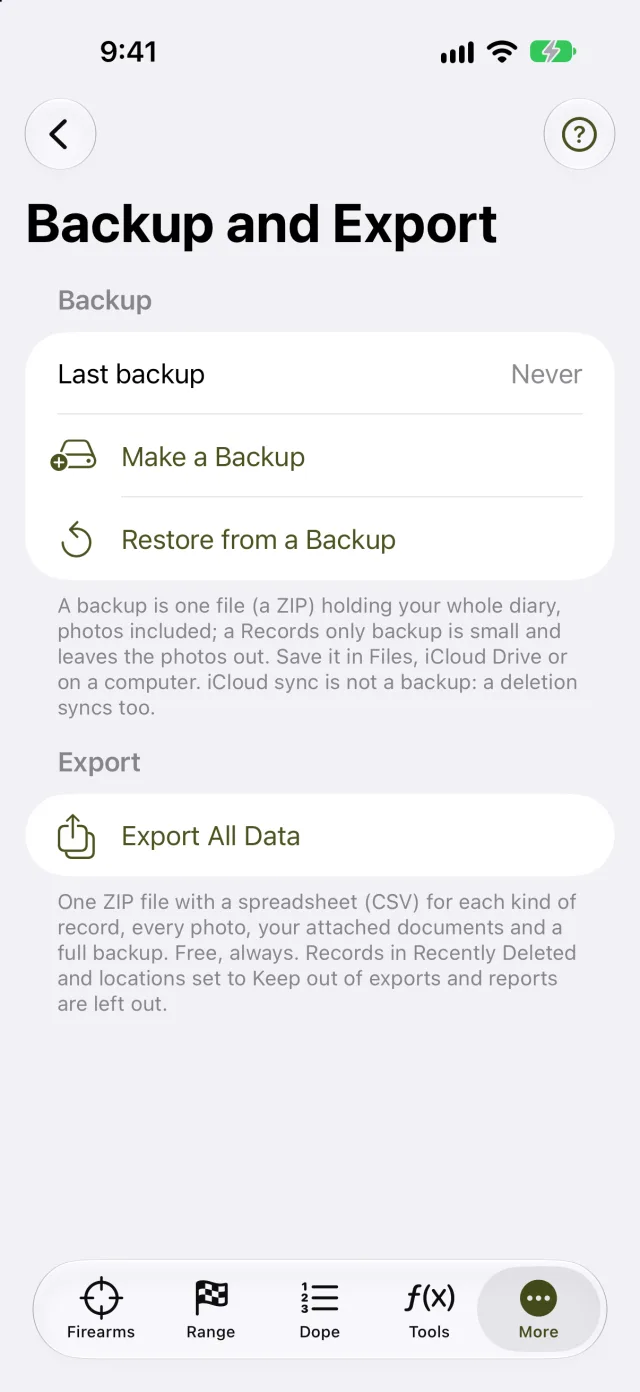
Tap the More tab, then Backup and Export (under Your data).
-
Under Backup, tap Make a Backup. “Working…” shows for a moment while the app works out the sizes (it doesn’t read any photos to do this).
-
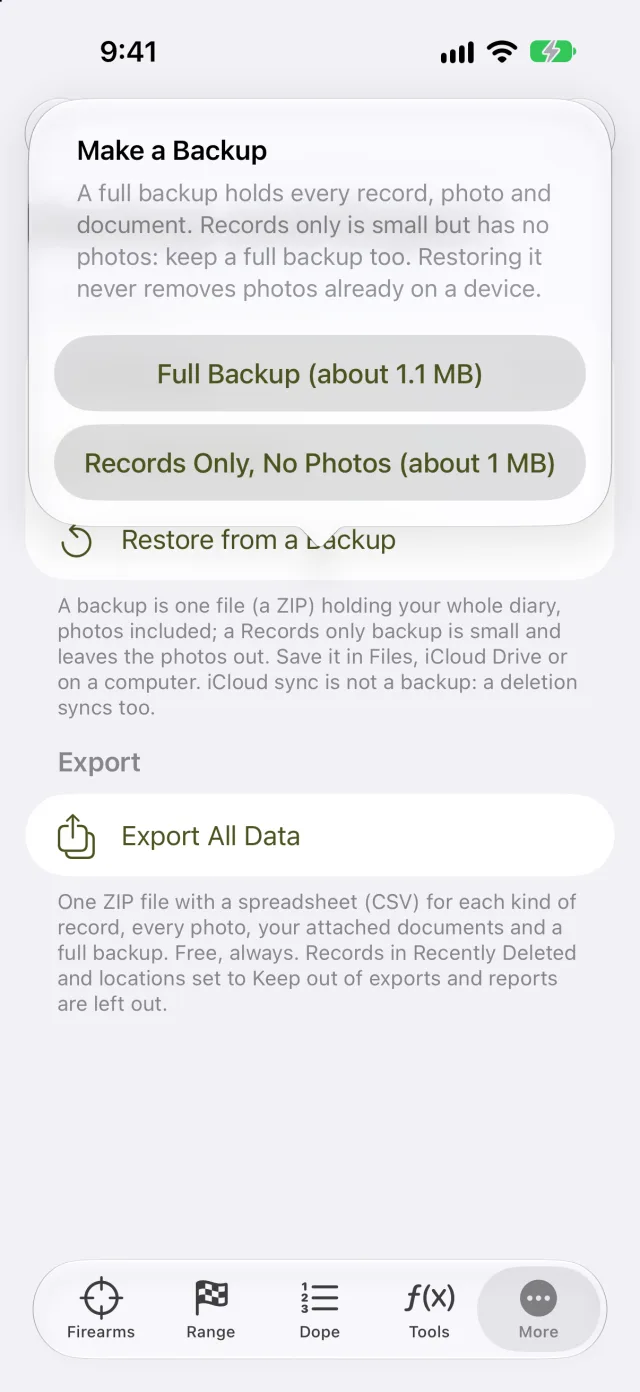
A choice titled Make a Backup opens, with each backup’s estimated size:
- Full Backup (about …), like “Full Backup (about 1.2 GB)”: every record, photo and document.
- Records Only, No Photos (about …), like “Records Only, No Photos (about 3 MB)”: every record and document, no photos. Tap one. To back out, tap outside the choices (on an iPad, or where a Cancel button shows, tap it); nothing is made.
-
“Working…” shows while the file is written: seconds for a small diary, a few minutes for thousands of photos. Keep the app open.
-
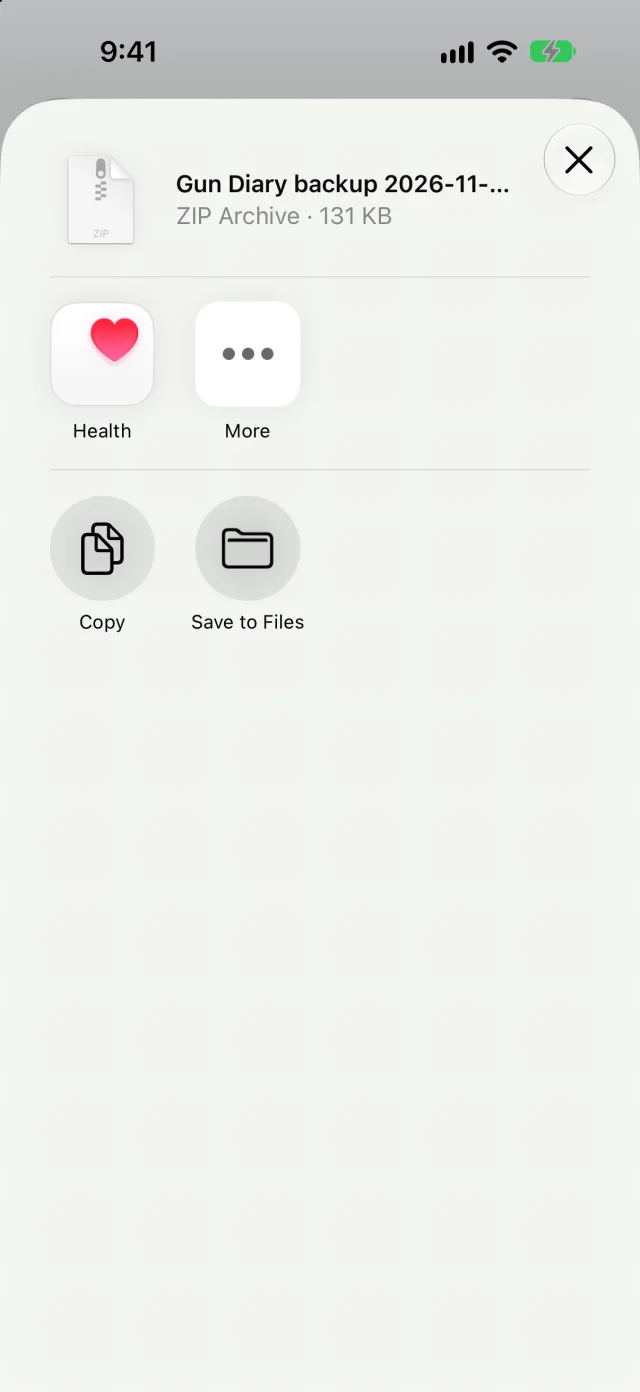
The share sheet opens with the backup file. Choose Save to Files, then iCloud Drive or On My iPhone (or AirDrop it to a Mac), pick a folder, and tap Save.
-
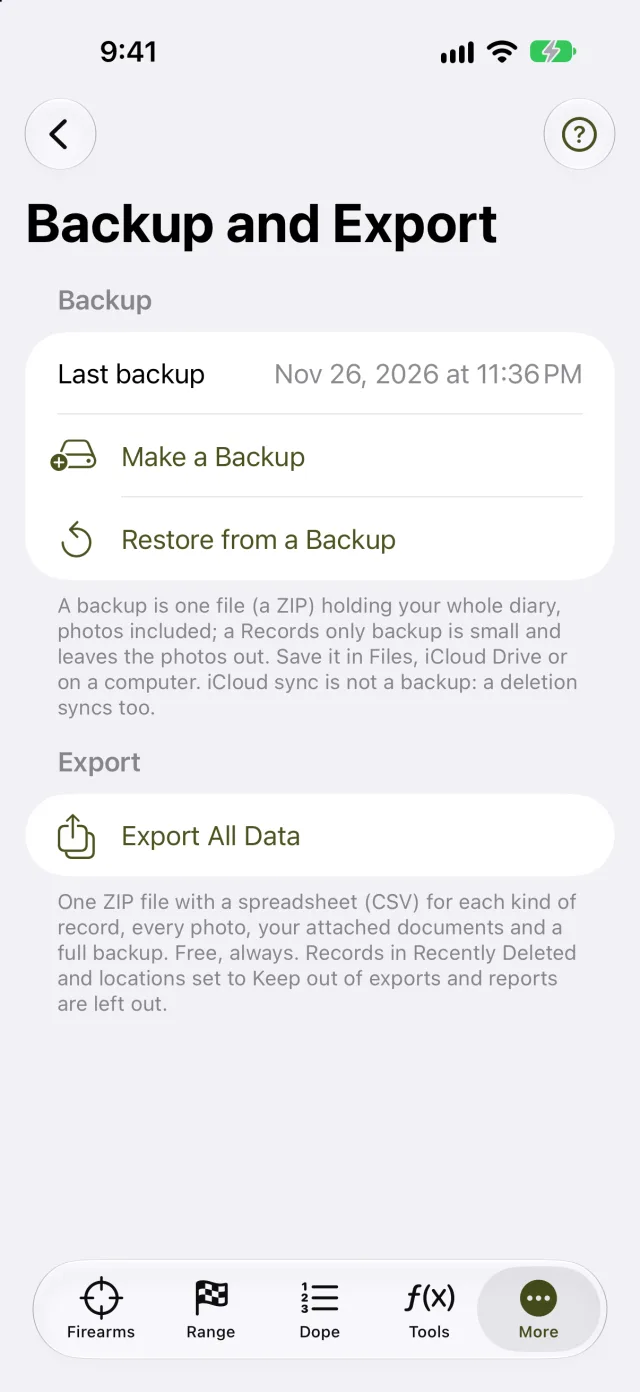
Back in the app, Last backup now shows today’s date and time. It changes only once the file is saved or sent; if you close the share sheet without saving, it keeps the earlier date.
How often? After any session you’d hate to type again, and at least once a month. Make a full backup at least now and then: a Records only backup can’t bring photos back.
Restore a backup
Use this on a new or reset iPhone or iPad, or to bring back records you deleted more than 30 days ago.
- Put the backup file in Files (iCloud Drive or On My iPhone) on the device you’re restoring to.
- Open Gun Diary and tap More > Backup and Export > Restore from a Backup.
-
The file picker opens. Find and tap the backup file (its name starts with “Gun Diary backup”). ZIP backups and older one-file
.jsonbackups can both be picked.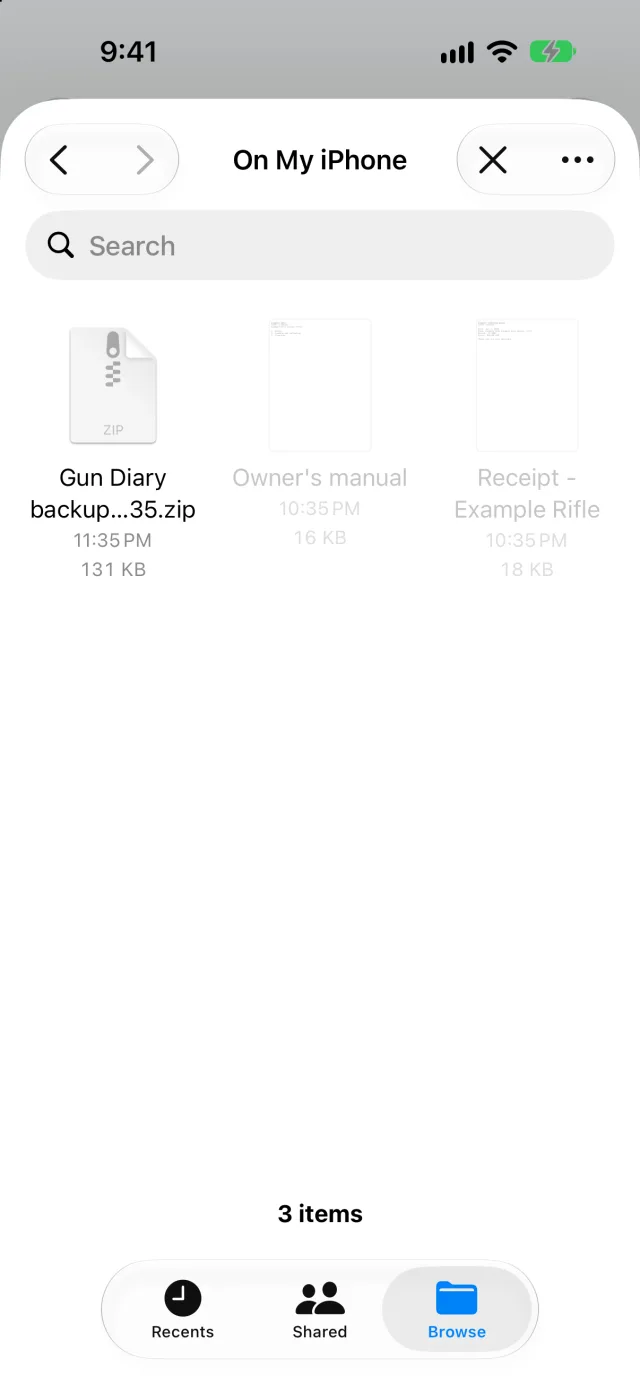
-
A message titled Restore this backup? says when it was made and how many firearms, groups and sessions it holds, and that records already here are left as they are. For a Records only backup it adds that it has no photos. Tap Restore (or Cancel: nothing changes).
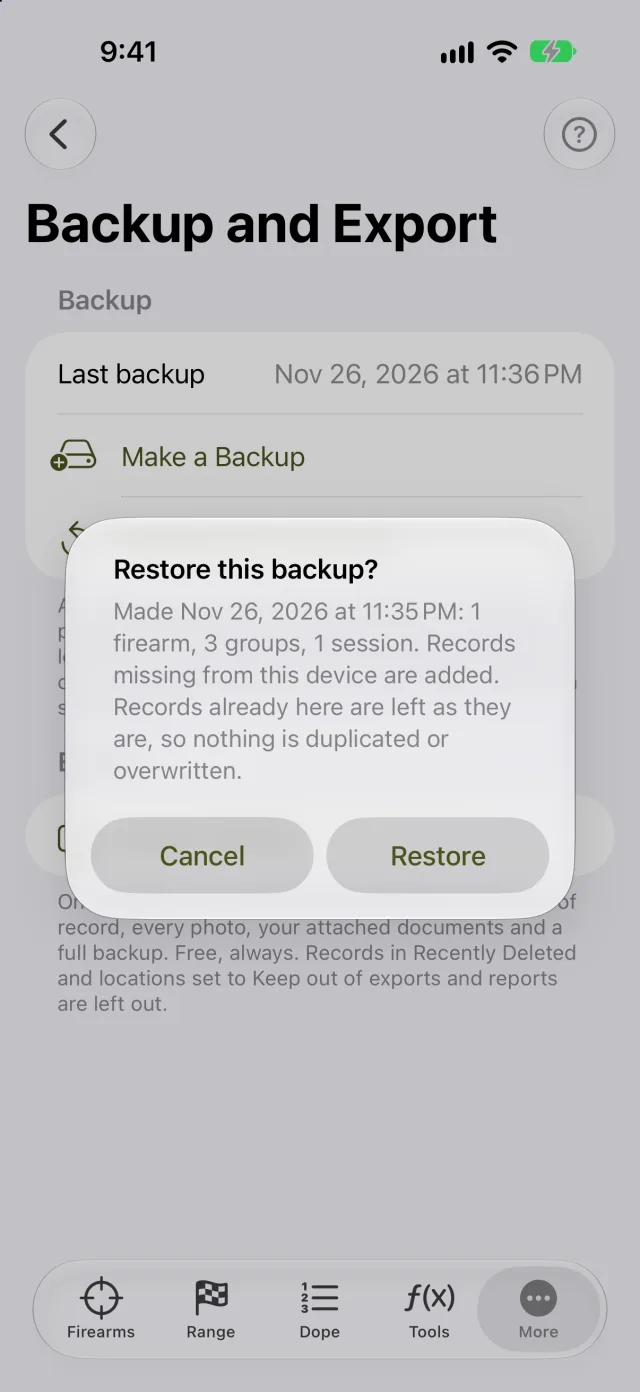
-
Wait while it restores (seconds, or a few minutes for a large diary with many photos; the screen may not respond until it’s done). A message then says how many records were added and how many were already here. Tap OK.
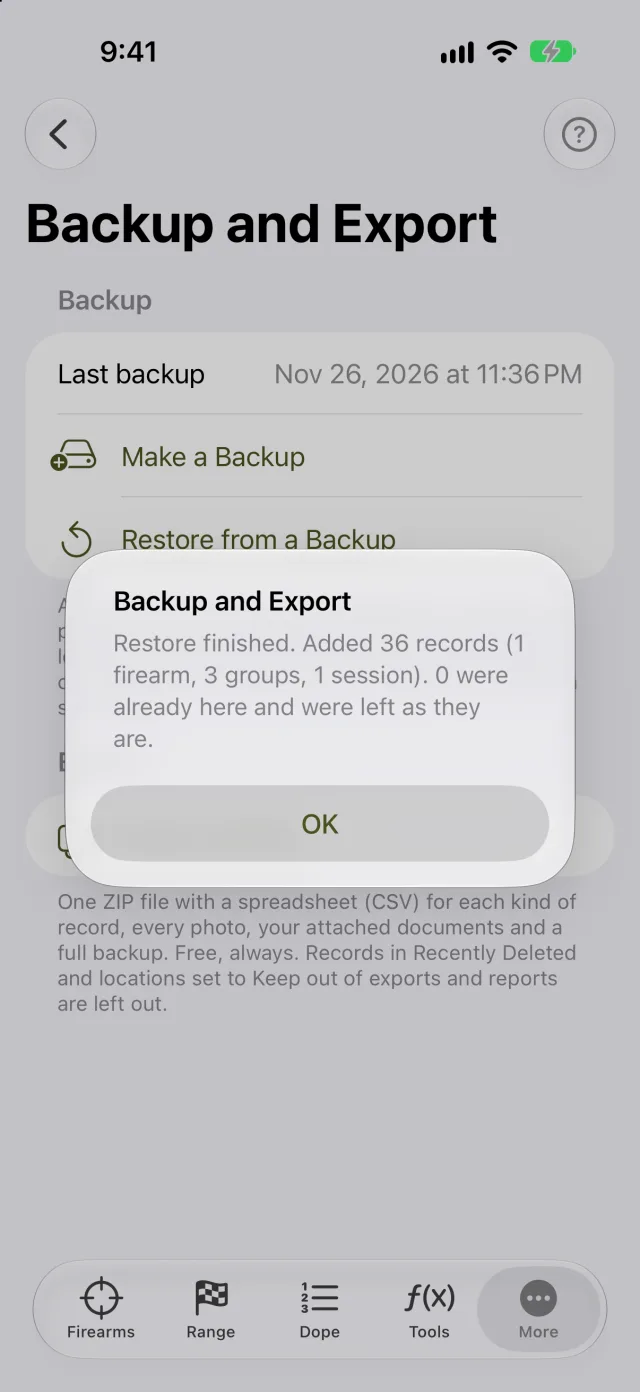
On a new or reset iPhone, step by step
- On the old device (if you still have it): make a Full Backup and save it to iCloud Drive.
- On the new device: install Gun Diary from the App Store and open it once.
- If iCloud sync was on and you’re signed in to the same Apple Account, wait a few minutes on Wi-Fi: your diary may arrive by itself. Check the Firearms tab.
- If it doesn’t (or iCloud was off), tap More > Backup and Export > Restore from a Backup, then Browse > iCloud Drive and tap the backup file.
- Tap Restore, then OK.
- Pro: don’t buy it again. Open More > Gun Diary Pro and tap Restore Purchases. See Compare Free and Pro.
How to check it worked
- Backup: in the Files app, the file named
Gun Diary backupwith today’s date and time is in the folder you chose. Last backup on the Backup and Export screen shows the same date and time. - Restore: the finish message lists what was added. Open Firearms: your firearms are there with their codes. Open a group: its photos are there (after a full backup).
- Records only restore: records are back; photos that were only in a full backup aren’t. Photos already on the device are unchanged.
- If iCloud is on, the restored records sync to your other devices.
Why it’s useful
Phones get lost, broken, replaced and reset. Years of range sessions, dope, maintenance and the details of your collection shouldn’t go with them. A backup you keep yourself is the one copy that doesn’t depend on the phone, on iCloud or on anything else working.
Who uses it, and how:
- Everyone switching to a new iPhone or iPad: restore your whole diary in minutes.
- People who don’t use iCloud sync: a backup is your only copy off the device. Make them often.
- Collectors: the backup holds serial numbers, receipts and photos; a copy off the phone matters most if the phone and the guns go missing together.
- Anyone who deleted something by mistake more than 30 days ago: restore a backup made before the delete (nothing else is overwritten).
- Big photo diaries: a quick Records only backup after each session, a full one each month.
- Hunters and competitors keep a backup from each season, a dated history of the whole diary.
What each option means
The sizes are estimates from what your diary takes on the phone (used to check there’s room before the file is made), so they’re on the high side: the file is compressed and is usually smaller, much smaller for a small diary (a new diary can show “about 2 MB” for a backup of a few hundred KB).
What a backup holds: every record of every kind (firearms and their details, Garage, ammunition, sessions, groups, targets, dope tables, dope cards, Zero Checks, hunts, patterns, drills, documents, change history and the rest), and in a full backup every photo. It also keeps saved locations set to Keep out of exports and reports, so a restore brings them back. It leaves out records waiting in Recently Deleted. It doesn’t hold your Pro purchase or this device’s settings.
What a restore does
- Adds every record that isn’t already on this device, with its photos, documents and links.
- Leaves alone every record that’s already here (matched by its hidden ID). Nothing is overwritten, so newer work is never lost.
- Restoring the same backup twice adds nothing the second time.
- Codes keep working. A code stays with its record; rarely, a restore gives a record a new code if its code was already used on this device (by a different record). Then the restored record gets the next free code, and the message says how many (“… got new codes because their codes were already in use.”).
- A group whose session wasn’t in the backup gets a one-group session of its own, so every group still belongs to a session.
- Your settings on this device stay as they are.
- A restore never removes anything. Deleting and reinstalling the app is not a fresh start when iCloud sync is on: your diary comes back from iCloud on the next launch. To really start over, see Start over.
A Records only restore adds the records and documents in the file. It doesn’t touch photos already on the device: none are removed or changed. Records it adds come without photos (and firearms without their profile photo), because the file has none. To get photos back, restore a full backup; the photos come in as new records and attach to the groups, targets and other records already there. Firearm profile photos are the exception: a firearm already on the device is left as it is, so add its photo again on its edit screen.
Older backups still restore. A backup made by an earlier version of Gun Diary as one .json file restores exactly like a ZIP one.
Example
Your iPhone was replaced and iCloud sync had been off. Your last full backup, from two weeks ago, is in iCloud Drive.
- On the new iPhone you install Gun Diary. The Firearms tab shows only the Example Rifle.
- More > Backup and Export > Restore from a Backup > Browse > iCloud Drive > Backups >
Gun Diary backup 2026-11-12 2030.zip. - Restore this backup? says “Made Nov 12, 2026 at 8:30 PM: 4 firearms, 118 groups, 26 sessions. Records missing from this device are added. Records already here are left as they are, so nothing is duplicated or overwritten.” You tap Restore.
- A minute later: “Restore finished. Added 1204 records (4 firearms, 118 groups, 26 sessions). 0 were already here and were left as they are.” OK.
- You re-enter last weekend’s session by hand, then tap Make a Backup > Full Backup and save it to iCloud Drive.
Tips
- Save backups to iCloud Drive or a computer, not just On My iPhone. A backup that lives only on the phone is lost with the phone.
- Keep a few, not just one. Backups are dated in their names; keep the last few and one per season.
- Mix full and Records only. Records only after each session (small and fast), a full backup each month and before changing phones.
- Finish saving. Last backup changes only when you save or send the file. If it didn’t change, make it again.
- Restore deleted records first. A backup leaves out Recently Deleted; restore anything there you want kept before backing up.
- Big files: a full backup with thousands of photos can be gigabytes. Files and AirDrop handle that; email doesn’t.
- Turn on iCloud sync too. Sync keeps your devices the same; backups protect you from mistakes. You want both. See Settings.
What it affects
- Make a Backup changes nothing in your diary; it only updates Last backup on this device once the file is saved. A backup that fails leaves no half-written file behind.
- Restore adds records to this device and never changes or removes existing ones. Added records count in your round counts, lists and reports like any others.
- With iCloud sync on, restored records are copied to your other devices too.
- The free plan’s one-firearm limit only applies to adding firearms yourself; a restore brings back every firearm in the backup, and they all stay usable.
If something goes wrong
- “The backup couldn’t be made: There isn’t enough free space on this device: the backup needs about … and … is free. Free up space (or make a Records Only backup), then try again. Nothing was written.” (A Records Only backup’s message ends “Free up space, then try again.”) Free some space in the Settings app > General > iPhone Storage, or choose Records Only, No Photos, then try again.
- “This file isn’t a Gun Diary backup. Choose a file whose name starts with “Gun Diary backup”.” You picked another file. Choose the one whose name starts with “Gun Diary backup”.
- “This is an Export All Data file, not a backup. Unzip it (in the Files app, tap it) and choose the file inside whose name starts with “Gun Diary backup”.” You picked the export from Export All Data. Tap it in the Files app to unzip it, then restore the
Gun Diary backupfile in that folder. - “The backup is missing Gun Diary backup.json.” You picked a ZIP that isn’t a Gun Diary backup or export. Choose the file whose name starts with “Gun Diary backup”.
- “This is a Reloading Diary backup. Gun Diary can only restore Gun Diary backups. Restore it in Reloading Diary instead.” The file came from the other app. Pick a Gun Diary backup.
- “This backup was made by a newer version of Gun Diary. Update the app from the App Store, then try again.” Update the app, then restore again.
- “This file isn’t a Gun Diary backup.” The file you picked isn’t a ZIP file at all (or is damaged). Choose the file whose name starts with “Gun Diary backup”; if that’s the one you picked, open it in the Files app first so it downloads fully, or use another backup.
- “The backup’s … is packed in a way Gun Diary can’t read.” The ZIP was repacked by another app or computer (for example unzipped and zipped again), so a file inside it uses a packing Gun Diary doesn’t read. Use the original backup file Gun Diary made, not a re-zipped copy, or make a new backup.
- “That file couldn’t be read.” The file may be damaged or still downloading. Open it in the Files app first so it downloads fully, then try again, or use another backup.
- “The restore didn’t finish” followed by a reason. Nothing is half-done in a way that duplicates records; try again (records already added are skipped). If it keeps failing, send the error log from Contact support and the error log.
- Restore added 0 records. Everything in the backup is already on this device, often because iCloud synced it already.
- My photos didn’t come back. The file is a Records only backup (its name ends in “records only”). Restore a full backup.
- A record I had deleted didn’t come back. It was in Recently Deleted when the backup was made. Use an older backup, or restore it from Recently Deleted within its 30 days.
- Last backup didn’t change. The share sheet was closed without saving. Make the backup again and tap Save.
- The file is greyed out in the picker. It’s not a ZIP or JSON file, or it’s still downloading from iCloud Drive. Wait for it to finish.
- Some records now have different codes. A code stays with its record; rarely, a restore gives a record a new code if its code was already used on this device. Their hidden IDs and links are unchanged.
- I restored but the free plan says I can’t add a firearm. You keep every restored firearm; adding another needs Pro. See Compare Free and Pro.
Related
- Next: Recently Deleted: undo a delete within 30 days, without a restore.
- Export all your data: spreadsheets, photos and a backup in one ZIP.
- Settings: iCloud sync status.
- Work with your exported spreadsheets.
- Use Gun Diary on iPhone and iPad: iCloud sync between your devices.
- Start over: clear the diary for a fresh start.
- Learning path: Keeping your records safe.
- Words used here: backup, iCloud sync, Files app, share sheet, ID, code, recently deleted.
Guides on this topic
Still stuck? In the app, open More > Help > Contact Support, or More > Settings > Support, which also has Send Error Log (the error log helps us find the problem), or email contact@setriksoftware.com. You can also browse the Help Center or the messages the app can show.