
Lost or stolen report
Make a free one-page report for one firearm, with its serial number, description, photo, police report and claim numbers and purchase details, to hand to the police and your insurer.
The Lost or Stolen Report is one page about one firearm: its serial number, description, photo, what happened, the police report and insurance claim numbers, and the purchase details. It’s what you hand the officer taking the report and send your insurer with the claim. It’s free for everyone, like all your own records.
Steps
From the firearm (quickest)
- Open the firearm from the Firearms tab.
- If it’s gone, first tap the menu at the top right > Change Status, pick Lost or Stolen, fill in the date last seen and the report numbers you have, and tap Save. (Or tap Save and Open Lost or Stolen Report at the bottom of Change Status: it saves what you typed first, then opens this screen.) See Change a firearm’s status.
- In the dashboard’s Reports card, tap Lost or Stolen Report (free).
-
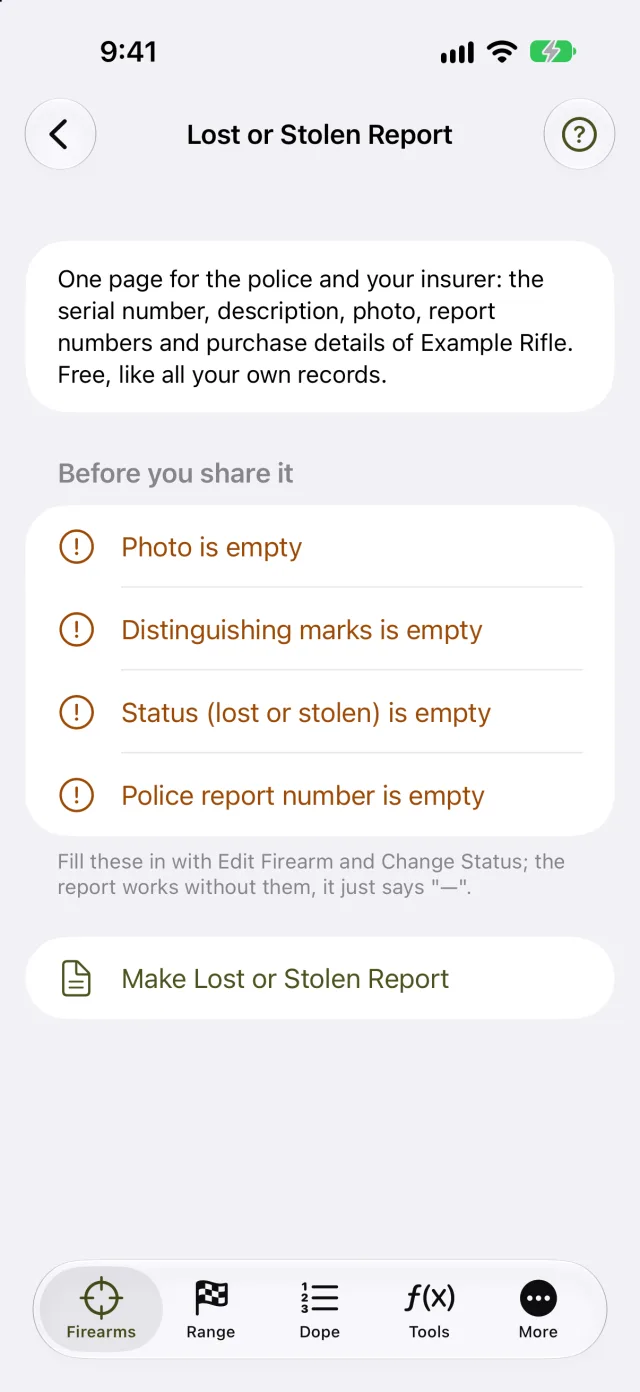
Read Before you share it: each line like “Police report number is empty” is something the report would print as a dash. Fill in what you can (with Edit Firearm and Change Status), or go ahead; the footer says the report works without them.
-
Tap Make Lost or Stolen Report. The PDF preview opens.
- Tap Share to print it, save it or send it, then Done. See Save and share PDF reports.
From Reports
- Tap More > Reports > Lost or Stolen Report (under Your collection).
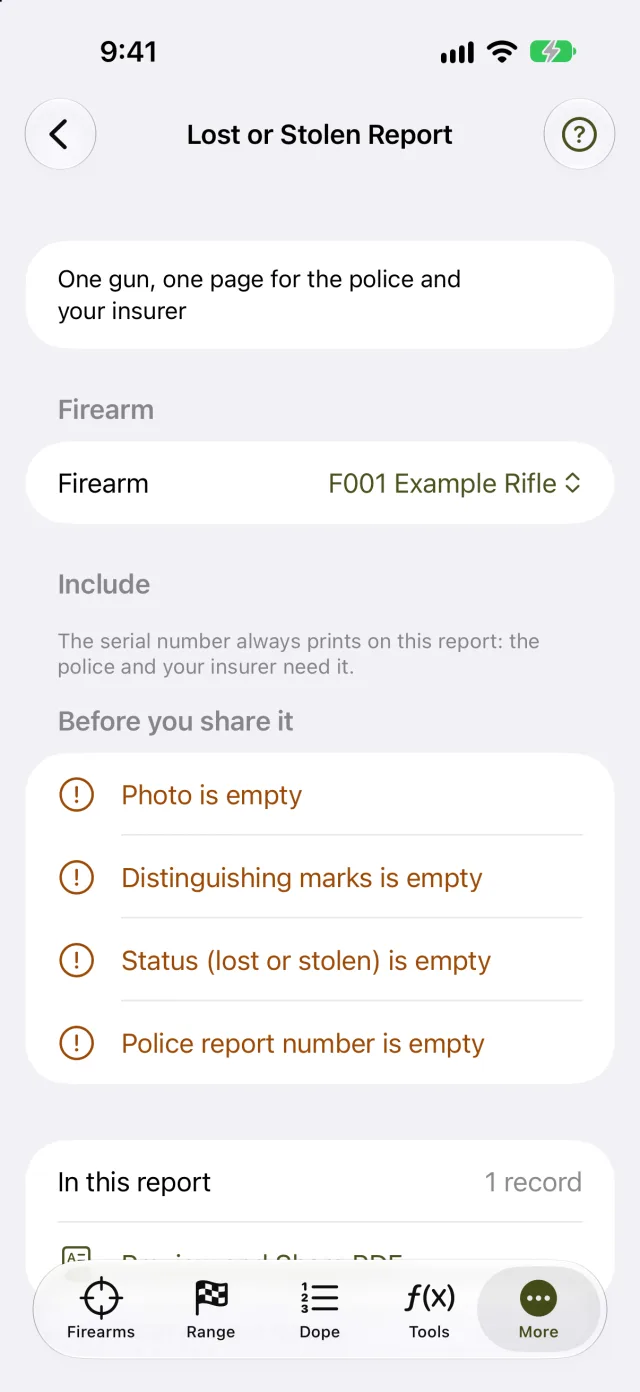
- Pick the firearm next to Firearm.
-
Check Before you share it, then tap Preview and Share PDF.
Why it’s useful
When a gun is stolen, the police need its serial number, maker, model and caliber to enter it in their records, and your insurer needs proof of ownership and value. Most people end up digging through drawers for a receipt while upset. If your diary has the details, one tap gives a clean page with everything on it, and it’s free because nobody should have to pay at a moment like that.
Who uses it, and how:
- After a burglary or a vehicle break-in: print it for the officer and email it to your insurer.
- A gun lost on a hunt or in a move: report it with the last-seen date and description.
- A recovered gun: with the status set to Recovered, the same page documents it for getting it back from the police.
- Owners preparing ahead: make it once to see what’s missing (“Photo is empty”, “Serial number is empty”) and fill it in now, while nothing is wrong.
What’s on the Lost or Stolen Report screen
What the page prints
- Title: the status and the name, like “Stolen firearm: Mountain Rifle”, with the code, maker and model under it, and when it was prepared.
- The firearm’s photo, when it has one.
- Description: Serial number, Maker, Model, Kind, Cartridge or gauge, Finish, Distinguishing marks.
- What happened: Status (like “Stolen Nov 20, 2026, last seen Nov 19, 2026”), Last seen, Police report number, Insurance claim number, Note.
- Purchase: Purchase date, Bought from, Purchase price, Insured value.
- Documents on file: the codes and titles of receipts and documents attached to the firearm.
Anything not recorded prints as “—”. The file is named like “Lost or stolen – Mountain Rifle.pdf”. There’s no spreadsheet for this report: it’s one page.
Example
Your Mountain Rifle was taken from your truck overnight.
- Mountain Rifle > Change Status > Stolen, status date Nov 20, 2026, last seen Nov 19, 2026, then Save.
- In the Reports card, Lost or Stolen Report (free). Before you share it shows “Police report number is empty”.
- Make Lost or Stolen Report > Share > Print. The page reads “Stolen firearm: Mountain Rifle”, with the photo, serial number, Maker “Northfork Arms”, Model “Hunter”, Cartridge “6.5 Creedmoor”, Distinguishing marks “Scratch on the left side of the stock”.
- The officer gives you report number 26-04417. You add it on Change Status and tap Save, make the report again (the list now says “Everything the report needs is filled in.”) and email it to your insurer with the claim number they gave you.
Tips
- Fill it in before you need it. Make the report once now; every “… is empty” line is something to add while the gun is still in your safe.
- Take a good photo of each firearm, showing any marks, and set it as its profile photo.
- Write distinguishing marks in plain words: engraving, scratches, a custom stock, an aftermarket trigger.
- Attach the receipt to the firearm so it’s listed under “Documents on file”. See Firearm documents.
- Keep a copy off the phone. If the phone is stolen with the guns, a saved collection report or backup in iCloud Drive still has everything.
What it affects
Nothing. Making the report doesn’t change the firearm or its status; change the status yourself on Change Status. The report is free and works on the free plan for any firearm in your diary.
If something goes wrong
- Status (lost or stolen) is empty. The firearm is still Active (or Sold, Traded, Gifted). Set it to Lost, Stolen or Recovered on Change Status. The report still works; its title then shows the current status.
- The report shows “—” in places. Those details aren’t recorded. Add them with Edit Firearm and Change Status, then make it again.
- There’s no Include serial number switch. This report always prints the serial number; it’s the one thing the police must have. For a page about the gun without it, use the Firearm history report, where the serial is off unless you switch it on.
- The report is missing the numbers I just typed. The report prints what’s saved. Tap Save on Change Status (or use Save and Open Lost or Stolen Report, which saves first), then make the report again.
- There’s no photo on the page. The firearm has no profile photo. Add one on its edit screen.
- The firearm isn’t in the list. It’s deleted. Restore it from Recently Deleted.
Related
- Next: Change a firearm’s status: Lost, Stolen, Recovered and the report numbers.
- Collection report: every firearm in one document (Pro).
- Save and share PDF reports: print, save and send.
- Edit a firearm: serial number, finish, marks and purchase details.
- Learning path: Keeping your collection’s records.
- Words used here: serial number, disposition.
Guides on this topic
Still stuck? In the app, open More > Help > Contact Support, or More > Settings > Support, which also has Send Error Log (the error log helps us find the problem), or email contact@setriksoftware.com. You can also browse the Help Center or the messages the app can show.