
"Calculator #26: Velocity Trends"
See how your own measured velocities change with temperature and with barrel wear, as a straight-line trend through your strings, only inside what you measured.
Velocity Trends (calculator #26) draws a straight line through velocities you measured yourself, to show how much your load’s speed changes per degree of temperature and per 1,000 rounds through the barrel. It can give a value at a temperature or round count, but only inside the range you actually measured: it never guesses beyond it. The trends are estimates, marked est.
Steps
- Tap the Tools tab. Under Groups and velocity, tap Velocity Trends.
-
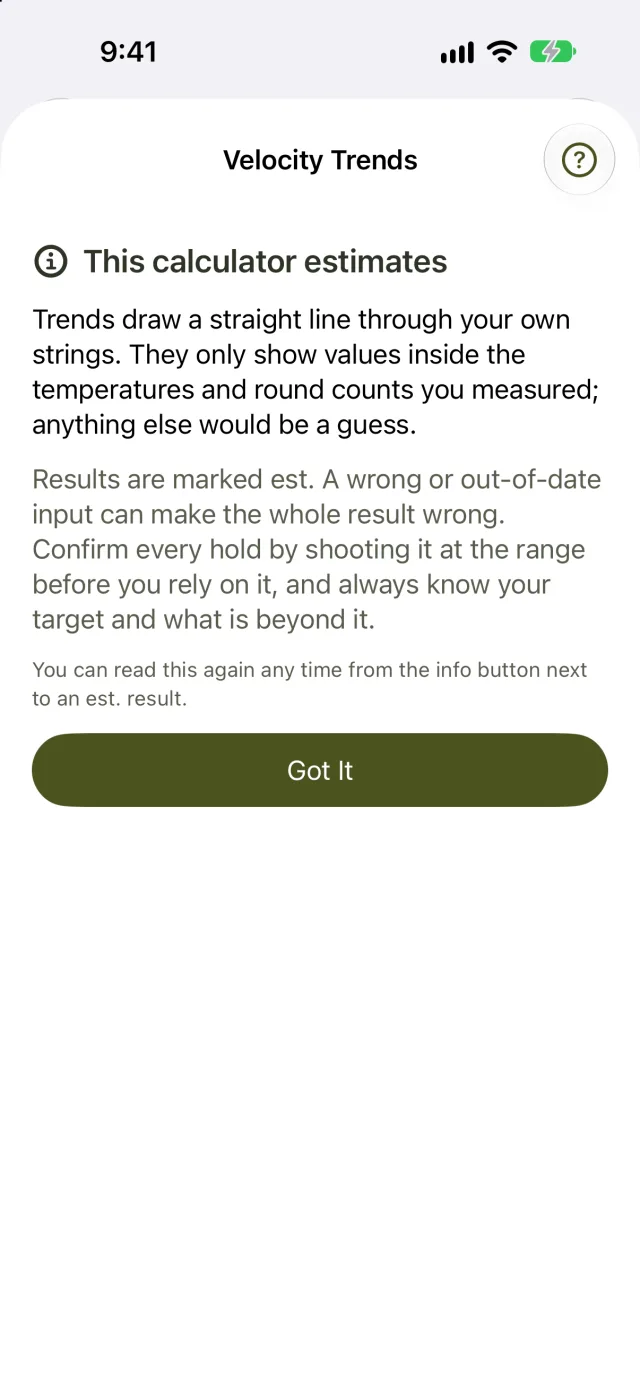
The first time, a note titled This calculator estimates explains the assumption. Read it and tap Got It. It’s also in About estimates.
-
In Temperature and average speed (one string per line), type one line per chronograph string: the temperature, a space, and the string’s average speed, like “40 2780”.
-
Read Change per degree. To see the speed at a temperature, type it in Speed at temperature.
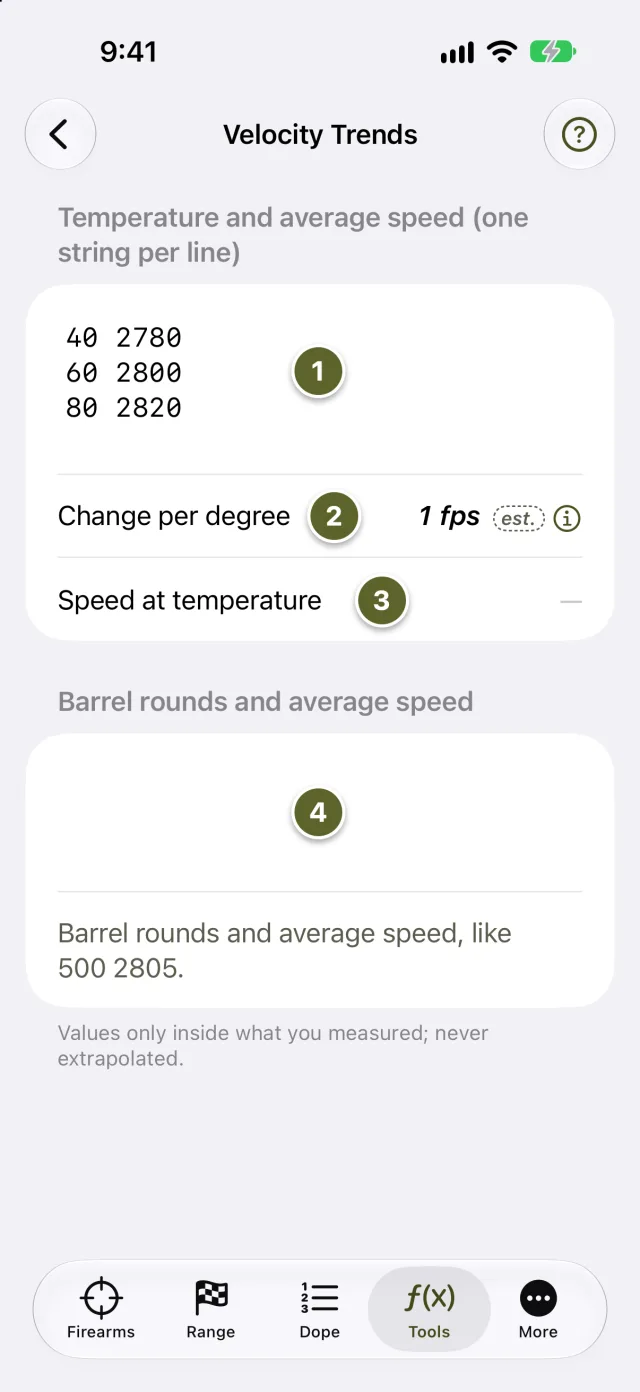
Numbers on the picture: 1 the temperature lines, 2 Change per degree, 3 Speed at temperature, 4 the barrel-rounds box.
-
In Barrel rounds and average speed, type one line per string with the barrel’s round count when you shot it and the average speed, like “500 2805”. Read Change per 1,000 rounds, and type a count in Speed at barrel rounds for the speed there.
Nothing is saved; the boxes are a scratch pad.
Why it’s useful
Most powders change speed with temperature, and most barrels slow down a little as they wear. Both shift your come-ups at distance, so knowing how much your load moves is useful, and only your own chronograph data can tell you. A trend line through a handful of strings turns scattered numbers into one clear figure.
Who uses it, and how:
- Long-range shooters and hunters: see how much your load slows on a cold morning compared with the summer days you proved your dope on, so you know when it’s time to confirm your come-ups again.
- Shooters choosing ammunition: compare two loads’ temperature sensitivity from strings shot across the seasons.
- Precision shooters tracking a barrel: see the speed drop per 1,000 rounds as the barrel wears; pair it with Round Count Statistics.
- Anyone keeping a chronograph log: it gives your notes a purpose.
What each option means
How it works: a least-squares straight line (the usual “line of best fit”) through your points. It needs at least two lines at different temperatures (or round counts).
What it assumes (the one-time note): trends draw a straight line through your own strings. They only show values inside the temperatures and round counts you measured; anything else would be a guess. The footnote says the same: values only inside what you measured; never extrapolated.
Example
- The screen opens with three strings: 40° at 2780, 60° at 2800, 80° at 2820 fps. Change per degree shows 1 fps est.
- Type 70 in Speed at temperature: At 70°: 2810 fps est. Type 90: outside 40 to 80°. (These are the app’s tested numbers.)
- Your Mountain Rifle’s strings over a year: 28° 2688, 55° 2702, 72° 2714, 90° 2731 fps. Change per degree is 0.68 fps; at 40° the line gives 2694 fps. Your dope was proven at about 70°, so on a 30° morning expect about 27 fps less (0.68 x 40 degrees).
- In the barrel-rounds box: 200 2810, 800 2800, 1400 2788. Change per 1,000 rounds shows -18.3 fps; at 1,000 rounds the line gives 2796 fps. At 2,000 rounds: outside the rounds you measured.
Tips
- Use string averages, not single shots. Get them from Velocity Statistics or your sessions’ chrono strings.
- Spread the temperatures out. Strings 30 or 40 degrees apart give a far better line than strings 5 degrees apart.
- Keep everything else the same: same rifle, same ammunition and lot, same chronograph.
- Write the temperature where you proved your dope. Then you know which direction a cold or hot day pushes it.
- Recheck at the range. A trend tells you when to confirm your come-ups again; it doesn’t replace confirming them.
What it affects
Nothing. Nothing typed here is saved, and no records are changed.
If something goes wrong
- “Two or more lines at different temperatures.” You need at least two lines, and at least two different temperatures.
- “Barrel rounds and average speed, like 500 2805.” The rounds box needs at least two lines with different round counts.
- A value says outside. It’s beyond the temperatures or rounds you measured. Shoot a string there to extend the line.
- A line seems ignored. Each line needs two numbers: the temperature (or rounds) first, then the speed.
- My speeds are in m/s. The results are labeled fps, but the math works in whatever unit you type; read “fps” as your unit, or convert with the Unit Converter.
Related
- Next: Shotgun Pattern %.
- Velocity Statistics, Round Count Statistics, Round counts, Barrel history.
- About estimates, The Tools tab.
- Words used here: chronograph, string, temperature sensitivity, barrel life.
Gun Diary keeps records you enter and does arithmetic on them. It never predicts a trajectory; confirm every hold by shooting it at the range, and always know your target and what is beyond it.
Still stuck? In the app, open More > Help > Contact Support, or More > Settings > Support, which also has Send Error Log (the error log helps us find the problem), or email contact@setriksoftware.com. You can also browse the Help Center or the messages the app can show.