
Save a group as confirmed dope
Turn a group you shot into a proven dope row: what you dialed, corrected by how far the group landed above or below your aim, with the group and its weather as proof.
Most dope is proven by a group: you dial a come-up, shoot, and see where the group lands. If it’s right on your aim, what you dialed is the dope. If it’s a little high or low, the dope is what you dialed corrected by that amount. Save as Confirmed Dope does that arithmetic from the group’s record and saves the result as a proven row, with the group as proof.
Steps
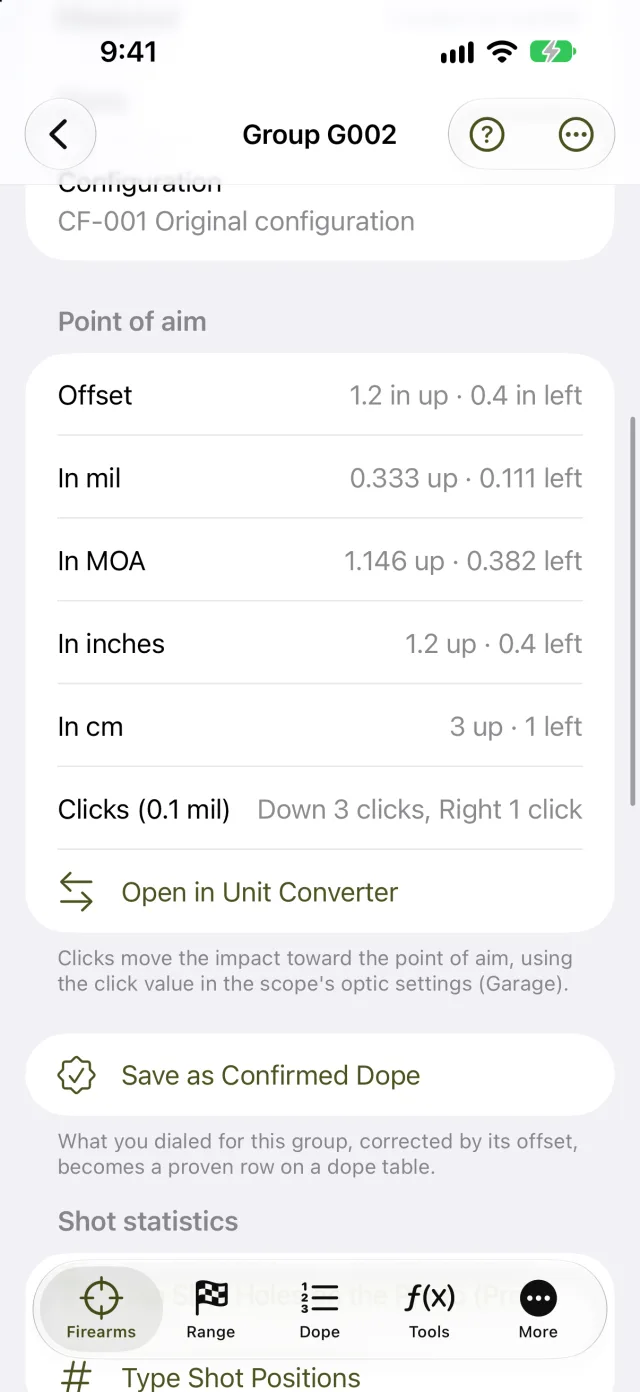
- Open the group’s record (from its session, the firearm’s Shooting Diary, Group History or Search). Make sure it has its Distance and, if the group wasn’t centered on your aim, its offset under Point of aim (optional) in the group form (Up or down). See Record a group.
-
Tap Save as Confirmed Dope (below the group’s numbers), or ••• > Save as Dope.
-
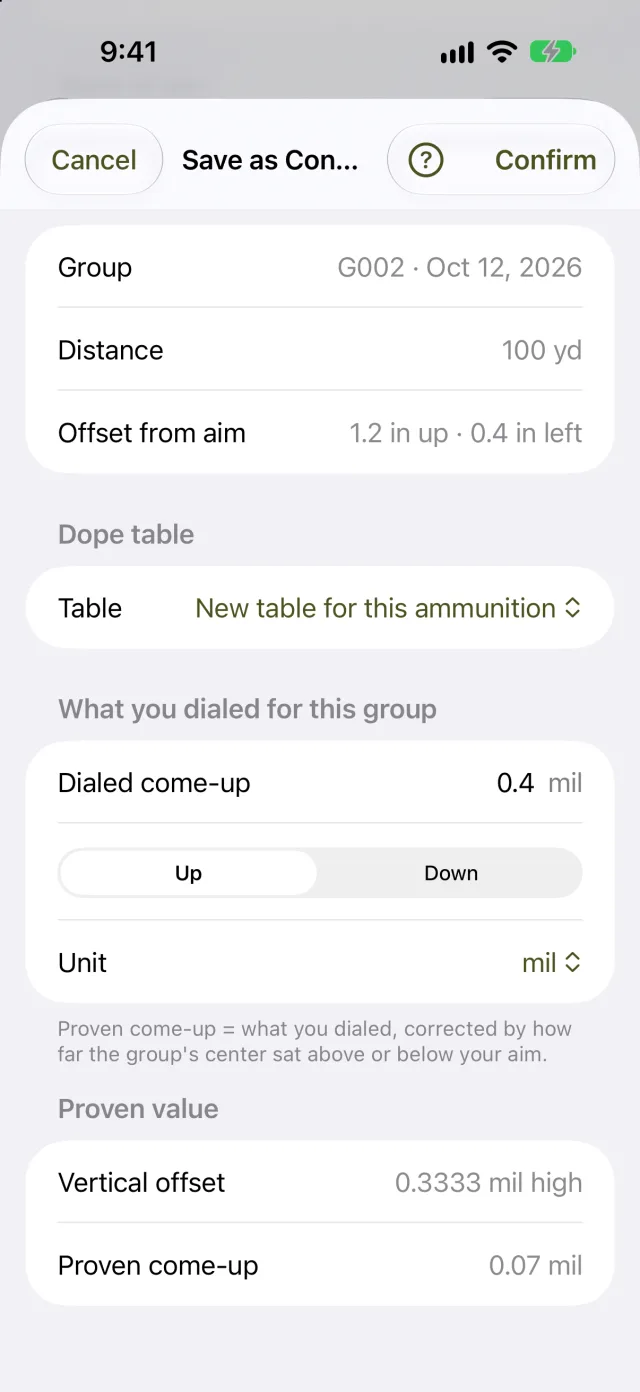
The Save as Confirmed Dope sheet shows the Group (code and date), its Distance and its Offset from aim.
- Under Dope table, check the Table. Gun Diary picks the firearm’s current-setup table for the group’s ammunition if there is one. You can pick another table, or New table for this ammunition. Earlier-setup tables are listed last, marked “(earlier setup)”. Only this firearm’s tables that aren’t archived are listed, so the Example table appears only for a group on the Example Rifle: never save real groups into it.
- Under What you dialed for this group: type the Dialed come-up (for example 1.4), pick Up or Down, and the Unit (mil or MOA; starts at the table’s unit).
-
Read Proven value: the Vertical offset in the same unit (“0.2 mil high”, “0.1 mil low”, or “none recorded”; the app may show up to four decimals, like “0.3333 mil high”) and the Proven come-up it gives. If the table already has a value at this distance, a line says it replaces that value, which stays in the row’s history.
-
Tap Confirm. The row is saved on the table, proven on the group’s date, with the group and its session as proof and the temperature, pressure and altitude from the group’s weather (or its session’s).
- If you picked New table for this ammunition, the new table starts with the zero distance of the firearm’s latest Zero Check. With no Zero Check yet it has none (the Dope tab reads “no zero recorded” and its cards print no Zero line): open the table, tap ••• > Edit Dope Table, type the Zero distance and tap Save.
Why it’s useful
The group is the proof, and the correction is simple arithmetic that’s easy to get backwards at the bench. Saving from the group does the subtraction for you, links the target, and copies the date and weather, so the row carries everything that proved it without retyping.
Who uses it, and how:
- Shooters building dope outward from the zero: shoot a group at each distance in one session, then save each one as dope at home.
- Hunters checking a rifle before the season: a group at 300 yd that lands 0.1 mil low updates the 300 yd row in two taps, with the old value kept in history.
- New long-range shooters: you don’t need to know which way to correct; the sheet shows the offset and the result before you confirm.
- Shooters who measure groups from photos or type shot positions: the offset you recorded is used as is.
- Shooters starting fresh with a new load: New table for this ammunition starts the table and its first row at once.
What each option means
Example
Taylor dialed 1.4 mil at 300 yd with the Mountain Rifle. The group’s center was 2.16 in above the aim point (recorded on the group as Up or down: 2.16 in, up). On the group’s record, Taylor taps Save as Confirmed Dope:
- Table: DT002 Factory 140 gr (picked for Taylor: same ammunition, current setup).
- Dialed come-up: 1.4, Up, mil.
- Vertical offset: “0.2 mil high” (at 300 yd, 1 mil is 10.8 in, so 2.16 in is 0.2 mil).
- Proven come-up: 1.2 mil (1.4 dialed, less 0.2 high).
- “Replaces the current value 1.3 mil (proven Sep 2, 2026); it stays in the row’s history.”
Taylor taps Confirm. The 300 yd row now shows 1.2 mil, Up 12 clicks, with G045 as proof, and its Source reads Saved from a group.
Tips
- Record the offset carefully. The proven value is only as good as the offset. Measure from your aim point to the group’s center (see Measure a group from a photo).
- A good group makes good dope. One flyer can pull the center. Consider a larger group for the distances you’ll rely on most.
- Save into the current setup. Saving into an earlier-setup table records the row but nothing is estimated from it, and its cards print “EARLIER SETUP”.
- Check the result before you confirm. If Proven come-up looks backwards, check that the offset’s Up or down direction is right on the group.
What it affects
- The dope table: a new proven row at the group’s distance (converted to the table’s unit), or a replacement for the current one, which moves to history.
- The row: proven on the group’s date; Source Saved from a group; the group and its session as Proof; conditions from the weather; a note like “Saved from group G045: 1.4 mil dialed, offset 2.16 in up.”
- Cards, reports and calculators use the new value at once.
- The group itself doesn’t change.
If something goes wrong
- “Add the group’s distance first (Edit Group)”. The group needs a firearm and a Distance. Tapping Save as Confirmed Dope says so on the group (with an Edit Group button); the sheet shows it too. Use Edit Group.
- “Type what you dialed (0 if nothing)” after tapping Confirm. Type a Dialed come-up (0 if you didn’t dial).
- Vertical offset says “none recorded”. The group has no up/down offset (or it’s in inches with no distance). The proven value equals what you dialed. Add the offset to the group if it wasn’t on your aim.
- The wrong table is picked. Pick the right one under Table. Archived tables aren’t listed; unarchive the table first.
- My new table says “no zero recorded” and its card has no Zero line. A table made with New table for this ammunition takes its zero from the latest Zero Check; this firearm has none. Open it, tap ••• > Edit Dope Table and type the Zero distance.
- I saved a group into the Example table by mistake. Open that row on the Example table, tap ••• > Delete Row (the Example’s own value becomes current again), then save the group again into your own table.
- A new table was made that I didn’t want. New table for this ammunition was picked. Open the new table and delete it (••• > Delete Dope Table), then save the group again into the right table.
Related
- Next: A dope row, In-between rows.
- A group record, Record a group, Add a dope row, Measure a group from a photo, Earlier setup.
- Learning path: Building your dope card.
- Words used here: come-up, point of aim, point of impact, offset, group, mil.
Gun Diary keeps records you enter and does arithmetic on them. It never predicts a trajectory; confirm every hold by shooting it at the range, and always know your target and what is beyond it.
Guides on this topic
Still stuck? In the app, open More > Help > Contact Support, or More > Settings > Support, which also has Send Error Log (the error log helps us find the problem), or email contact@setriksoftware.com. You can also browse the Help Center or the messages the app can show.