
Target gallery
Browse every target and group photo in your diary as a grid, newest first, filter it by firearm, and tap a picture to open its target or group.
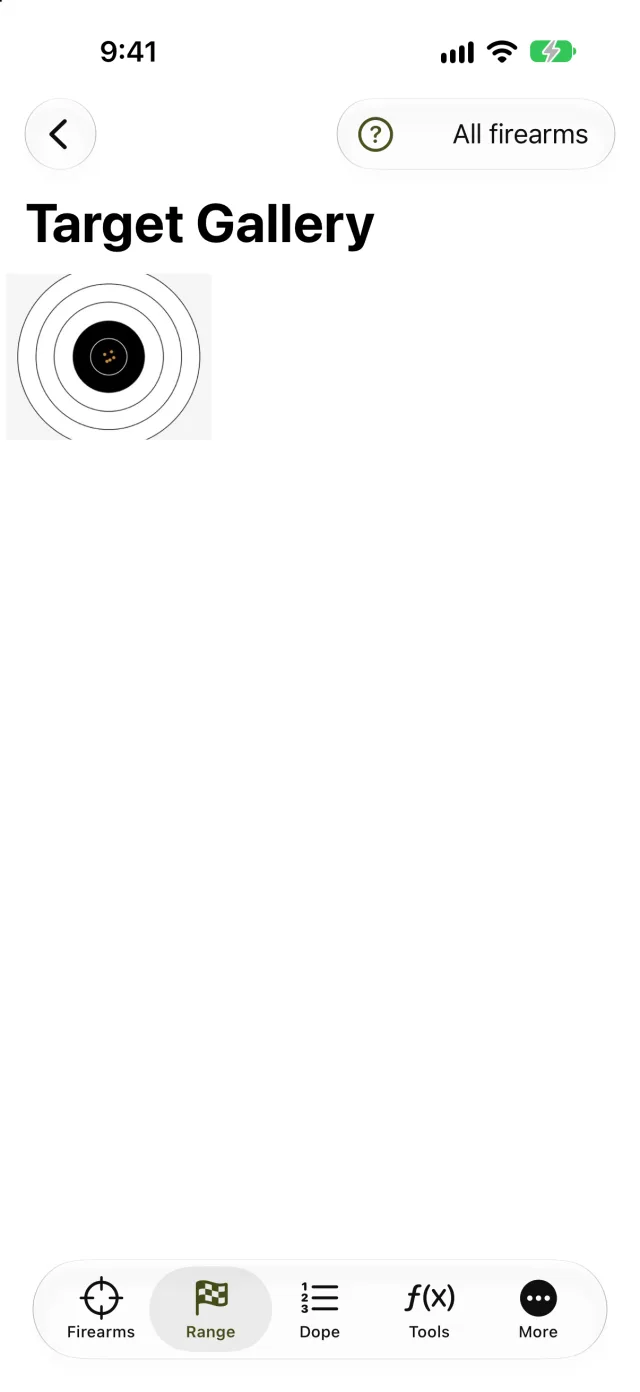
The Target Gallery shows every target photo and group photo you’ve added, as a grid of thumbnails, newest first. It’s the quickest way to find a target by how it looked, or to scroll back through months of shooting. Pick a firearm at the top to see only its photos.
Steps
-
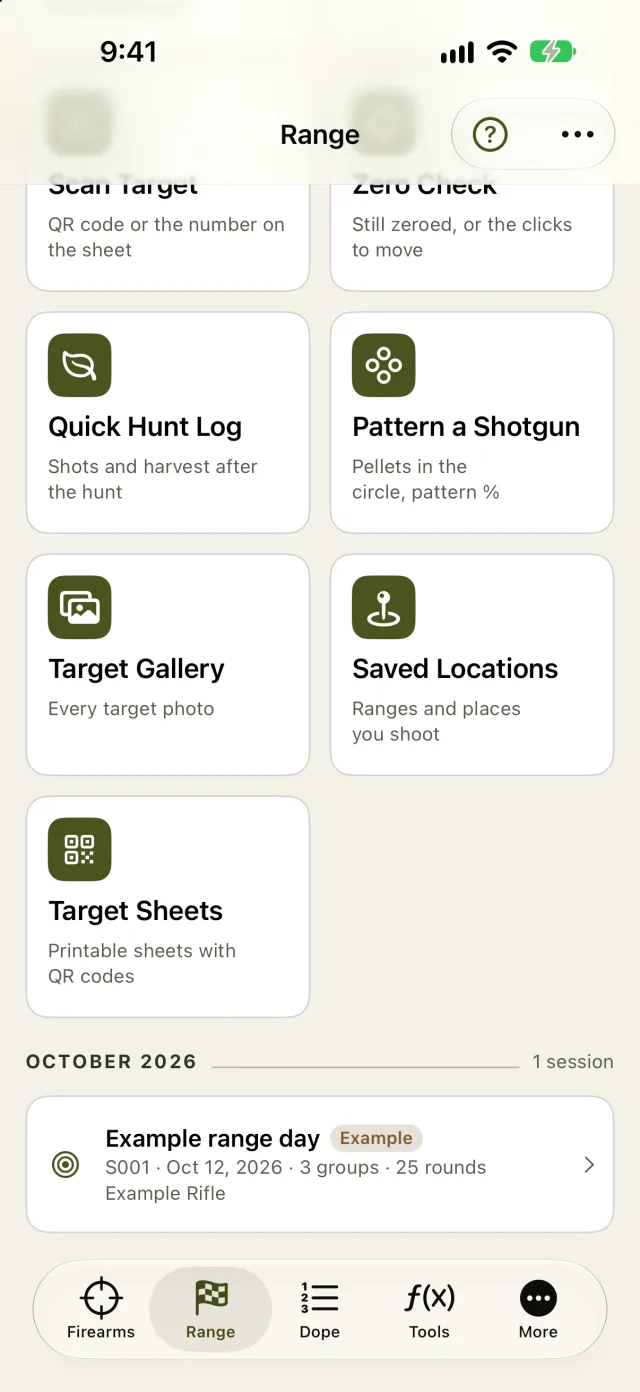
On the Range tab, tap Target Gallery.
-
Scroll the grid. The newest photos are at the top.
-
To see one firearm’s photos, tap All firearms at the top right and pick the firearm. Pick All firearms again to see everything.
- Tap a thumbnail. A target photo opens its target; a group photo opens its group.
Why it’s useful
Records are easier to find by eye than by number. You remember “the sheet with the four groups in the corners from last spring”, not “T014”. The gallery puts every target picture in one place so you can find it, open the record, and see the numbers behind it.
Who uses it, and how:
- Shooters tracking progress: scroll from the first targets you shot to the latest; tighter groups over the months are easy to see.
- Owners of several firearms: filter by firearm to see only that rifle’s or pistol’s targets.
- Ammunition testers: find the sheet from a test without remembering its session, then open each group on it.
- Hunters: find last season’s pre-hunt zero targets before this season’s check.
- Anyone sharing results: find a photo quickly, open it, and share it from the photo viewer.
What each option means
What’s not in the gallery: photos of firearms, ammunition, lots, maintenance, documents and harvests, session photos and shotgun pattern photos (they’re on their own records), and photos of deleted targets and groups.
Example
You want the target from your first trip with the Mountain Rifle. On Range > Target Gallery, you tap All firearms > Mountain Rifle, scroll to the bottom (the oldest), and tap the sheet. Target T003 opens with its two groups; you tap G005 to see its size and the ammunition you used that day.
Tips
- Mark a region for each group on a target, so filtering by firearm finds the target and each group points to its part of the sheet.
- Edit a photo to make its thumbnail clearer: rotate a sideways target or crop to the group. The original is kept. See Edit a photo.
- Search by number when you know it: Search or Scan Target finds “T014” directly.
- Photograph every target before you take it down, even if you don’t record its group yet; the gallery keeps it until you do.
What it affects
Nothing. The gallery only shows photos; opening a record or changing the filter doesn’t change any data.
If something goes wrong
- A target photo isn’t there. It may be a session photo (added under the session’s Photos, not Targets), or its target or group was deleted (see Recently Deleted).
- A target disappears when I pick a firearm. The target has no group linked yet, so it doesn’t belong to any firearm. Choose All firearms, open the target and mark or add its groups.
- The thumbnail looks different from the target screen. The thumbnail shows your edits; the target screen shows the original so the boxes line up.
- There’s no Target Gallery on the Range tab. Scroll down the tiles: it’s after the action tiles near Saved Locations.
Related
- A target and its groups, A group record, View a photo, Edit a photo.
- The Range tab, Search, Scan a target.
- Words used here: target, group.
Still stuck? In the app, open More > Help > Contact Support, or More > Settings > Support, which also has Send Error Log (the error log helps us find the problem), or email contact@setriksoftware.com. You can also browse the Help Center or the messages the app can show.